Table of Contents
This guide provides a practical overview of Summary of the Most Complete Photoshop Shortcut, including its main features, benefits, limitations, and important considerations.
So you should refer to the following article, the article that summarizes the most complete Photoshop keyboard shortcuts for each functional group.
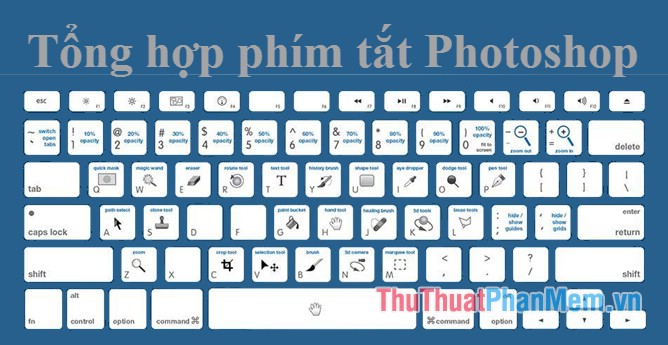
File system shortcut group
Shortcut combination
Corresponding operation
content
CTRL + N
File> New
Create a new File
CTRL + O
File> Open
Open the file
CTRL + ALT + O
File> Open As
Open the file from Adobe Bridge
CTRL + W
File> Close
Close the file
CTRL + S
File> Save
Save
CTRL + SHIFT + S
File> Save As
Save to other formats
CTRL + ALT + S
File> Save a Copy
Save 1 more copy
CTRL + P
File> Print
Photo printing
Shortcut group F
Shortcut combination
content
F1
Open the help menu
F2
Cut
F3
Copy
F4
Paste
F5
Open the Pallete Brush
F6
Open the Color Pallete
F7
Open Pallete Layer
F8
Open Pallete Info
F9
Open Pallete Action
Group shortcut toolbar tool
Shortcut combination
Corresponding operation
content
V
Move
Move
M
Marquee
Create a selection
L
Lasso
Create a free selection
W
Magic Wand
Make a selection by color
C
Crop
Photo cut
I
Eyedroppe
Color dots. Ruler
J
Healing Brush
Fix incomplete spot
B
Brush
Pen strokes
S
Clone Stamp
Take a sample from 1 photo
Y
History Brush
Recall the old image parameters
E
Eraser
Eraser
G
Paint Bucket
Fill / Change gradients
U
Smudge Tool
Describe the wall touching hand
O
Burn
Darken the image
P
Pen
Create path. vector
T
Horizontal Type
Write words
A
Path Selection
Select the path. Vector
U
Round Retange
Draw the basic shapes
H
Hand
Hand Tool
Z
Zoom
Zoom in / out the image
D
Defaul Background Color
Return to primary color
X
Swich Foreground & Background color
Change colors on the palette
Group shortcuts when editing photos
Shortcut combination
Corresponding operation
content
CTRL + L
Ajust> Levels
Open the Levels panel
CTRL + SHIFT + L
Ajust> Auto Levels
Automatically adjust Levels
CTRL + ALT + SHIFT + L
Ajust> Auto Contrast
Automatically adjust the contrast
CTRL + M
Ajust> Curves
Adjust the light and dark areas with Curves
CTRL + B
Ajust> Color Blance
Color balance
CTRL + U
Ajust> Hue / Saturation
Adjust Hue / Saturation
CTRL + SHIFT + U
Ajust> Desaturate
Switch to Grayscale (Desaturate) color
CTRL + I
Ajust> Invert
Invert Table
CTRL + T
Resize freely
SHIFT + CTRL + B
Automatic color correction
CTRL + SHIFT + R
Optical error handling
CTRL + SHIFT + ALT + C
Stretches the image without distorting the object in the image
SHIFT + J
Move the object in the image and automatically fill in the blank area.
CTRL + ALT + G
Create clipping mask
SHIFT ++
SHIFT + -
The blend mode
CTRL + ALT + I
Resize photos
Group shortcut keys to manipulate layers
Shortcut combination
Corresponding operation
content
CTRL + SHIFT + N
New> Layer
Create a new layer
CTRL + J
New> Layer Via Copy
Duplicate the layer
CTRL + SHIFT + J
New> Layer Via Cut
Cut the Layer
ALT + [
Select under layer
Select the layer below the current layer
ALT +]
Select over layer
Select the layer above the current layer
ALT +,
Select last layer
Select the bottom layer
ALT +.
Select top layer
Select the top layer
CTRL + G
Group Layers
Create a Layer group
CTRL + SHIFT + G
Ungroup Layers
Remove the Layer group
CTRL + SHIFT +]
Arrange> Bring to Front
Move the layer to the top
CTRL +]
Arrange> Birng to Forward
Move layer up
CTRL + [
Arrange> Send Backward
Move the layer down
CTRL + SHIFT + [
Arrange> Send to Back
Move the layer to the bottom
CTRL + E
Merge Down
Merge selected layers
CTRL + SHIFT + E
Merge Visible
Merge all layers
Group keyboard shortcuts for Select commands
Shortcut combination
Corresponding operation
content
CTRL + A
All
Select all
CTRL + D
Deselect
Deselect
CTRL + SHIFT + D
Reselect
Select the selection again
CTRL + SHIFT + I
Inverse
Inverse selection
CTRL + ALT + D
Feather
Blur the selection border
CTRL + F
Last Filter
Repeat the last filter
CTRL + SHIFT + F
Fade
Adjust the Opacity Brush
Group keyboard shortcuts with Edit command
Shortcut combination
Corresponding operation
content
[
Zoom + Brush
Zoom in on the pen strokes
]
Zoom - Brush
Zoom out the pen stroke
CTRL + Z
Undo
Back to the step just did
CTRL + ALT + Z
Undo More
Back to many steps
CTRL + X
Cut
Cut
CTRL + C
Copy
Copy
CTRL + SHIFT + C
Copy Merged
Copy Merged
CTRL + V
Paste
Paste
CTRL + SHIFT + CTRL + V
Paste Into
Paste superimposed
CTRL + T
Free Transform
Rotate / Adjust the scale
CTRL + SHIFT + T
Transform> Again
Repeat the Free Transform step
Nhóm phím tắt với lệnh View
Tổ hợp phím tắt
Thao tác tương ứng
Nội dung
CTRL + Y
Preview>CMYK
Xem màu CMYK
CTRL + SHIFT + Y
Gamut Warning
Xem gam màu ngoài hệ CMYK
CTRL + +
Zoom In
Phóng to
CTRL + -
Zoom Out
Thu nhỏ
CTRL + 0
Fit on Screen
Xem hình tràn màn hình
CTRL + SHIFT + H
Hide Path
Ẩn các đường Path
CTRL + R
Show Rulers
Hiện thước
CTRL +;
Hide Guides
Ẩn Guides
CTRL + SHIFT +;
Snap To Guides
Nhẩy bằng Guides
CTRL + ALT +;
Lock Guides
Khoá Guides
CTRL + '
Show Grid
Hiện lưới
CTRL + SHIFT + '
Snap To Grid
Nhẩy bằng lưới
Nhóm phím tắt làm việc với Brush
Tổ hợp phím tắt
Nội dung
B
Bật Brush Tool
[
Giảm kích thước Brush
]
Tăng kích thước Brush
SHIFT + [
Giảm độ cứng của Brush
SHIFT + ]
Tăng độ cứng của Brush
,
Chọn brush đứng trước
.
Chọn brush đứng sau
SHIFT +,
Chọn brush đầu tiên
SHIFT +.
Chọn brush cuối cùng
Nhóm phím tắt của Opacity
Chọn thông số opacity
Chọn thông số flow
0 = 100%
1 = 10%
2 = 20%
..
9 = 90%
6 + 9 = 69%
Shift + 0 = 100%
Shift + 1 = 10%
Shift + 2 = 20%
..
Shift + 9 = 90%
Shift + 6 + 9 = 69%
Trên đây là tổng hợp phím tắt Photoshop đầy đủ nhất mà bài viết cung cấp cho các bạn tham khảo và lưu lại để sử dụng. Khi các bạn đã nhớ được những tổ hợp phím tắt Photoshop cần thiết thì các bạn sẽ thao tác với Photoshop nhanh và thuận tiện hơn. Chúc các bạn thành công!
FAQ
What should I know about Summary of the Most Complete Photoshop Shortcut?
Focus on the key features, requirements, limitations, and practical use cases explained in this guide.
How do I get the best results with Summary of the Most Complete Photoshop Shortcut?
Follow the recommended steps, use current software or information, confirm compatibility, and review settings before major changes.
Are there any risks or limitations?
Potential limitations depend on compatibility, data quality, cost, privacy, support, and how the product or method is used.
Related Articles
 Photoshop Shortcuts Help You Work Faster (Part 1)8 minutes read
 Extremely Useful Photoshop Shortcut Key Combinations You Should Know7 minutes read
 Multiple Choice Questions About Photoshop P103 minutes read
 Summary of Useful Windows 7 Shortcuts9 minutes read
 10 Things to Know About Mask in Photoshop: Mask Photoshop6 minutes read
 Summary of Priceless Shortcuts on Android14 minutes read
Reader Comments 0
Sign in with email or Google to join the discussion.