Table of Contents
This guide provides a practical overview of Speed up Your Computer with Wise Care 365 Free, including its main features, benefits, limitations, and important considerations.
The following article will guide you how to use Wise Care 365 software to speed up the computer.
Step 1: Download and install the Wise Care 365 Free software.
You can download the software at home page: http://www. wisecleaner. com/wise-care-365. html
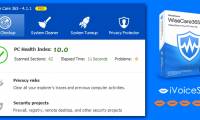
Step 2: Start the Wise Care 365 Free program, the program interface is as follows:

Step 3: At the first card PC Checkup, click Checkup to check and give errors of the system.

Wait for the system testing program, after the testing process is finished, if it detects an error, the program will offer a solution to fix the error, you just need to click on Fix to the program to help you fix the error.

Step 4: Select the System Cleaner tab to clean the system. You can clean the system, clean junk files in the computer, clean the Registry.
You select the items to be cleaned in the left menu and click Scan to scan the program for problems (eg Registry cleaning).

Then click Clean to clean.

Step 5: To optimize and speed up your system, select the System Tuneup tab. Then select the item to be optimized in the left menu and click Optimize .

Step 6: The Privacy Protector tab helps you protect the system, computer security. This feature requires the upgrade of Wise Care 365 Pro version to be able to use.
Click Clean in the Privacy Protector tab to clean history.

Step 7: For information about computer hardware such as CPU, Main, RAM, HDD. select the System Monitor tab and select Hardware Overview .

With Wise Care 365 Free software, you can optimize the system, speed up your computer quickly and effectively. To better protect your computer, you can update to the Wise Care 365 Pro version. Good luck!
FAQ
What should I know about Speed up Your Computer with Wise Care 365 Free?
Focus on the key features, requirements, limitations, and practical use cases explained in this guide.
How do I get the best results with Speed up Your Computer with Wise Care 365 Free?
Follow the recommended steps, use current software or information, confirm compatibility, and review settings before major changes.
Are there any risks or limitations?
Potential limitations depend on compatibility, data quality, cost, privacy, support, and how the product or method is used.
Related Articles
 Download Wise Care 365 PRO, the Smart Cleaning Software, to Speed4 minutes read
 Invite Wise Driver Care Pro, a $ 24.97 Automatic Driver Update4 minutes read
 How to Hide Files, Folders on Your Computer and USB with4 minutes read
 How to Use Wise Registry Cleaner to Clean and Fix Registry Errors7 minutes read
 Download the $ 350 Free Software Package from Wonderfox5 minutes read
 CPU: Speed Is Not All8 minutes read
Reader Comments 0
Sign in with email or Google to join the discussion.