Table of Contents
Apple makes it easy to find out if a WiFi network is secure before you connect. Control Center lets you know right away if the networks your devices are connected to are password-protected. You don't need any additional software or tools, just use the built-in settings on your iPhone. Here's how to check the security of your WiFi on your iPhone.
How to quickly check WiFi security on iPhone
First, open the Control Center on your phone, then tap and hold the WiFi button. You will see a list of available networks. Networks that show a lock icon are password-protected, while those that don't are public networks.
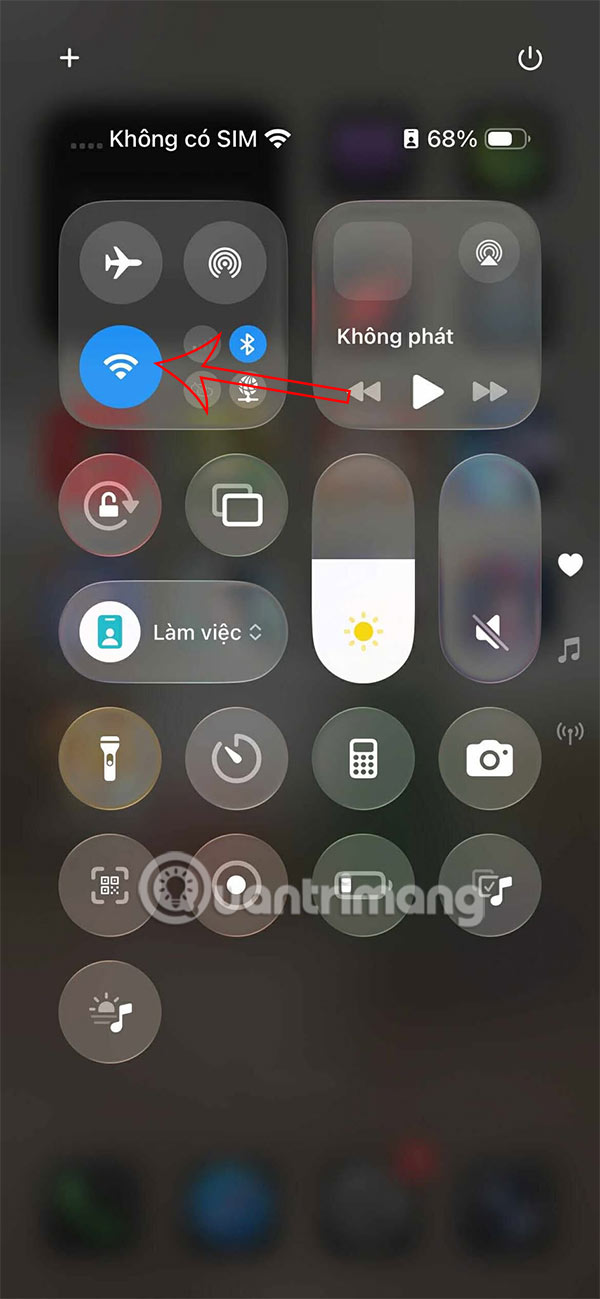
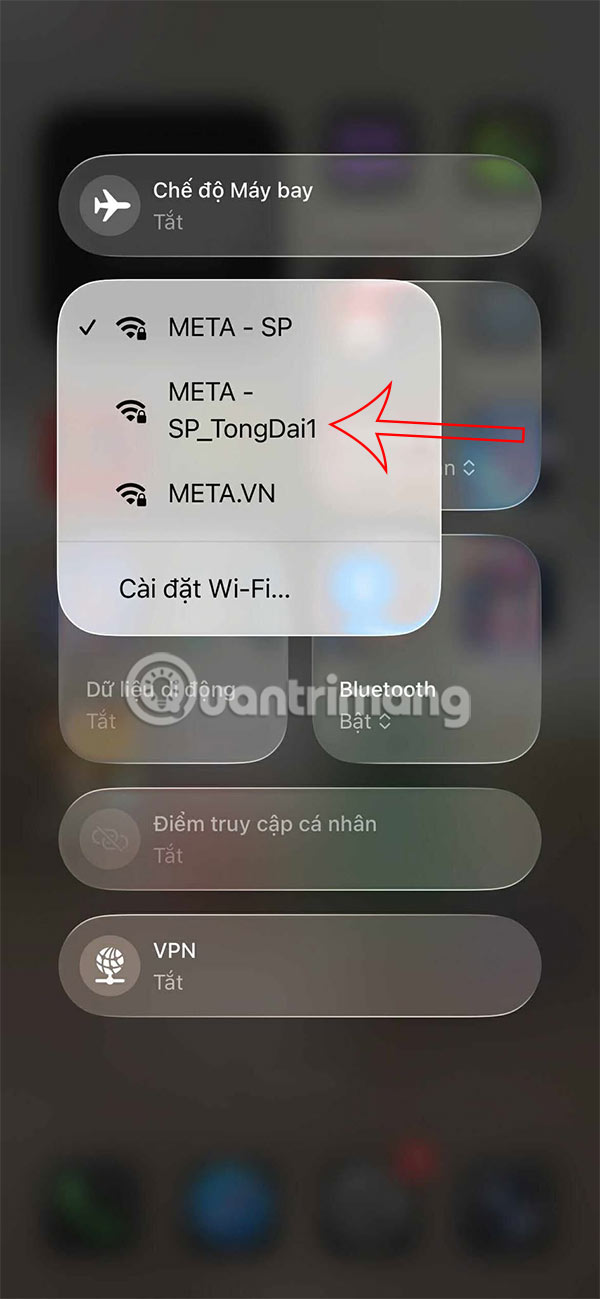
The padlock icon at the WiFi network name makes it easy to distinguish between secure private networks and potentially risky public hotspots that don't require a password. It's a small improvement, but it helps you decide which WiFi network to connect to without having to dig into the settings, reducing the risk of connecting your iPhone or iPad to unsecure WiFi.
Final Thoughts
Overall, Quick Tips to Check WiFi Security on iPhone When Connecting is best understood by considering the main facts, practical context, and limitations together. Use the details above as a clear starting point and confirm time-sensitive information when necessary.
FAQ
What does this article explain about Quick Tips to Check WiFi Security on iPhone When Connecting?
Apple makes it easy to find out if a WiFi network is secure before you connect. Control Center lets you know right away if the networks your devices are connected to are password-protected.
What should you know about How to quickly check WiFi security on iPhone?
First, open the Control Center on your phone, then tap and hold the WiFi button. You will see a list of available networks. Networks that show a lock icon are password-protected, while those that don't are public networks.
Should time-sensitive details be verified?
Yes. Software features, game codes, product specifications, prices, and research findings can change. Confirm important details with an official or primary source when accuracy affects your decision.
Related Articles
 How to Check the Wi-Fi Security Connected by Opera VPN6 minutes read
 Wi-Fi Error When Connecting to a Special Network Name That4 minutes read
 Fix Raspberry Pi Not Connecting to Wi-Fi / Ethernet5 minutes read
 Fix PS5 Not Connect to Wi-Fi4 minutes read
 Check Who Is Using Wi-Fi and How to Block Wi-Fi Users in Temples4 minutes read
 Instructions to Fix the Error of Not Connecting to Wi-Fi on iPhone5 minutes read
Reader Comments 0
Sign in with email or Google to join the discussion.