Table of Contents
This updated guide answers the question 'What Is Program Compatibility Troubleshooter in Windows 11? How to Use It' with clear explanations and practical context. Are you running an older app on Windows 11 and having problems? There may be a compatibility issue that is causing the app to not work properly because the program may not support Windows 11.
Luckily, there is a tool you can use to get your application working properly. It is called the Program Compatibility Troubleshooter. This article will show you what it is and how to use it.
What Is Program Compatibility Troubleshooter?
In short, Program Compatibility Shooter is a Windows tool that helps you troubleshoot application compatibility issues. for instance, this tool can help if an application worked perfectly on Windows 8 but you find that it does not work properly (for instance, some graphics elements are broken) or crashes on Windows 11.
Windows 11 has a variety of troubleshooting tools, and you can read our guide to every troubleshooting tool on Windows for a brief overview of each tool.
With the Program Compatibility Troubleshooter, you go through a series of steps to help the tool identify specific compatibility issues. And as you do, the tool applies the best settings to the program so it can run smoothly on Windows 11.
How to Run the Program Compatibility Troubleshooter?
To open the Program Compatibility Troubleshooter, follow the steps below:
1. Press Win + I to open the Settings app.
2. You will automatically be taken to the System page, if not, choose System on the left menu.
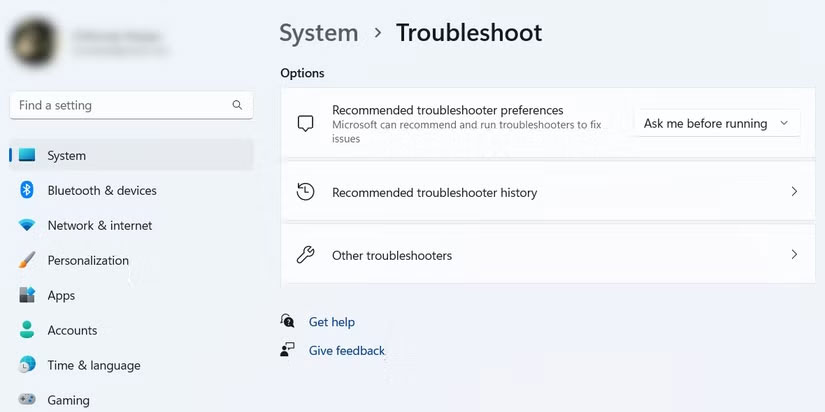
3. On the right side of the System page, choose Troubleshoot .
4. Scroll down and choose Other troubleshooters .
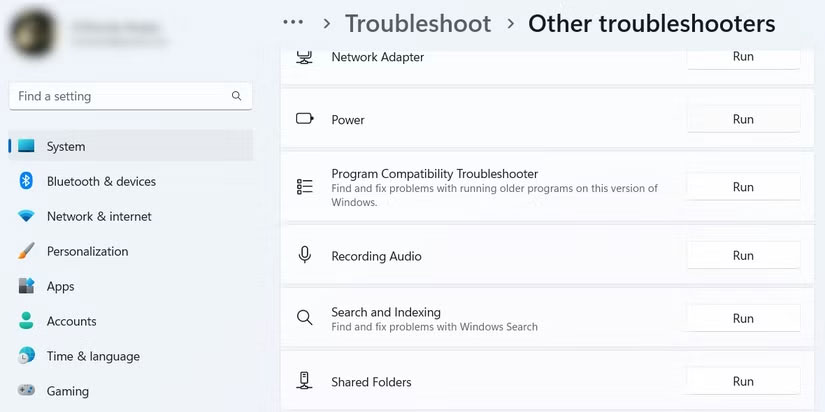
5. You will find Program Compatibility Troubleshooter under the Other section and to launch it, choose the Run button next to it.
How to Select Programs to Repair in the Program Compatibility Troubleshooter
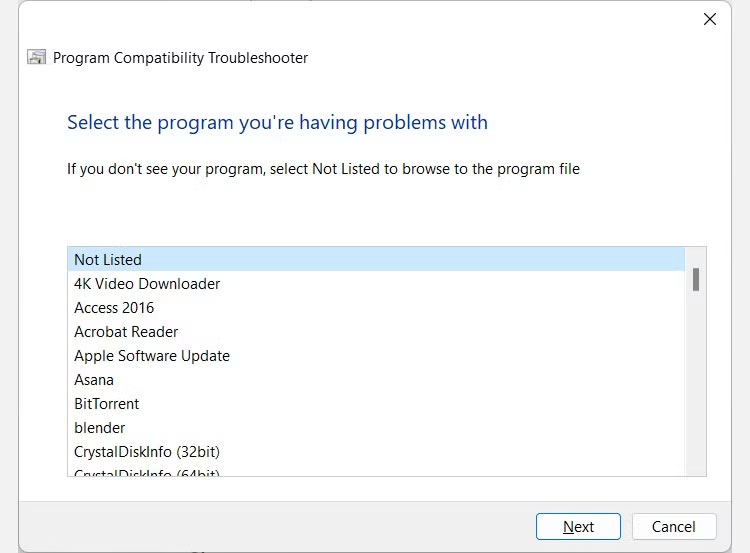
Once you launch the Program Compatibility Troubleshooter, it will search for all the programs that you can troubleshoot and list them for you. Select the program you want to fix, then choose Next . And if the program isn't listed, select Not listed and browse for it.
After the tool analyzes the program, it will ask you to choose the troubleshooting option between Try recommended settings and Troubleshoot program .
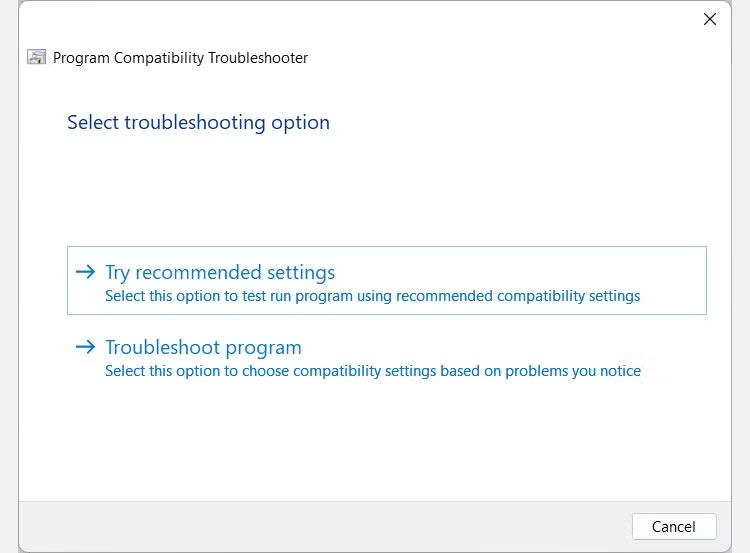
Let's see what each item does.
How to Fix Compatibility Issues with the " Try Recommended Settings " Option
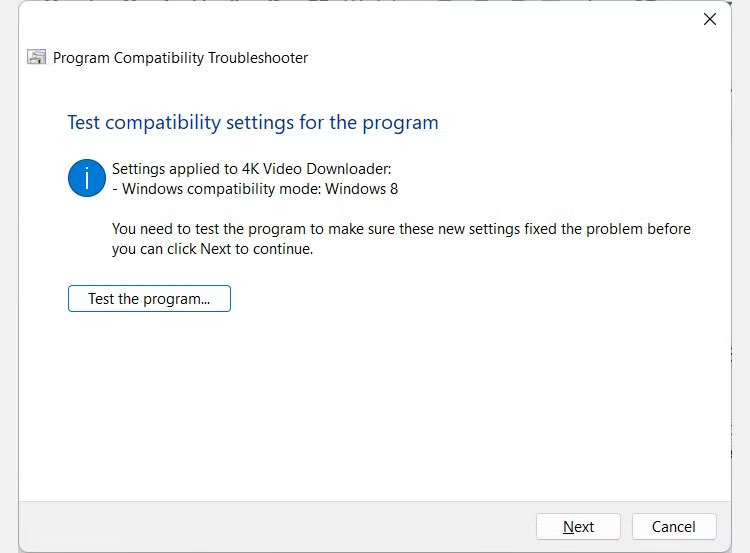
If you select Try recommended settings , Windows will apply the best compatibility settings for the selected program based on your previous version of Windows. Still, you will then need to choose the Test the program button to launch the application and ensure it works as expected. Then, choose Next to continue.
You'll then be asked to save the settings you applied. If they work, choose Yes, save these settings for this program . If not, choose No, try again using different settings - this is the same as selecting Troubleshoot program as your troubleshooting option.
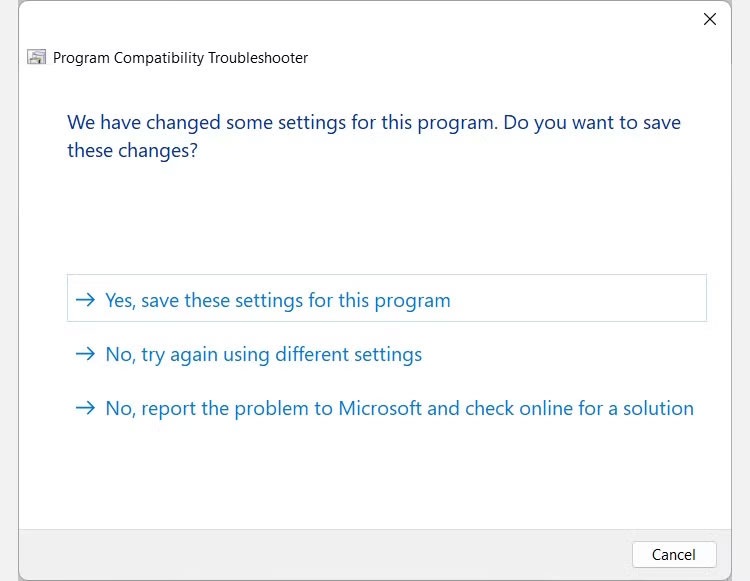
If not, choose No, report the problem to Microsoft and check online for a solution .
How to Troubleshoot Compatibility Issues with the " Troubleshoot Program " Option
If you select the Troubleshooter program option, you will be given a list of problems to choose from. Check the ones you are experiencing (you can select multiple items), then choose Next .
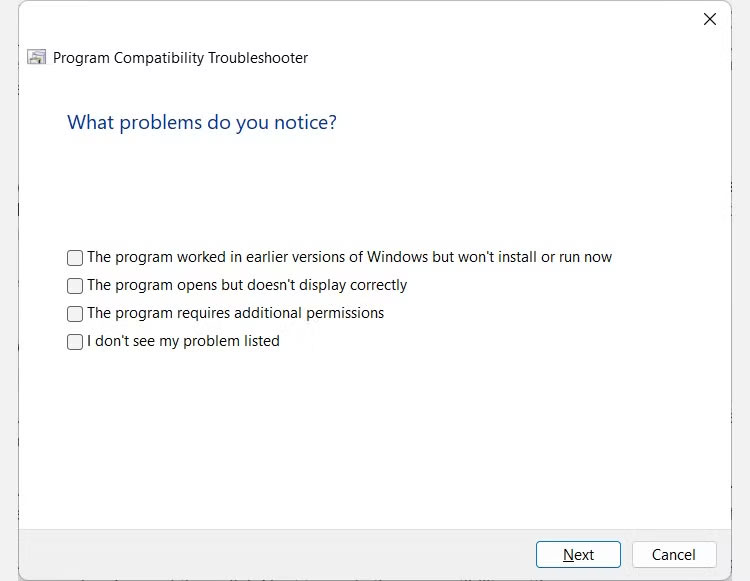
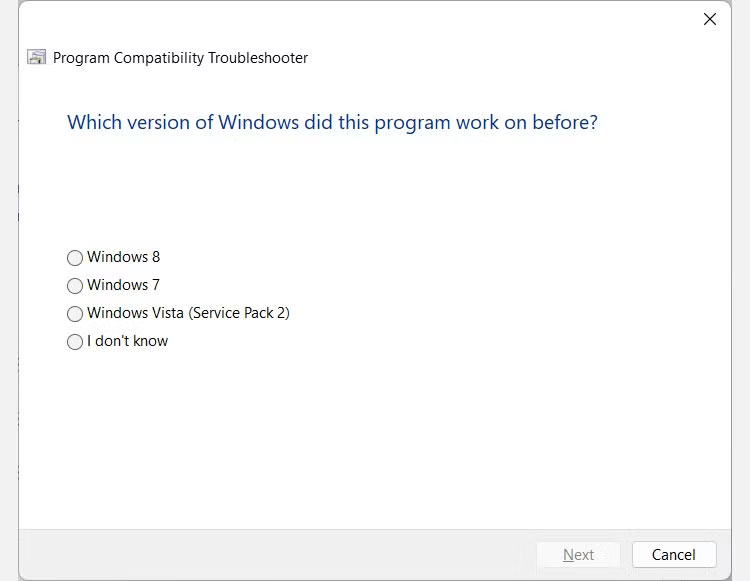
If you have checked The program worked in earlier versions of Windows but will not install or run now , you will be asked to select the previous version of Windows by clicking the appropriate button. Then, choose Next to apply the compatibility settings.
If you checked The program opens but does not display correctly when selecting the issue, you'll need to select the display issues you're experiencing. Then, choose Next to apply the compatibility settings, and remember that you can select multiple issues to give the tool more information about how to best optimize.
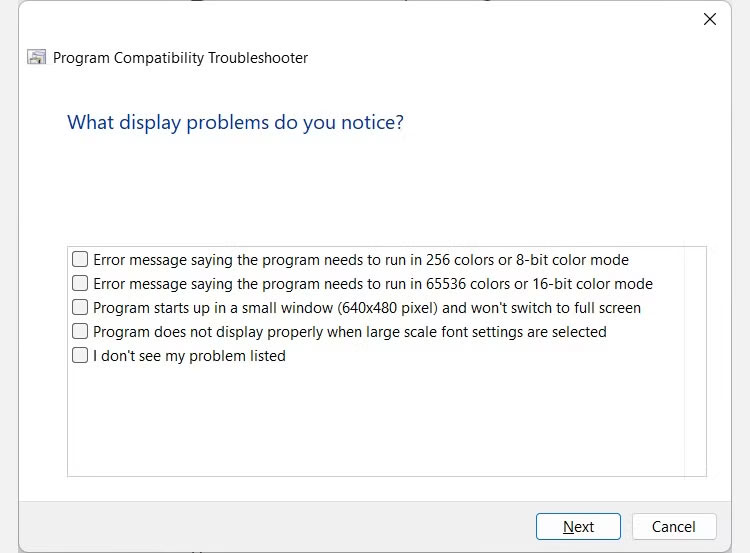
If you checked The program requires additional permissions , the compatibility settings will be applied immediately. And if you selected I do not see my problem on the list , you will be taken to a screen where you have to select the previous version of Windows the program was last running on.
Then you need to select Test the program button to see if the problem is gone. Then choose Next to continue.
If the troubleshooter resolved the problem, choose Yes, save these settings for this program on the next screen. If not, choose No, try again using different settings to try other troubleshooting steps. If none of the options apply to your situation, choose No, report the problem to Microsoft and check online for a solution .
Eliminate Program Compatibility Issues on Windows 11
Now that you know about the Program Compatibility Troubleshooter, you can use it to fix legacy apps that aren't working properly on Windows 11. it is much better than waiting for app developers to update it, which may never happen if they stop working on it.
This is just one of the many troubleshooters you can use on Windows 11. And you can even set keyboard shortcuts for them if you use them often.
FAQ
What is Program Compatibility Troubleshooter in Windows 11? How to Use It?
Program Compatibility Troubleshooter in Windows 11? How to Use It refers to the concept, feature, product, or process explained in this guide. The main sections cover how it works and where it is useful.
Why is Program Compatibility Troubleshooter in Windows 11? How to Use It important?
Its value depends on the problem you are trying to solve. Understanding the benefits and limitations makes it easier to decide whether it fits your needs.
Is Program Compatibility Troubleshooter in Windows 11? How to Use It suitable for beginners?
Yes, beginners can start with the basic explanation and examples in this guide, then move to more advanced settings or techniques as their confidence grows.
Related Articles
 How to Download and Use the Program Install and Uninstall Troubleshooter in3 minutes read
 Windows 10 Troubleshooter Can Scan and Detect Errors Automatically3 minutes read
 Instructions for Using Windows Update Troubleshooter4 minutes read
 Use 'Old' Software in Windows 7 with Program Compatibility Mode3 minutes read
 Instructions for Fixing USB Connection Errors on Windows 10 Using3 minutes read
 How to Run Old Software on Windows 10 Using Compatibility Mode3 minutes read
Reader Comments 0
Sign in with email or Google to join the discussion.