Table of Contents
This updated guide explores instructions to cancel automatic zalopay payment to avoid losing money with practical details, clear explanations, and useful takeaways. To quickly complete bills on ZaloPay, the application supports users to automatically pay on ZaloPay for bills, saving time as well as the operation of choosing a payment method.
How to Cancel Automatic Payment ZaloPay
Step 1:
You open the ZaloPay application and then select Bills , then select Automatic Payment in the interface.
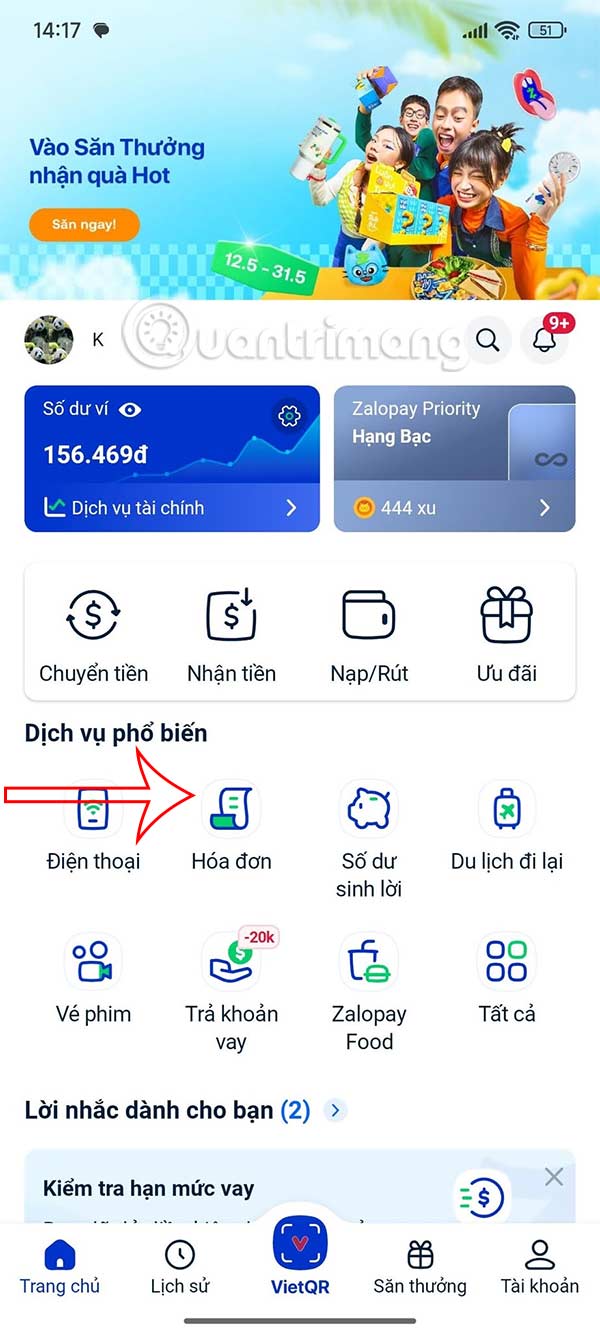

Step 2:
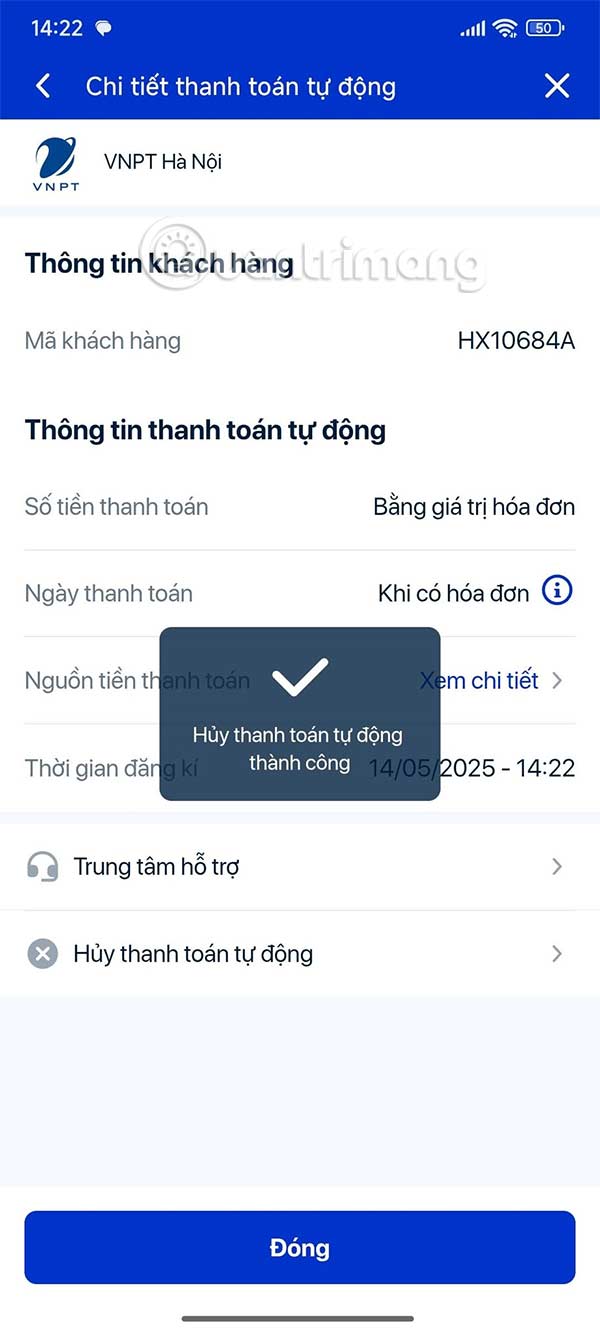
Switch to the new interface, you will see the bill that is being set up for automatic payment. select the bill that you want to cancel automatic payment on ZaloPay. Switch to the automatic bill payment details interface on the ZaloPay application. In this interface, choose Cancel automatic payment below.
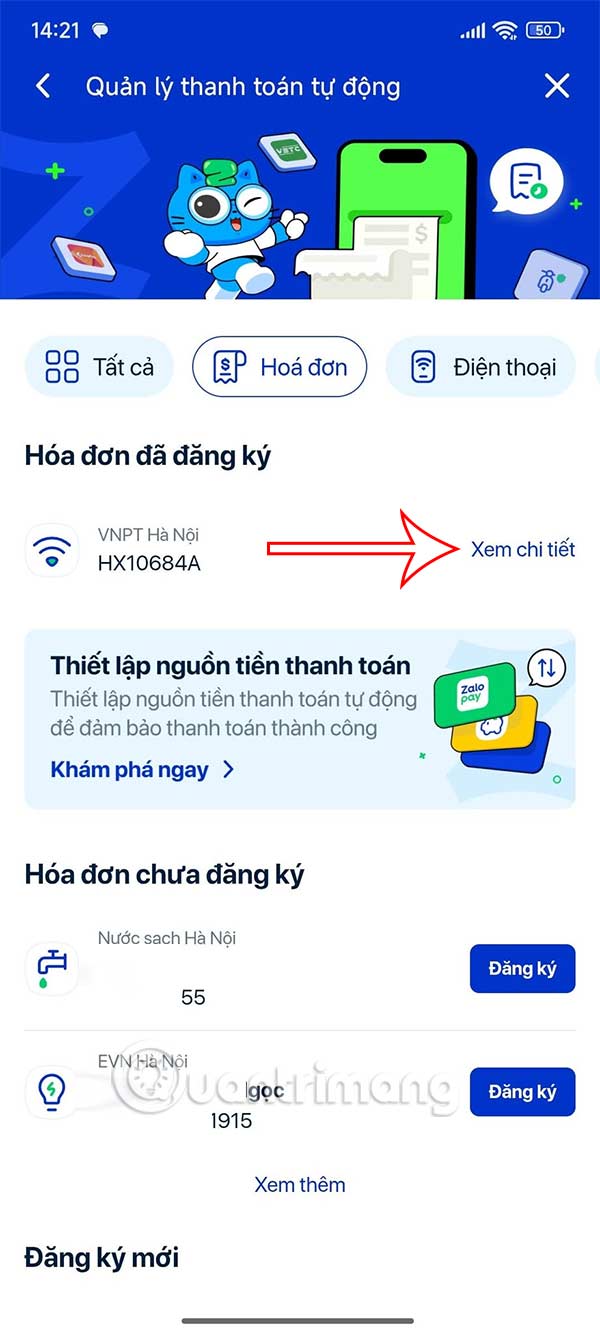
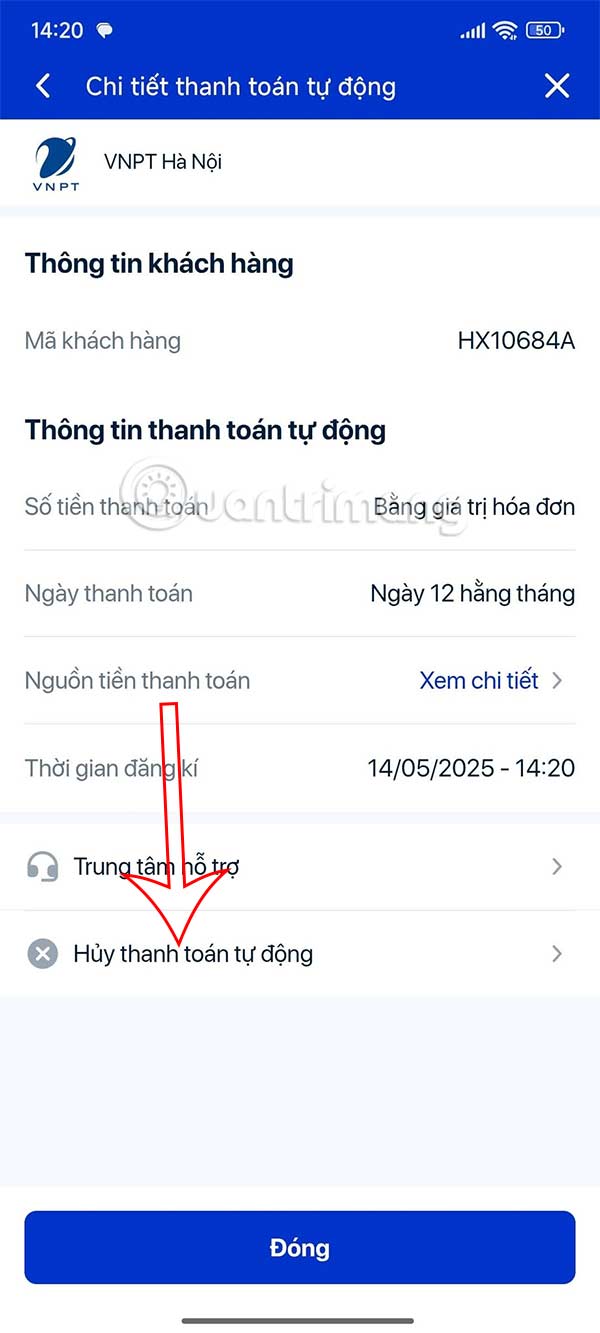
Step 3:
A message will appear asking if you are sure you want to cancel this automatic payment mode, choose Cancel package to do so.
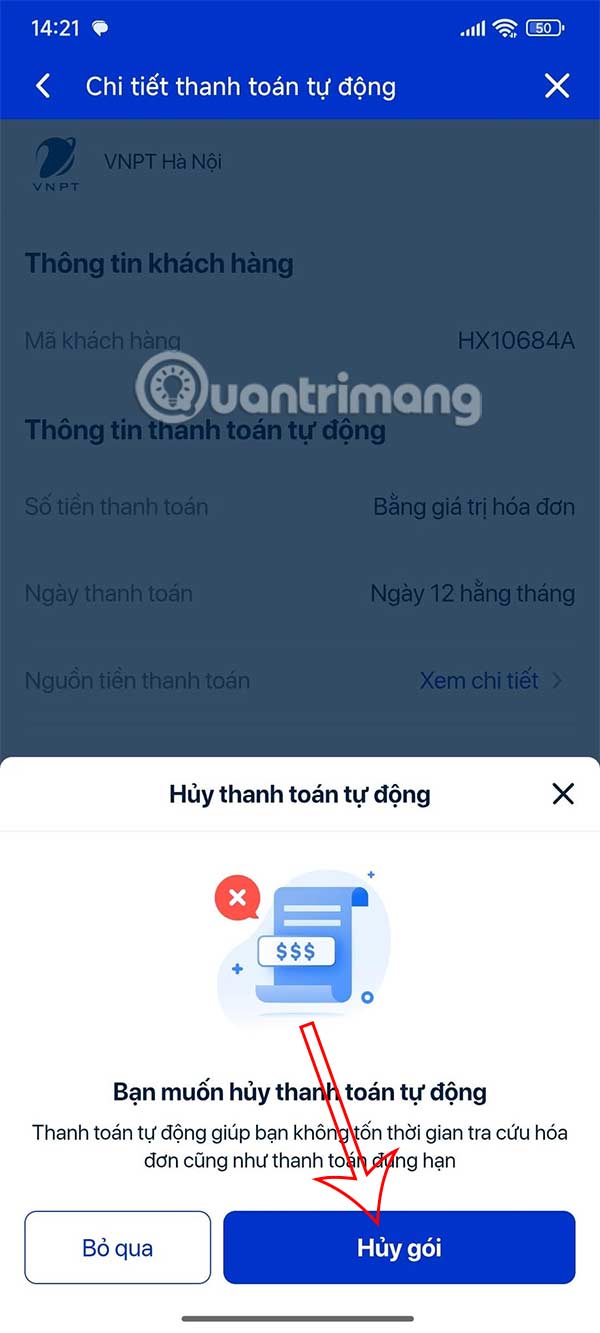
As a result, we have canceled automatic payment for this bill on ZaloPay and will no longer be deducted every time the payment date you set comes.
FAQ
What is the main takeaway about Instructions to Cancel Automatic ZaloPay Payment to Avoid Losing Money?
The key is to understand the core idea, compare the available options, and apply the practical guidance that matches your situation.
What should beginners know about Instructions to Cancel Automatic ZaloPay Payment to Avoid Losing Money?
Start with the essential steps and terminology. Avoid changing advanced settings until you understand how they affect performance, privacy, cost, or compatibility.
How can I use this information in practice?
Follow the relevant section in order, test one change at a time, and confirm the result before moving to the next step or recommendation.
Related Articles
 How to Register for Automatic Bill Payment on ZaloPay3 minutes read
 How to Cancel ChatGPT Plus to Avoid Losing Money3 minutes read
 How to Link Bank Cards with Zalopay to Transfer / Receive Money7 minutes read
 Can Just Chat Zalo Just Transfer Money?2 minutes read
 How to Chat Zalo Just Transfer Money: How to Use Zalopay4 minutes read
 Instructions to Block Automatic Driver Installation on Windows 113 minutes read
Reader Comments 0
Sign in with email or Google to join the discussion.