Table of Contents
Explore powerpoint 2019 (part 18).
4 types of animation
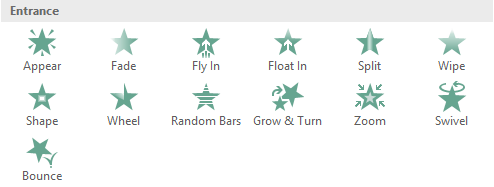
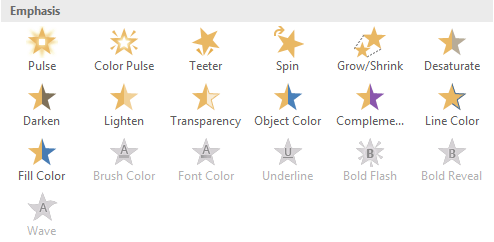
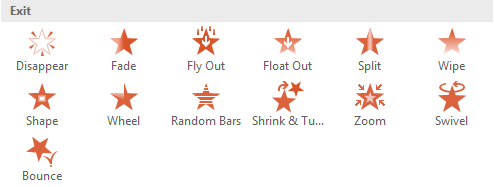
There are several animation effects you can choose from, and they are categorized into four types.
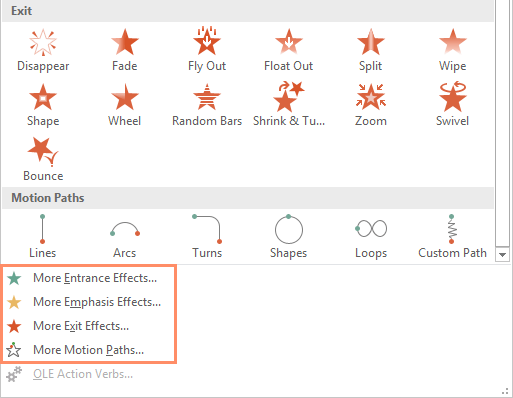
- Entrance: These controls how objects enter the slide.
- Emphasis: These animations occur when the object is on the slide, usually triggered by a mouse click.
- Exit: These controls how the object exits the slide.
- Motion Paths: These are similar to the Emphasis effect, except the object moves within the slide along a predetermined path, like a circle.

How to apply animation to an object
1. Select the object you want to animate.
2. On the Animations tab, click the More drop-down arrow in the Animation group.

3. A drop-down menu of animation effects will appear. Select your desired effect.
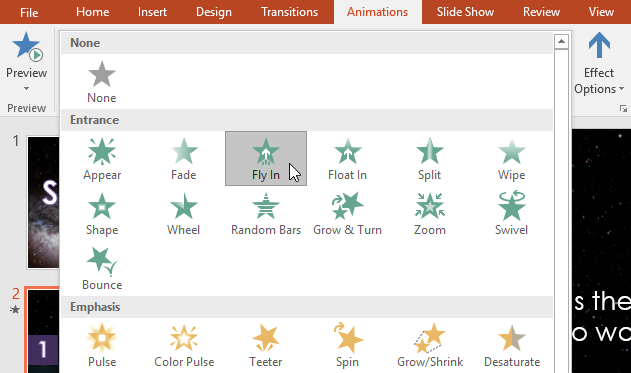
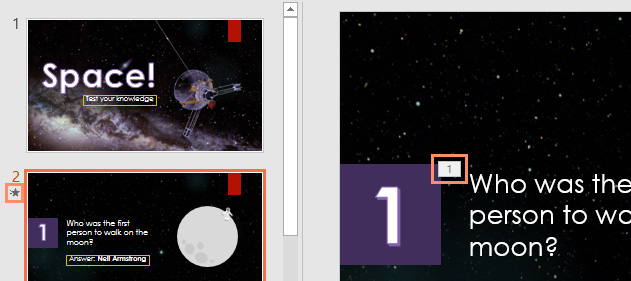
4. The effect will be applied to the object. The object will have a small number next to it to indicate that it is animated. In Slide , a star icon will also appear next to the slide.
At the bottom of the menu, you can access additional effects.
Effect options
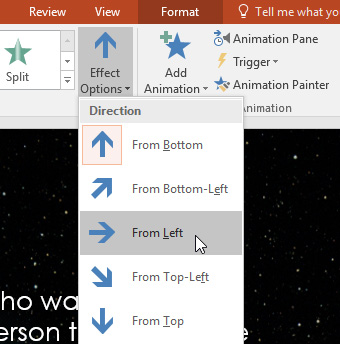
Some effects will have options you can change. For example, with the Fly In effect, you can control the direction the object starts. These options can be accessed from the Effect Options command in the Animation group.
How to remove animations
1. Select the small number next to the object that has been animated.

2. Press the Delete key. The animation will be deleted.
Animation is best used in moderation. Adding too much animation can make your presentation look unprofessional and even distract your audience. Consider using subtle animations or none at all.
Working with animation
How to add multiple animations to an object
If you select a new animation from the menu in the Animation group, it will replace the object's current animation. However, sometimes you'll want to place multiple animations on an object, such as Entrance and Exit effects. To do this, you'll need to use the Add Animation command, which will allow you to keep the existing animations while adding new ones.
1. Select an object.
2. Click on the Animations tab.
3. In the Advanced Animation group, click the Add Animation command to view the available animations.
4. Select your desired animation effect.
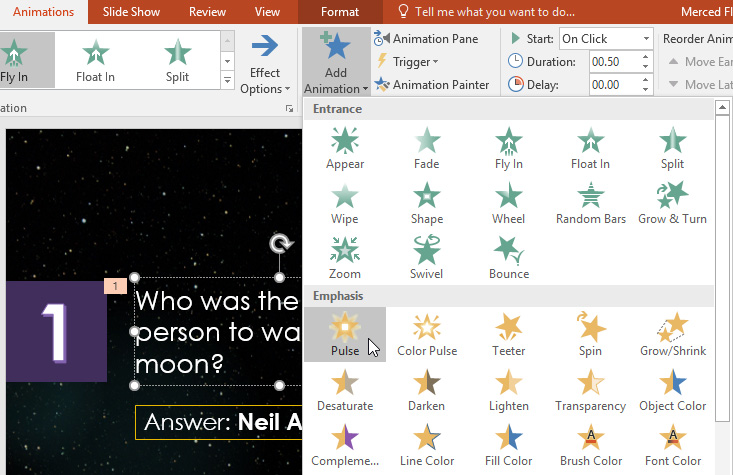
5. If an object has multiple effects, each effect will have a different number. These numbers indicate the order in which the effects will occur.
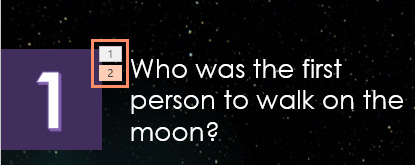
How to rearrange animations
1. Select the number of effects you want to change.
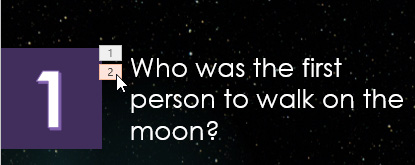
2. From the Animations tab, click the Move Earlier or Move Later command to change the order.

How to copy animations with Animation Painter
In some cases, you might want to apply the same effects to multiple objects. You can do this by copying effects from one object to another using Animation Painter. For example, you might want to copy animations from one slide to another because they have similar layouts.
1. Click on the object containing the effects you want to copy. For example, you would click on the reply section.
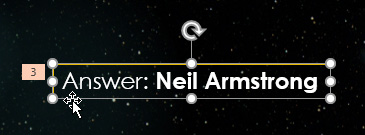
2. From the Animations tab, click the Animation Painter command.
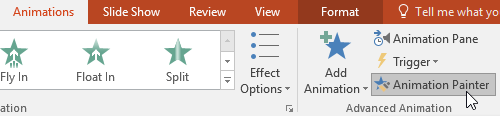
3. Click on the object you want to copy the effects from. For example, click on the answer section on the next slide. Both objects now have the same effect.

How to preview animations
Any animation effects you've applied will be displayed when you play the slideshow. However, you can also quickly preview the animations for the current slide without viewing the slideshow.
1. Navigate to the slide you want to preview.
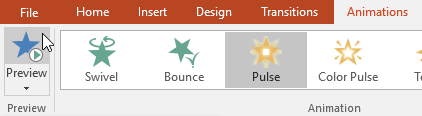
2. From the Animations tab, click the Preview command. The animations for the current slide will play.
Animation Pane
The Animation Pane allows you to view and manage all the effects on the current slide. You can modify and rearrange the order of the effects directly from the Animation Pane , which is especially useful when you have several effects.
How to open the Animation Pane
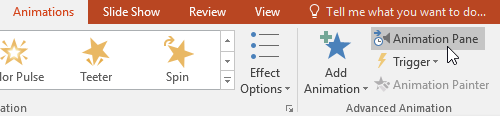
1. From the Animations tab, click the Animation Pane command.
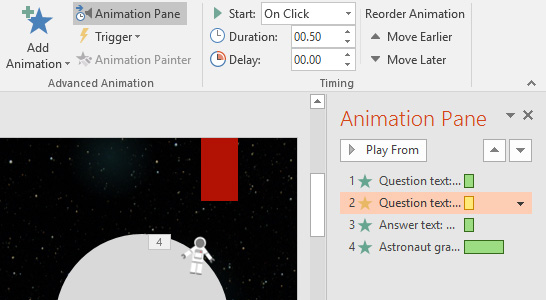
2. The Animation Pane will open on the right side of the window. It will display all the effects for the current slide in the order they appear.
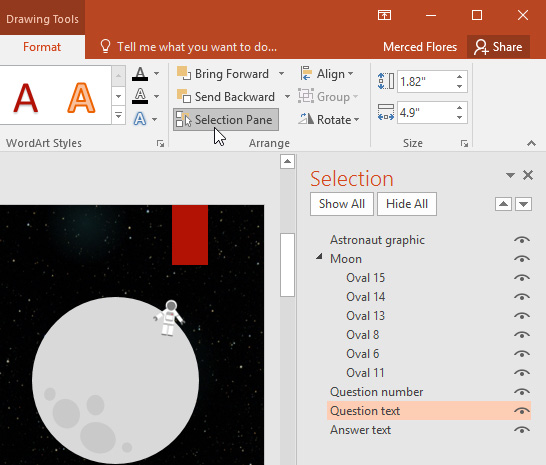
If you have several animation objects, it can be helpful to rename them before rearranging them in the Animation Pane. You can rename them in the Selection Pane. To open the Selection Pane , click an object, then from the Format tab, click Selection Pane. Double-click the name of an object to rename it.
How to rearrange the order of effects from the Animation Pane
1. On the Animation Pane , click and drag an effect up or down.
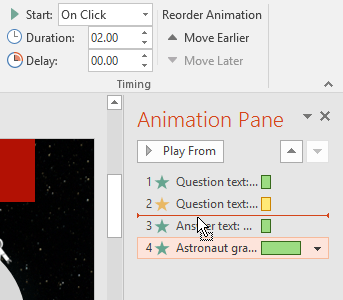
2. The effects will rearrange themselves automatically.
How to preview effects from the Animation Pane
1. From the Animation Pane , click the Play button.
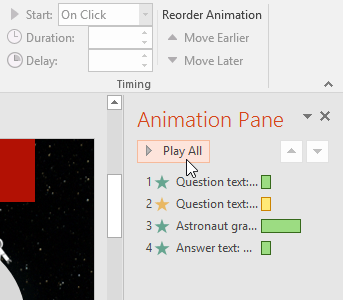
2. The effects for the current slide will play. On the right side of the Animation Pane , you will be able to see the timeline showing the progress through each effect.
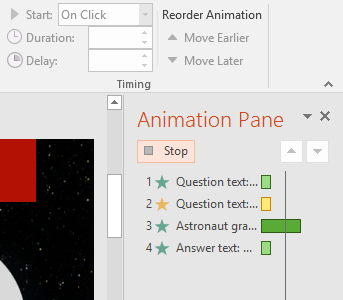
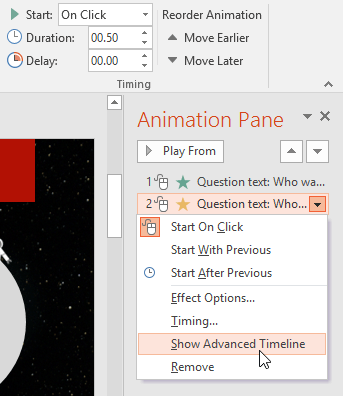
If the timeline isn't displayed, click the drop-down arrow for an effect, then select Show Advanced Timeline .
How to change the start option of an effect
By default, an effect starts playing when you click during a presentation. If you have multiple effects, you'll need to click multiple times to start each one individually. However, by changing the start option for each effect, you can have effects autoplay simultaneously or one at a time.
1. From the Animation Pane , select an effect. A drop-down arrow will appear next to the effect.
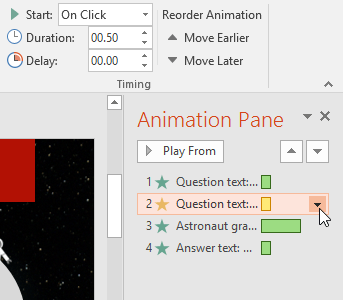
2. Click the drop-down arrow and select one of the three desired start options. Start on Click will begin the effect when the mouse clicks, Start With Previous will begin the effect at the same time as the previous effect, and Start After Previous will begin the effect when the previous effect ends.
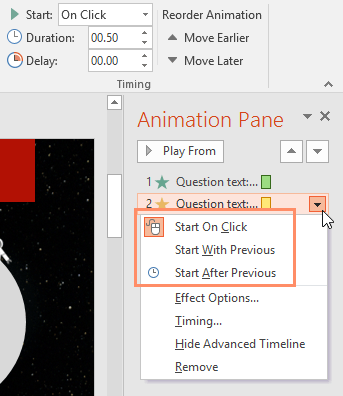
When you preview the animations, all effects will automatically play through. To check if the effects are set to Start on Click , you will need to play the slideshow.
Effect Options dialog box
From the Animation Pane , you can access the Effect Options dialog box, which contains more advanced options that you can use to adjust your animation.
How to open the Effect Options dialog box
1. From the Animation Pane , select an effect. A drop-down arrow will appear next to the effect.
2. Click the drop-down arrow, then select Effect Options.
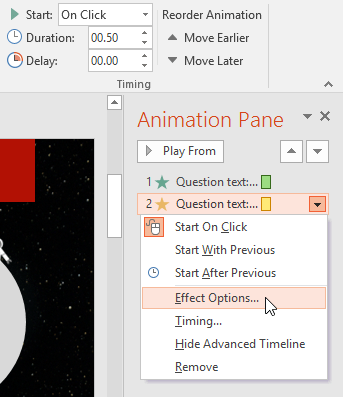
3. The Effect Options dialog box will appear. Click the drop-down menu and select the desired effect. You can add sound to the animation, add effects after the animation ends, or create text animations in a different sequence.
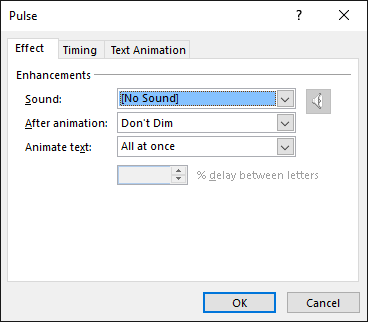
Some effects have additional options that you can change. These will vary depending on the effect you have selected.
How to change the effect duration
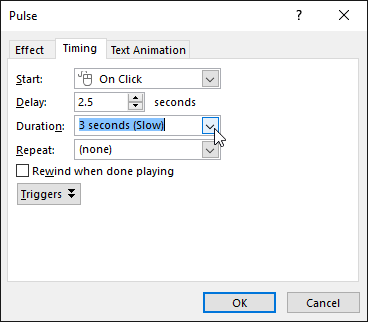
1. From the Effect Options dialog box, select the Timing tab.
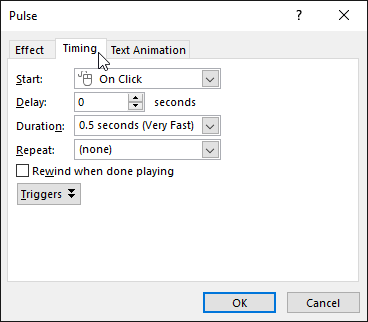
2. From here, you can add a delay before the effect starts, change the duration of the effect, and control whether the effect repeats.
Final Thoughts
Understanding powerpoint 2019 (part 18) makes it easier to evaluate the information and apply the most relevant recommendations. Focus on the key points above and verify details that may change over time.
FAQ
What is powerpoint 2019 (part 18)?
Explore powerpoint 2019 (part 18).
What key points does this article cover?
The article focuses on 4 types of animation, How to apply animation to an object, Effect options, with practical explanations and examples.
How can you use this information in practice?
Use the explanations to compare options, verify important details, and make a more informed decision. Apply the recommendations that best match your goals and situation.
Related Articles
 How to Add Animations in Microsoft PowerPoint: Clear Instructions10 minutes read
 PowerPoint 2019 (Part 17): Aligning, Arranging, and Grouping Objects9 minutes read
 How to Add Animation Effects in Microsoft Powerpoint10 minutes read
 How to Name Objects in PowerPoint3 minutes read
 Create Effects for Text and Objects in PowerPoint 201610 minutes read
 PowerPoint 2019 (Part 5): Working with Text: Explained4 minutes read
Reader Comments 0
Sign in with email or Google to join the discussion.