Table of Contents
This guide provides a practical overview of Limit Input Values Using Data Validation, including its main features, benefits, limitations, and important considerations.
Step 1: Select the data range you want to limit the value (for example, here limit the value entered in the position allowance column) -> go to the Data tab -> Data Validation:

Step 2: A dialog box appears and click the Setting tab as follows:
- The Allow section includes the following options:
+ Whole number: Only allow integer input
+ Decimal
+ List: Limiting the value entered in the list available.
+ Date: Limiting data type to date.
+ Also type Text Length, Custom.
- Data section includes options for the range of data, for example when selecting Whole number has the following ranges:
+ Between (not between) : the limit between a certain range of values, for example, in the range from 1 to 100. Where minimum: Limit the minimum value, maximum: Limit the maximum value.
+ Equal to (not equal to): Equal to a specified value.
+ greater than, less than: Greater than (less than) a specified value
+ Greater than or equal to, less than or equal to: Greater than (less than) or equal to a specified value.

The example here limits values from 250,000 to 900,000:

Step 3: After limiting the value, you need to adjust the content displaying the error message so that users can understand and re-enter the value by clicking on the Error Alert tab :

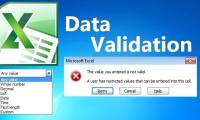
Step 4: Return to the worksheet, enter the value for the Position Allowance column, when entering the value beyond the limited range, an error message appears specifying the error content for you to edit:

However, with Data Validation only limiting values when that value is entered directly from the keyboard, the case of entering indirect values for cells using the Data Validation formula has no effect.
The above is a detailed guide on how to limit the value entered by Data Validation hope to help you. Good luck!
FAQ
What should I know about Limit Input Values Using Data Validation?
Focus on the key features, requirements, limitations, and practical use cases explained in this guide.
How do I get the best results with Limit Input Values Using Data Validation?
Follow the recommended steps, use current software or information, confirm compatibility, and review settings before major changes.
Are there any risks or limitations?
Potential limitations depend on compatibility, data quality, cost, privacy, support, and how the product or method is used.
Related Articles
 How to Limit the Value Entered by Data Validation Excel5 minutes read
 How to Limit Data with Data Validation in Google Sheets4 minutes read
 How to Create Duplicate Data Entry Notifications on Excel4 minutes read
 How to Write Fractional Values in Excel: Step-by-Step Guide3 minutes read
 Manage Goods with Data Validation in Excel Very Well7 minutes read
 Filter Data That Doesn't Overlap in Excel - Filter for Unique Values in4 minutes read
Reader Comments 0
Sign in with email or Google to join the discussion.