Table of Contents
Google Meet's old Jamboard whiteboard workflow is no longer available. To use a whiteboard during a meeting, open a suitable whiteboard application and present its tab, window, or screen. If participants need to edit together, share access to the board separately in that application.
Screen sharing and editing permission are different. Seeing the board in Meet does not automatically give attendees permission to change it.
Why the old Whiteboard button is missing
Jamboard has been retired. Do not follow an older tutorial expecting Activities > Whiteboard > Start a new whiteboard to recreate the discontinued service.
Google's Jamboard end-of-life information explains the changed availability and handling of older content. If you need previous work, check the relevant Google Drive account and any PDF or image exports; an export is not the same as an editable Jam.
Use a whiteboard with Meet on a computer
- Open the whiteboard tool approved for your class or organization.
- Create or open the intended board and prepare the working area.
- Join the Meet call.
- Use Present now and select the board's tab or window, or share the screen if necessary.
- Confirm that participants can see the intended content, then stop presenting when finished.
Prefer a specific tab or window when possible so unrelated content is not shown. Screen presentation can be restricted by the host or organization. Google's computer presentation guide covers available options.
Allow participants to edit
Open the board application's own sharing controls and invite the intended users with the appropriate role. Check whether the service requires accounts or restricts guest editing. Send the board link through your normal class or meeting channel.
Do not assume that everyone in the same Meet call, domain, or school receives edit access. Test the participant view before the session. If the goal is a demonstration, view-only access or screen sharing may be enough.
Present a board from a phone or tablet
- Open or prepare the board in the chosen app.
- Join the Meet call and open the meeting's More menu.
- Select the screen-sharing option and confirm the operating system's prompt.
- Switch to the board app and check that the correct content is visible.
- Return to Meet and stop sharing when done.
The following older screenshots illustrate this general screen-presentation sequence; current button labels differ by platform and version.
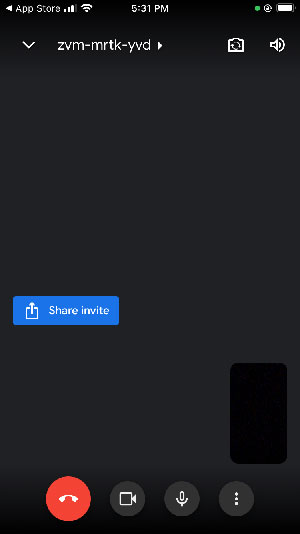
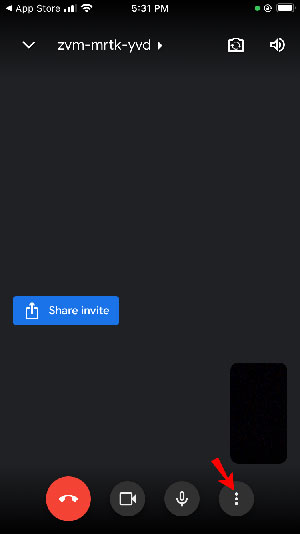
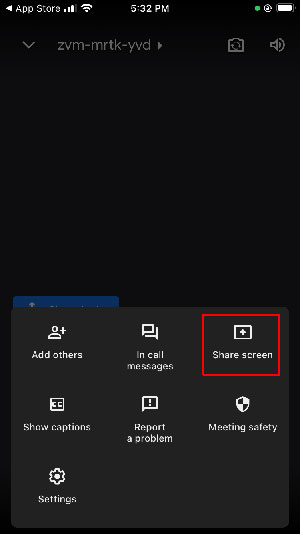
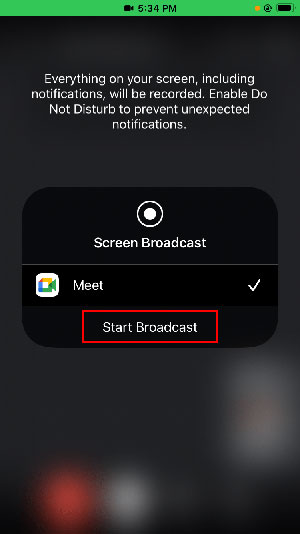
A phone may call the system prompt a broadcast or recording prompt. In this context it authorizes screen transmission; it does not mean Meet is saving a meeting recording. Hide sensitive notifications and avoid opening unrelated apps while presenting.
Consult Google's mobile presentation instructions for device-specific controls. If others need to edit, they still require the board link and permissions in its own service.
Save the work after the meeting
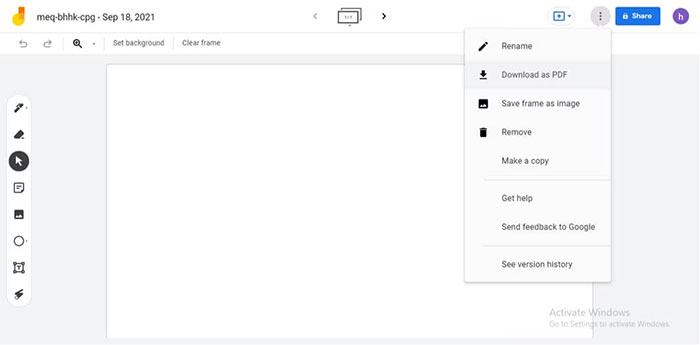
Use the chosen tool's own save or export function. Confirm that the original editable board is saved, then create a PDF or image copy if needed. Export formats vary by application; do not assume a Jamboard menu still exists in a replacement tool.
Check exported pages for cropped content or missing frames before distributing them. A PDF can preserve the visible discussion but generally does not preserve the board's interactive editing behavior.
Historical reference: the retired Jamboard interface
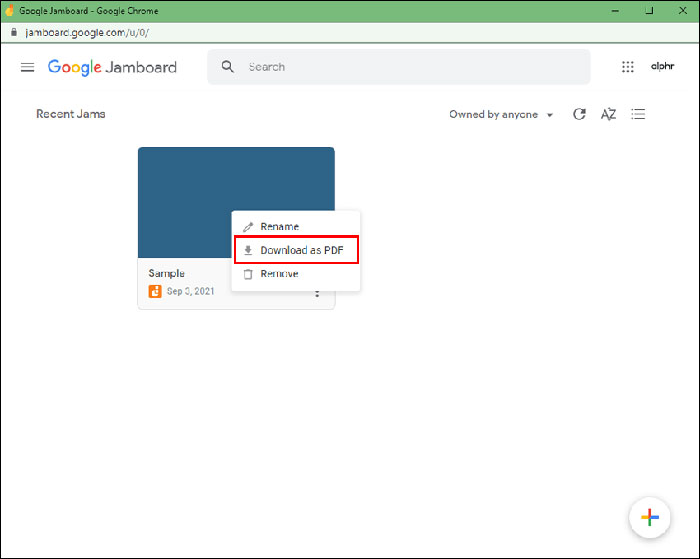
The images below explain the old instructions readers may encounter. They are not current setup steps. The first sequence opened Meet, joined a call, and selected its Activities and Whiteboard controls.
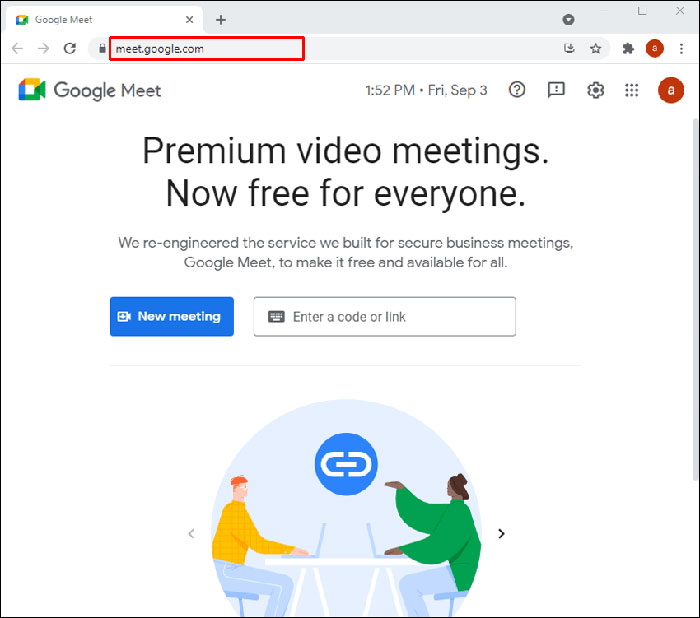
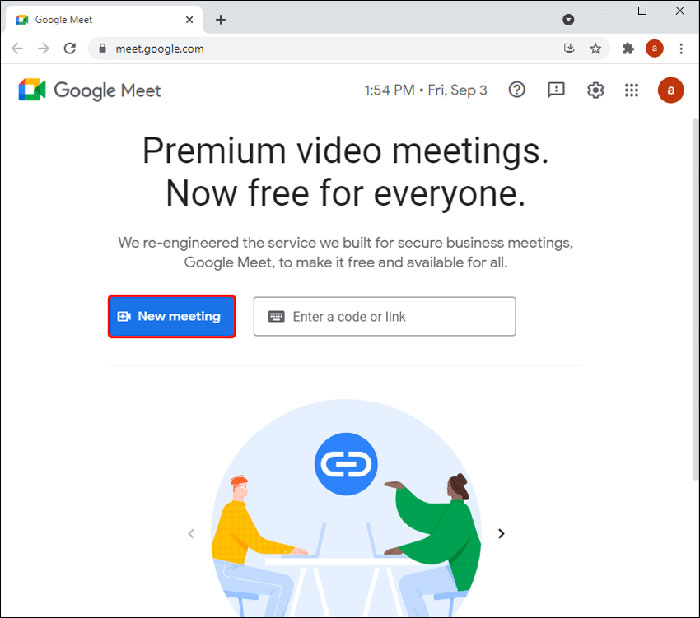
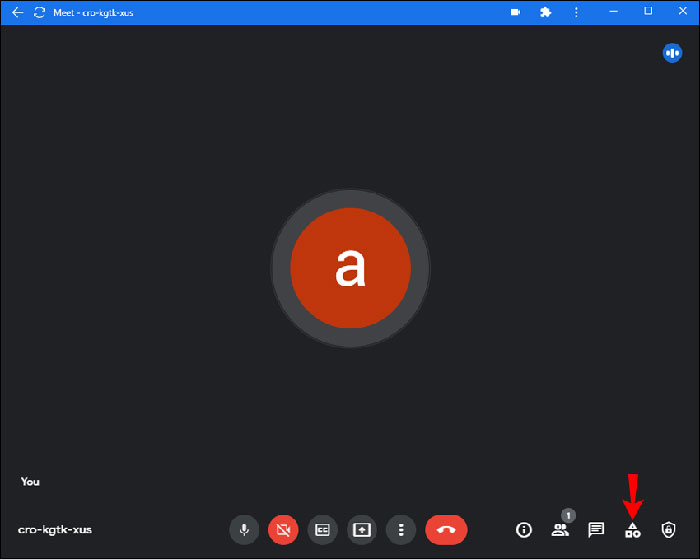
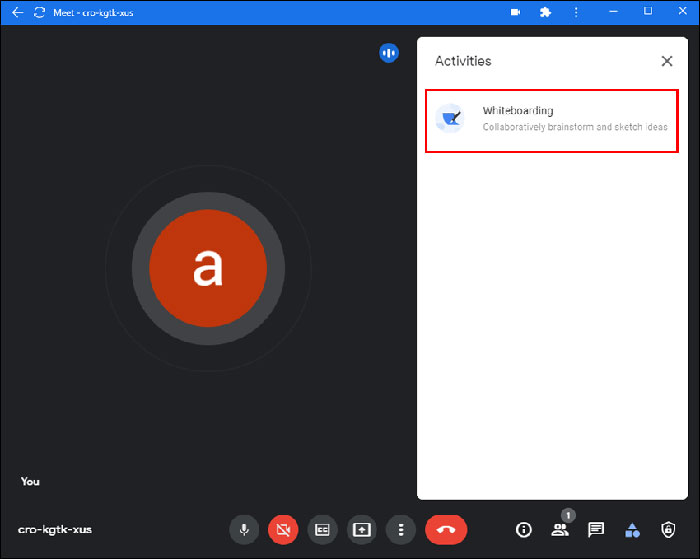
The next screen offered a new Jam or a Jam from Drive. Its sharing dialogs controlled access independently of viewing the Meet call.
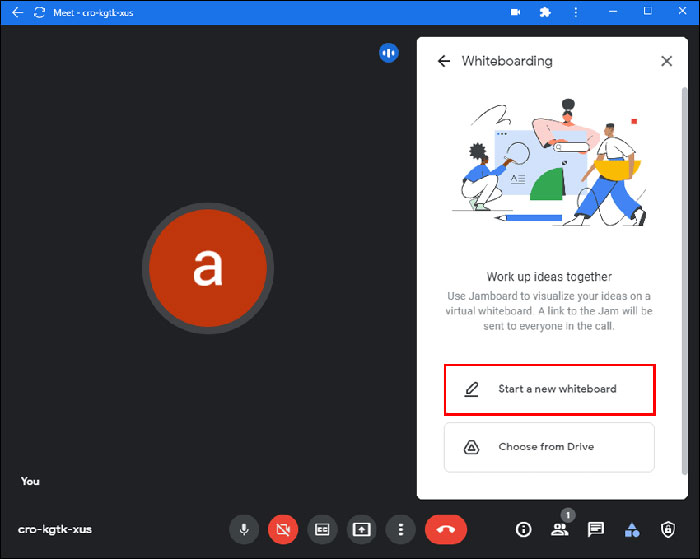
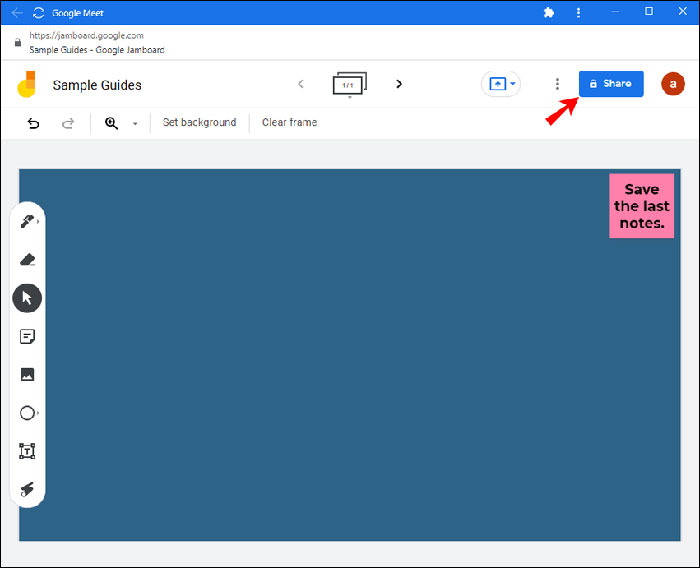
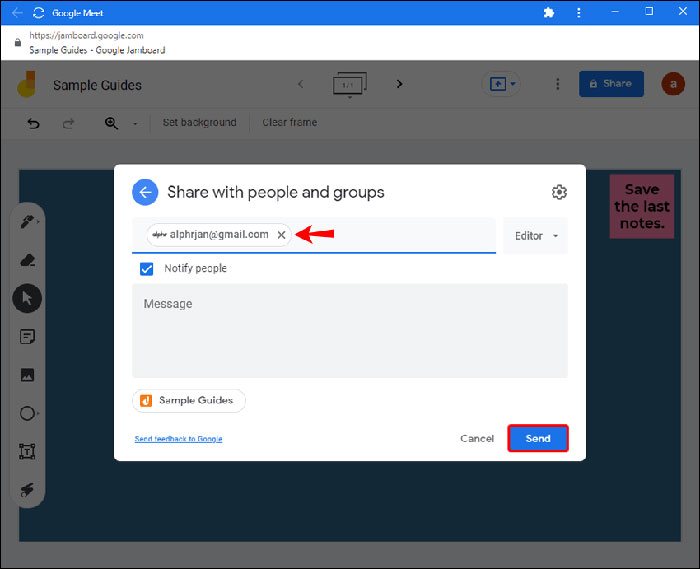
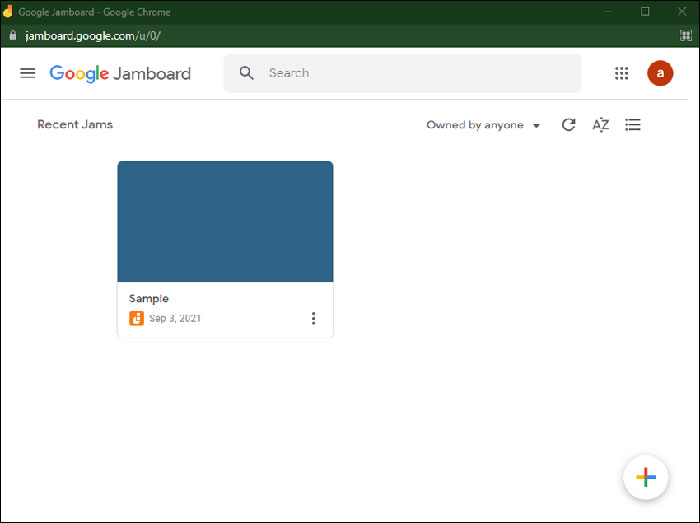
The old board and export menus are shown below for recognition when working with saved documentation. They should not be used as evidence that Jamboard can still create or edit new boards.
If the session does not work as expected
- Board visible but not editable: check the whiteboard service's role and account permissions.
- Cannot present: check Meet host controls, organizational policy, and browser or device screen-sharing permission.
- Participants see the wrong page: stop sharing and select the intended tab or window.
- Old Jamboard instructions do not match: use the replacement service's current documentation.
Related Articles
 5 free digital Whiteboard solutions to replace the Whiteboard application of Microsoft and Google
 Instructions for group work via Miro whiteboard
 Instructions to rename Google Meet on PC and phone
 How to return or livestream with Google Meet
 Learn about Google Meet's new camera tools that will help your next call
 Instructions for dividing groups in Google Meet
Reader Comments 0
Sign in with email or Google to join the discussion.