Table of Contents
Code.org's Minecraft Hour of Code activities teach beginner programming through block-based puzzles. You drag commands into a workspace, run them, and adjust the sequence until the character or Agent completes the task. These are guided coding activities, not instructions for creating a Minecraft mod or programming a full game server.
The site may display its newer CodeAI branding. The Minecraft activity name and the environment it opens matter more than the branding in older screenshots.
1. Choose the browser-based activity
Open the Minecraft activities page. Look for the Code.org browser tutorials, including the legacy Hour of Code activities, rather than assuming every Minecraft activity on the page uses the same app.
Select the language you want to learn in if the activity offers a language selector. The original screenshots use Vietnamese, but the coding ideas are the same.
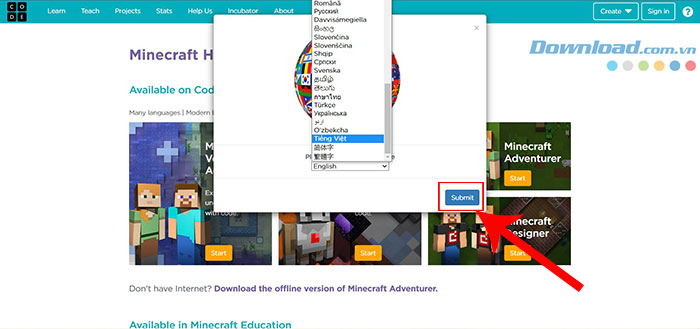
Choose a tutorial suited to your experience. Minecraft Adventurer follows Alex or Steve in a simulated Minecraft environment; other tutorials use different stories and may control an Agent.
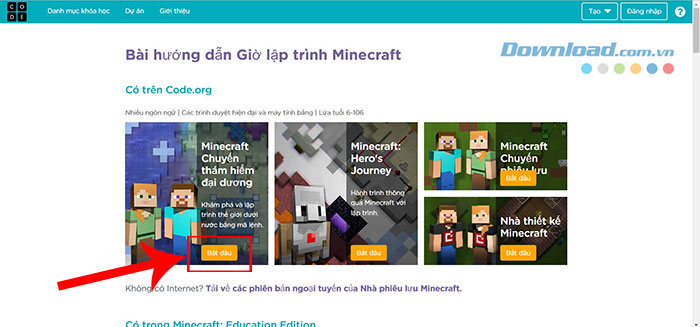
2. Read the introduction and task
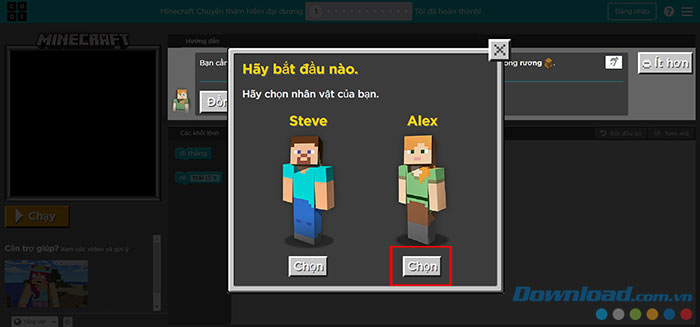
Watch or read the introductory guidance before dismissing it. Choose a character if the selected activity offers that step. The character choice and opening screens differ between tutorials.
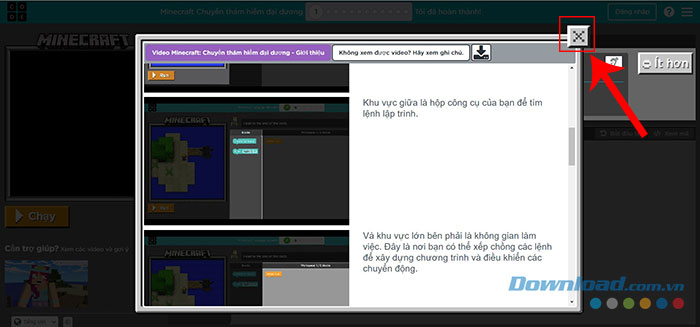
3. Understand the three working areas
- World or puzzle area: shows the character, obstacles, and the result of the program.
- Toolbox: contains the blocks available for that puzzle.
- Workspace: holds the connected program you are building.
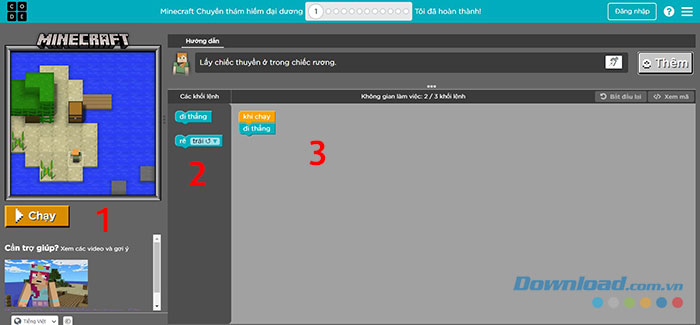
Read the level objective and expand the instructions where needed. Work out the intended movement before dragging blocks; a short plan makes mistakes easier to find.
4. Connect blocks and run the program
- Drag the needed command from the toolbox into the workspace.
- Connect it to the intended sequence or starting block.
- Add the next actions in the order they should happen.
- Select Run and watch the result.
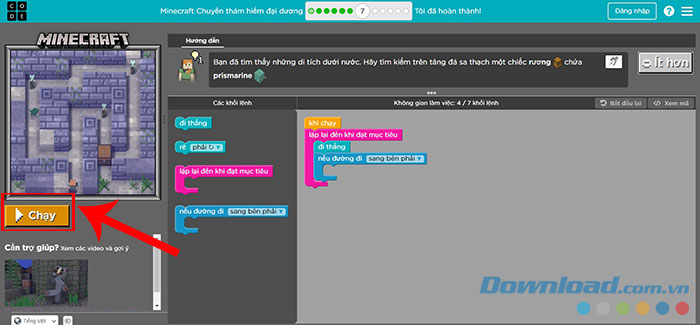
Blocks normally execute according to the program structure, not their visual proximity. A loose block beside a sequence may not be part of it. To remove an unwanted block, use the deletion behavior shown by the editor, such as dragging it back toward the toolbox.
5. Debug one change at a time
If the character stops in the wrong place, identify the first instruction where its behavior differs from your plan. Check the direction, number of moves, block connection, and any loop count.
For example, if the task requires moving three spaces and the program moves only two, correct the number of repeated moves rather than adding unrelated commands. Reset the puzzle when needed and run the revised version again.
When repeat blocks become available, compare a repeated sequence with a loop. Use a loop to express a pattern, while checking that its contents and repetition count match the task.
6. Inspect the text-code view where available
Some activities offer View Code or a similar control showing the program as text. Compare each block with its corresponding statement; you do not need to memorize the syntax to benefit from the exercise.
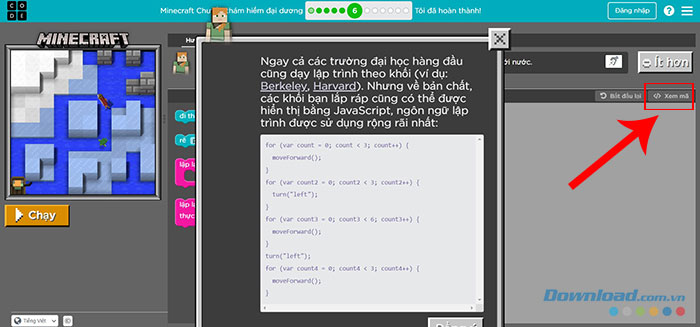
The code view illustrates the activity's program representation. It should not be treated as a ready-made Minecraft mod or assumed to run unchanged in another environment.
7. Continue after checking the result
When the completion message appears, use Continue to move on. Replay a level if you want to simplify the solution or explain why it works.
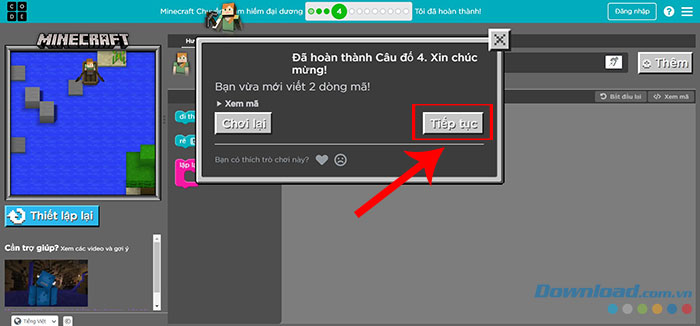
A useful finish is to describe the algorithm in ordinary language: what happens first, what repeats, and what condition ends the task. That explanation matters more than reaching the next screen through trial and error.
If the activity will not load
Check the browser, connection, and any school content restrictions. Code.org also documents offline Minecraft Hour of Code options for supported systems, with limitations on features such as online progress saving. Teachers should test the selected activity and device setup before class.

Reader Comments 0
Sign in with email or Google to join the discussion.