Table of Contents
Updating drivers with DriverEasy helps your computer maintain high performance and stable operation. This software automatically scans, detects, and replaces outdated or problematic versions. Below are detailed instructions on.
DriverEasy automatically updates drivers on your computer, ensuring smooth system operation and minimizing hardware errors. Let's explore how to use this software to easily update your drivers .
nstructions for updating drivers on Windows
Step 1: After downloading DriverEasy , click on the utility icon located on the Desktop.
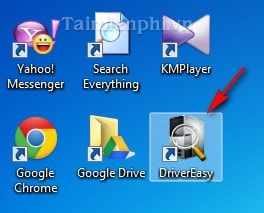
Alternatively, if it's not on your Desktop, you can use the Start Menu to search.
Step 2: Click Scan Now to start the search. Besides this direct button press, you can also click the Scan tool available on the toolbar.
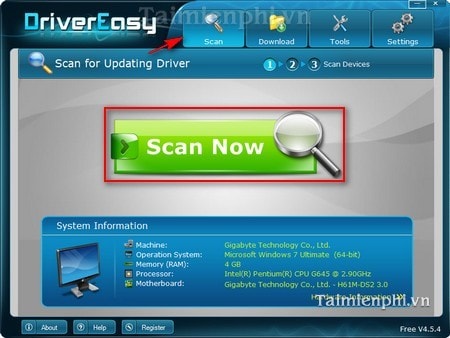
The search process takes a few minutes, depending on the number of software programs installed and the configuration of the computer you are using.
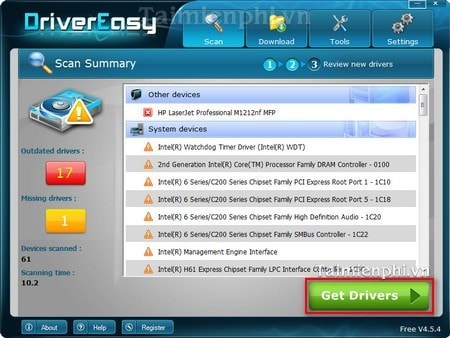
Step 3: After the scanning process is complete, the software will display the following information:
- Outdated driver: The number of outdated or obsolete drivers.
- Missing driver: The number of missing drivers.
- Devices Scanned: The total number of devices and software scanned.
- Scanning time: The time taken to complete the scanning process.
Click Get Drivers to download and update the drivers that DriverEasy has found.
Step 4: You can download one, several, or all of the drivers that this utility has found to your computer. The utility will automatically install these drivers for optimal performance on your computer.
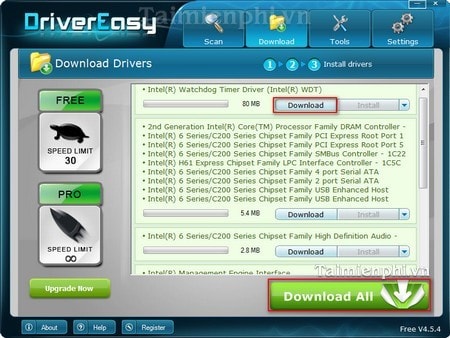
So, with just a few simple steps, you can automatically update your drivers using DriverEasy, keeping your system in optimal condition. If you want to check the drivers again after updating, you can use the outdated driver scan feature to ensure everything is fully up-to-date.
Related Articles
 How to Update Genuine Automatic Drivers for Dell Laptops5 minutes read
 Summary of Websites to Download and Download Drivers for Computers and Laptops3 minutes read
 How to Install DriverEasy and Quickly Update Your Computer Drivers5 minutes read
 What Are Drivers?9 minutes read
 Instructions to Install Drivers for Computers Asus (Download6 minutes read
 Top Best Driver Update Software for Computers 20237 minutes read
Reader Comments 0
Sign in with email or Google to join the discussion.