Table of Contents
Nvidia Geforce Experience is NVIDIA graphics card optimization software that enhances gaming performance and makes driver updates easier. With features like ShadowPlay video recording, optimized game settings, and automatic.
Nvidia Geforce Experience not only helps update drivers but also optimizes game performance, screen recording, and graphics editing. Download the free software and install it on Windows 10/11 to get the most out of your NVIDIA graphics card.
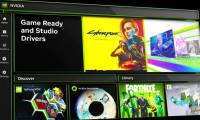
GeForce Experience Application
Key features:
- Record videos and take screenshots with ShadowPlay
- Optimized gaming performance
- Fast driver updates
How to install and use Nvidia Geforce Experience
Detailed instructions
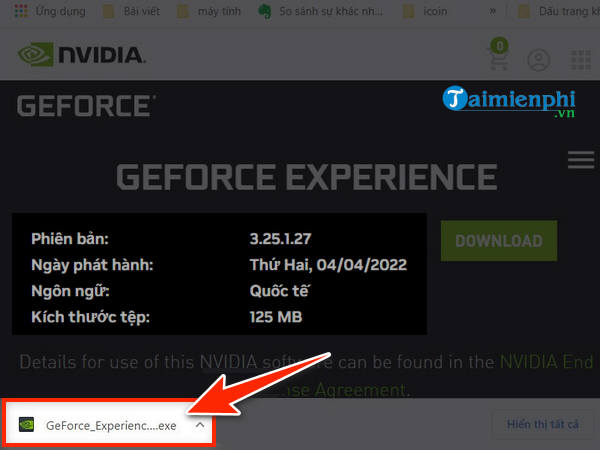
Download the latest version of the NVIDIA GeForce Experience app here .
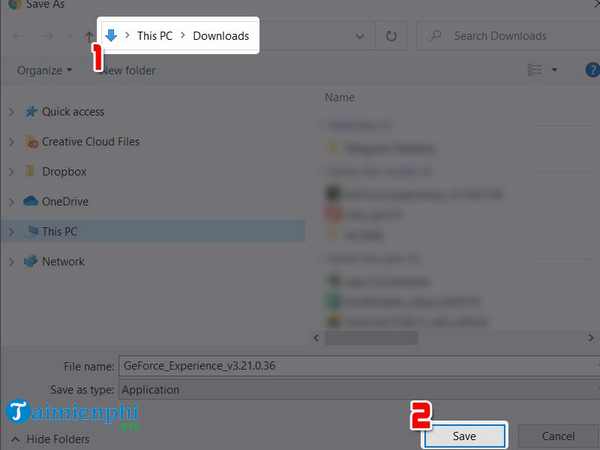
Select the folder to save the Geforce Experience file and click " Save ".
Open the GeForce Experience installation file that you just downloaded.
Select " Agree and Install " and wait a few minutes, and the installation process will be complete.
Detailed instructions
Open the app and select " Log in ".
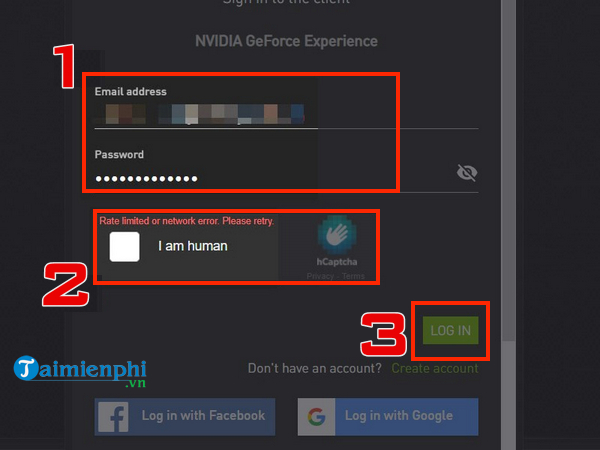
Enter your login information:
- Enter your registered email address and password
- Check the box " I am Human "
- Click " LOG IN "
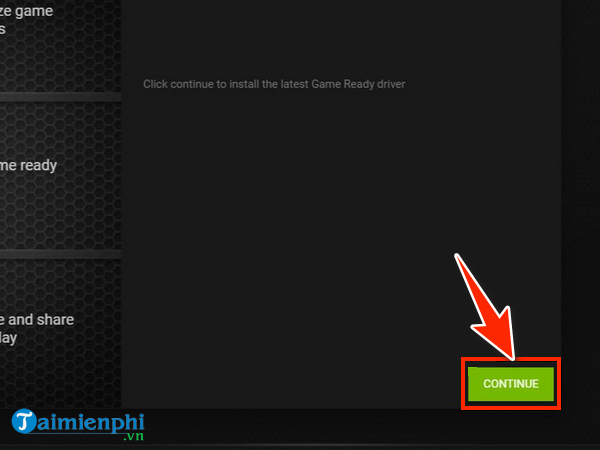
Click " Continue ". You have now successfully logged in!
 How to log in to NVIDIA GeForce Experience
How to update your NVIDIA graphics card, update to the latest NVIDIA graphics card driver
Access NVIDIA's driver page:
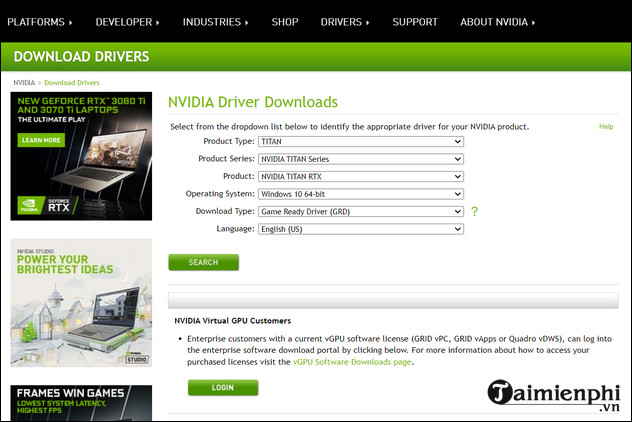
Step 2 : In the NVIDIA Driver Download section , select the information related to your graphics card and operating system to download the most suitable and up-to-date driver. Then, select SEARCH to have the website automatically find the appropriate driver for you.
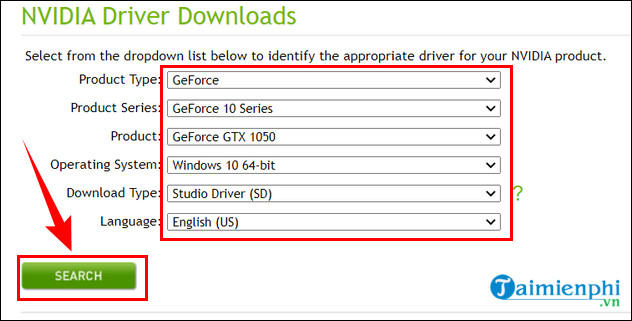 Software update guide
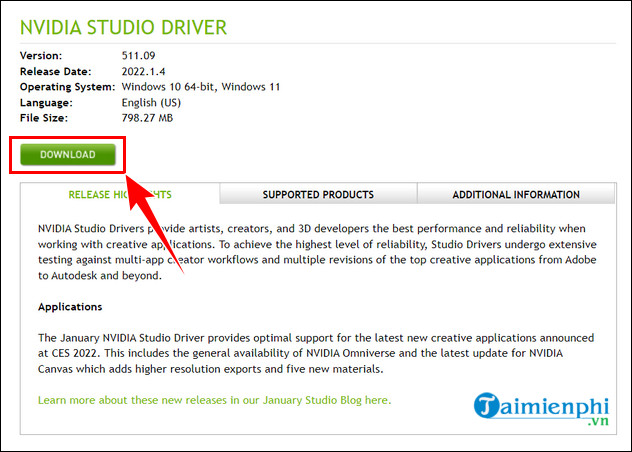
Once the website finds a suitable version, simply select Download to download and install it.
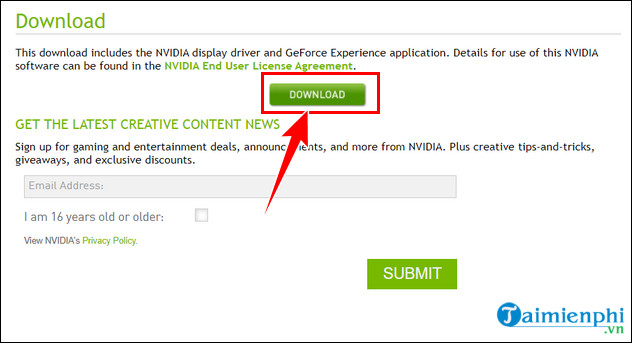
A new page will appear; select "Agree & Download" to begin the download process.
After downloading NVIDIA GeForce Experience, simply run the installer and follow the on-screen instructions to complete the setup process. This application automatically updates NVIDIA graphics card drivers, ensuring optimal performance when gaming or working with graphics.
Additionally, GeForce Experience optimizes game graphics settings based on your computer's hardware, providing a smooth experience without manual adjustments. If you're using Windows 11, this application also synchronizes NVIDIA drivers with the operating system to prevent display and performance issues.
Related Articles
 How to Fix NVIDIA Geforce Driver Error Not Downloading/Installing8 minutes read
 GeForce Experience: How to Download, Record Games, and Update Drivers8 minutes read
 What Is Geforce Experience? Detailed Instructions AZ11 minutes read
 Nvidia Released an Emergency Security Patch for the Geforce GPU3 minutes read
 NVIDIA Will Release a New Software Solution, Replacing NVIDIA Control Panel and5 minutes read
 Fix NVIDIA GeForce Experience 0x0003 Error on Windows 105 minutes read
Reader Comments 0
Sign in with email or Google to join the discussion.