Table of Contents
In just a few steps, you can install DriverEasy, software that automatically updates and installs missing drivers on your computer system quickly and easily.
Instructions on how to install Drivereasy on your computer
Why install DriverEasy on your computer? - Automatically download missing drivers and update existing drivers to the latest versions. - Find and pinpoint the exact location of hidden drivers on your computer. - Support for searching and providing access to over 1,000,000 drivers in its database. - View hardware data such as graphics cards, sound cards, network cards, etc. - Improve the performance of components and the entire computer system.
System requirements: - Install DriverEasy on computers using Windows operating systems such as Windows 2K, Windows XP, Windows Vista/7/8 (32-bit and 64-bit). - The computer must have Microsoft. NET Framework 2.0 or later installed. Download . NET Framework . - Use more than 128MB of RAM.
Instructions on how to install DriverEasy on your computer.
Step 1: Download and install DriverEasy using the DriverEasy download link.
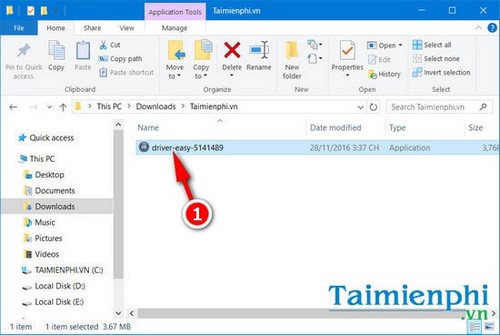
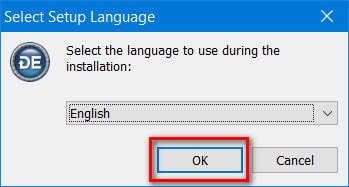
Step 2: At the beginning of the installation process, the manufacturer lets you choose the appropriate language to use in DriverEasy later. Click OK.
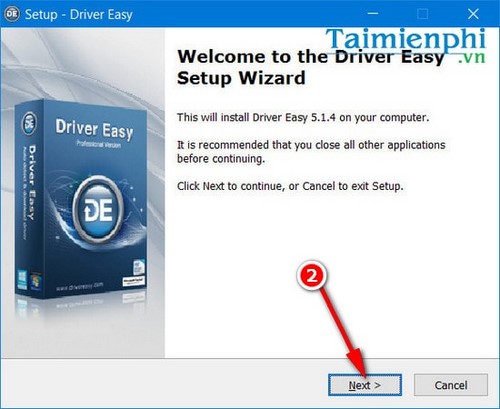
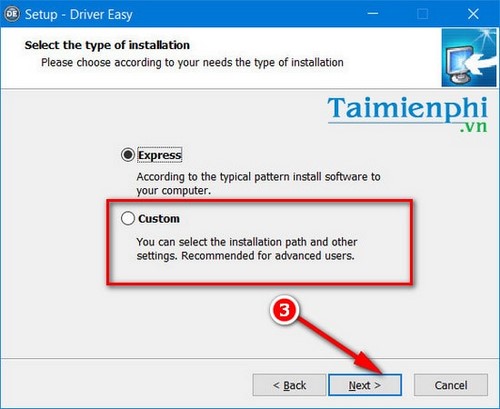
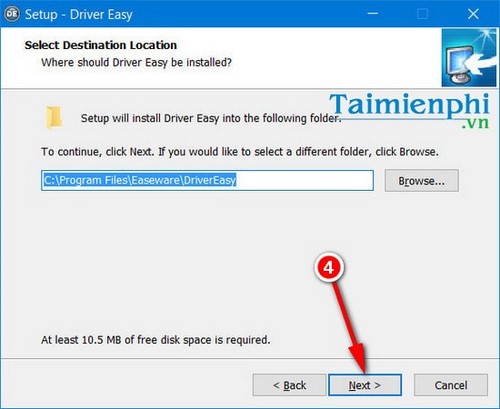
Step 3: Continue by clicking Next . A window will appear allowing you to choose the path to the DriverEasy installation folder by clicking Browser , or you can use the manufacturer's default path. Click Next .
There are two installation methods: Express (Quick Install) and Custom (Custom Install). You can choose between the two, but TipsMake recommends using the Custom install method to avoid having unnecessary software installed.
Choose the path to save the DriverEasy installation files. Click Next to continue.
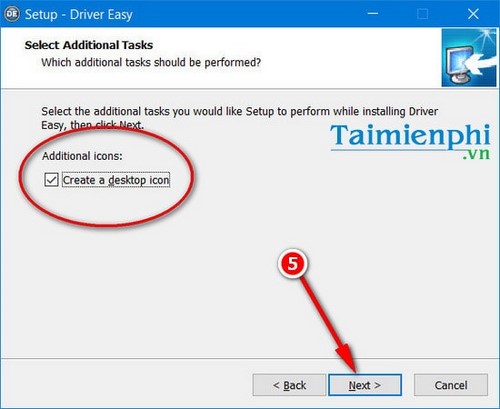
Step 4: Select Create a desktop icon if you want the DriverEasy icon to appear on your desktop when the installation is complete. Click Next .
Step 5: This window will display the path to the folder containing the installer that you just selected. If the path is incorrect, click Back to return or continue by clicking Install to begin the installation process.
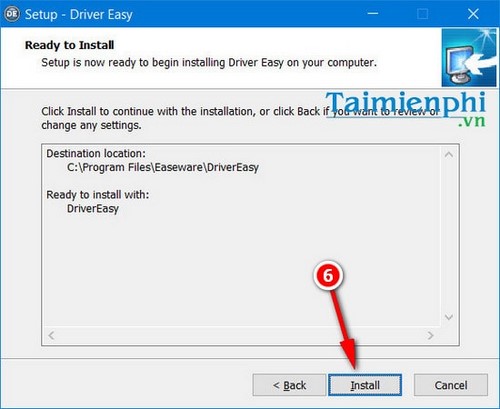
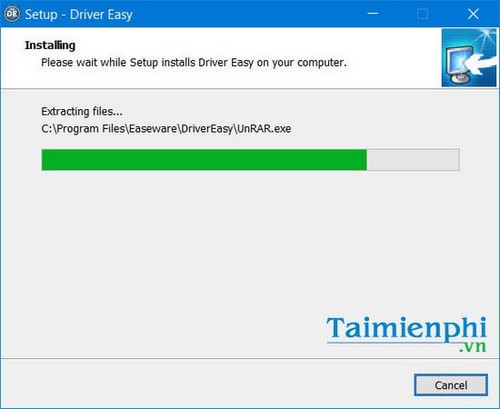
Step 6: The installation process takes a certain amount of time, depending on the configuration of the computer you are using.
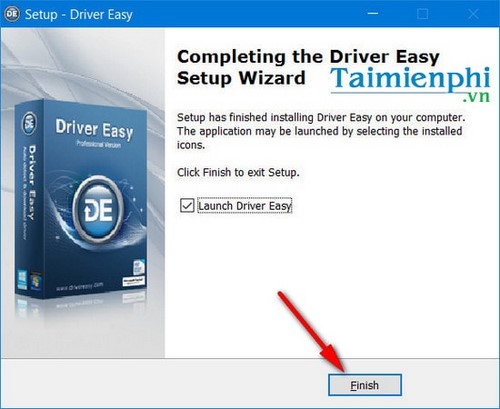
Select Launch DriverEasy to open the utility immediately, then click Finish to close the window.
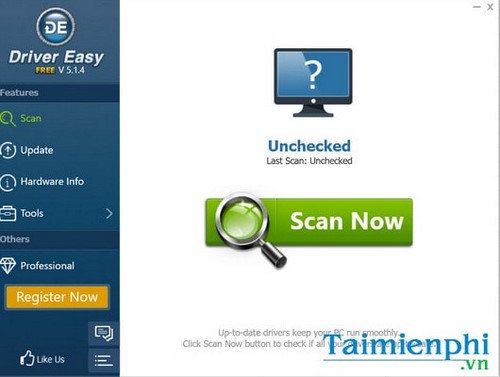
The DriverEasy installation process was successful, and the utility now has an interface as shown in the image.
The above is a guide for those who don't yet know how to install DriverEasy on their computer. With just a few simple steps, you can comfortably use the utility without any problems. Besides that, you also have many other driver search software options such as Driver Booster 2 or 3DP Chip; however, for low-spec computers, you should download 3DP Chip , while for computers with better specifications, you can download Driver Booster to try it out.
FAQ
How can you install DriverEasy and Quickly Update your computer Drivers?
In just a few steps, you can install DriverEasy, software that automatically updates and installs missing drivers on your computer system quickly and easily.
What should you know about instructions on how to install Drivereasy on your computer?
Why install DriverEasy on your computer? - Automatically download missing drivers and update existing drivers to the latest versions.
Do the steps or features vary by device or software version?
They can. Menu names, available settings, and compatibility may differ by device, region, account type, or software version, so check the options shown on your own screen.
Related Articles
 How to Update Drivers Using DriverEasy for Computers and Laptops3 minutes read
 How to Disassemble an Acer Aspire ES1-532G Laptop7 minutes read
 How to Use 3DP Chip to Update or Install Missing Drivers for the Computer5 minutes read
 The Most Effective Way to Update Drivers Using 3DP Chip4 minutes read
 Summary of Websites to Download and Download Drivers for Computers and Laptops3 minutes read
 Click: How to Find and Update Drivers11 minutes read
Reader Comments 0
Sign in with email or Google to join the discussion.