Table of Contents
You can install Euro Truck Simulator 2 mods in two ways: subscribe through Steam Workshop, or place a compatible .scs or supported archive in the game's user mod folder. In both cases, the mod must then be enabled for a profile through Mod Manager.
Before changing a long-running profile, create a backup or use a separate test profile. A map, economy, truck, or cargo mod can alter save data, and removing it later may cause missing assets, broken garages, or a profile that will not load.
Before installing an ETS2 mod
- Check the mod's supported ETS2 version and required DLC.
- Read its dependencies and load-order instructions.
- Download only from the Steam Workshop, the mod author's page, or another source you trust.
- Scan third-party downloads. An ETS2 content mod should not require you to run an unknown installer or disable antivirus protection.
- Back up the profile folder or enable Steam Cloud and confirm it has synchronized.
- Add one mod at a time, then test before installing more.
Method 1: Install an ETS2 mod from Steam Workshop
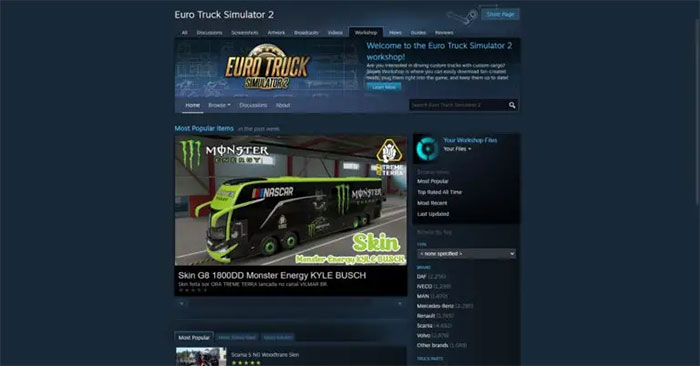
Workshop is the easiest option because Steam handles the download and updates. Open the Euro Truck Simulator 2 Steam Workshop in a browser or from the Steam client.
1. Open the Workshop
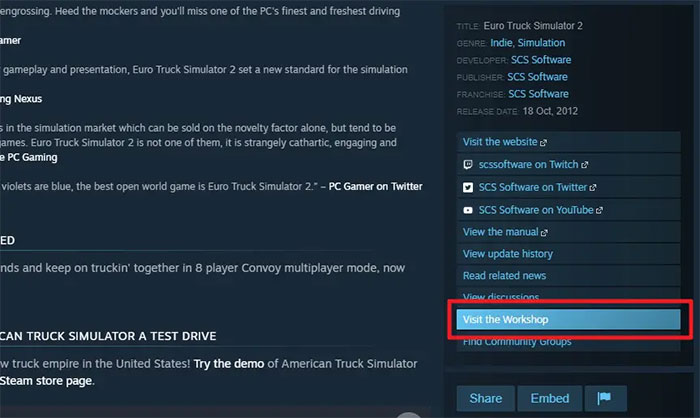
In Steam, select Library > Euro Truck Simulator 2. Open the game's Workshop page from the community links or browse directly from the Workshop tab.
2. Check compatibility and requirements
Open the mod page and read the description, update date, required DLC, dependencies, and recent comments. A high rating does not guarantee compatibility with the current ETS2 build.
3. Subscribe
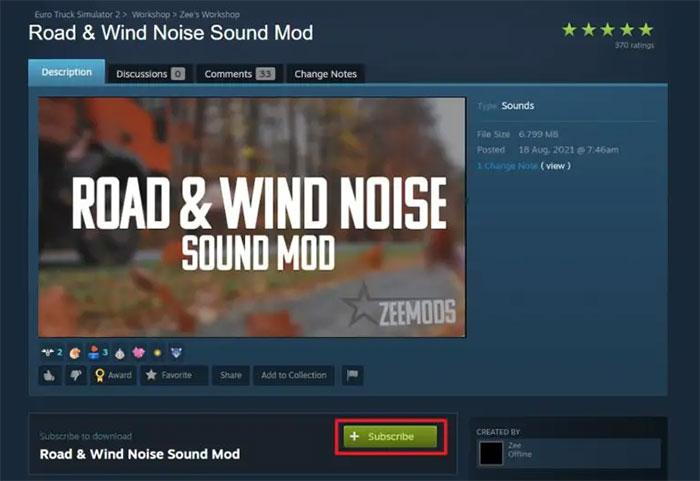
Select Subscribe. Steam downloads the Workshop item automatically; wait for the download to finish before launching the game.
4. Open Mod Manager
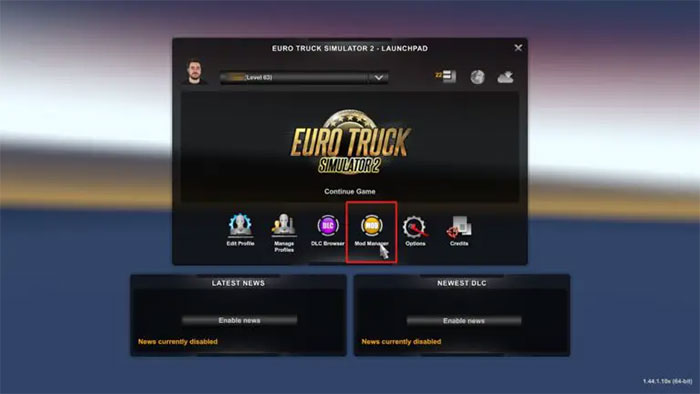
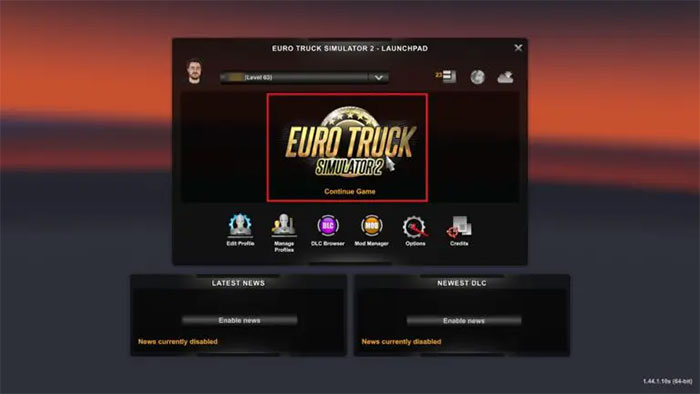
Launch ETS2, select the profile you intend to use, and open Mod Manager. If this is an important career profile, make a separate test profile first.
5. Move the mod to Active Mods
Select the new mod in the available list and use the arrow to move it into Active Mods. Review any warning icon or compatibility message.
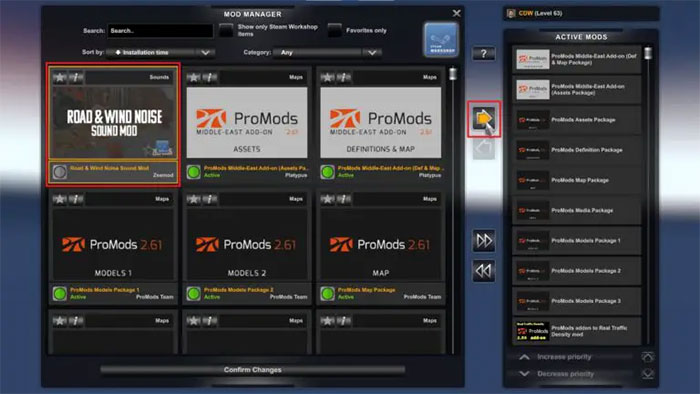
6. Set the load order and confirm
Place patches and compatibility fixes above the main mods they override unless the author gives different instructions. Large map combinations often require an exact order; copy it from the current mod documentation rather than guessing.
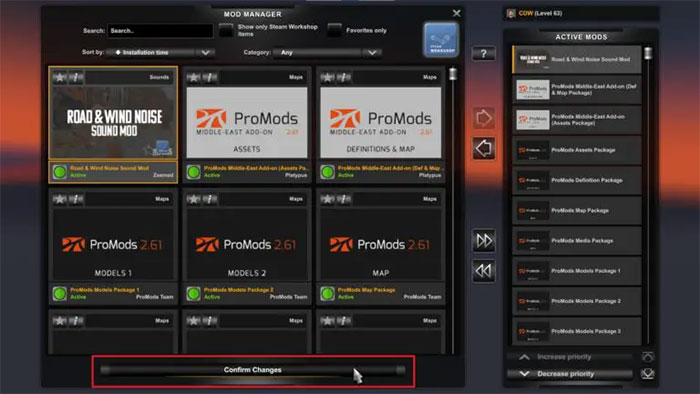
Select Confirm Changes and allow the profile to load. The first load after adding a large map or graphics package may take longer than usual.
7. Test in a safe area
Check the game log for errors, visit the changed truck or location, and make a short test drive. If the game crashes, remove only the newest mod first instead of disabling the entire list.
Method 2: Install a downloaded ETS2 mod manually
Use this method for a mod distributed directly by its author. Avoid pages that reupload another creator's work without documentation; they may provide obsolete or modified files.
- Download the mod and read its included instructions.
- If the download is a normal ZIP container, inspect it. Some mods are ready to use as an archive; others contain one or more
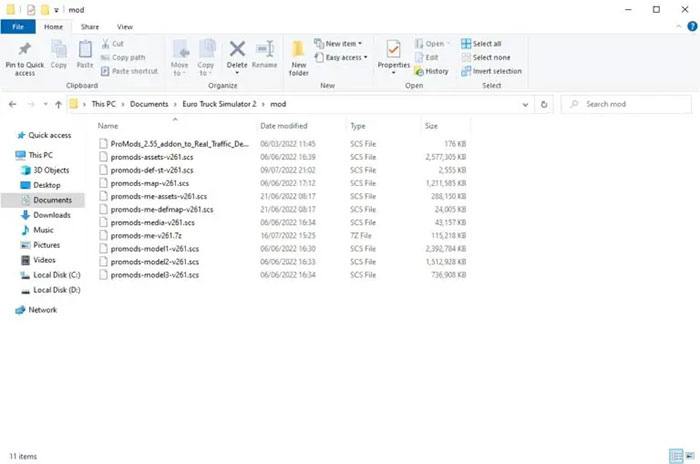
.scsfiles that must be extracted. - Open the ETS2 user folder. On a standard Windows installation it is usually
DocumentsEuro Truck Simulator 2. - Open the
modsubfolder. Create a folder namedmodinside the ETS2 user folder if it does not exist. - Copy the required
.scsfiles or supported mod archives into that folder. - Launch ETS2, open Mod Manager for the target profile, activate the files, and set their order.
- Confirm changes and test the profile.
Do not put user mods in the Steam installation directory under steamappscommon. Game updates and file verification can replace files there, while the Documents user folder is designed for profiles, configuration, and local mods.
How ETS2 load order works
Mods nearer the top of the Active Mods list generally have higher priority and can override files from items below. The exact order depends on the combination, but this pattern is a useful starting point:
- Compatibility patches and hotfixes
- Interface and background-map fixes
- Map add-ons and map connectors in the order specified by their authors
- Traffic, economy, weather, and sound overrides
- Truck, trailer, cargo, and accessory mods
- Base or dependency packages
This is not a universal rule. A map combo may provide a required top-to-bottom list, and following that documentation takes priority.
How to disable or remove a mod safely
- Load the profile and, for truck or accessory mods, sell or remove affected items where possible.
- Create a manual save and exit to the profile menu.
- Open Mod Manager and move the mod out of Active Mods.
- Confirm the change and read the warning about missing dependencies.
- Load the save and verify garages, trucks, jobs, and map position.
- Only after the profile works should you unsubscribe or delete the local file.
Never remove a required map sector while the truck is parked inside it. Move to a base-game city first. Keep a backup from before the removal in case the save cannot recover.
Keep an older ETS2 version for an incompatible mod
Steam does not provide a simple “never update” setting for an installed game. ETS2 instead exposes selected older builds through its beta branches:
- Right-click ETS2 in the Steam Library and choose Properties.
- Open Betas.
- Select the temporary branch matching the mod's required game version, if SCS still offers it.
- Allow Steam to download the selected build.
Using an older branch can prevent access to new features and may require older versions of every active mod. Back up profiles before moving between game versions, and return to None in the Betas menu when you are ready for the current release.
Troubleshooting ETS2 mods
The mod does not appear in Mod Manager
- Confirm the file is in the user
Euro Truck Simulator 2modfolder, not the game installation folder. - Look for a nested archive: the downloaded ZIP may contain the actual
.scsfile. - Check that the archive is not corrupted and that the mod supports your game version.
- For Workshop content, confirm that Steam finished the download and that you are online.
The profile crashes while loading
- Disable the most recently added mod.
- Check for a missing dependency or DLC.
- Correct the priority order for patches and map connectors.
- Review
game.log.txtin the ETS2 user folder for the first relevant error. - Restore the backup if the save was changed by an incompatible map or economy mod.
The mod shows as incompatible
Read the author's current page before forcing it. A version flag can occasionally be conservative, but an outdated definition or map file can also break the profile. Use an updated release or a supported older ETS2 branch instead of editing compatibility metadata blindly.
Security checklist for third-party mods
A normal content mod is data loaded by ETS2. Be cautious if a download asks for an executable, browser extension, password, “unlocker,” or antivirus exception. Verify the author and file source, scan the archive, and never enter Steam credentials on a third-party download page.
Creators who build mods can consult the SCS Modding Wiki; ordinary players only need the finished package and Mod Manager.
Related Articles
 How to Install Skyrim Mods: Step-by-Step Guide8 minutes read
 How to Change a Truck Tire: Step-by-Step Guide12 minutes read
 Instructions for Entering the Latest Pet Simulator X Codes and Codes4 minutes read
 TOP Unit Mods to Install in Totally Accurate Battle Simulator4 minutes read
 Instructions to Download and Install Mods for Minecraft Pocket Edition7 minutes read
 How to Install Mods into the Sims 3: Step-by-Step Guide11 minutes read
Reader Comments 0
Sign in with email or Google to join the discussion.