Table of Contents
ClassPoint is a presenter add-in for the Windows desktop version of PowerPoint. Download its installer from the publisher, close PowerPoint, install the required components, and sign in from the ClassPoint ribbon. Students join activities through a browser; they do not need the presenter add-in installed on each device.
Check compatibility first
The publisher lists Windows 11 or Windows 10 version 1703 and later, desktop PowerPoint 2013, 2016, 2019, 2021, or Microsoft 365, and the required .NET Framework and VSTO components. Its requirements page excludes macOS and ARM-based Windows presenter PCs.
Check the current technical requirements before downloading. Do not rely on older instructions listing Windows 7 and 8. PowerPoint in a browser is different from the Windows desktop application.
If you are unsure about the PC, use the Windows version and system-type check. On a managed school device, confirm that IT permits the installation.
1. Download from ClassPoint
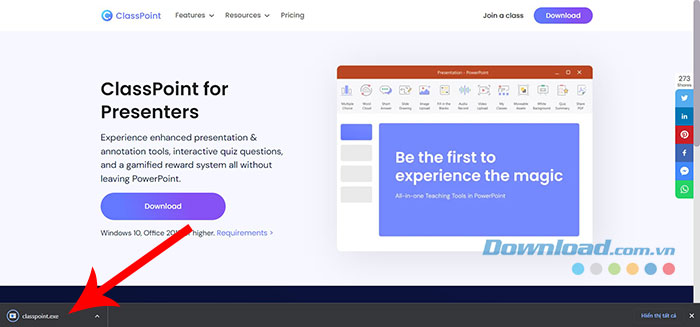
Use the official ClassPoint download page and obtain the Windows installer. Keep the downloaded filename as supplied rather than assuming it will always be named exactly classpoint.exe.
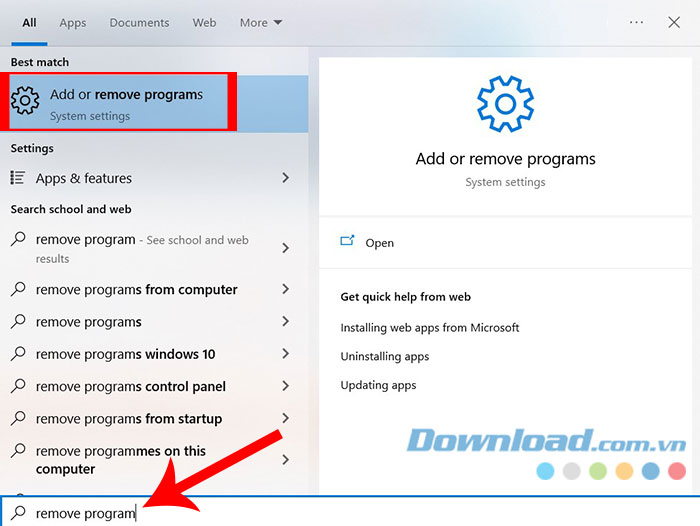
If updating an existing installation, follow the current updater or publisher instructions. Uninstalling the old version is not a mandatory first step for every installation. The screenshot below shows Windows' uninstall control if a clean reinstall is actually required.
2. Run the installer
- Save your presentations and close PowerPoint.
- Open the downloaded installer.
- Review its publisher and any Windows permission prompt.
- Read the license terms and continue if you accept them.
- Install the required prerequisites when prompted.
- Finish installation, and restart if requested.
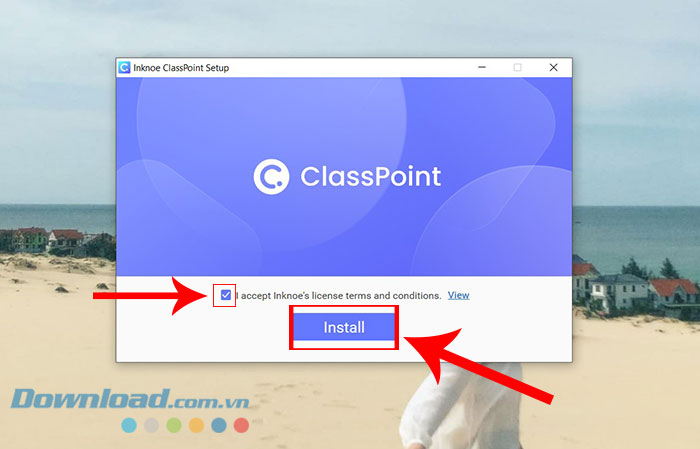
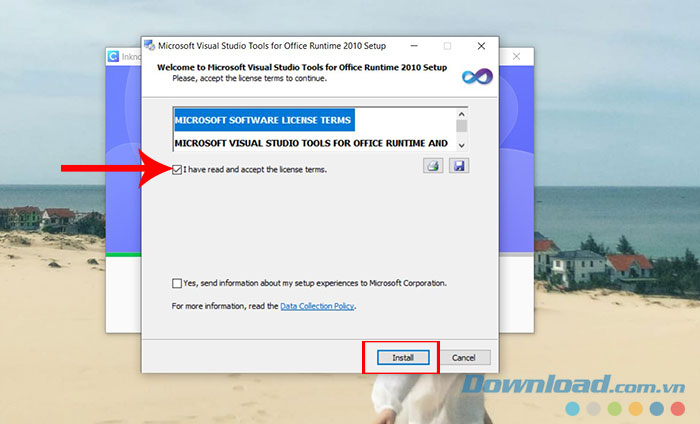
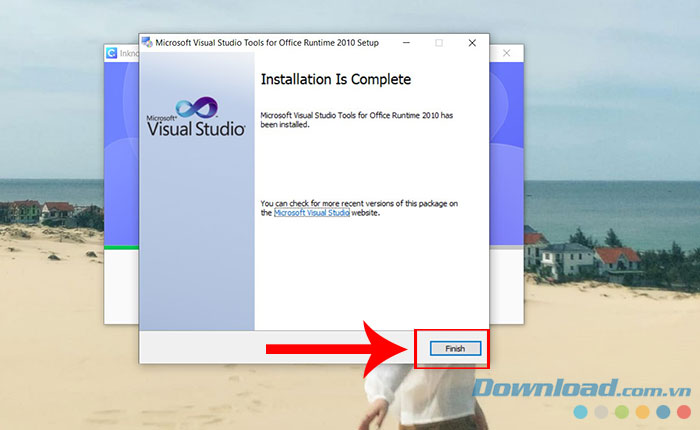
The screenshots show an older installer. Required runtimes and their installation screens may differ. Obtain missing Microsoft components through the official installer guidance rather than an unrelated download site.
3. Open PowerPoint and sign in
Start desktop PowerPoint and look for the ClassPoint tab. Select Sign In and use your existing account. A first launch on this PC does not mean you must create another account.
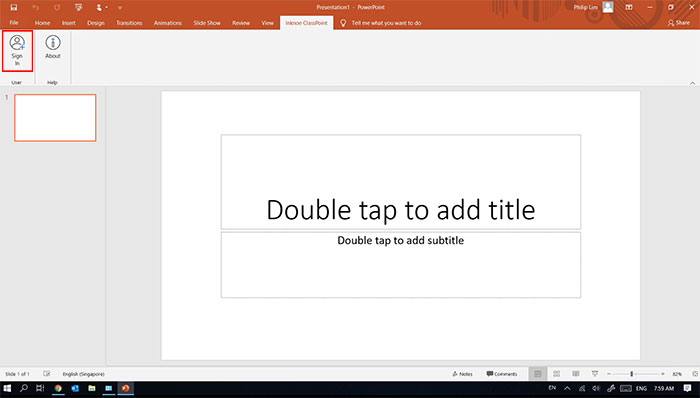
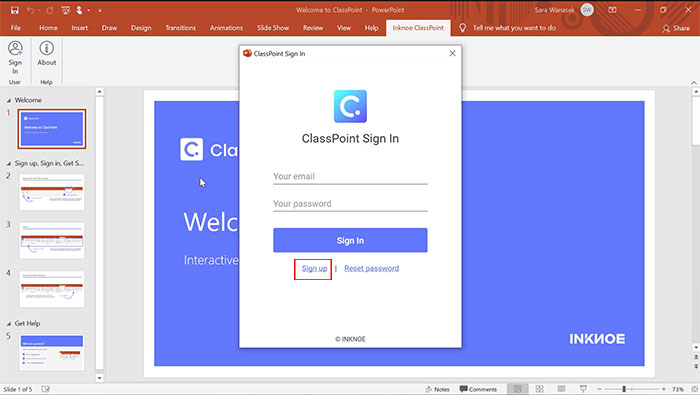
If you do not have an account, use the publisher's Sign Up flow and provide the requested information. Check the current plan features and limits before relying on a particular activity for class.
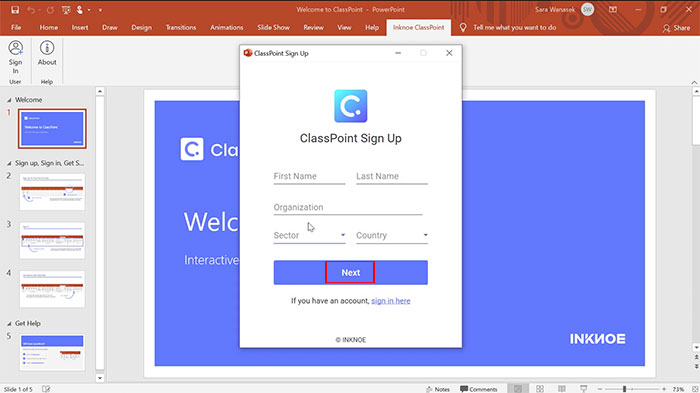
The publisher's installation guide covers the setup and account flow.
If the ClassPoint ribbon is missing
- Confirm that you opened the compatible Windows desktop PowerPoint application.
- Close all PowerPoint windows and open it again.
- Open File > Options > Add-ins.
- Inspect the active, inactive, and disabled add-in lists.
- Where applicable, select COM Add-ins in the Manage control and click Go, then enable the installed Inknoe/ClassPoint entry.
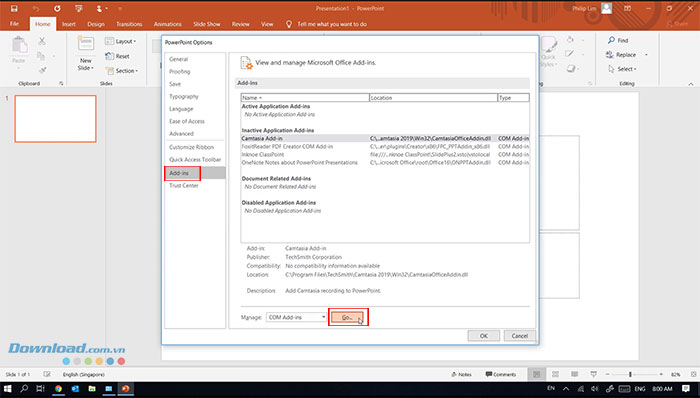
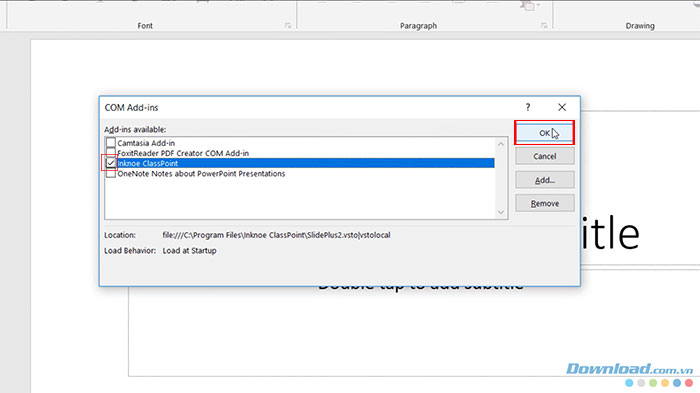
Do not assume that simply appearing under Inactive Add-ins is an installation failure. If PowerPoint disabled the add-in after an error, investigate that error and the publisher's recovery instructions before repeatedly enabling it.
If the add-in is absent or installation fails
Check compatibility, installation rights, the installer result, and the required runtimes. A missing entry can have several causes; it does not prove that .NET alone is at fault. On managed devices, send the exact error to IT or ClassPoint support.
If a class code does not appear
Check that you are signed in, online, and using the relevant ClassPoint presentation controls. Confirm the current session workflow and account status before reinstalling runtimes. Record any error message so support can identify the actual cause.
Before teaching, test a short presentation and join it from a separate student browser. Confirm that the intended question opens and a response reaches the presenter.
Related Articles
 Download Au Mix for PC, install Au Mix on your computer
 Pho Anh Hai Downloads: Android, PC, and iPhone Availability
 How to download and install Anthemscore on your computer super fast and easy
 How to Install ETABS on Windows: Step-by-Step Guide
 How to download Direct X and install DirectX on your computer
 Kutools for Excel Download, install and use instructions for new users
Reader Comments 0
Sign in with email or Google to join the discussion.