Table of Contents
McMIX creates shuffled versions of a prepared multiple-choice exam. The essential workflow is to format the source questions correctly, import them, verify the answer key, and generate the required exam codes. Shuffling cannot correct an ambiguous question or a wrong source answer.
This guide follows the older interface shown in the screenshots. Requirements and supported Word versions depend on the McMIX release. Do not assume the old Pentium III, Windows XP, and Word 2003 specifications describe compatibility with a current PC.
1. Install the appropriate release
Use a verified publisher or institution-provided installer and check its documentation and license. Save work and close Word before installation. On a school-managed PC, ask IT to handle required runtimes or permissions.
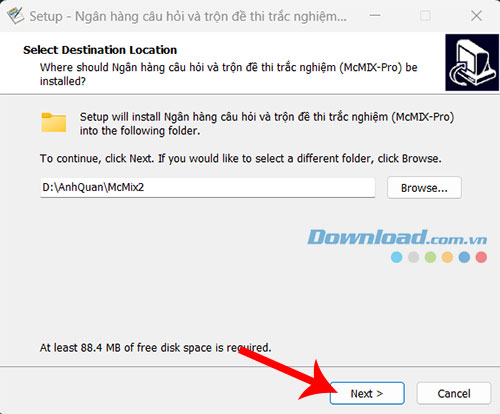
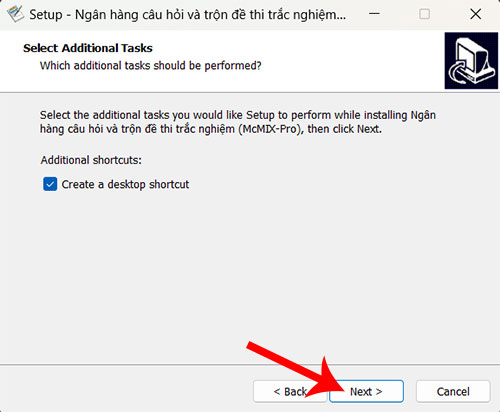
Run the installer, choose the installation folder, review any shortcut option, and complete installation. The filename in an older tutorial is not proof that it is the latest release.
2. Prepare a small Word sample first
Before importing a full exam, make a short sample with straightforward questions. Use the conventions documented for your version. A common McMIX format uses option labels A., B., C., and D., with the period directly after the letter.
Mark the correct option using the required formatting, such as underlining the option label. For example, if B is correct, ensure the B. label is actually underlined in Word; merely writing “B is correct” elsewhere may not be interpreted as an answer key.
Which number is even?
A. 3
B. 4
C. 5
D. 7
[<br>]
In this example, underline B. in the Word source. The separator [<br>] is literal text between questions, not an actual HTML line break. Check the version's rules for the final question and any optional numbering.
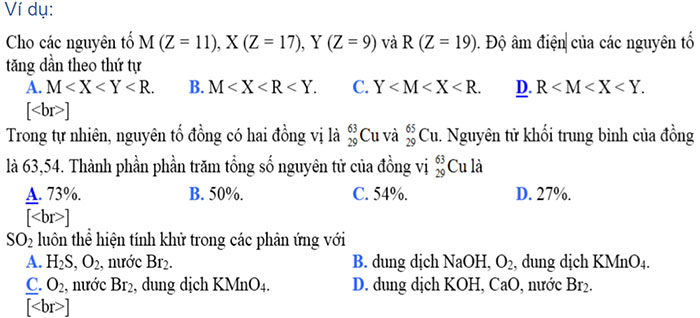
Keep the original Word file unchanged as a master copy. Do not use automatic numbering or unusual formatting unless you have verified that the importer recognizes it.
3. Create an exam record
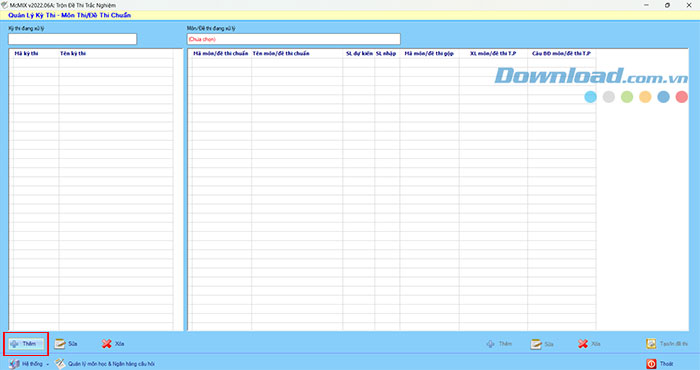
In the main interface, use Add for a new exam, enter its code and name, and save it. Keep codes distinct so exported papers and answer keys can be matched later.
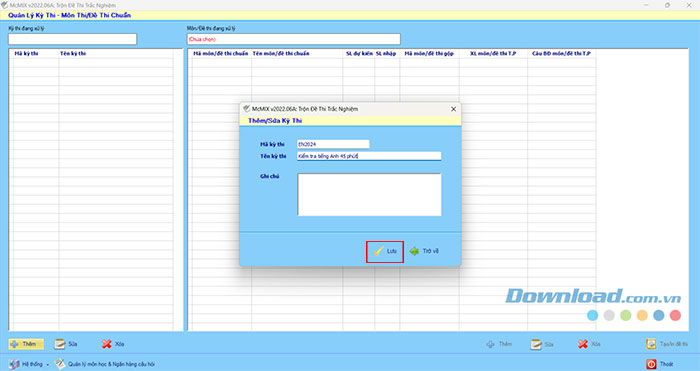
4. Create the subject or standard paper
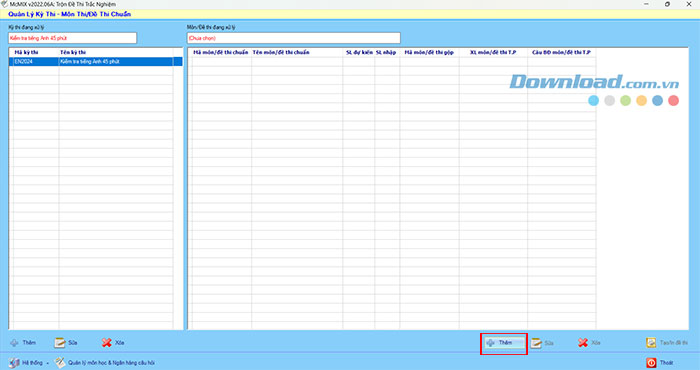
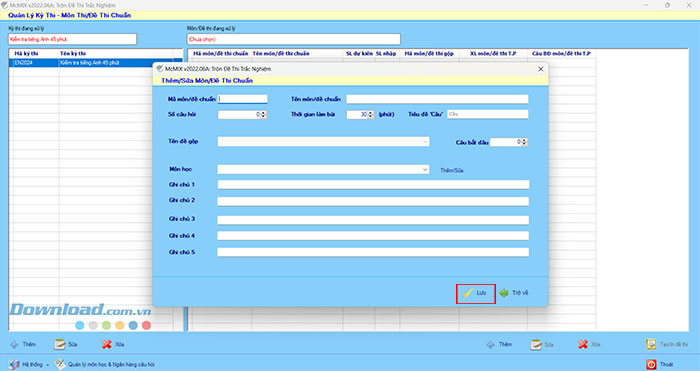
Use Add in the corresponding subject pane. Enter the requested standard-paper code, title, number of questions, and duration. Confirm that these match the prepared source exam.
5. Import and inspect the questions
Open Create/Print Exam and use the question-entry or import controls shown by your release.
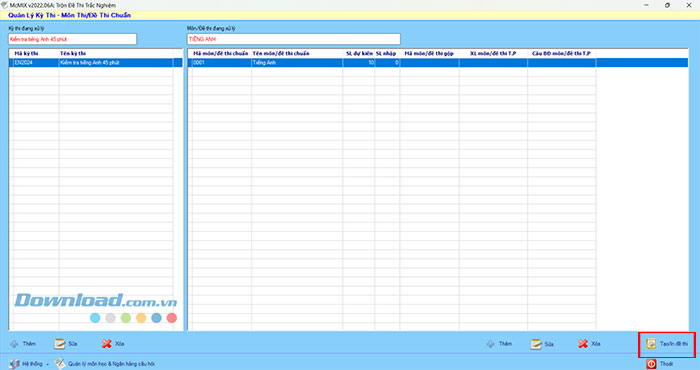
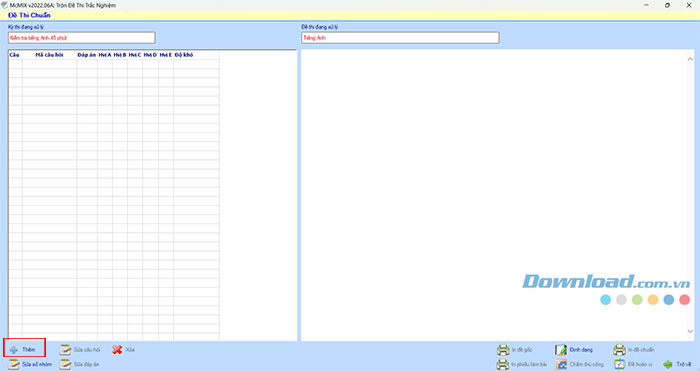
Import the Word source or paste it through the supported entry workflow, then save and read any parsing messages.
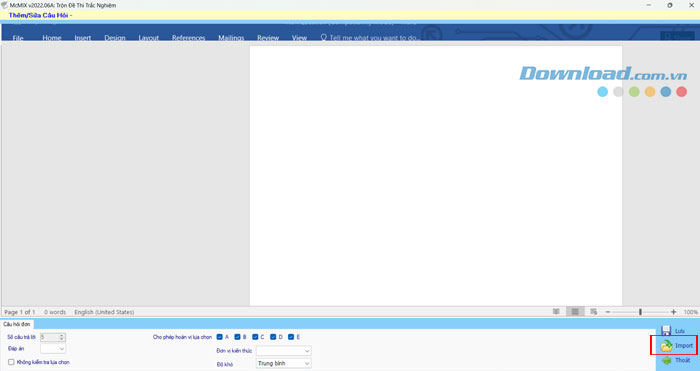
Do not interpret a blank page as sufficient proof of success. Check that the expected number of questions appeared and that every answer was recognized. Inspect equations, diagrams, punctuation, and line wrapping in the imported version.
6. Generate shuffled exam versions
- Open the permutation/shuffle function for the verified standard paper.
- Add the number of exam versions you need, not a new number of questions.
- Generate and save their distinct exam codes.
- Export or print the corresponding papers and answer keys.
Use the release's documented grouping and fixed-option controls when order matters. Shared reading passages must stay associated with their questions. An option such as “A and B” or “all of the above” can become invalid if options are shuffled carelessly.
Check every version before use
- Match each paper's code to its answer key.
- Verify question count, page breaks, images, and formulas.
- Confirm that shuffled answer labels still map to the correct responses.
- Check grouped questions and any fixed-position options.
- Keep the master source and exported set together in a secure backup.
Do a test print before distributing the exam. If an import error occurs, reduce the source to the smallest failing question and compare its labels, separator, and formatting with a known-working sample. Fixing the source is safer than repeatedly generating papers from an unverified import.



Reader Comments 0
Sign in with email or Google to join the discussion.