Table of Contents
Geometer's Sketchpad displays keyboard shortcuts beside commands in its menus. Use that displayed combination as the final reference for your installed version: some older shortcut lists use different assignments.
The table below focuses on Windows. On Mac, many menu commands use Command (⌘) instead of Ctrl, but do not replace every modifier mechanically. Check the Mac menu for the exact combination.
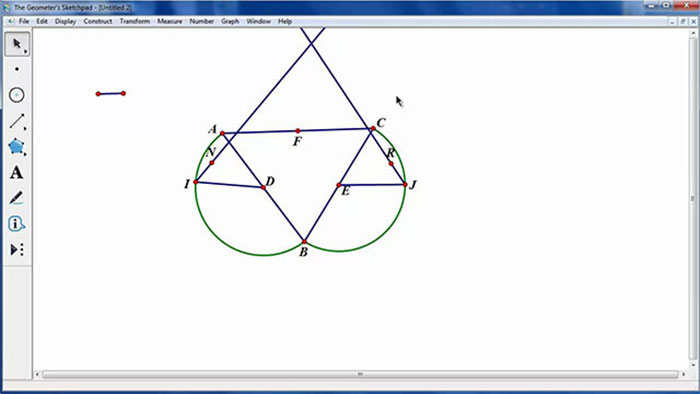
Windows shortcut reference
Most construction commands require the correct objects to be selected first. A shortcut cannot run a command that is unavailable for the current selection.
| Windows shortcut | Action or selection requirement |
|---|---|
| Ctrl + N | Create a new sketch. |
| Ctrl + O | Open a sketch file. |
| Ctrl + S | Save the active sketch. |
| Ctrl + W | Close the active document. |
| Ctrl + Q | Exit Sketchpad. |
| Ctrl + Z | Undo the previous action. |
| Ctrl + R | Redo an undone action. |
| Ctrl + X | Cut the selected objects. |
| Ctrl + C | Copy the selected objects. |
| Ctrl + V | Paste copied objects. |
| Ctrl + A | Select all applicable objects; selection depends on the active tool. |
| Ctrl + H | Hide selected objects. |
| Ctrl + K | Show or hide selected object labels. |
| Ctrl + T | Trace selected objects as they move. |
| Ctrl + B | Erase traces. |
| Ctrl + I | Construct intersections of appropriately selected objects. |
| Ctrl + L | Construct a straight object from the selected points, according to the current construction command. |
| Ctrl + M | Construct midpoint(s) of selected segment(s). |
| Ctrl + P | Construct an interior from an appropriate selection, such as a polygon or circle. |
| Ctrl + G | Plot selected functions, or define and plot a new function when none are selected. |
| Alt + Up Arrow | Select parent objects in the documented Sketchpad 5 interface. |
| Alt + Down Arrow | Select child objects in the documented Sketchpad 5 interface. |
| Alt + = | Open Calculate. |
| Alt + ? | Open object Properties. |
| Alt + / | Open the object-label command where assigned. |
| Alt + ` | Animate or pause selected objects. |
| Alt + [ | Decrease animation speed. |
| Alt + ] | Increase animation speed. |
| Alt + > | Increase the size of selected text or labels where supported. |
| Alt + < | Decrease the size of selected text or labels where supported. |
| Delete | Delete the selected objects; inspect dependent objects before confirming. |
Use shortcuts with the right selection
To construct a midpoint, select a segment before using the midpoint command. To construct an intersection, select suitable intersecting objects. For function plotting, the documented Graph command plots selected functions or opens a new-function workflow when none are selected.
Check a disabled menu command's prerequisites before trying another key combination. The Sketchpad selection reference explains the relationship between selected objects and available commands.
Corrections to common older lists
- Ctrl + R is Redo; Ctrl + Z is Undo.
- Ctrl + S saves the sketch document, not the program.
- Alt + = opens Calculate, rather than a general spreadsheet.
- Alt + backtick controls animation; it does not create a new “dynamic point.”
- Parent/child selection assignments vary in older lists. The documented Sketchpad 5 interface uses Alt + Up and Alt + Down on Windows.
For commands such as New Function, New Parameter, object redefinition, marked centers, or text-palette controls, inspect the corresponding menu in your version instead of relying on an unverified universal assignment.
Escape from the current operation
Esc can end the current activity or clear a special state. Depending on context, it can finish text editing, return to the Arrow tool, clear selection, stop animation, or clear traces. Use it deliberately and observe the result; repeated presses can do more than dismiss a dialog.
The official shortcut reference describes these context-dependent actions. For the plotting behavior, see Plot Function/Plot New Function.
Build a small working set
Start with Save, Undo, Redo, Hide, labels, midpoint, and intersection. Practice on a copy of a sketch, especially before deleting objects that have dependents. For installation context, see the Sketchpad setup guide.
Related Articles
 Windows Keyboard Shortcuts: A Practical Windows 11 and 10 Cheat Sheet
 How to Download and Install Geometer's Sketchpad on Windows
 Keyboard shortcuts in Illustrator are often used, keyboard shortcuts are commonly used in AI
 GeoGebra Keyboard Shortcuts for Objects, Views, and Input
 Pubg keyboard shortcuts - All the Pubg keyboard shortcuts you need to know
 Useful keyboard shortcuts in Microsoft Word (Part 2)
Reader Comments 0
Sign in with email or Google to join the discussion.