Table of Contents
To test a SOAP service in SoapUI, import its WSDL, open a generated request, enter valid sample values, and send it to the intended endpoint. Then validate the response: receiving XML or an HTTP success status alone does not prove that the operation returned the correct result.
What SOAP and WSDL do
SOAP is an XML-based messaging protocol. WSDL describes a service's operations, message types, bindings, and endpoints, allowing tools to generate requests. WSDL is useful for this workflow, but it is not a requirement that every SOAP message exchange retrieve a WSDL at runtime.
REST and SOAP are not the only API approaches, and neither a service's speed nor its suitability can be inferred from the label alone. SoapUI supports SOAP testing; its Open Source edition is distinct from the commercial ReadyAPI product.
Install SoapUI Open Source
- Download the appropriate Windows installer from the official SoapUI download page. Select SoapUI Open Source if that is the edition you need.
- Run the installer and review its prompts. Choose an installation directory with the space required by that version.
- Select the components you need, check any associated locations and shortcuts, and start installation.
- Choose Finish when installation completes, then launch SoapUI.
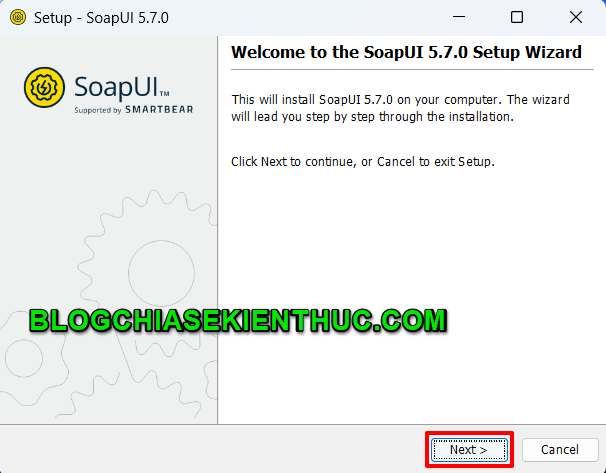
Installer welcome screen.
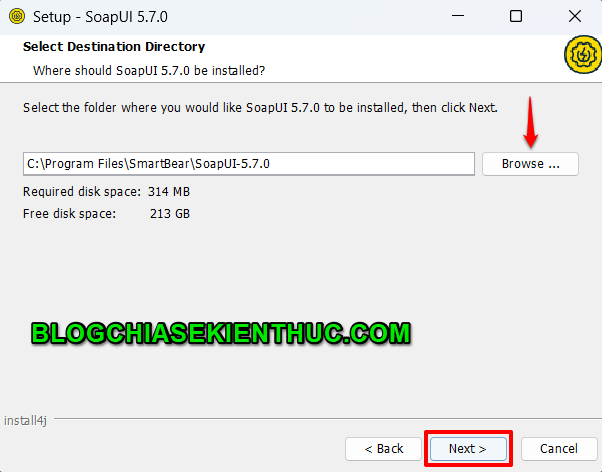
Installation location; the screenshot uses an older version.
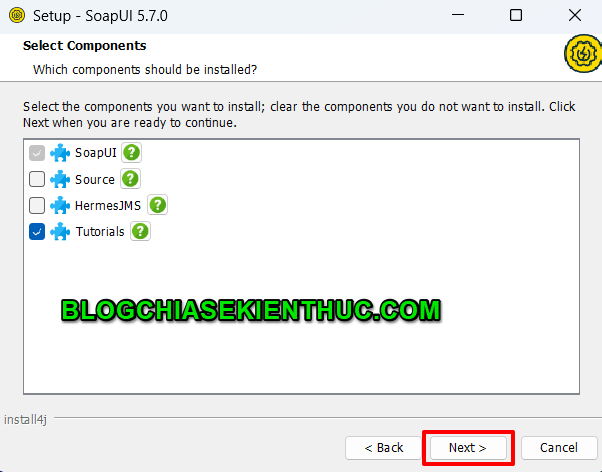
Component selection.
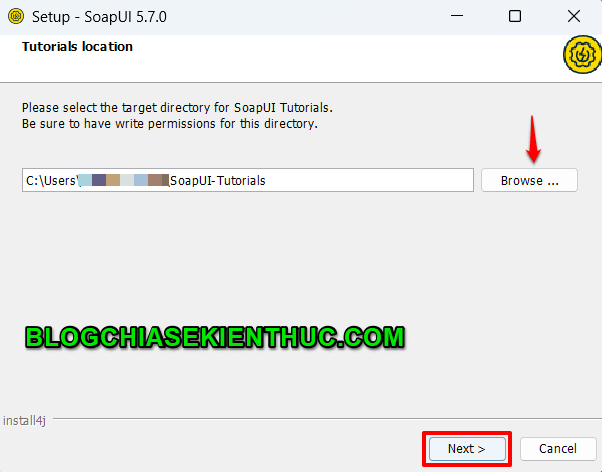
Component folder options.
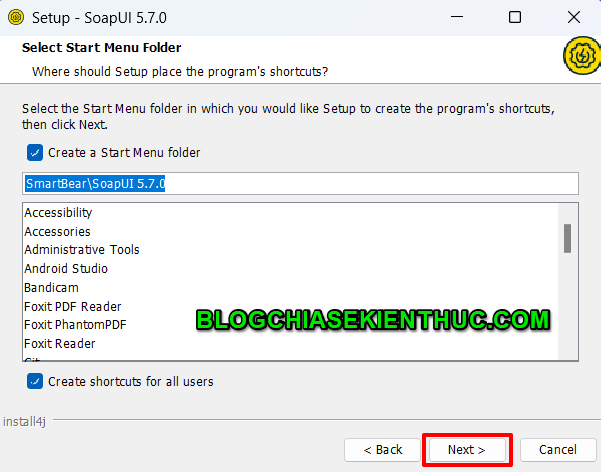
Shortcut options.
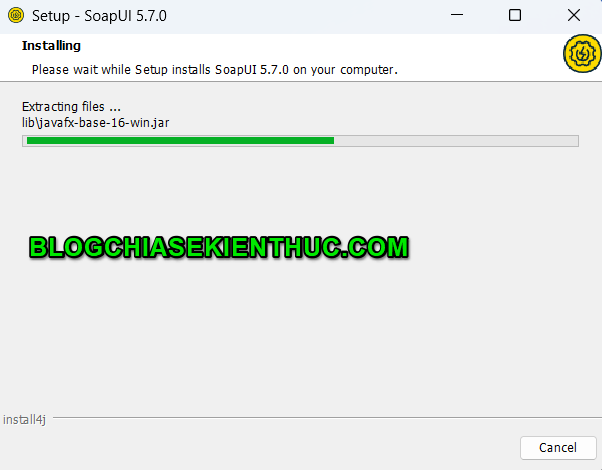
Installation progress.
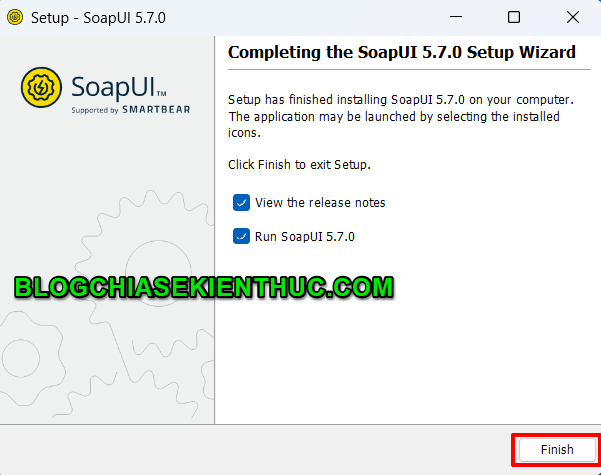
Installation complete.
Create a project from the service definition
- Obtain a WSDL URL or local file from the service owner. A URL ending in
?wsdlis common, but not universal. - Select File > New SOAP Project.
- Enter a descriptive Project Name and the definition in Initial WSDL.
- Enable request generation if offered and select OK.
- Expand the imported service and operations in the project navigator.
The original example used a public calculator service with an Add operation. Public demonstrations can become unavailable; use a maintained test service or your team's test endpoint. Never substitute a production operation that creates or changes real records merely to check connectivity.
Send and inspect a request
- Open a generated request for an operation you are authorized to test.
- Check the endpoint at the top of the editor. Confirm that it points to the intended test environment.
- Replace placeholder values with valid data and configure the authentication or SOAP security headers required by that service.
- Submit the request and inspect the response body, HTTP status, and timing.
- Compare the returned values with an expected result. In a calculator example, inputs 2 and 3 should produce a result of 5 for addition.
The XML view is convenient for reading formatted messages; Raw is also useful for inspecting transmitted headers and payloads. A SOAP Fault can explain an application-level problem even when a network connection was established.
Turn a manual request into a repeatable test
Add the request to a TestCase as a SOAP Request TestStep. Add assertions for the behavior you need: a valid SOAP response, absence of a SOAP Fault for a positive case, schema compliance, and the expected business value. For the calculator example, assert the result element rather than merely searching the response for the digit 5.
The SoapUI validation guide explains these assertions. Save the project without exposing reusable credentials or sensitive response data.
Troubleshoot the correct layer
- WSDL import fails: Check access to the definition and any imported schema files.
- Connection or TLS error: Verify the endpoint, network, proxy, and certificate configuration. Do not disable certificate checking as a blanket fix.
- Authentication failure: Check the service's required authentication scheme and test-account permissions.
- SOAP Fault or schema error: Check namespaces, required elements, types, and element order against the definition.
For related foundations, see working with XML in PHP. To develop and test your own services, the Python API course provides a broader next step.
Related Articles
 What is SOAP API? SOAP is an API How does it work?
 Why does soap create bubbles?
 Tips for using soap in some housework
 The history of soap and how it destroys corona virus
 The magic ice 'dance' in the soap bubble
 Instructions for making very simple soap bubble blowing machines, self-made less than 10 minutes
Reader Comments 0
Sign in with email or Google to join the discussion.