Table of Contents
Educaplay’s Alphabet activity creates a wheel of letters. Players select a letter, read or hear a clue, and enter a word that starts with—or, if configured, contains—that letter. Teachers can build the clues manually or ask Educaplay’s Ray assistant to generate a draft, then review every answer before publishing.
The screenshots below show the workflow used when this article was prepared. Educaplay occasionally changes button placement, but the current process remains: choose Alphabet, create the letter-and-clue set, test it, and publish it.
What to prepare before opening the editor
Decide the learning objective first. A focused game is easier to play and assess than a mixed list of unrelated words. Prepare:
- a topic, such as animals, geography terms, or vocabulary from one lesson;
- the age or proficiency level of the players;
- the letters you want to include;
- one unambiguous answer and a concise clue for each letter;
- acceptable alternative spellings, plurals, or verb forms;
- optional images or audio that you have permission to use.
Educaplay allows a custom set rather than requiring all 26 English letters. That is useful when a topic has no sensible answer for letters such as Q or X.
How to create an Alphabet game in Educaplay
1. Open the activity editor
Sign in to Educaplay and open the educational resource editor. Select Alphabet, described by Educaplay as a circle of letters whose corresponding words players must guess.
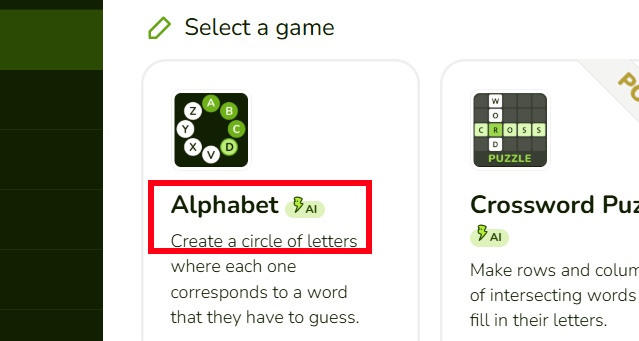
A free Basic account can create Alphabet activities manually. Educaplay may place waiting periods, advertising, or generation caps on games created with Ray, so the AI option can behave differently depending on the account.
2. Choose AI-assisted or manual creation
The editor offers an AI-assisted route and a manual route. Ray can generate a first draft from a title, a topic description, or supplied text. Manual creation gives you direct control over every letter, clue, answer, and media item.
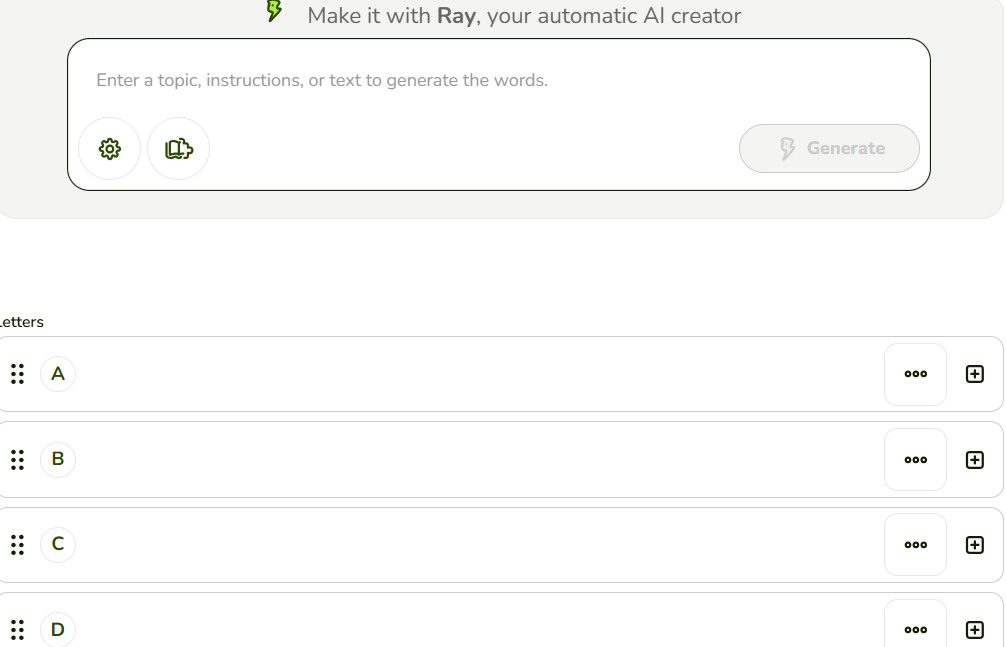
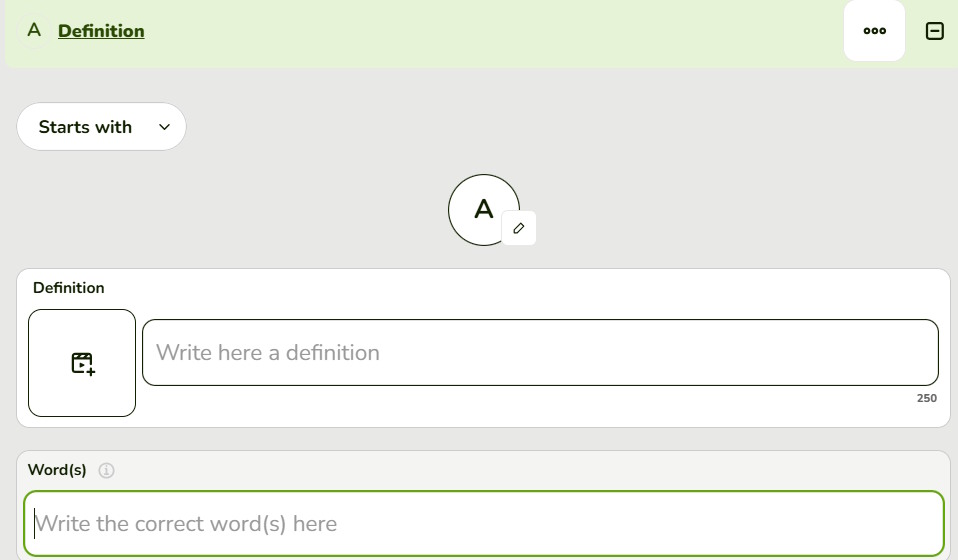
For a manual game, add or open a letter entry and complete the required fields. The exact labels can vary, but each item needs a character, an answer, and a clue. Educaplay also supports text, image, audio, or animated GIF clues.
3. Generate a draft with Ray
If you use AI, open the Ray creation option shown in your editor. In the older interface pictured here, it appears behind the settings control.
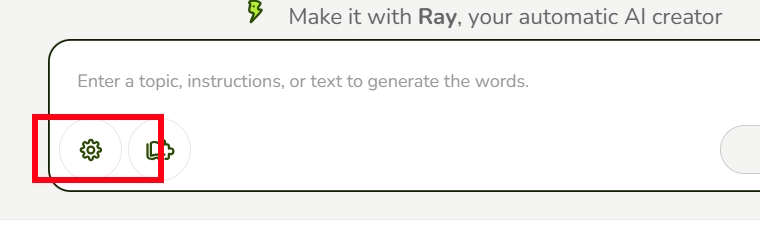
Check the planned letter set before generation. You can add, delete, and reorder characters, and non-Latin characters are supported. For each answer, decide whether the required letter must appear at the beginning or may appear anywhere in the word.
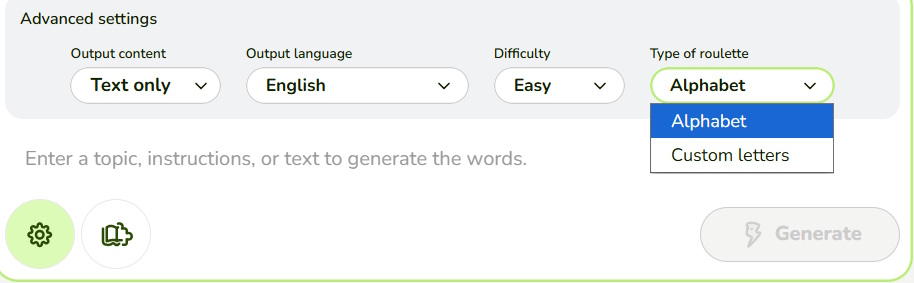
Give Ray a specific prompt. Include the subject, learner level, number or range of letters, clue style, and any content restrictions. For example:
Create an English vocabulary Alphabet game for A2 learners about food and cooking. Use 15 common words, one short definition per word, and avoid brand names. Every answer must start with its displayed letter.
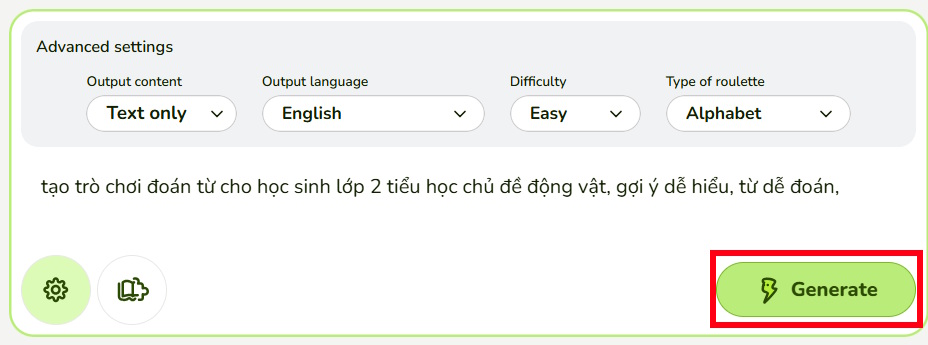
AI-generated questions are drafts, not verified lesson material. Check spelling, difficulty, duplicate answers, cultural assumptions, and whether each clue has only one reasonable solution. Replace awkward items instead of forcing a word to fit a difficult letter.
4. Configure play options and preview
Review the activity’s Options tab before testing. Educaplay can apply a time limit per letter and a limited number of lives. A timer adds pressure, so leave it disabled or generous when the objective is recall practice rather than speed.
Select Start or the available preview control to play through the activity as a student.
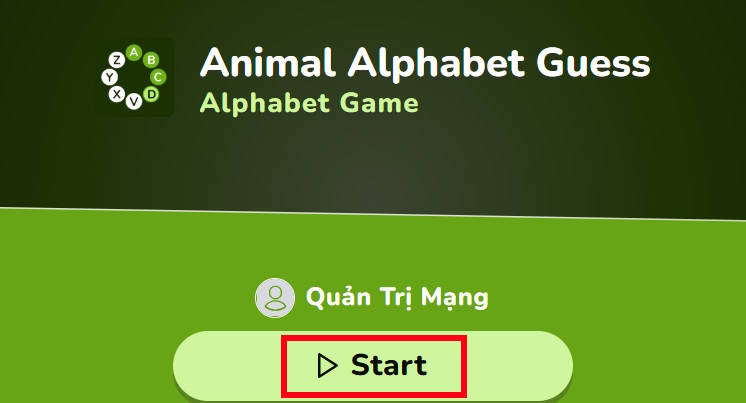
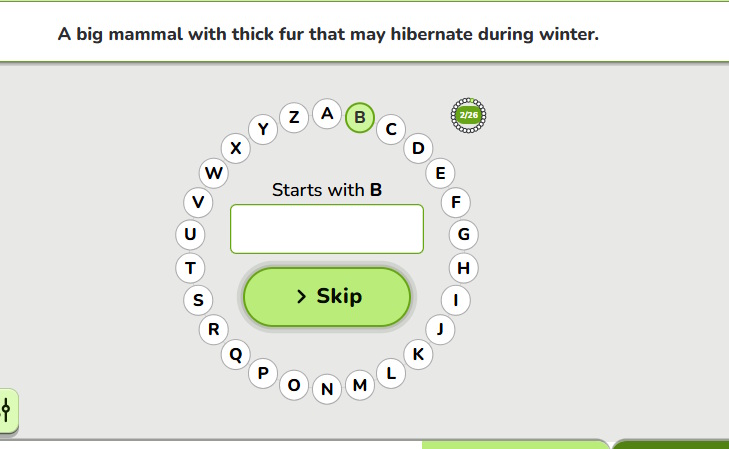
Open every letter and test every accepted answer. Also test a plausible alternative, a plural, capitalization, and an accented character where relevant. Educaplay can accept more than one correct form, which is useful for variants such as “run” and “running.”
5. Publish and share the game
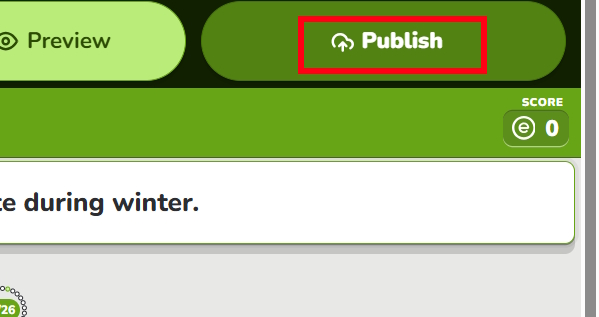
When the preview is correct, select Publish. Complete any required title, language, subject, age range, or visibility information before confirming.
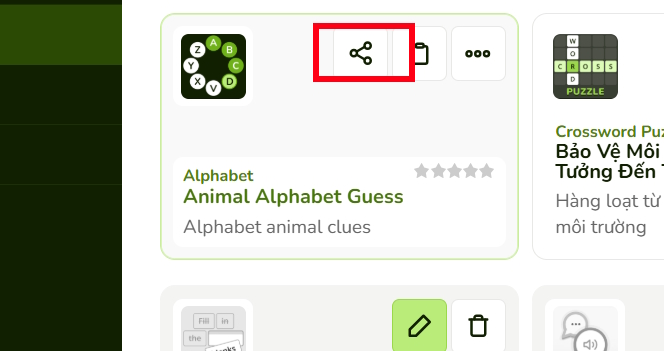
Open My Activities and use the activity’s Share control to copy its public link. Educaplay also supports embed code and integrations with learning-management systems such as Google Classroom, Microsoft Teams, Moodle, and Canvas.
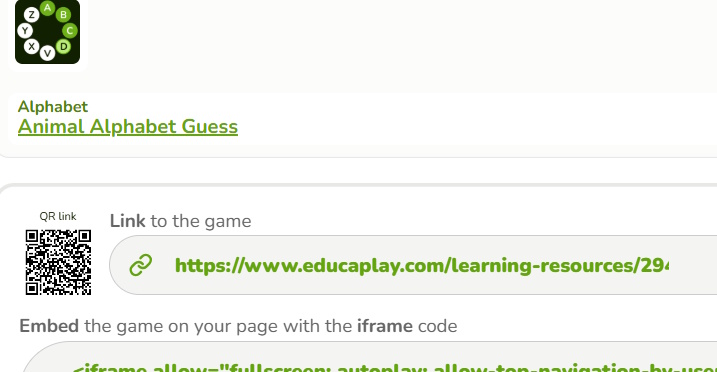
Send the copied URL to students or place it in the relevant class page. By default, an activity can be available to anyone with the link and may also be discoverable through Educaplay or search engines. Private activities require a qualifying paid plan, so do not include personal student information in public titles or clues.
How students play
Players choose a letter, use the displayed definition or media clue, enter an answer, and check it. If they do not know the answer, they can skip the letter and return later. The score is based on correctly answered letters. If students identify themselves before playing, the result can be saved for the creator to review in Reports.
Educaplay’s current Alphabet activity guide explains the available letter, clue, timing, lives, sharing, and reporting options in more detail.
Design tips for a useful classroom game
- Keep clues answerable: “A large mammal with a trunk” is clearer than “An animal you may know.”
- Match the lesson: use the same terminology students encountered in class.
- Avoid accidental trick questions: accept legitimate spelling or grammatical variants.
- Use media intentionally: an image or audio clue should test the learning goal, not merely decorate the activity.
- Test accessibility: do not rely on color alone, add useful text where possible, and ensure audio has an equivalent clue.
- Review results: letters that most students miss may indicate an unclear clue rather than weak knowledge.
For other formats, see the TipsMake guide to an Educaplay word puzzle. Teachers who prefer an offline presentation can also build a guessing game in PowerPoint.
Related Articles
 How to Create an Educaplay Unscramble Letters Game10 minutes read
 How to Make a Froggy Jumps Game in Educaplay12 minutes read
 How to Designing Games on Educaplay Using Commands3 minutes read
 How to Create a Guessing Game on PowerPoint9 minutes read
 How to Create an English Review Conversation on Educaplay3 minutes read
 Answer Game 2 Image 1 Word: Guess the Word, Track the Song7 minutes read
Reader Comments 0
Sign in with email or Google to join the discussion.