Table of Contents
Educaplay's Unscramble Letters activity asks players to rearrange letters to form a word or multi-word answer. It works well for spelling, vocabulary and terminology review. You can enter the answers and clues yourself or ask Educaplay's Ray assistant to generate a draft.
This activity is different from Unscramble Words, which rearranges whole words to form a sentence.
Plan the activity before opening the editor
Prepare a focused list of terms suited to the learners. Educaplay allows answers up to 50 characters, but its guidance recommends an average of roughly 4–10 characters and about 3–25 concepts for a comfortable game.
Write a clue for each term. A good clue teaches or recalls the concept without giving away the spelling. Avoid ambiguous answers, unexplained abbreviations and words that differ only by capitalization or punctuation.
Create an Unscramble Letters game
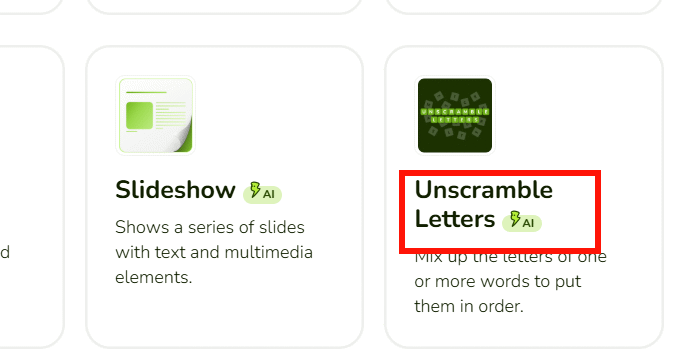
- Open the Educaplay Unscramble Letters maker, sign in, and choose Make game or open the resource editor.
- Select Unscramble Letters.
- In the editor, choose whether to create the content manually or use the Ray AI assistant.
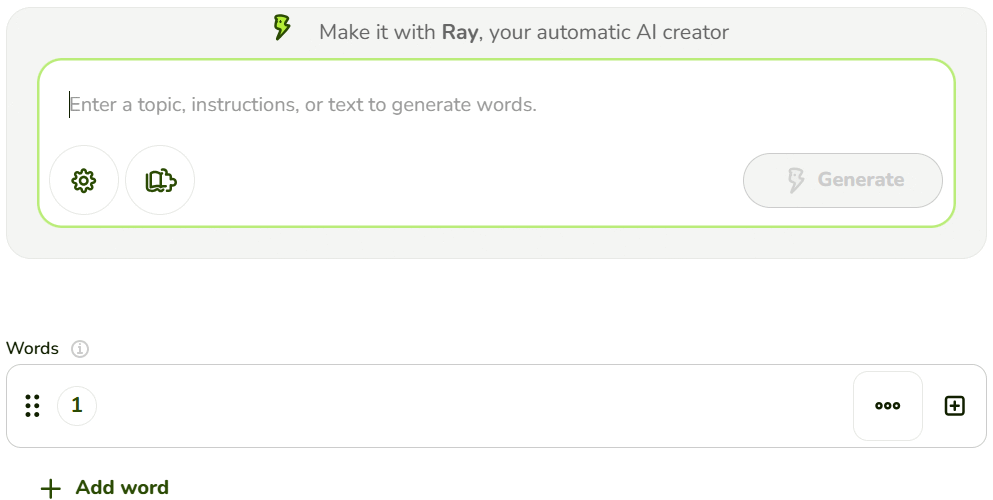
Option 1: Enter answers manually
Add each word or phrase and its clue. The clue can use text and, where available, an image, audio clip or animated GIF.
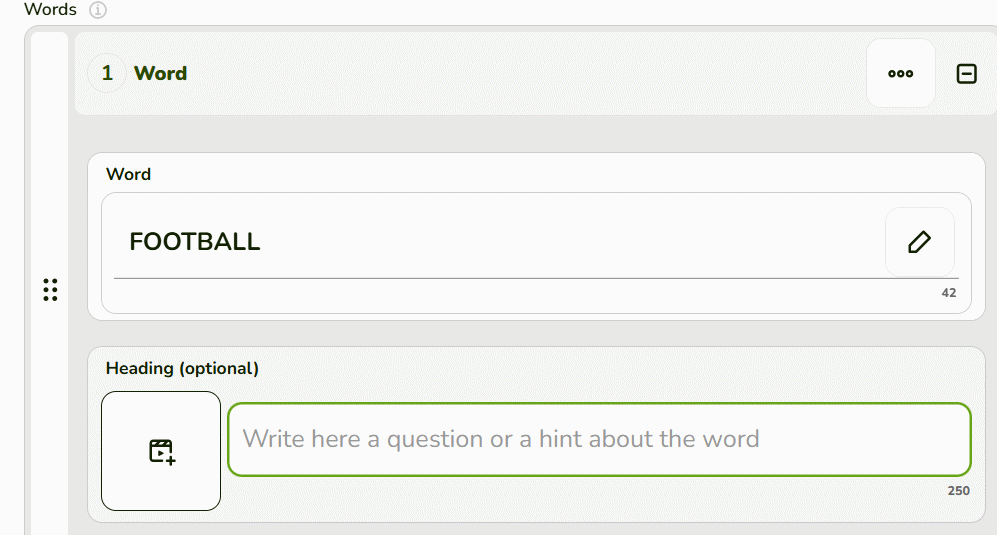
Manual entry is the best choice when exact curriculum wording, spelling variants or assessment validity matter. Preview each item after entry and make sure the clue has only one reasonable answer.
Option 2: Generate a draft with Ray
- Open the AI or advanced settings from the gear control.
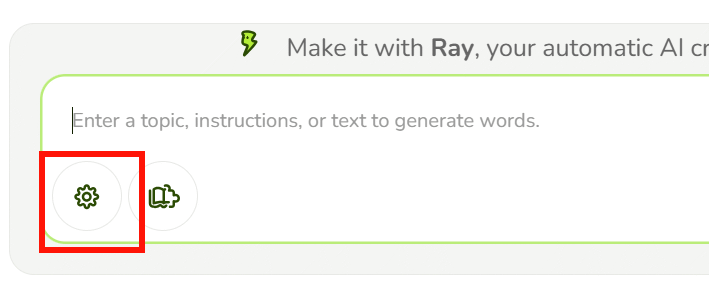
- Set the activity language and any available generation options. Choose the language of the answers, not simply the teacher's interface language.
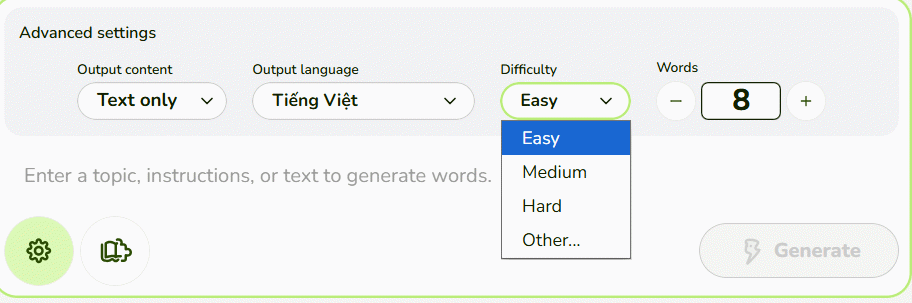
- Describe the topic, audience and constraints, then select Generate.
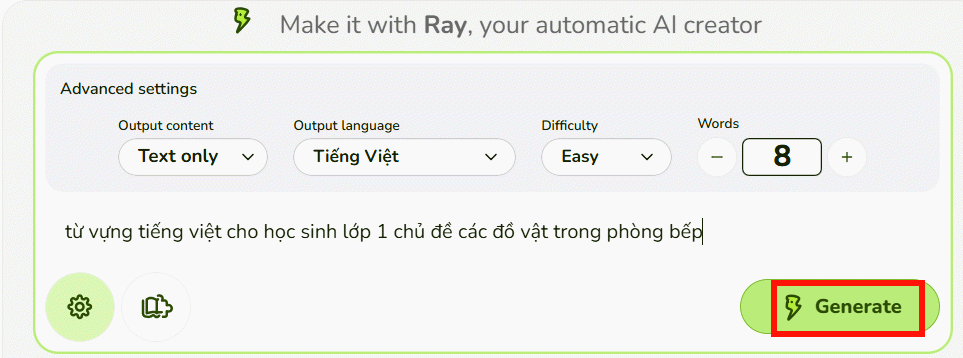
A useful prompt is:
Create 10 English vocabulary items for beginner learners about food. Use answers of 4–9 letters, one unambiguous clue per item, no proper names, and avoid words with duplicate meanings in this set.Ray can also generate from a title, text, URL or supported uploaded material, depending on the current plan and editor. Do not upload student names, grades or confidential school documents. Review every generated answer for spelling, age suitability and factual accuracy.
Configure the game options
Before publishing, review the Options and Information tabs:
- Shuffle order: randomizes the sequence of concepts.
- Lives: limits incorrect letter placements.
- Time limit: adds a timer per screen; avoid it when speed is not the learning objective.
- Language: sets the game interface language where supported.
- Identification: determines whether named scores can be collected, subject to plan options.
Use audio or images when they support the learning target. Decorative media can distract from spelling practice and may create accessibility problems.
Preview and test the activity
Select Start or Preview after generation.
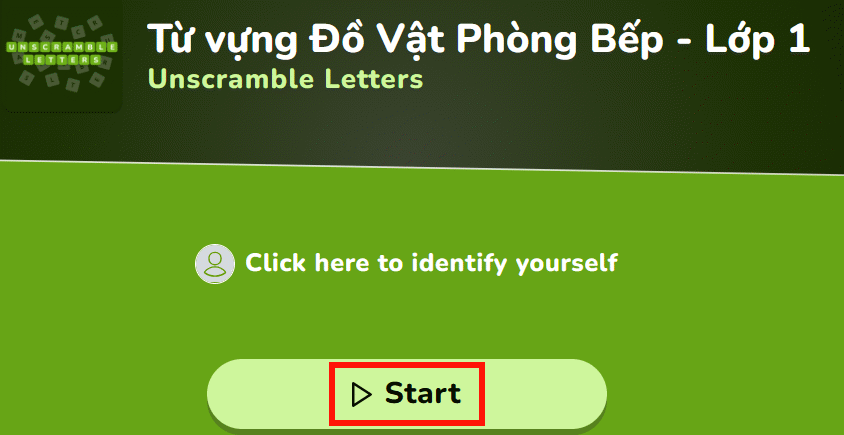
Players can type the letters in order or, depending on the device, click or drag letters into place. The score updates as correct positions are completed.
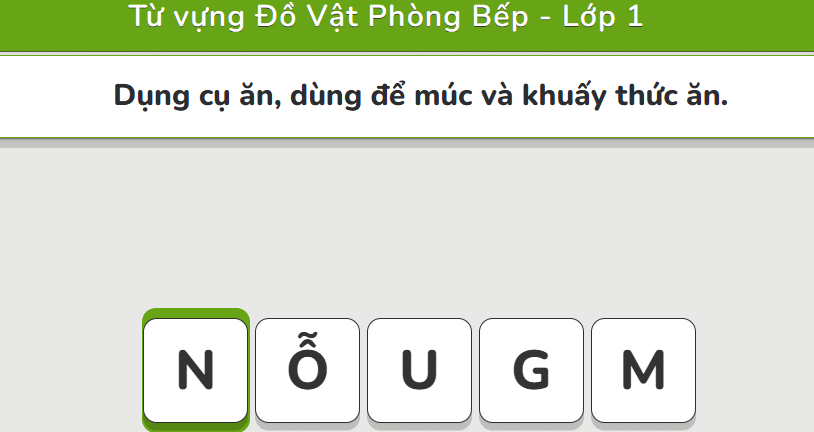
Test the entire activity on both a computer and the type of mobile device students will use. Check:
- all answers can be completed exactly as intended
- accented characters and spaces work correctly
- clues remain readable at a small screen size
- audio has a text alternative
- time and lives settings match the learners
Publish and share the game
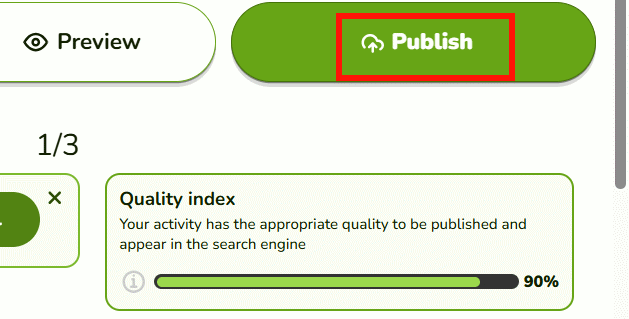
- When the activity is ready, select Publish.
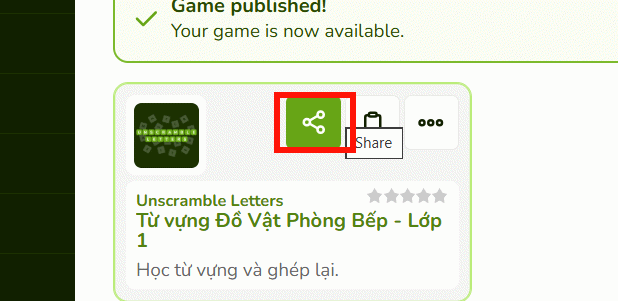
- Open My Activities and select the Share control beside the game.
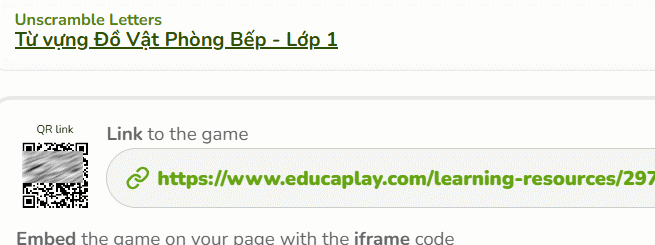
- Copy the activity link and send it through the class system you already use.
By default, a published activity may be accessible to anyone with the link and may also be discoverable through Educaplay or search engines. Private access requires an eligible plan. Check visibility before using real names or sensitive classroom content.
Other sharing options
Educaplay can provide embed code and integrations with supported learning management systems. Some paid education or commercial plans add SCORM downloads, mandatory player identification, private activities, customization and ad-free play. Confirm the live plan limits before designing a graded assignment around one of these features.
For low-stakes practice, a direct link is usually enough. If scores must enter a gradebook, test identification and LMS synchronization with a sample student account before assigning the game.
Related Articles
 How to Create a Word Guessing Game on Educaplay3 minutes read
 How to Make a Froggy Jumps Game in Educaplay12 minutes read
 How to Designing Games on Educaplay Using Commands3 minutes read
 10 Best Puzzle Games on Android and Download Links6 minutes read
 How to Create an English Review Conversation on Educaplay3 minutes read
 How to Play Strands, NYT's Newest Addictive Word Game: Clear Instructions6 minutes read
Reader Comments 0
Sign in with email or Google to join the discussion.