Table of Contents
Educaplay’s Ray assistant can generate an educational game from a topic, a written explanation, or an uploaded document. The AI can draft the activity quickly, but the teacher should still check every question, answer, instruction, and difficulty setting before students use it.
This walkthrough creates a Matching Pairs review game, but the same prompt-first workflow applies to quizzes, word searches, crosswords, Froggy Jumps, fill-in-the-blanks activities, and other supported game types.
What to decide before opening Educaplay
- Learning objective: what learners should recall, distinguish, or apply
- Audience: grade, age range, language level, and accessibility needs
- Activity type: matching, quiz, sequence, word puzzle, or another format
- Scope: the exact facts or source document the activity may use
- Success rule: number of questions, time limit, lives, retries, and feedback
A vague request such as “make an animal game” gives Ray too much room to invent the level and content. A useful prompt defines both the learning goal and the output constraints.
Step 1: Open Ray and choose the activity settings
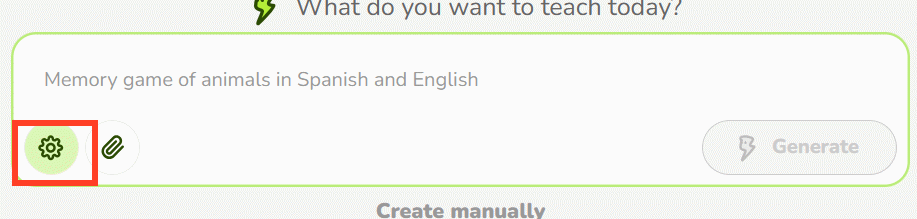
Go to Educaplay, sign in, and start a new activity from the prompt area. Educaplay calls its AI assistant Ray. You can provide a topic, explain the lesson, or upload a source document where the interface permits it.
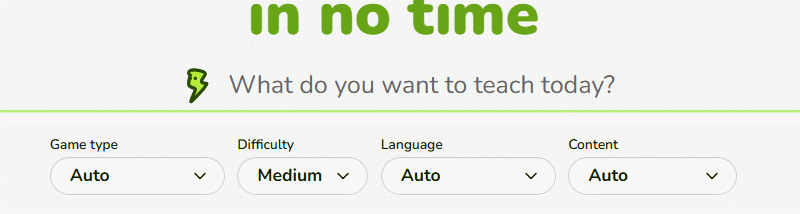
Choose the game type, difficulty, output language, and content source. The detailed fields change with the game format: Matching Pairs asks for groups and elements, while a quiz asks for questions, answer type, number of answers, and explanations.
Step 2: Write a precise game prompt
Include five elements: learner level, learning objective, source boundaries, activity structure, and feedback requirements. Use this reusable pattern:
Create a [game type] activity for [grade or learner level] about [topic]. The objective is to [observable learning objective]. Use only the facts in [pasted text or uploaded document]. Create [number] items. Each [question/pair] must [format rule]. Avoid [ambiguous wording, trick questions, duplicates, or excluded topics]. Use [language] and keep each answer under [length]. Add a one-sentence explanation after each answer where the activity supports it.
Example for the animal Matching Pairs activity:
Create a Matching Pairs review for Grade 4 science. Make 10 pairs. In each pair, place one common animal name on the first card and one distinctive, age-appropriate description of its habitat or body covering on the second card. Use only widely established facts. Keep each description under 12 words, avoid repeating clues, and do not include scientific names.
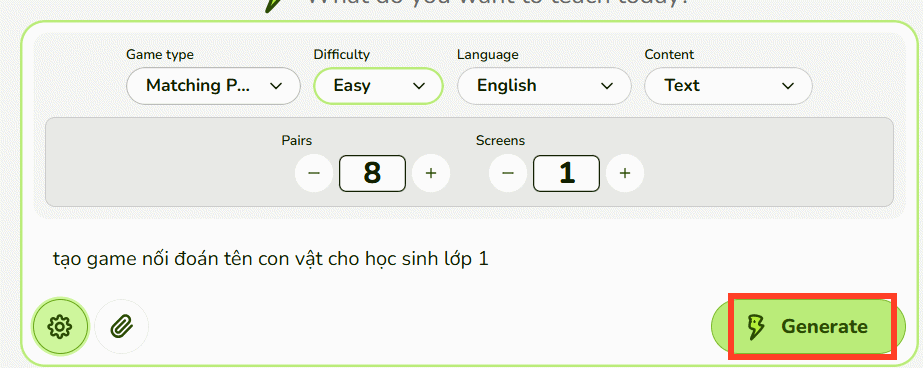
If you are generating an assessment from a document, tell Ray to use only that document. Do not upload confidential records, student work containing personal information, or licensed material that you are not permitted to process.
Step 3: Generate the game and edit the content
Submit the prompt and wait for Ray to draft the activity. Open the generated result in the editor rather than publishing it immediately.
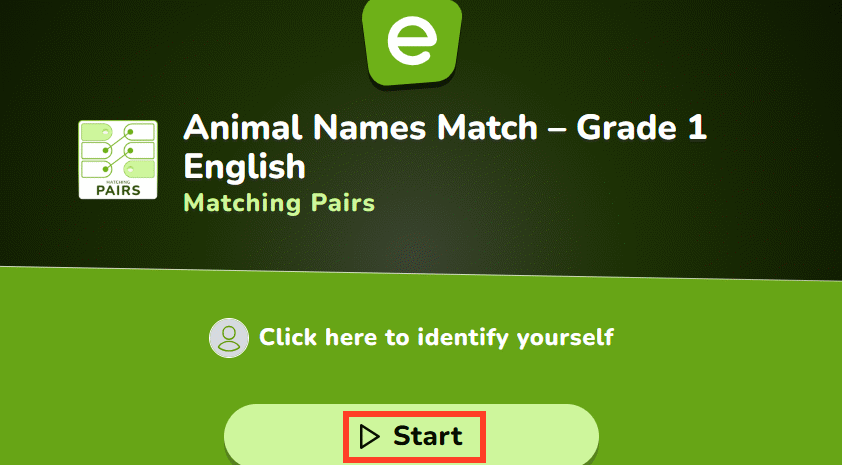
Check each item against the lesson source. In a matching game, confirm that every left-side item has exactly one defensible partner. In a quiz, look for two correct answers, implausible distractors, negative wording, and clues accidentally embedded in another question.
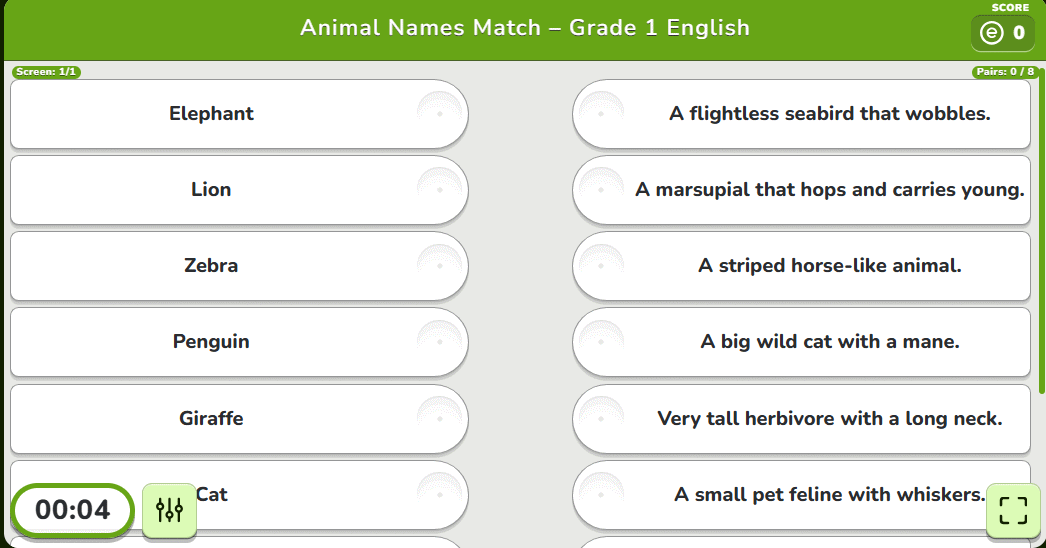
Also review the activity settings:
- Set a realistic timer or turn it off when speed is not part of the objective.
- Use a limited number of lives only if mistakes should affect the score.
- Keep instructions visible and written in the same language as the activity.
- Add alternative text or avoid image-dependent questions when students need a text-only path.
- Remove decorative content that distracts from the learning target.
Step 4: Test the game as a student
Choose Start or the preview option and complete the entire activity. Do not test only the first question. Confirm that scoring, answers, explanations, time limits, media, and the final screen behave as intended.
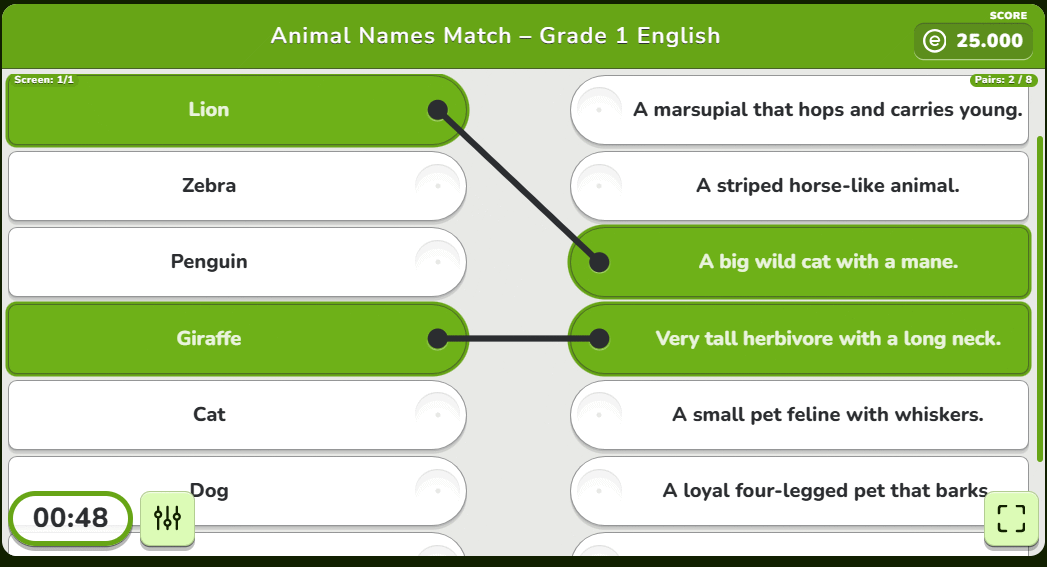
Ask a colleague or one learner to perform a quick pilot when the game will be graded. A correct answer may feel obvious to the author but remain ambiguous to the intended audience.
Step 5: Publish and share the activity
When the review is complete, click Publish. Open the sharing controls to copy a direct link or QR code. Educaplay also provides embed and learning-platform options depending on the activity and plan.

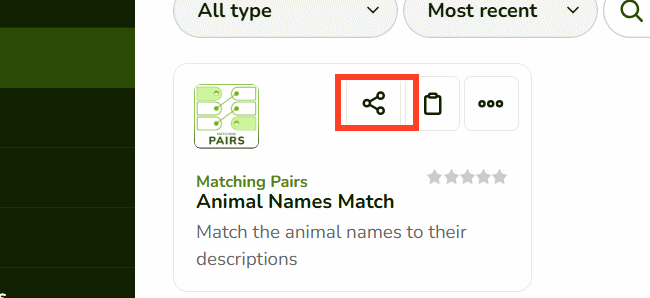
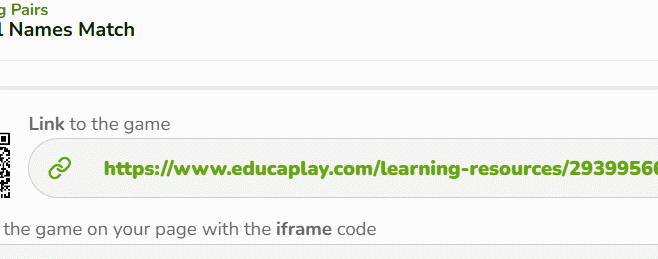
Check visibility before sending the link. Educaplay’s current support information says activities are public by default, while some paid plans add a hidden setting for link-only access. Player-identification controls also vary by plan. Use the minimum identification needed for the lesson and follow your school’s privacy rules.
The free Basic plan permits manual game creation, but Ray’s free AI uses and rapid consecutive creations are limited. Plan allowances can change, so consult the Educaplay support center before planning a large batch.
Improve the result after the first class
Use the questions students miss to distinguish a difficult concept from a confusing item. Revise ambiguous prompts, shorten long clues, and remove questions that test reading speed instead of the intended skill. If students finish too quickly, add better distractors or a second application-level round rather than simply reducing the timer.
For a format-specific example, see TipsMake’s Educaplay word puzzle guide. If you want to improve the prompt itself, the free AI learning resources guide includes practical prompting material.
Related Articles
 How to Create an English Review Conversation on Educaplay3 minutes read
 How to Create an Educaplay Unscramble Letters Game10 minutes read
 How to Create a Word Guessing Game on Educaplay3 minutes read
 How to Make a Froggy Jumps Game in Educaplay12 minutes read
 99+ Entertaining AI Commands32 minutes read
 How to Design Greeting Cards on Canva AI4 minutes read
Reader Comments 0
Sign in with email or Google to join the discussion.