Table of Contents
iLovePDF's web editor lets you add content and annotations to a PDF, including text, images, shapes, comments, and highlights. It is useful for filling in or marking up a document. It is not a full word processor for rewriting existing PDF text; that depends on how the PDF was created and which tools are available.
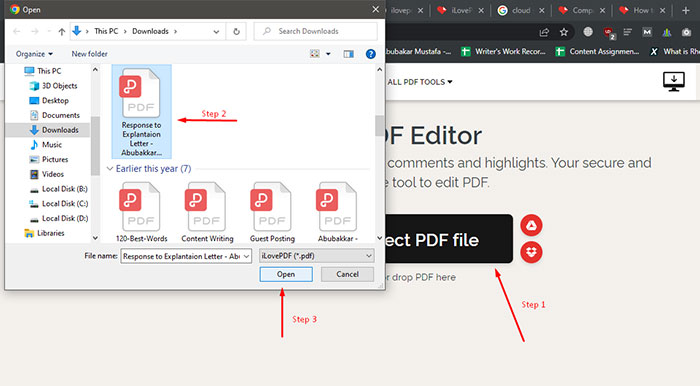
Open the iLovePDF PDF Editor and select a file from your device, Google Drive, or Dropbox. The editor's layout can change, so the screenshots below may not match the current page exactly.
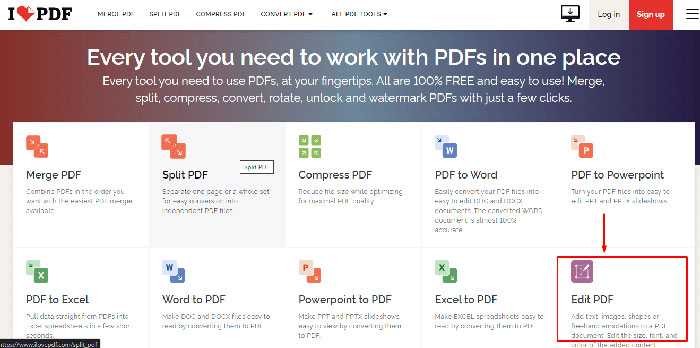
Edit a PDF on the web
- Open the editor and choose the PDF you want to work on. Wait for the document to load.
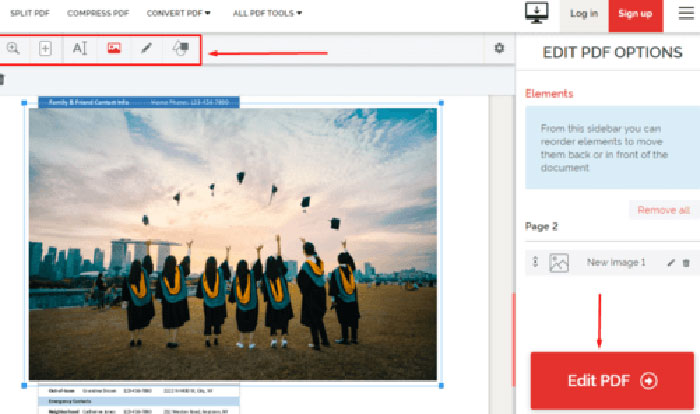
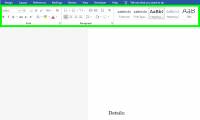
- Use the available editing controls to add text, images, shapes, comments, or highlights. These tools place new material over or alongside the existing page; they may not change the original text itself.
- Review each page at a readable zoom. Check that added objects cover no important text and that annotations appear on the intended page.
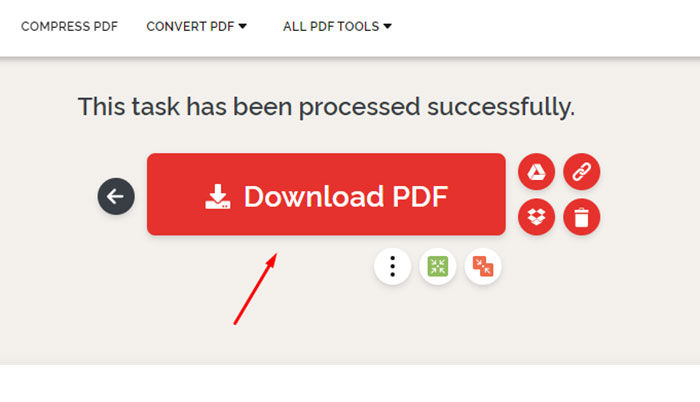
- Choose the editor's apply or save option, then download the processed PDF. Open the downloaded file and check the result before sharing it.
What the editor can and cannot change
The current web editor describes its tools as adding text, shapes, comments, and highlights. That makes it suitable for annotations, form notes, and simple additions. If you need to replace a paragraph already printed in the PDF, the editor may not be able to select or alter it; use the original document when possible, or a dedicated PDF text-editing tool and verify the exported file carefully.
PDF files can also contain scanned page images rather than selectable text. In that case, editing the words usually requires optical character recognition (OCR), and the recognized text should be proofread before you rely on it.
Using iLovePDF on a phone
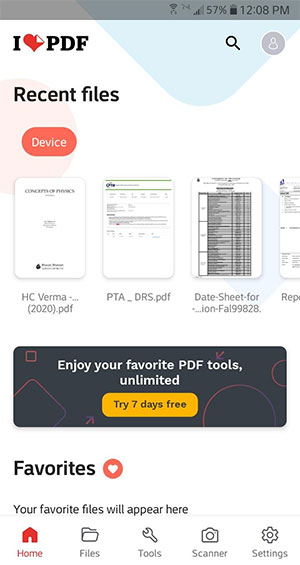
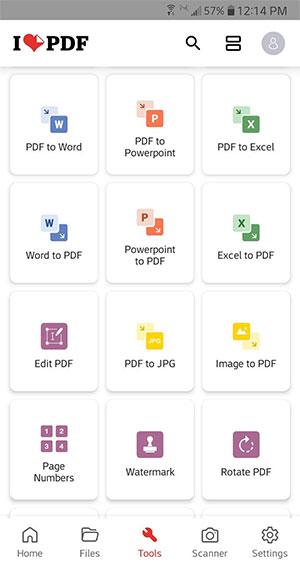
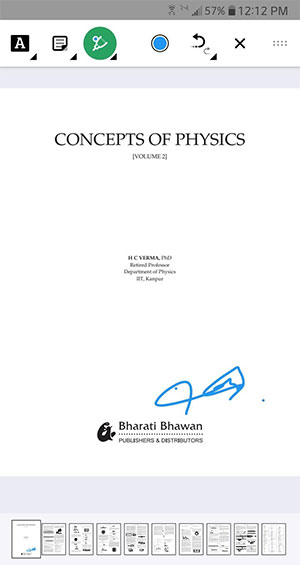
You can open iLovePDF in a mobile browser or use its mobile app if available for your device. Choose the PDF, select the relevant tool, and follow the on-screen controls. App layouts and available features can differ from the web editor, so check the exported file after saving.
Before you share the edited file
- Reopen the downloaded PDF and inspect every changed page.
- Confirm added text and annotations are legible and correctly positioned.
- If the document contains sensitive information, review the service's current privacy and file-handling terms before uploading it.


Reader Comments 0
Sign in with email or Google to join the discussion.