Table of Contents
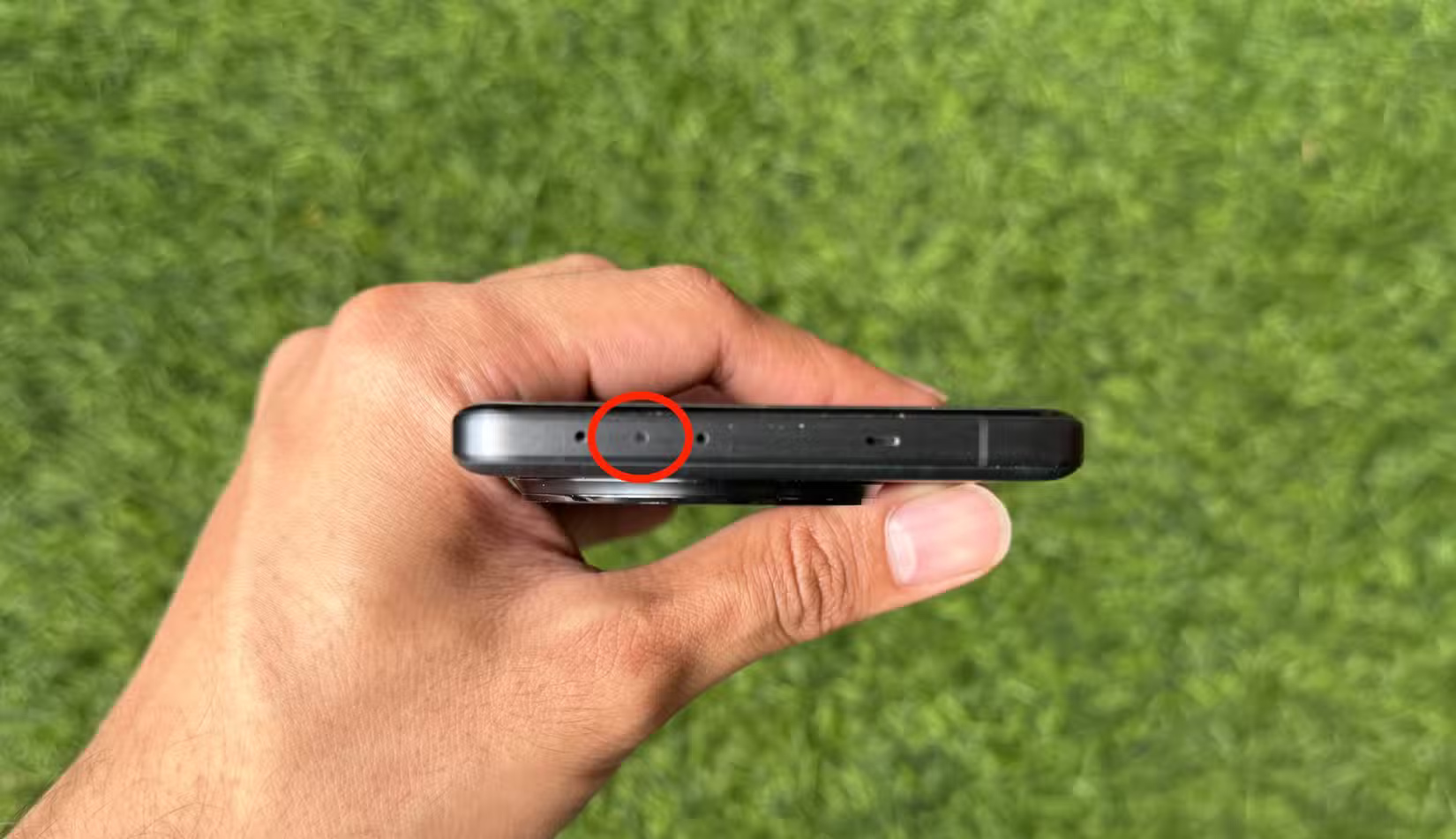
The OnePlus 13 has an infrared (IR) blaster. Open the built-in IR Remote app to turn the phone into a remote for compatible TVs, set-top boxes, projectors, or air conditioners. The phone sends commands directly to the appliance, so aim it at the appliance’s IR receiver when you press a button.
Add a remote manually
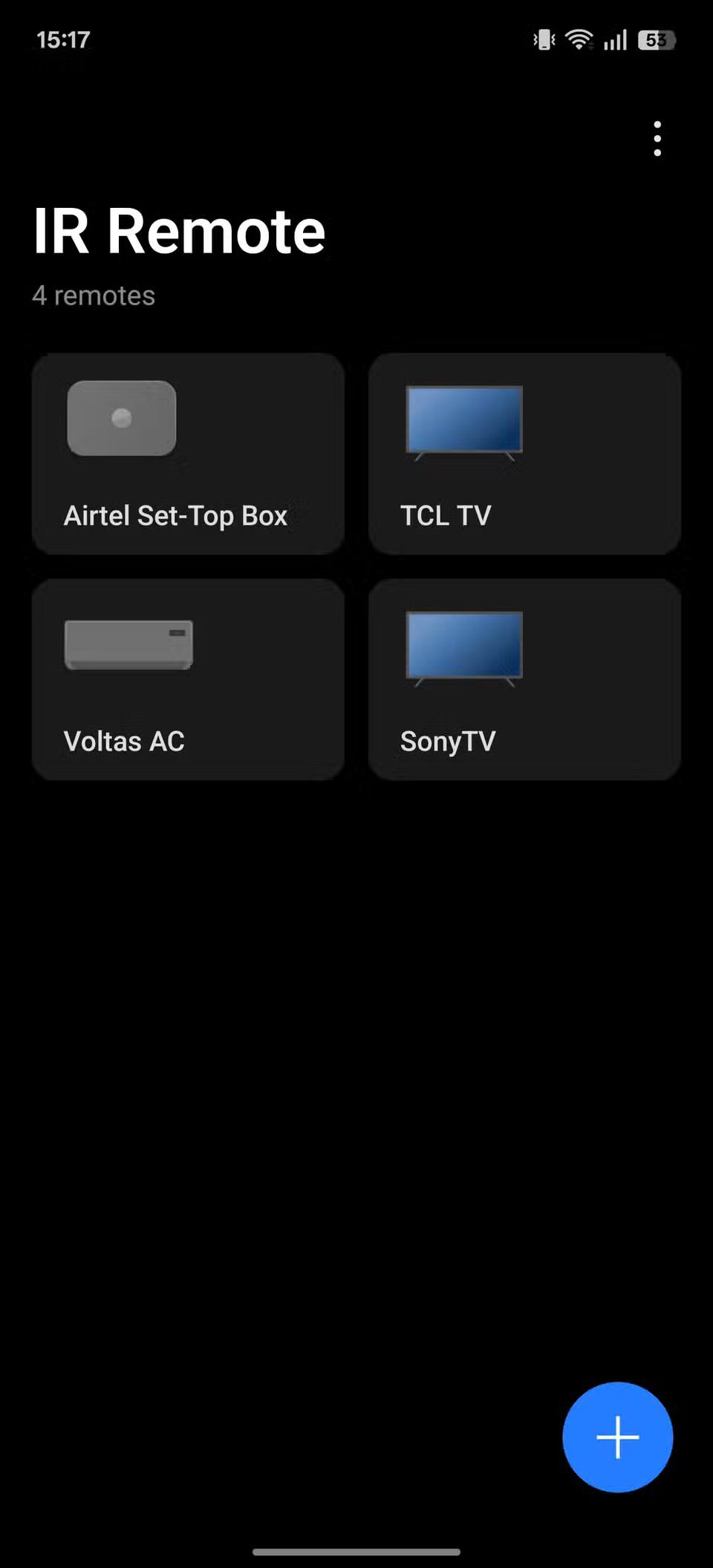
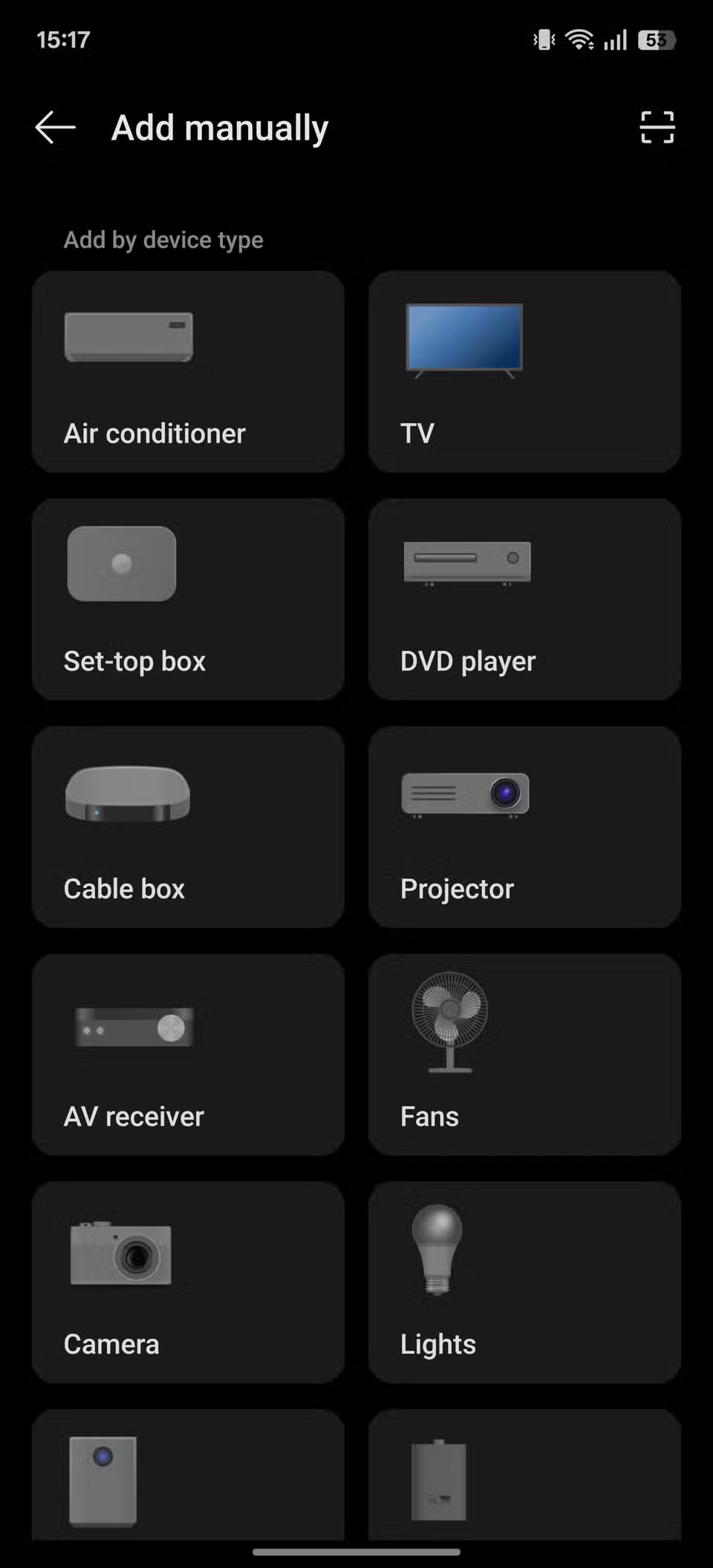
- Open IR Remote and tap +.
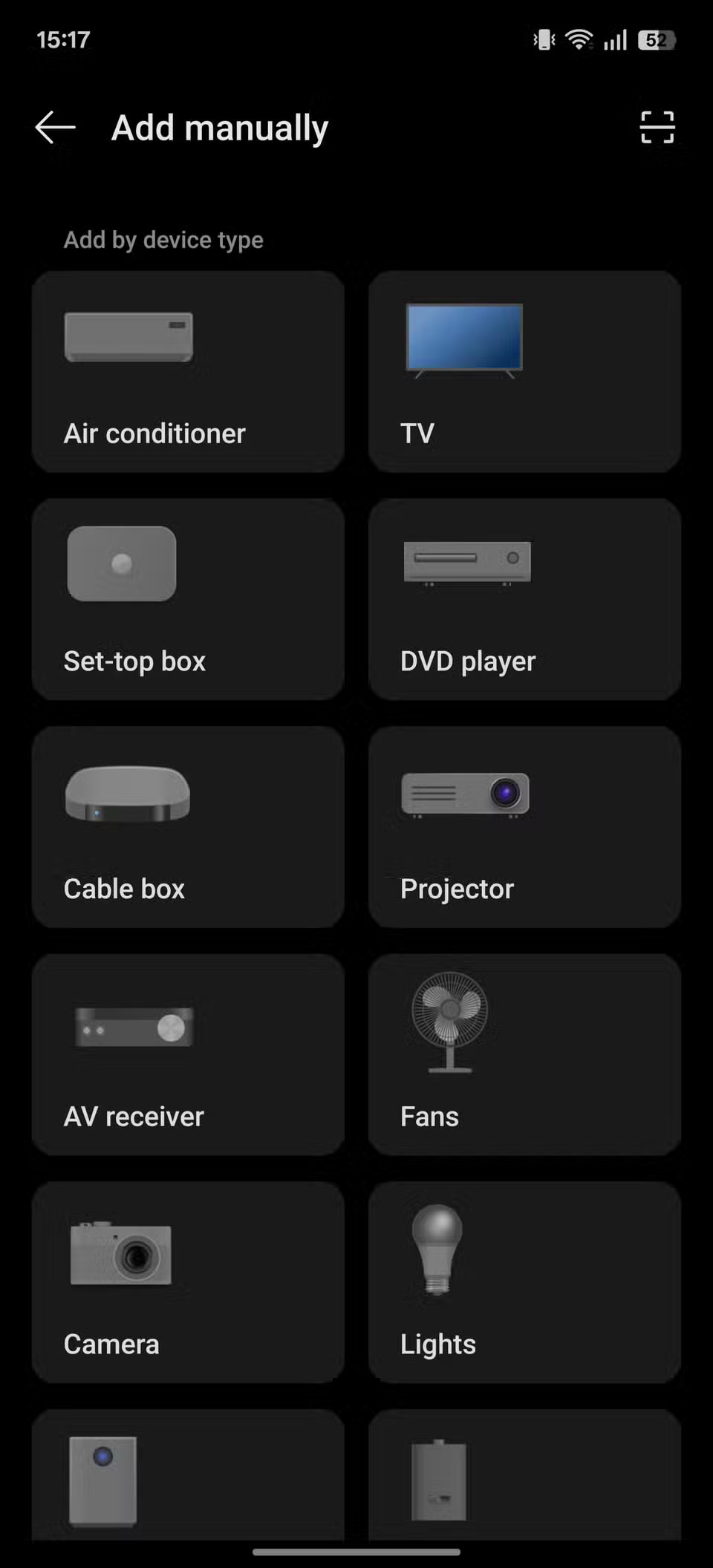
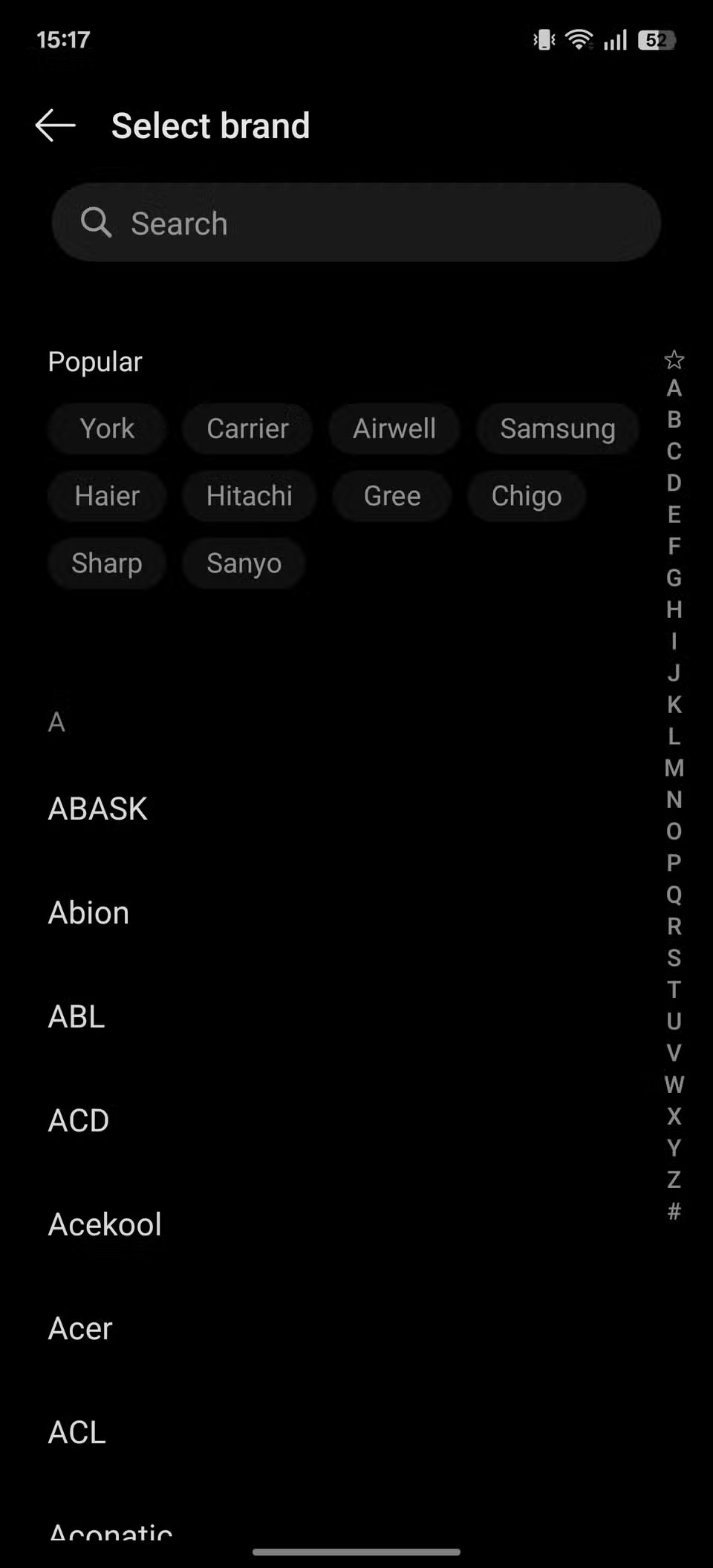
- Pick the device type and brand. Turn on the appliance and point the phone at its IR receiver.
- Tap the on-screen test button. Choose Yes if the appliance responds or No response, try next to try a different profile.
- Try the other test buttons the app presents before accepting a profile. A profile may switch a TV on and still fail to change its input.
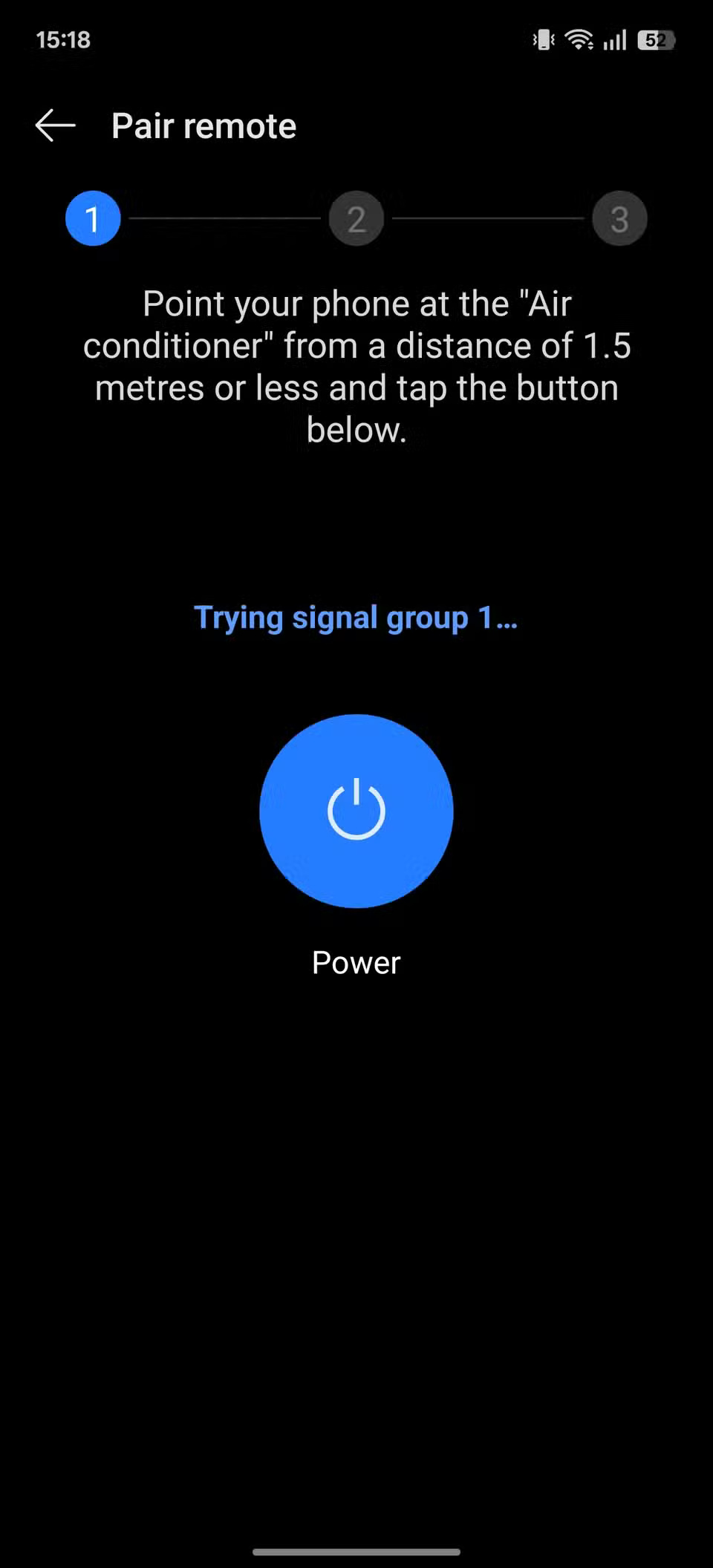
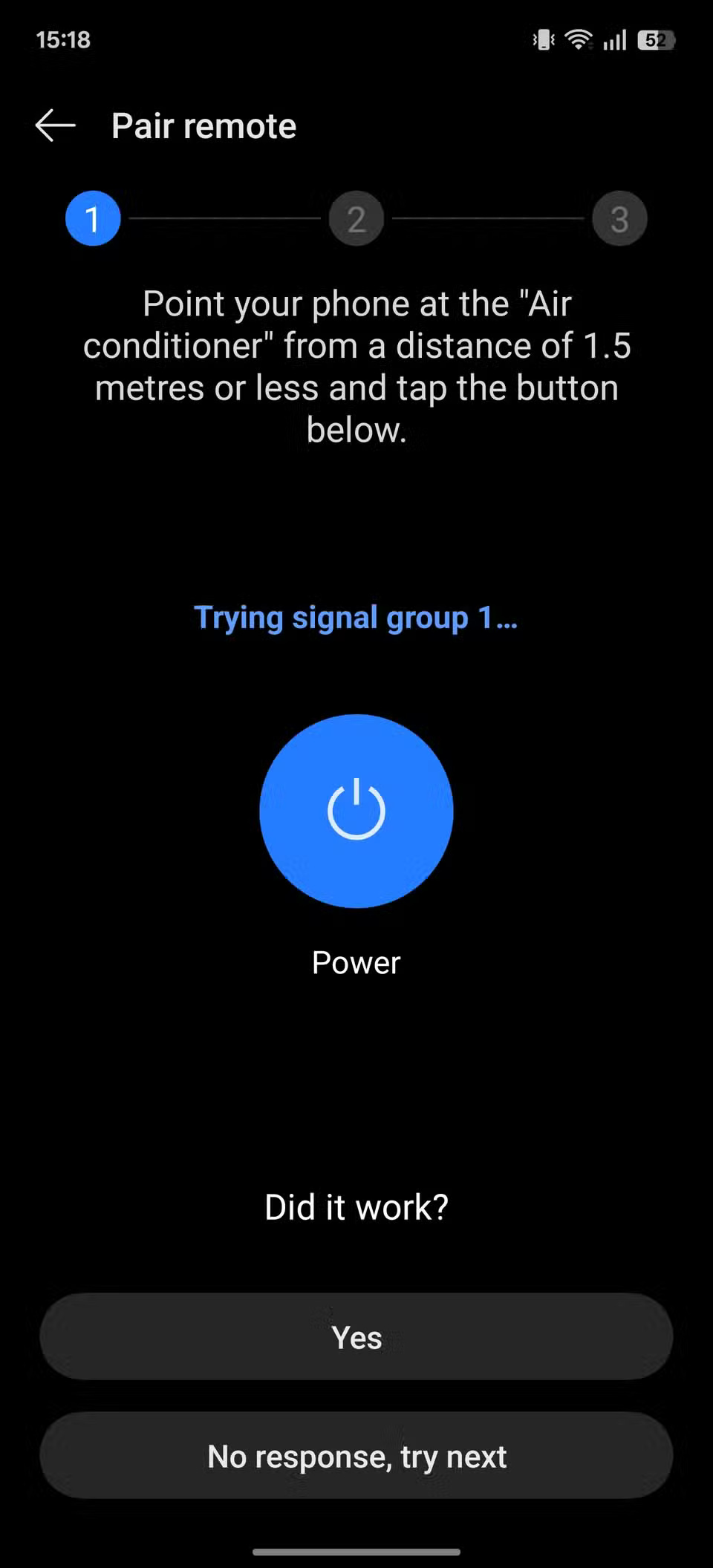
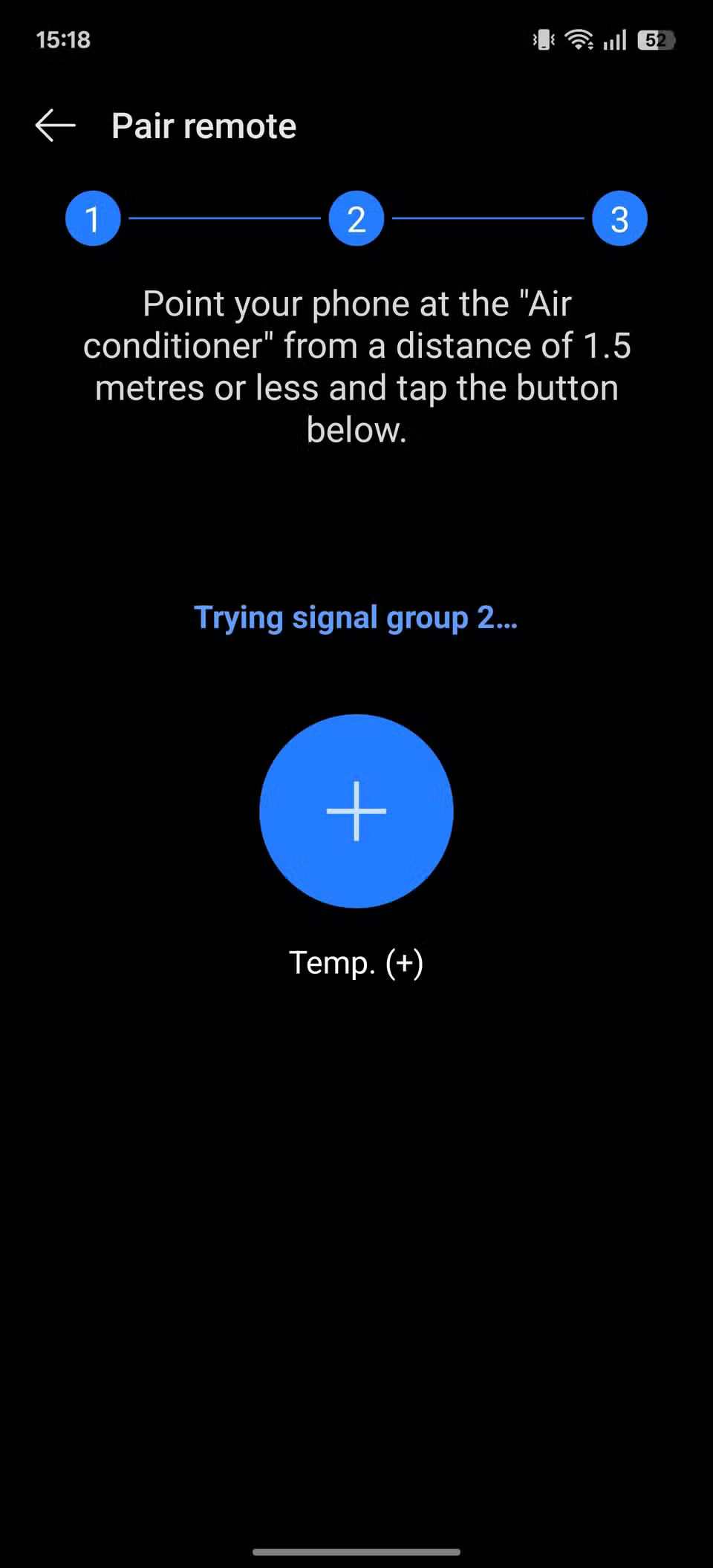
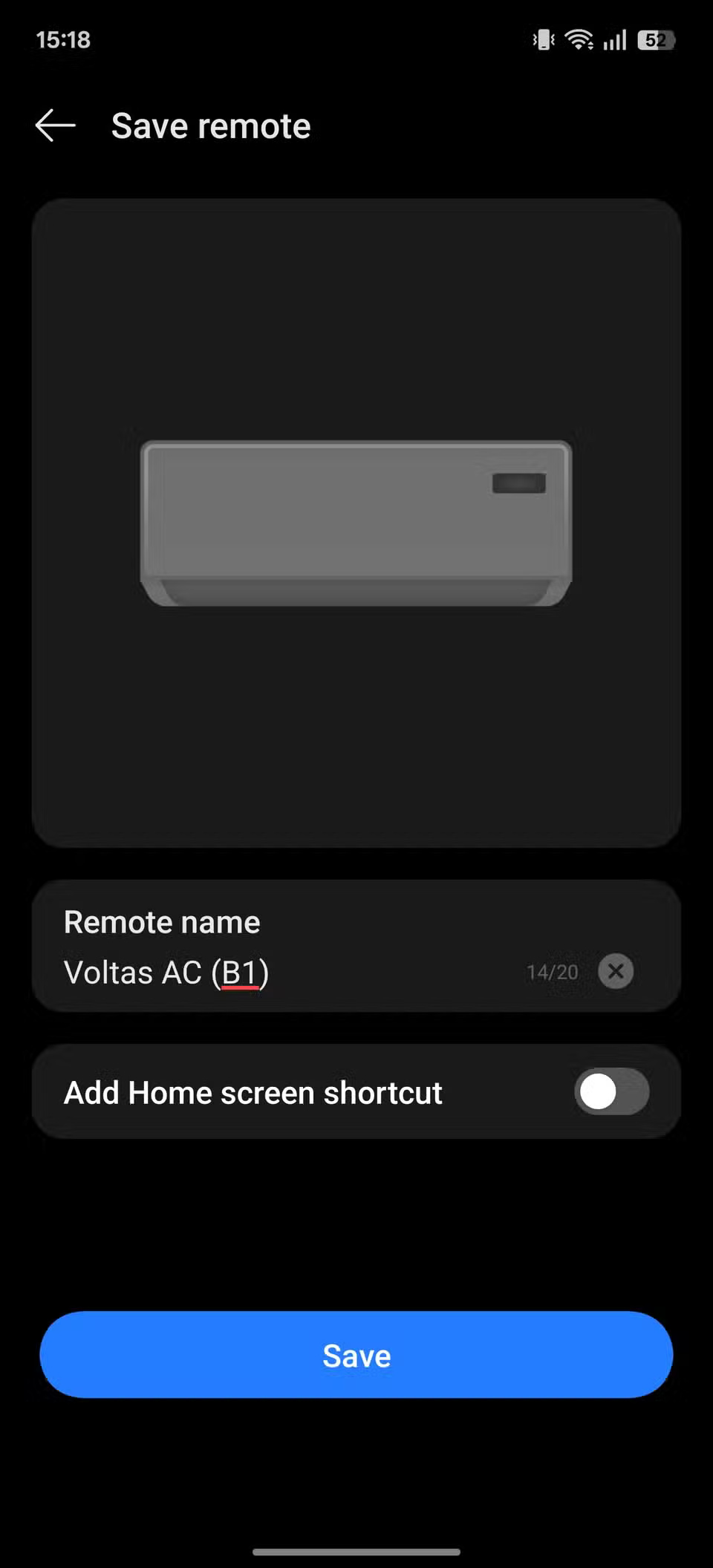
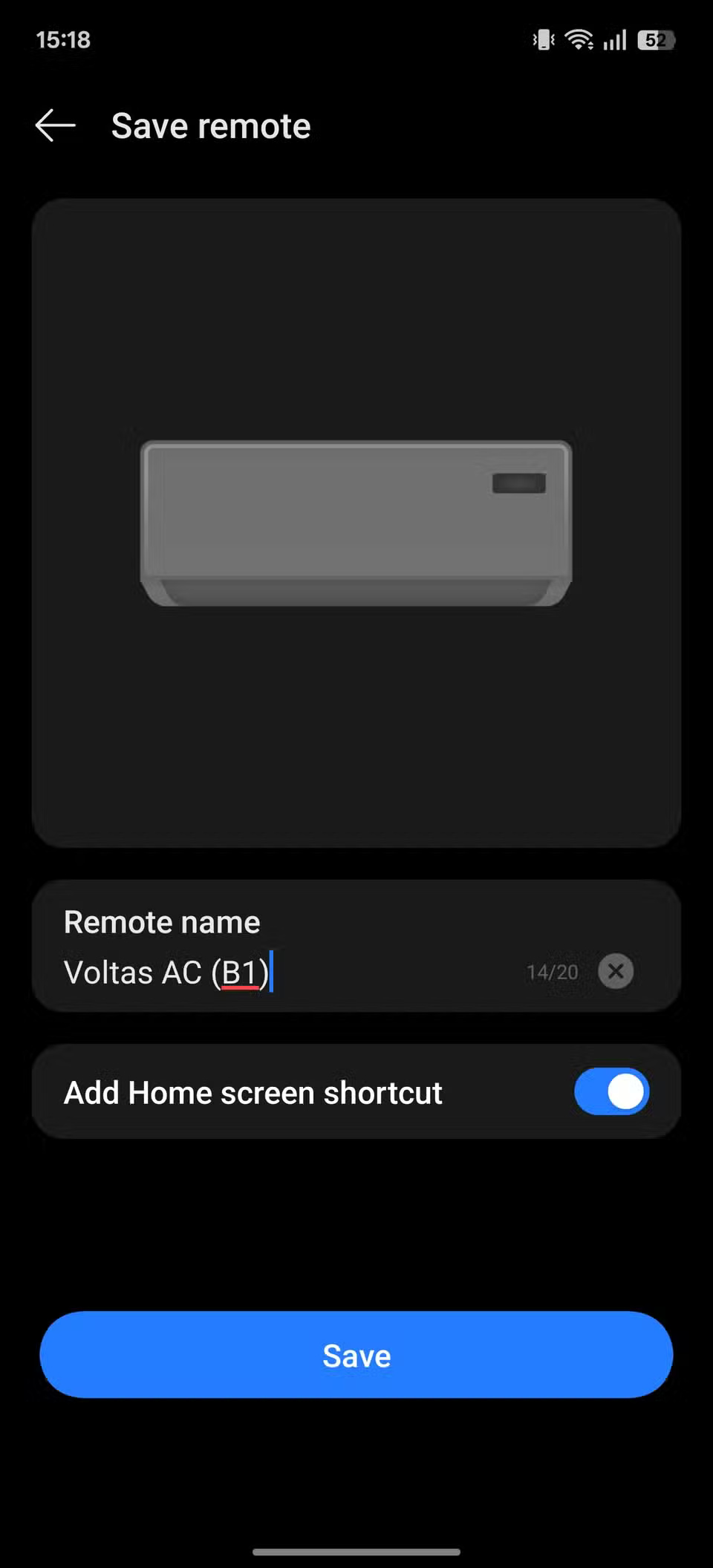
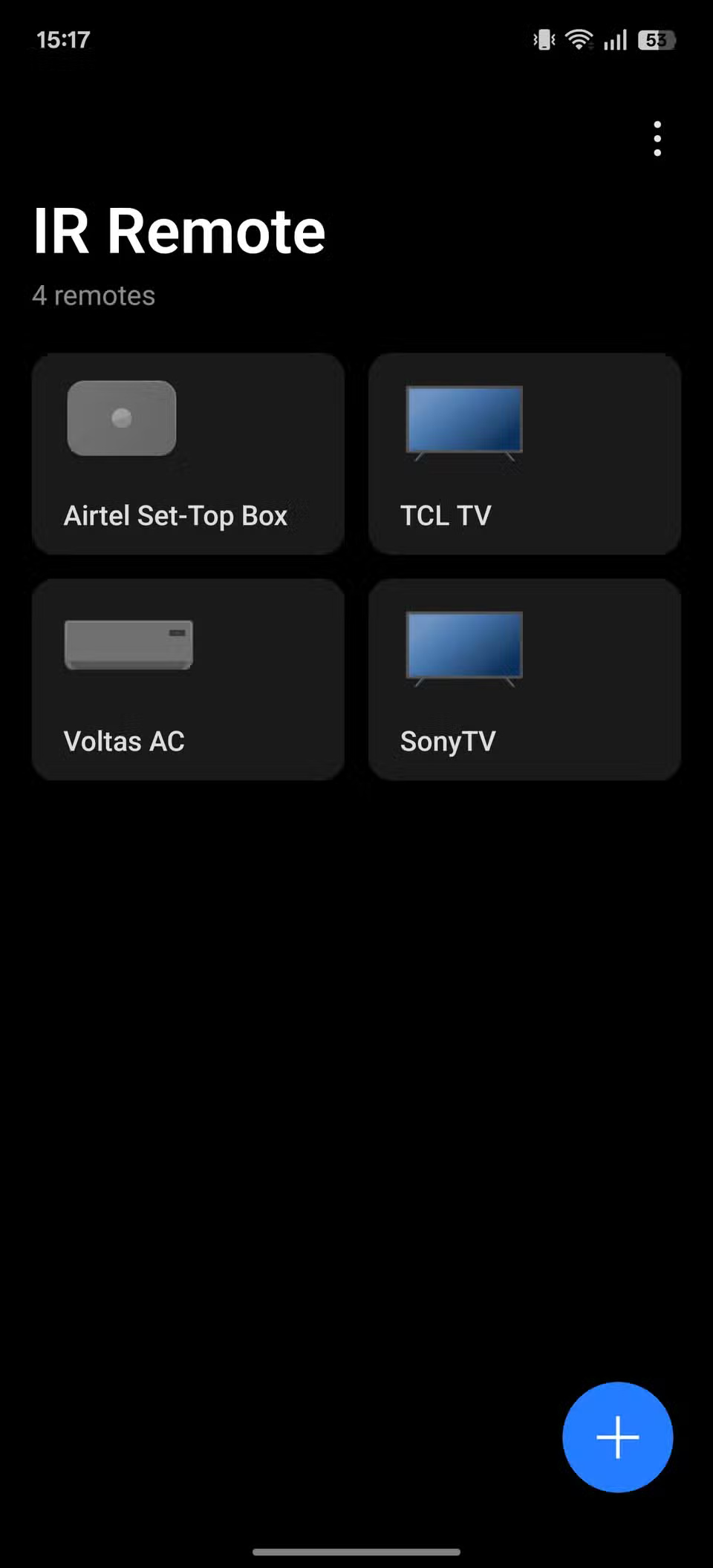
- Name the remote, optionally add a Home screen shortcut, and tap Save. Reopen the saved remote from the app whenever you need it.
Import a remote from a QR code
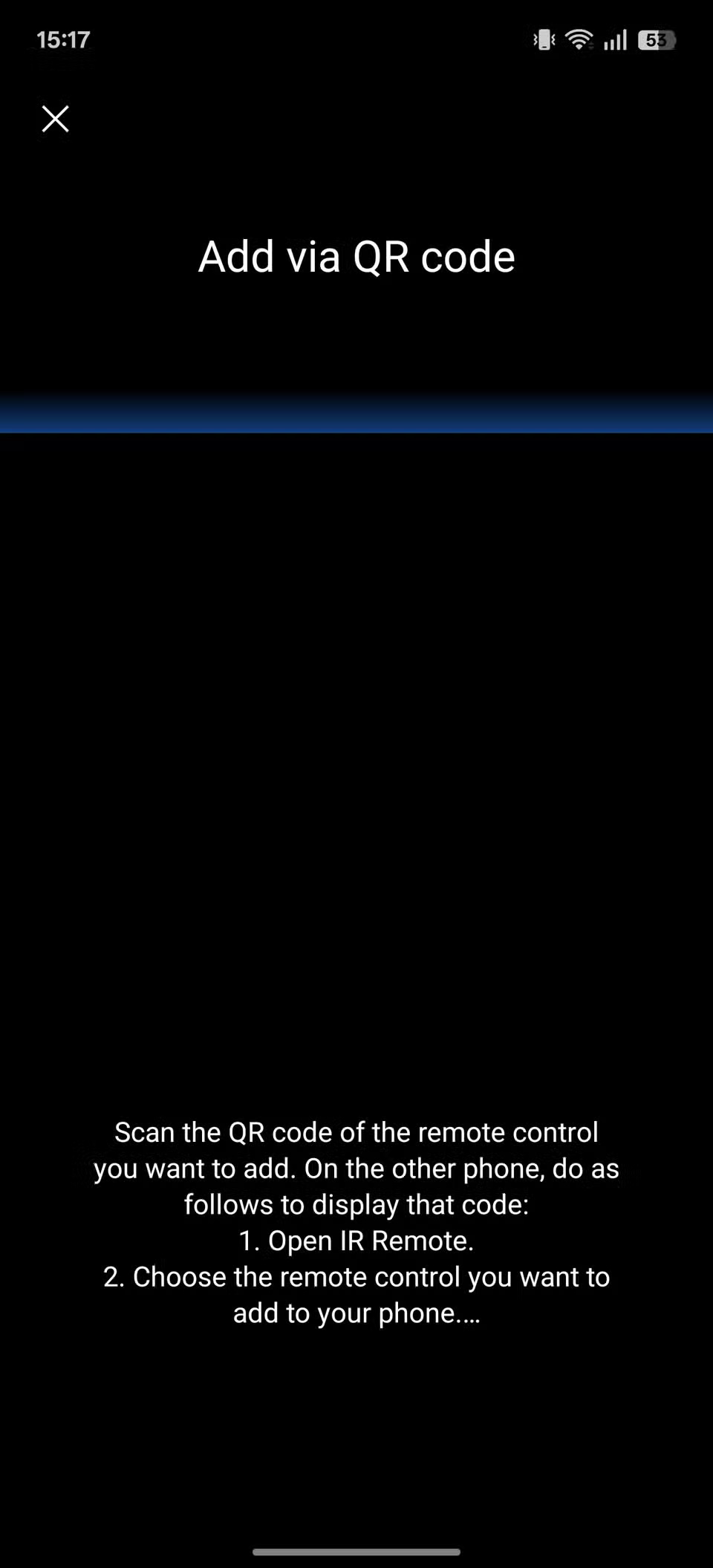
If you already have a compatible IR Remote configuration QR code, tap +, then tap the scan icon. Allow camera access and scan the code. Test the imported remote before relying on it. Use manual setup if you only have the appliance’s product barcode or model label.
If the appliance ignores a command
- Move closer and clear the path between the phone and the receiver. Check whether the case covers the IR emitter.
- Try a different profile for the same brand if only some buttons work.
- Check the type of remote the appliance uses. The blaster supports infrared. A Bluetooth-only or radio-frequency remote needs a different control method.
If the original IR remote is still available, you can try checking for its infrared signal with a phone camera. OnePlus lists infrared remote control in the OnePlus 13 specifications.
Related Articles
 All you need to know about OxygenOS 11
 OnePlus to announce OnePlus 8 and 8 Pro, April 14
 How to prevent OnePlus phones from silently collecting data
 Review OnePlus Nord: A new familiar start
 How to install OxygenOS 11 on a OnePlus phone
 OnePlus 7T vs. 7T Pro vs. McLaren edition: Confused? These are the main differences
Reader Comments 0
Sign in with email or Google to join the discussion.