Table of Contents
This practical guide explains how to change the appearance of the files app. Follow the steps in order, review the requirements first, and use the troubleshooting notes when a setting or option does not work as expected.
How to changing the display interface on File
Step 1:
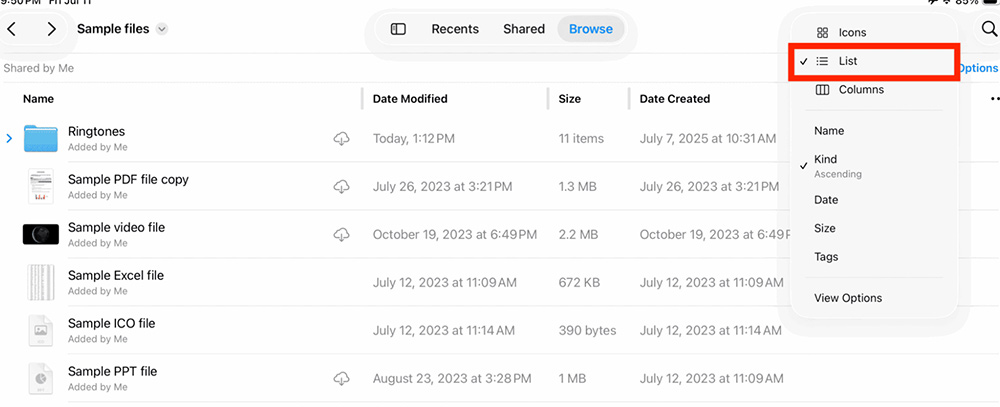
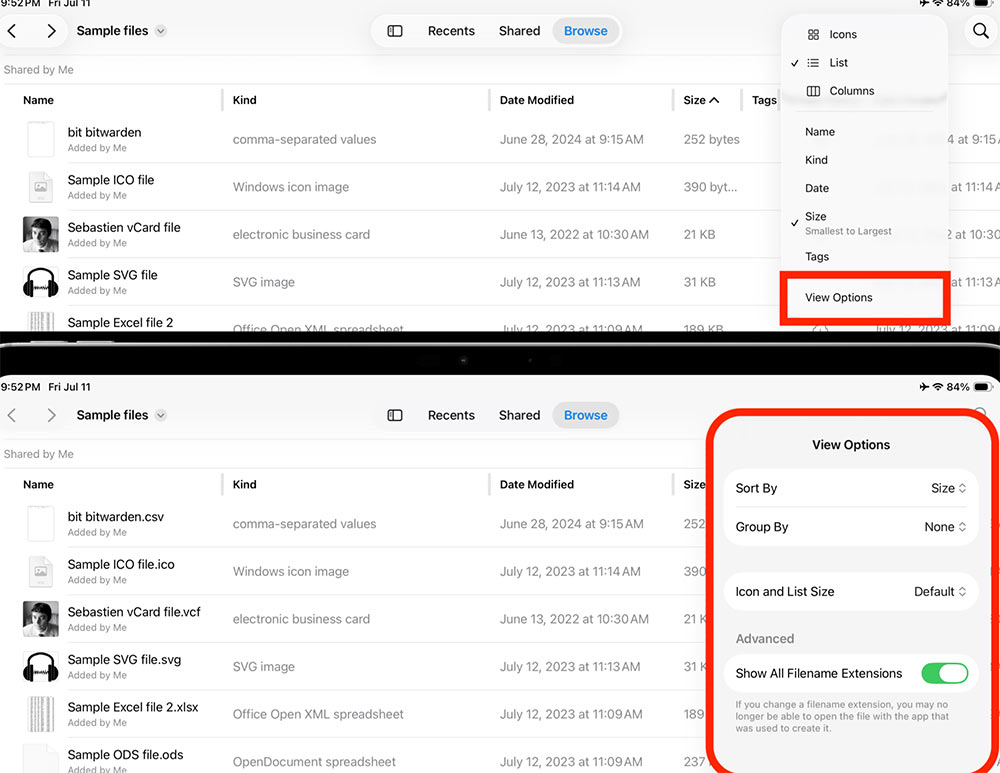
In the Files app on iPad, tap on the folder you want to customize the interface , then tap on the square icon in the upper right corner and select the List option .
Step 2:
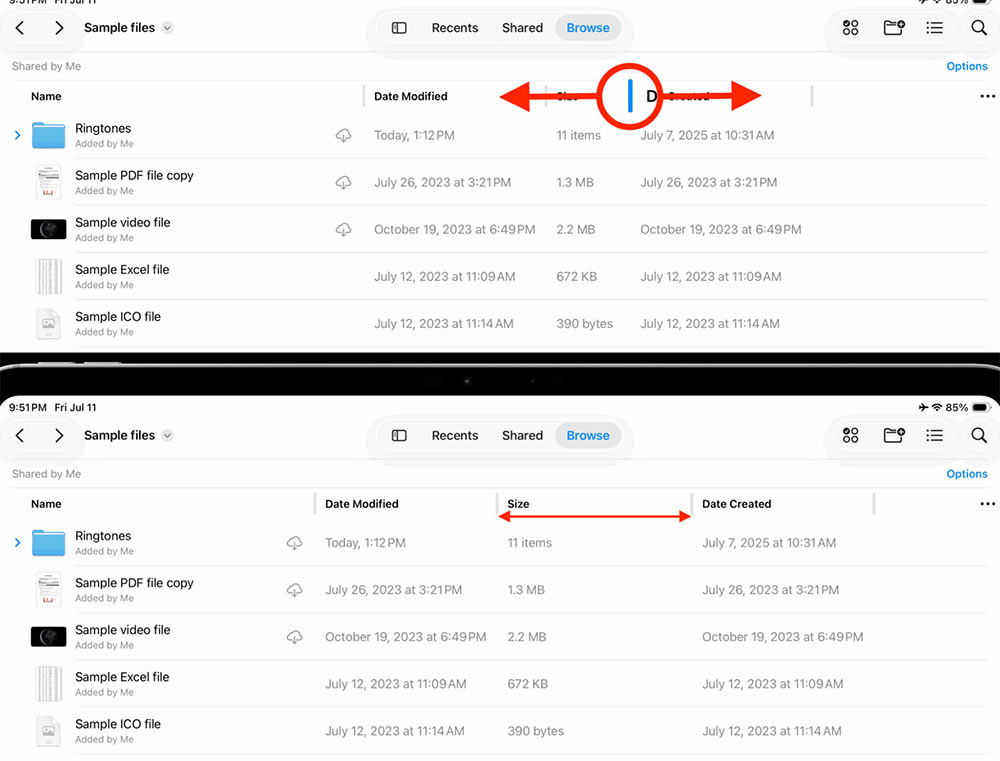
By default, list view displays basic columns such as Name, Date, and Size. To increase or decrease the width of a column , drag the column's vertical limit bar to the side.
Step 3:
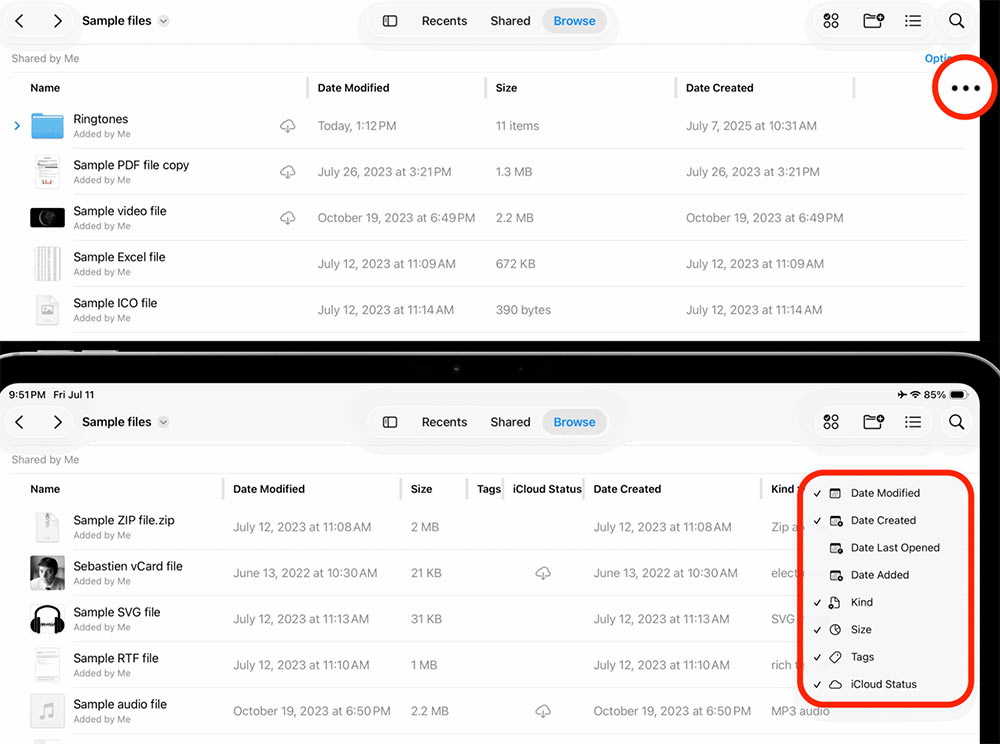
Tap the three-dot icon to the right of the column, then select or deselect any columns you want to show or hide.
Step 4:
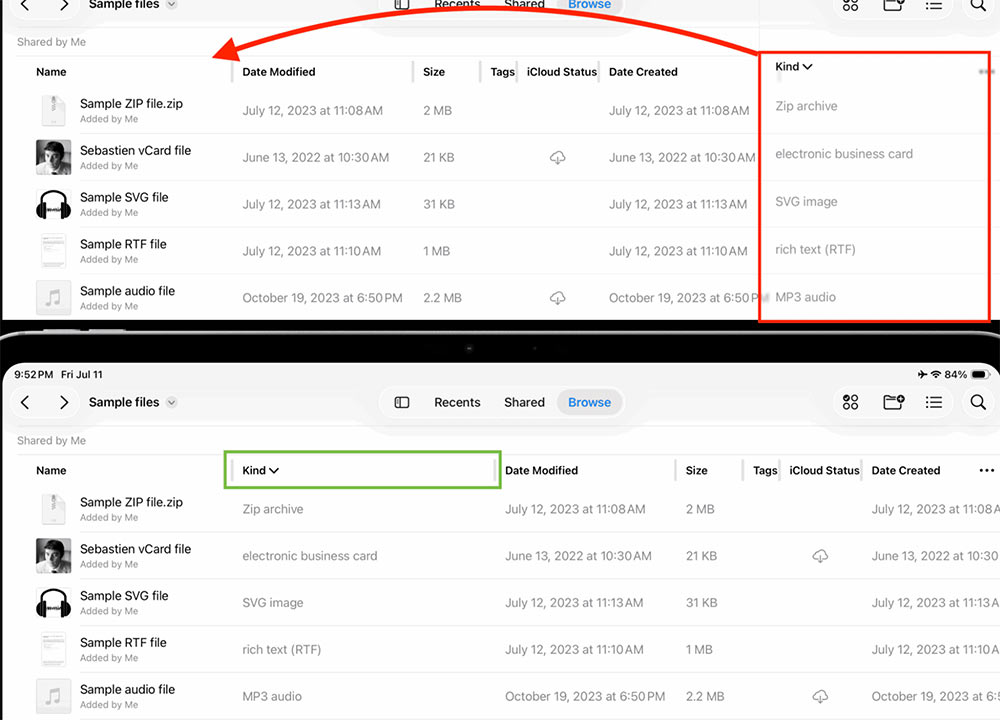
If you want to change the order in which the columns of information in a folder in the Files app are displayed, drag the column header left or right to place it before or after other columns. Also, tap the arrow in the Size column to sort the view based on file size.
Step 5:
Tap the 3-dash icon and select View Options and you'll see options to sort and group files, as well as change the icon size.
FAQ
How to changing the display interface on File?
In the Files app on iPad, tap on the folder you want to customize the interface, then tap on the square icon in the upper right corner and select the List option.
What does this guide cover?
This guide explains change the appearance of the files app, including the main steps, important details, and practical considerations.
Who is this guide for?
It is designed for readers who want a clear, practical overview and a reliable process they can follow without unnecessary complexity.
Related Articles
 How to Change Skin in Minecraft: Complete Guide7 minutes read
 Facebook Will Soon Change Its Appearance2 minutes read
 How to Change the Appearance of the Character PUBG Mobile4 minutes read
 How to Change Folder Color in iPhone Files App3 minutes read
 How to Change the Default Font on Windows 10 Simple, Fast5 minutes read
 How to Change Skins in Minecraft PE: Practical Guide4 minutes read
Reader Comments 0
Sign in with email or Google to join the discussion.