Table of Contents
The Camera app on iPhone has been completely redesigned in iOS 26. To display the control icon in iPhone Camera, you need to manually enable it according to the article below.
The iPhone Camera app has been completely redesigned in iOS 26. Among these changes, the most notable is the new pop-up menu that brings together all the controls like Flash, Live, Timer, Exposure, Styles, Filter, Aspect, and Night Mode in one place. To display the control icons in the iPhone Camera, You should manually enable them according to the article below.
How to display control icons in iPhone Camera
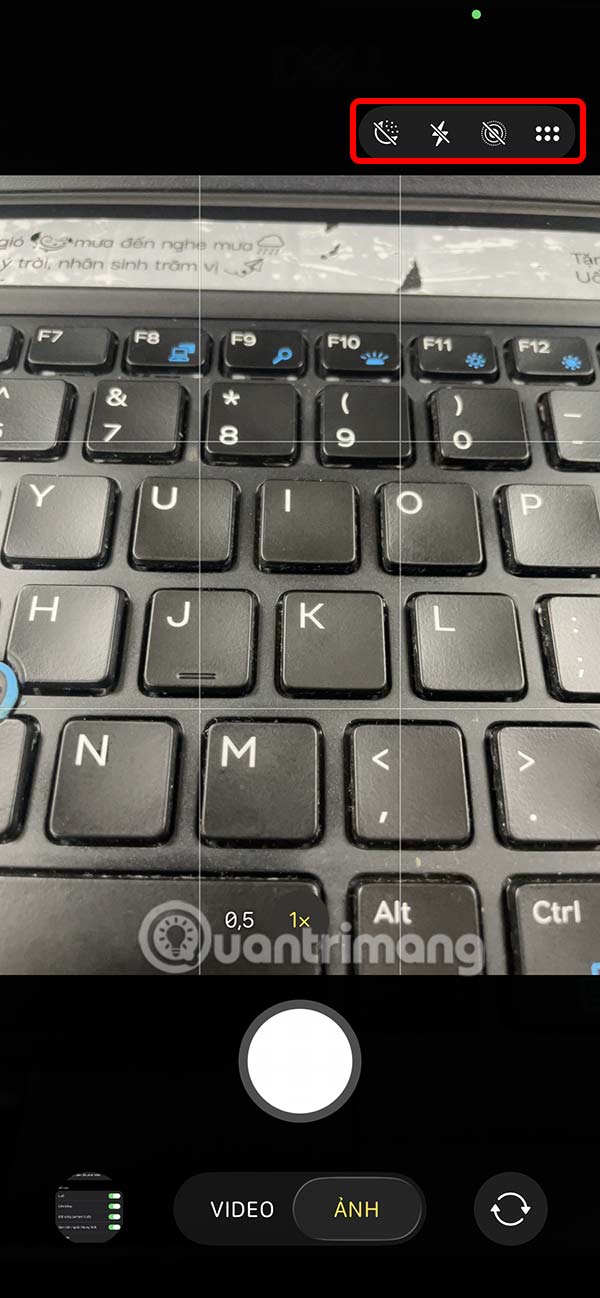
The Camera interface on iOS without all the icons is as below. When you click on the icon frame, all the shooting modes will be displayed.
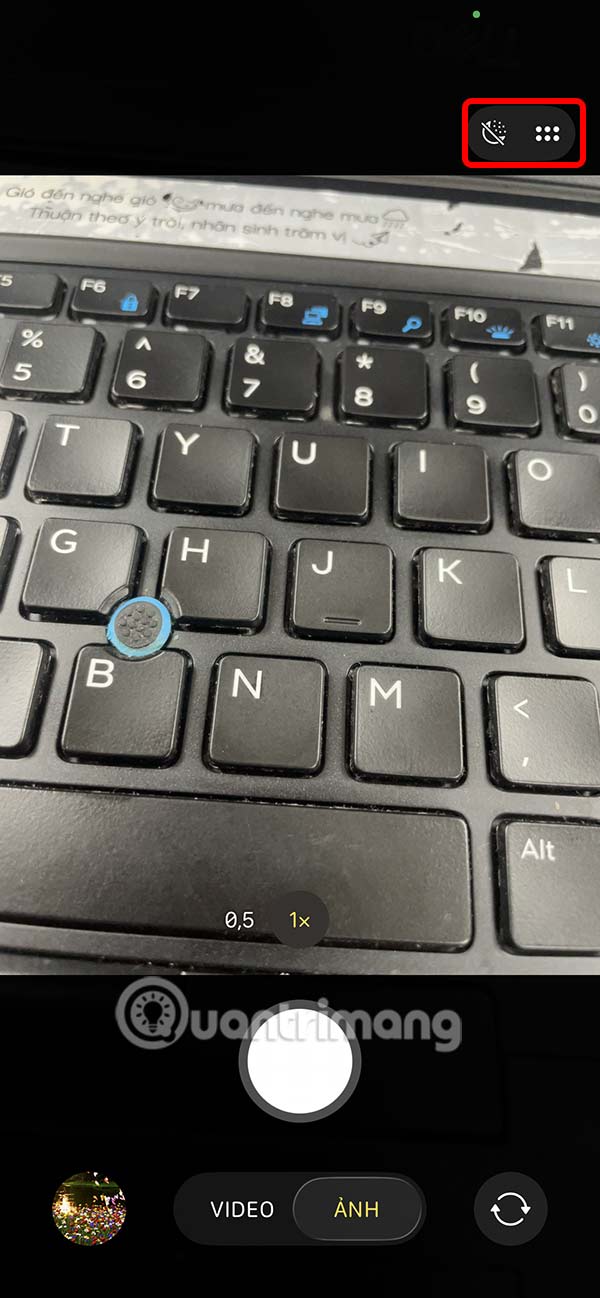
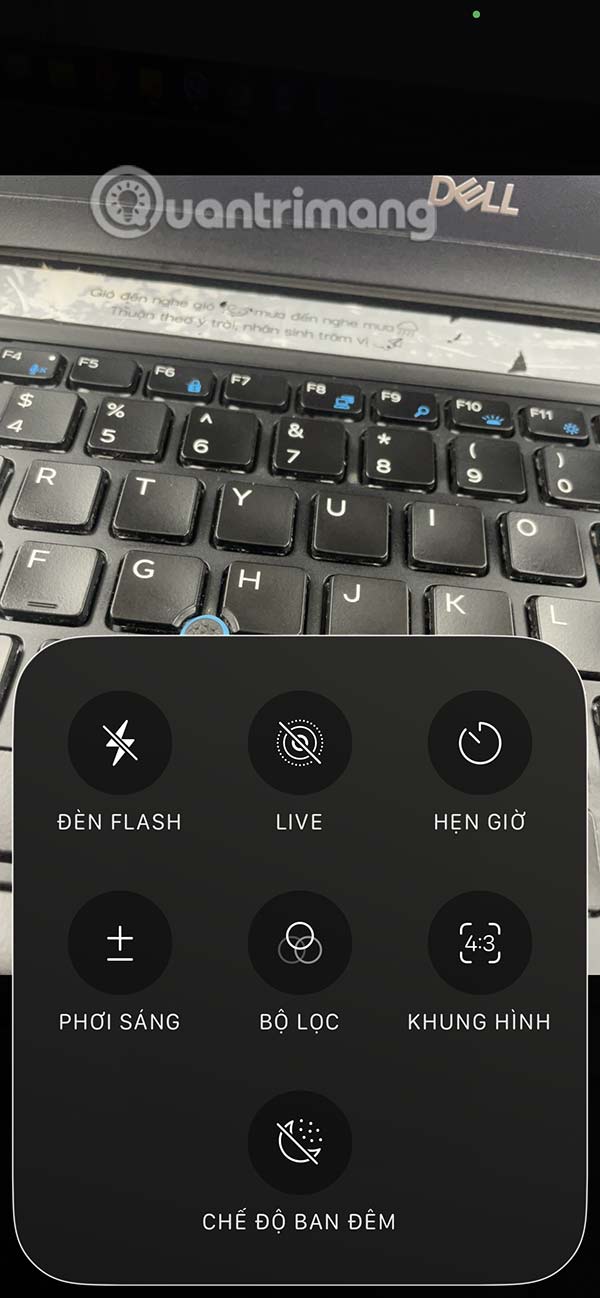
Step 1:
You access Settings on iPhone Then click on Camera To adjust. Display the list of settings for the camera on iPhone, you scroll down to The Indicator section To adjust the display mode of the condition icon in the camera.
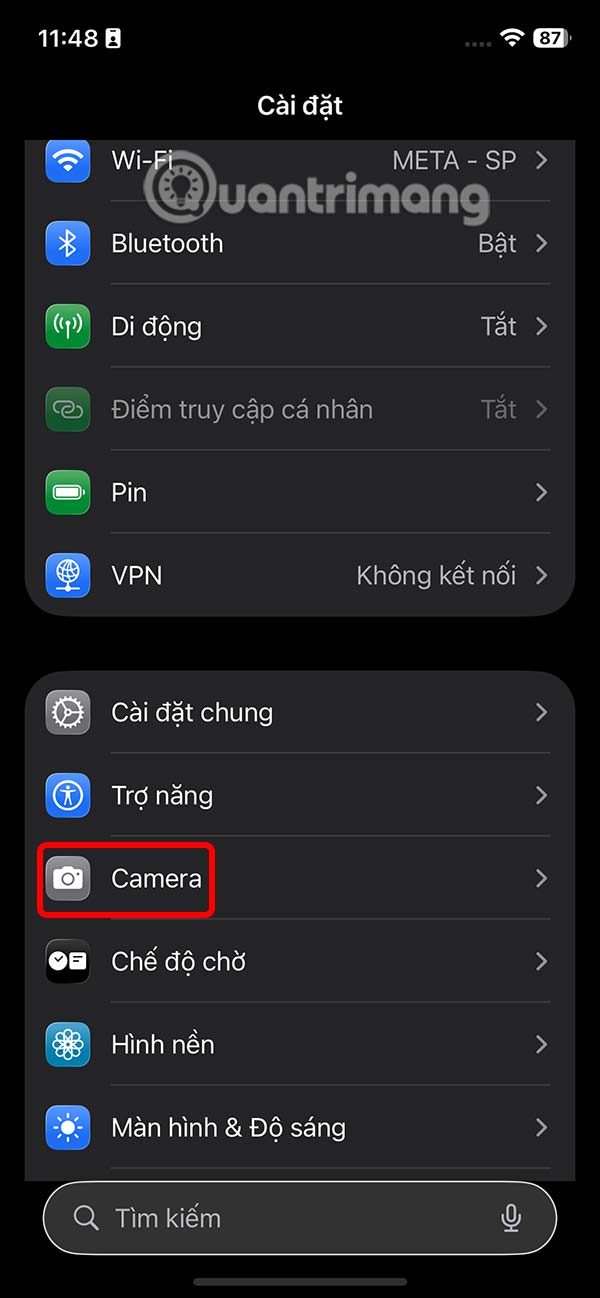
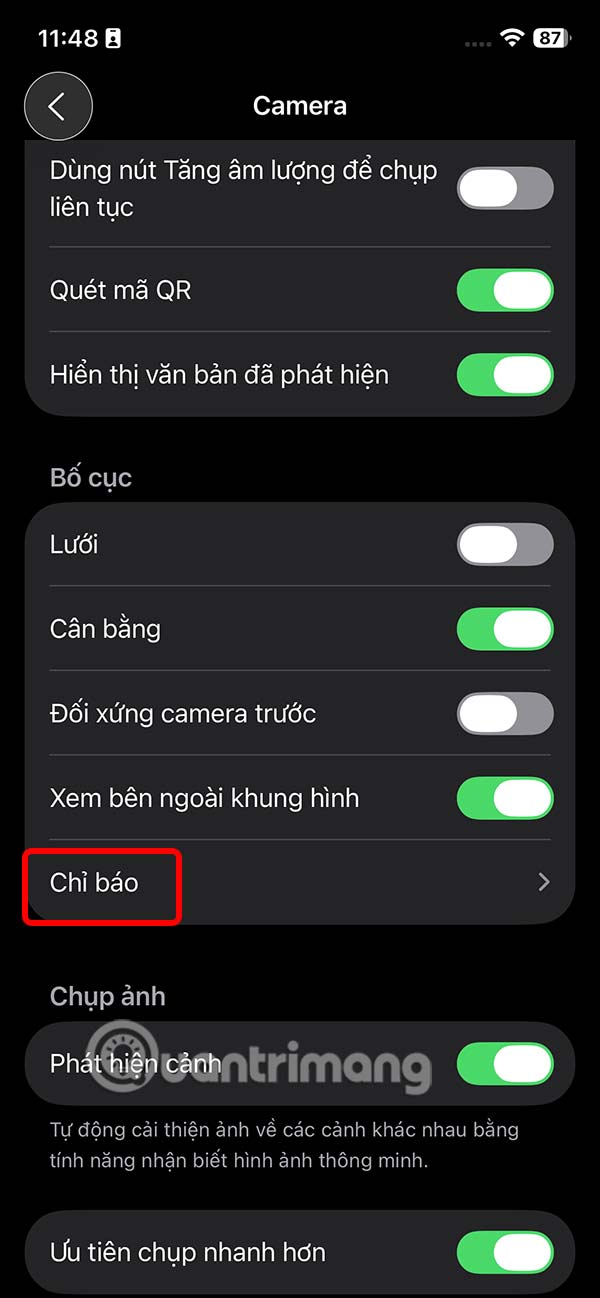
Step 2:
Here, enable The Flash icon and Live Photo icon To display the control icons in the iPhone photography interface.
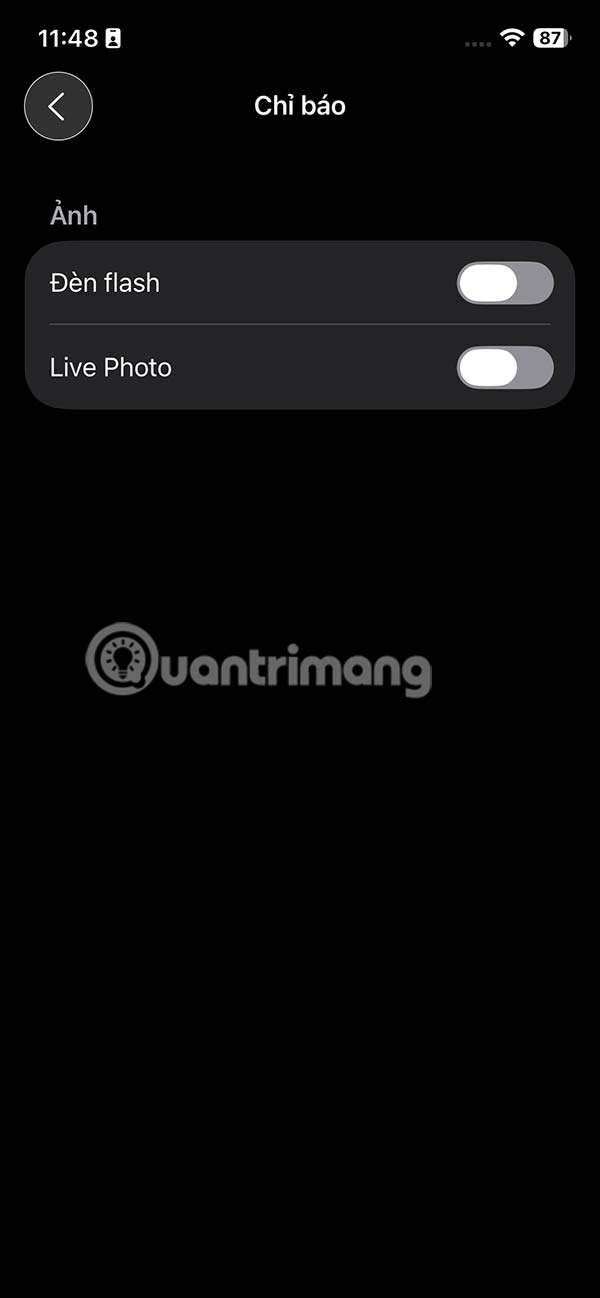
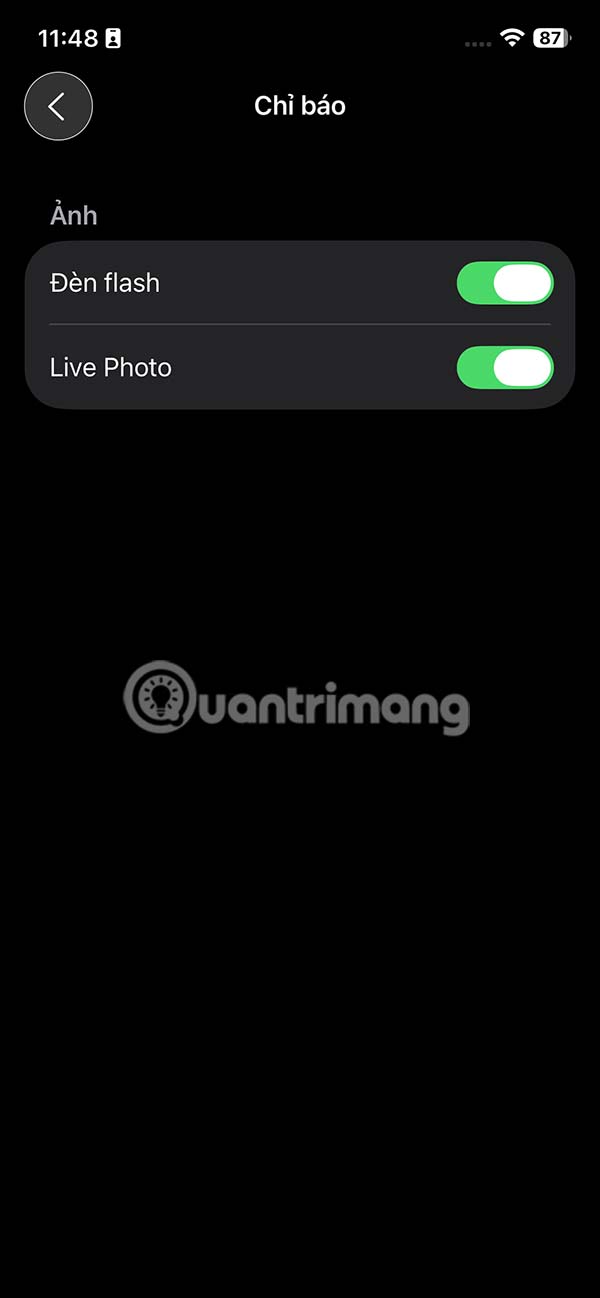
Step 3:
You can also enable Grid display or other customizations on the photo and video capture interface if you want.
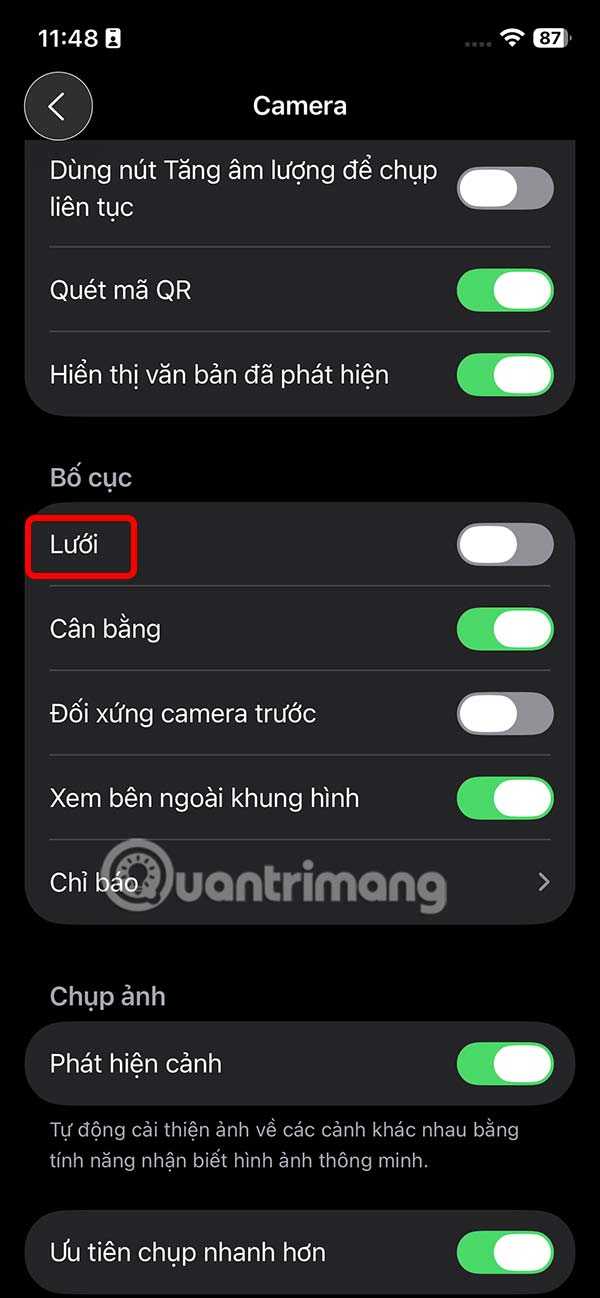
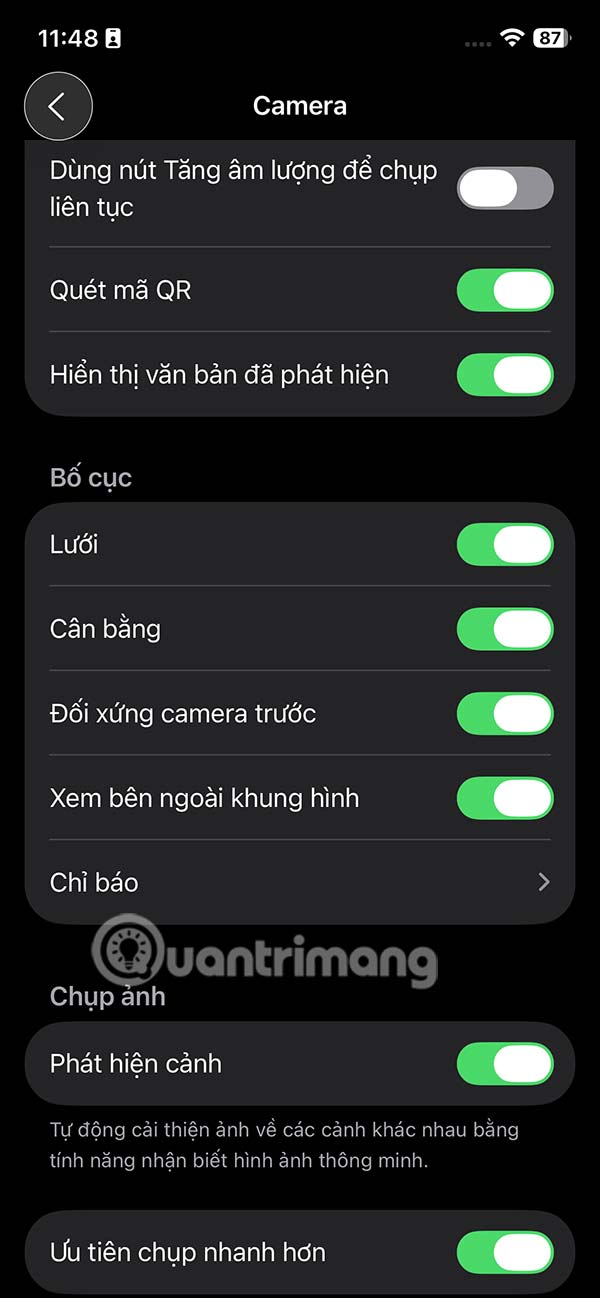
Go back to the iPhone's photo capture interface and you will see the control icons as shown below. you can easily change the shooting mode or record video through these icons.
FAQ
How do you display control icons in iPhone camera?
In practical terms, the Camera app on iPhone has been completely redesigned in iOS 26. To display the control icon in iPhone Camera, you need to manually enable it according to the article below.
What should you check before getting started?
Review the requirements, compatible device or software version, and any warnings described in the guide before making changes.
What should you do if the steps do not work?
Repeat the steps in order, confirm that your app or system is up to date, and review the troubleshooting details provided above.
Related Articles
 Why Do Some People Hate the iPhone 16's Camera Control Button?5 minutes read
 What Does the New Camera Control Button on iPhone 16 Do: What You Need to Know5 minutes read
 How to Control Iphone Camera with Apple Watch2 minutes read
 Fix Error of Not Displaying Icons on Windows Desktop: What You Need to Know3 minutes read
 iPhone Camera Does Not Work: Common Problems and Remedies8 minutes read
 How to Use the Camera Filter on Iphone 11, Iphone 11 Pro and3 minutes read
Reader Comments 0
Sign in with email or Google to join the discussion.