Table of Contents
This updated guide explains how to remove objects in photos on Google photos with clear steps, practical tips, and useful context. Google Photos has an option to remove objects in photos using AI technology to remove objects you do not want to appear in the photo. Users will be able to select the area they want to remove and then the AI removal tool in Google Photos will remove the object and replace it.
How to Remove Objects in Photos on Google Photos
Step 1:
You open the Google Photos app then tap the image you want to edit . In the photo interface, tap Edit to do it.

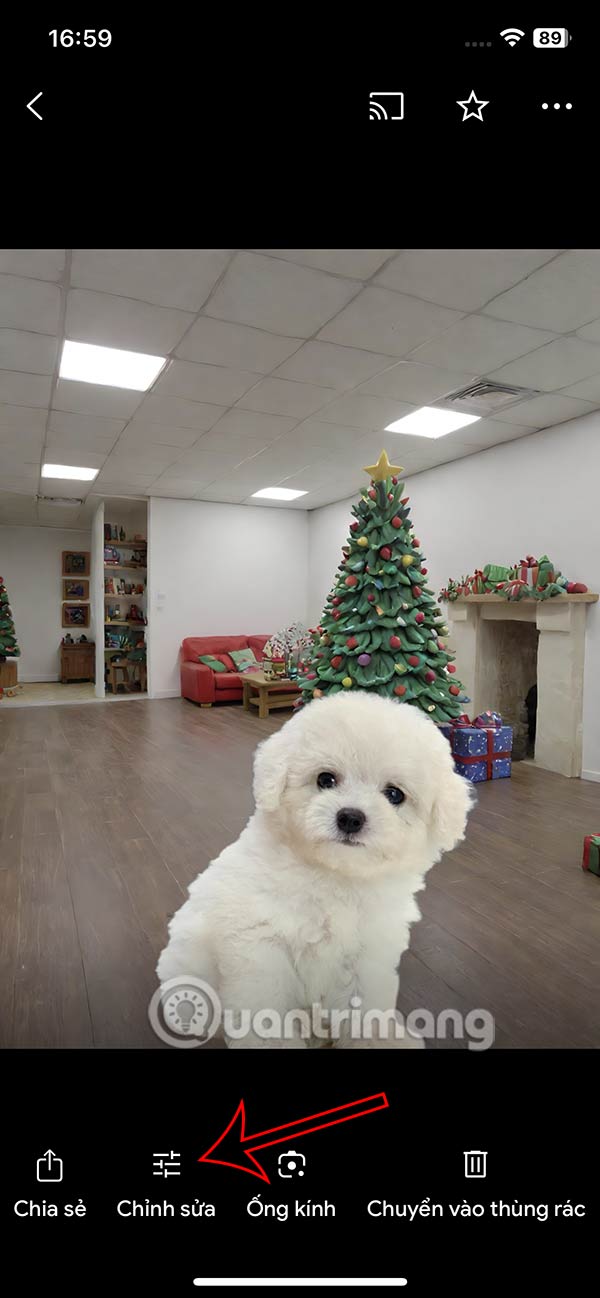
Step 2:
Next, select the image icon in the bottom left corner. The object deletion interface will appear, and you will circle the area of the object you want to delete .
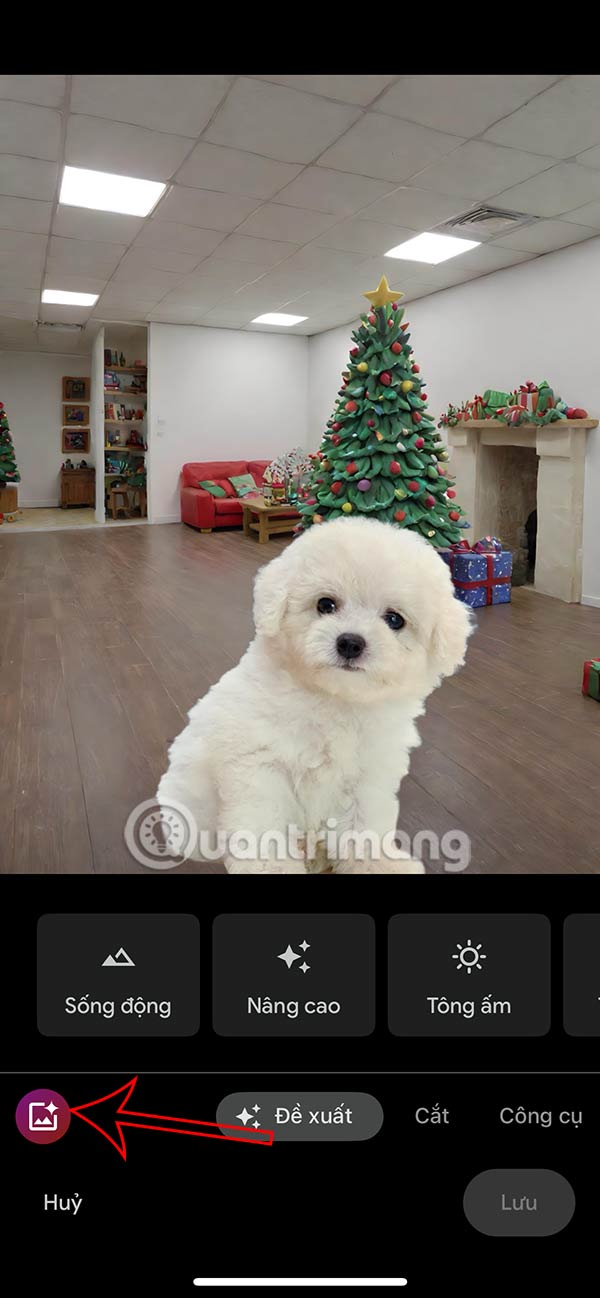


Step 3:
The result is the selected object in the image as shown. If the user wants to change it, choose Adjust . Here, you can delete the circled area, or add the area to be deleted . If satisfied, choose Done to save the selected area .
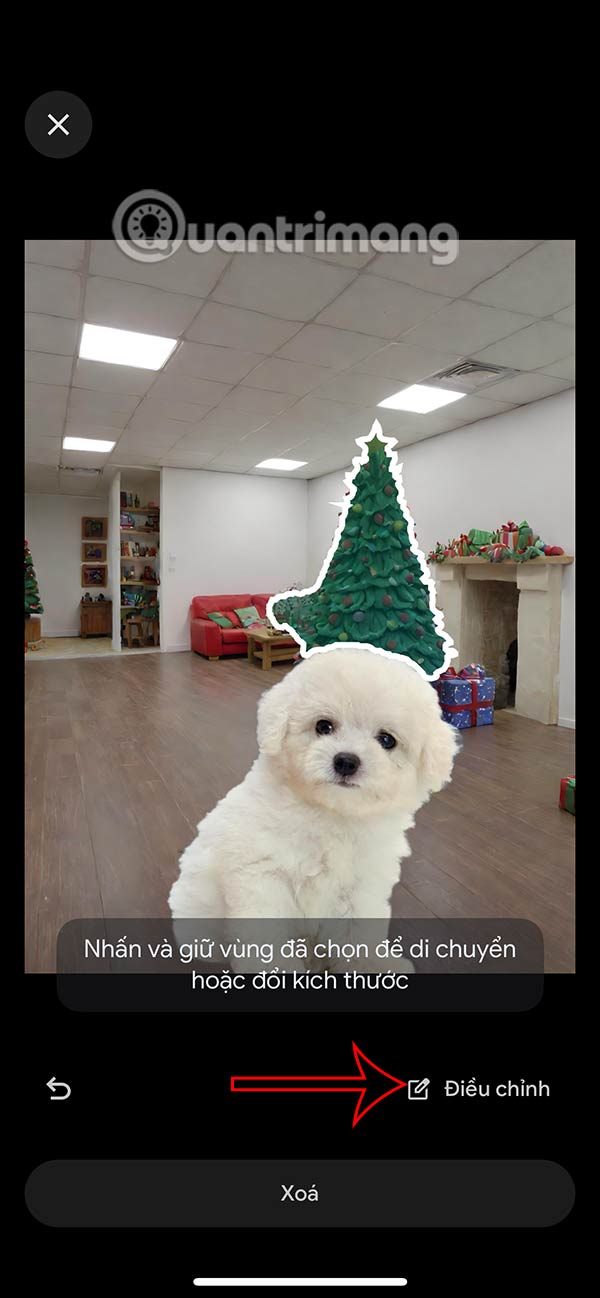
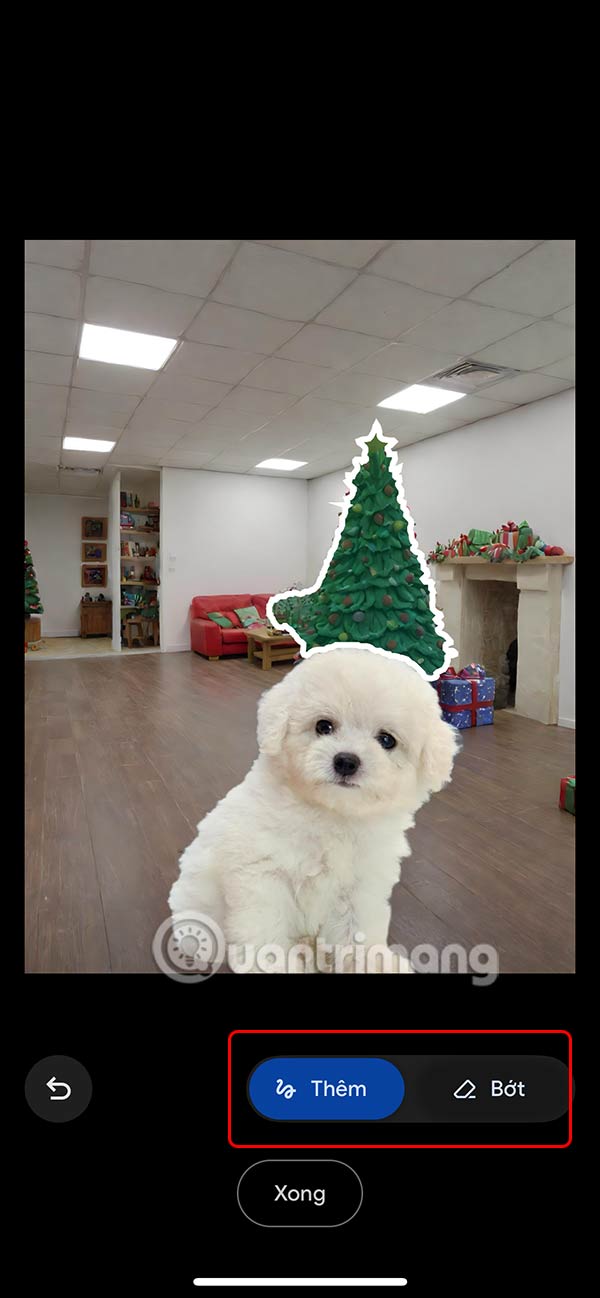
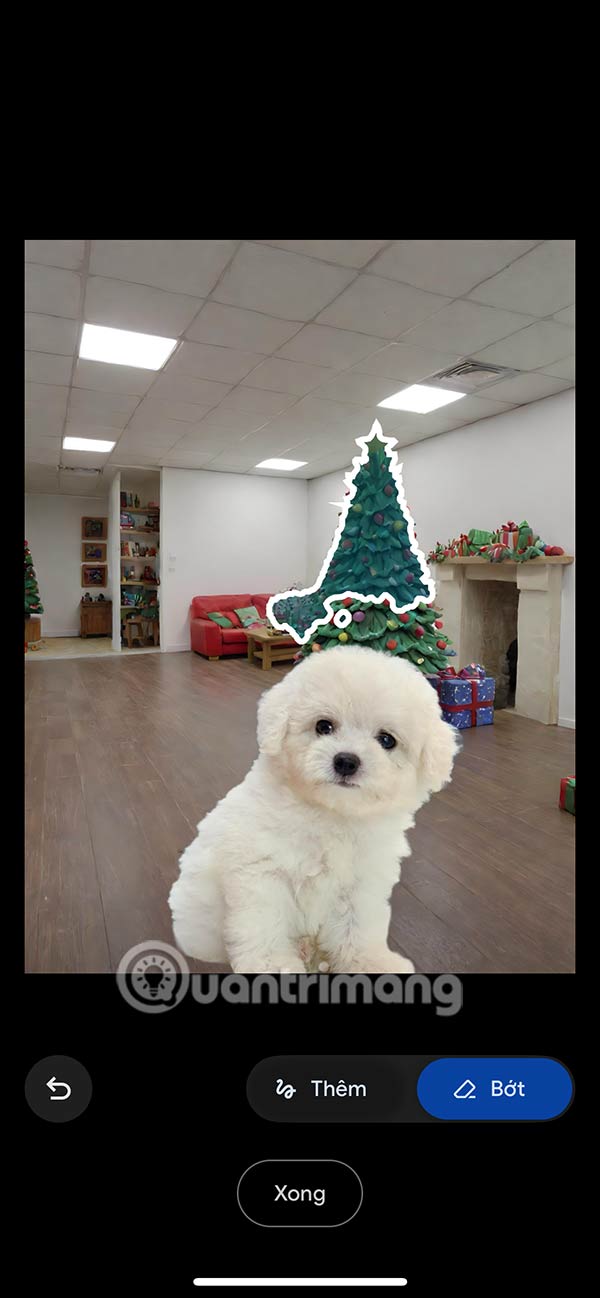
Step 4:
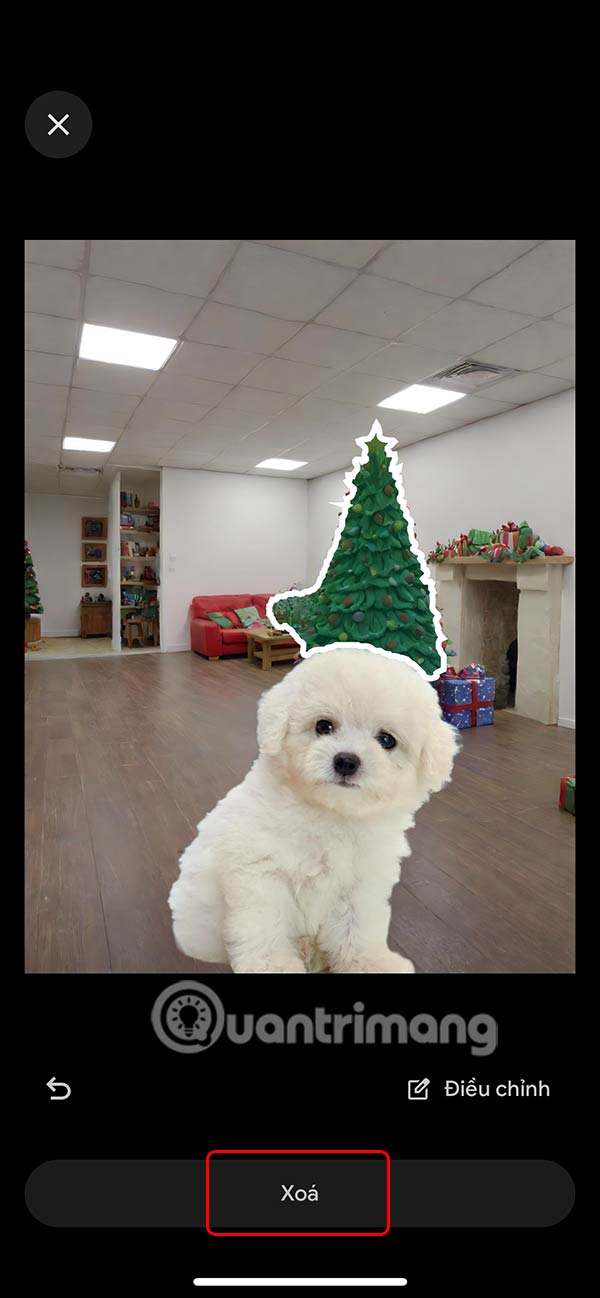
Tap Delete to delete the object in the photo on Google Photos. The result is that you will see the object removed and replaced with another object as shown in the picture, swipe right to see more edited photos.
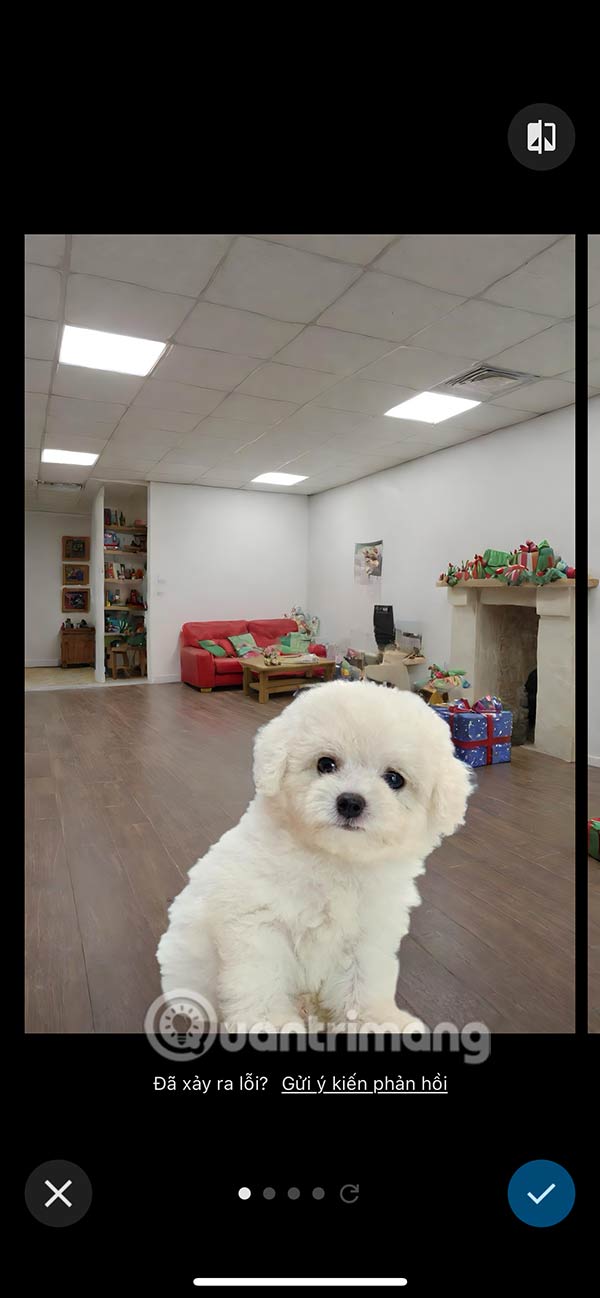
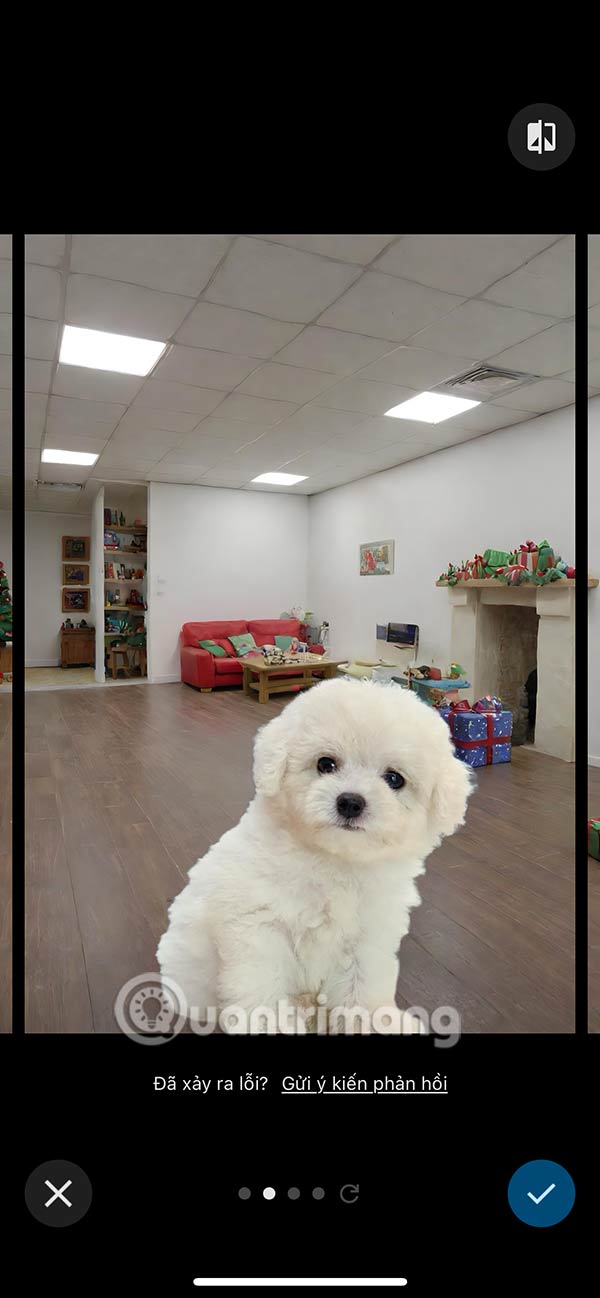
Google Photos provides many different groups of object removal photos for you to choose from. If you like it, press the check mark to save.

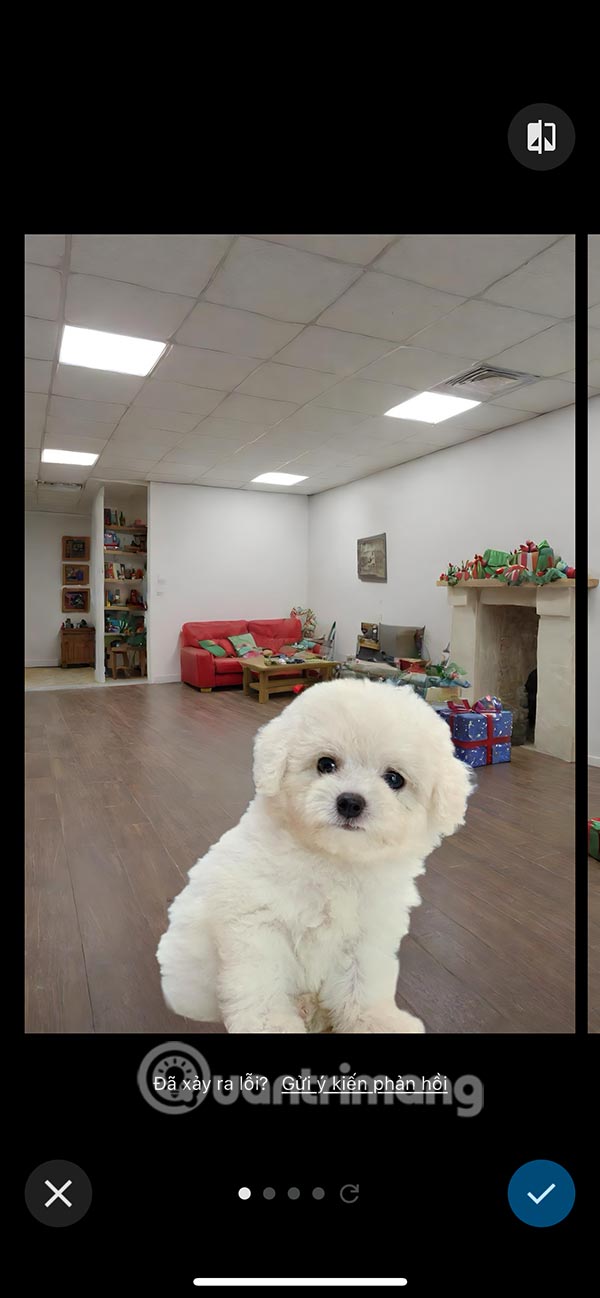
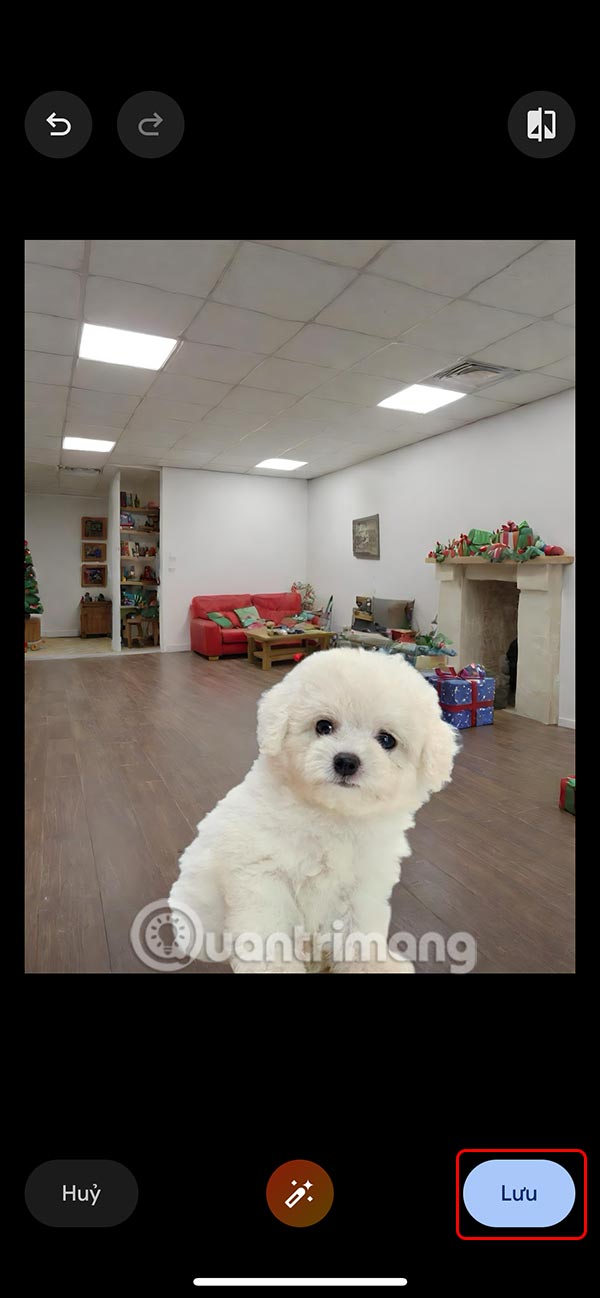
Finally, choose Save to save the photo and choose whether to replace the old photo or not.

FAQ
What should I prepare before I remove objects in photos on google photos?
Review the requirements and options in the guide first. Having the correct device, app version, account access, or materials ready helps prevent avoidable errors.
How long does it take to remove objects in photos on google photos?
The time depends on the task and your setup. Most basic steps can be completed quickly, while downloads, updates, scans, or troubleshooting may take longer.
What should I do if the steps do not work?
Repeat the instructions in order, confirm that your software or device is supported, and check permissions, connectivity, and available updates before trying again.
Related Articles
 minutes read
 How to Remove Objects From Photos in Adobe Express6 minutes read
 How to Remove Subjects in Photos on Google Photos3 minutes read
 Steps to Delete Selections in Photoshop Are Very Easy and6 minutes read
 Remove Objects in Photos with Photoshop's New AI-Powered Remove Tool5 minutes read
 Instructions on Removing Objects from Photos Using ChatGPT: Explained3 minutes read
Reader Comments 0
Sign in with email or Google to join the discussion.