Table of Contents
This practical guide explains how to create an audio summary on Gemini. Follow the steps in order, review the requirements first, and use the troubleshooting notes when a setting or option does not work as expected.
How to Create an Audio Summary on Gemini
Step 1:
You access your Gemini account then you select Canvas mode then select the plus icon , select Upload file . After uploading the file you enter the request to create a summary file with audio .
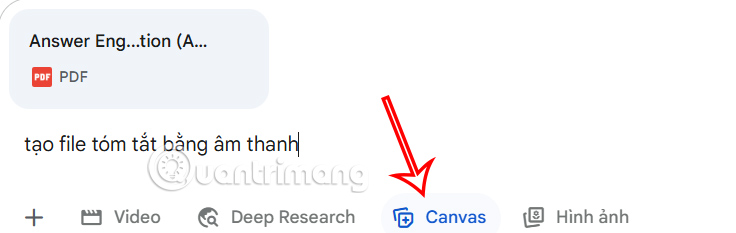
Step 2:
You wait for Gemini to analyze the uploaded document and then display the summary in text form. Then you will see the Summary section for us to read through, click Create & Listen Summary .
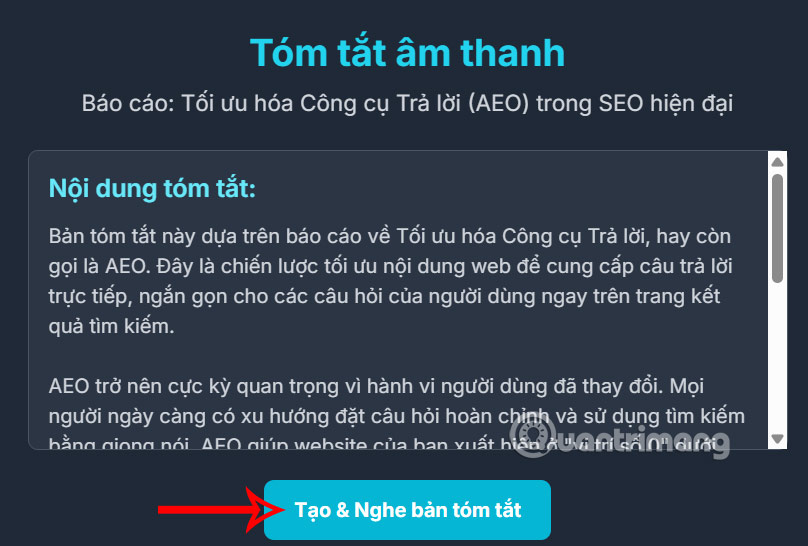
Step 3:
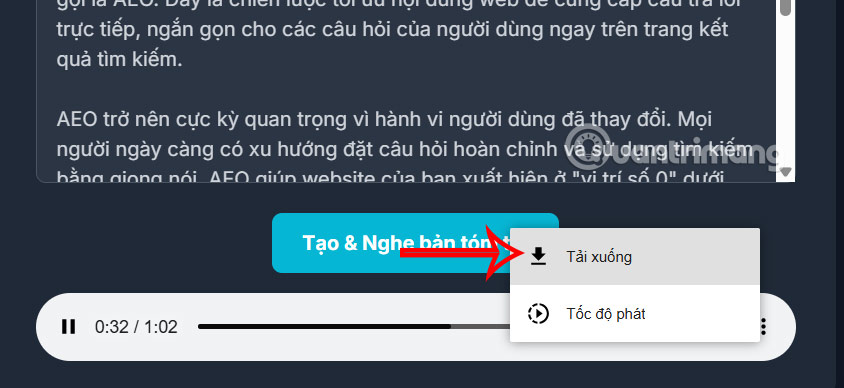
You will immediately see the audio file summarizing the document below as shown. Just select the 3 dots icon and then click Download to download the audio summary file for the document.
The audio file summarizing the document is saved in wav format.
Once you have an audio summary of your document, you can quickly send it via email or other apps.
FAQ
What does this guide cover?
This guide explains create an audio summary on Gemini, including the main steps, important details, and practical considerations.
Who is this guide for?
It is designed for readers who want a clear, practical overview and a reliable process they can follow without unnecessary complexity.
What should you check before getting started?
Review the requirements, confirm that your software or device is up to date, and save any important data before changing settings.
Related Articles
 Gemini Brings Audio Text Summarization Tool to Google Docs: Explained4 minutes read
 Quickly Summarize Documents in Google Drive Using Gemini3 minutes read
 Try Lyria 3 Now to Create High-quality Music on Gemini: Explained4 minutes read
 How to Create Visual Lectures with Gemini Canvas4 minutes read
 The Difference Between Gemini and ChatGPT13 minutes read
 How to Create a New Notebook Directly in Gemini5 minutes read
Reader Comments 0
Sign in with email or Google to join the discussion.