Table of Contents
This guide provides a clear, practical overview of "If You've Overlooked Notepad Before, It's Time to Reconsider". It organizes the most useful details, explains important considerations, and highlights the steps or choices that matter most.
This is the lightest writing app!
Notepad is the lightest text editor you can find. It's also quite versatile, as it can open almost any text file you come across. This makes Notepad a great tool for making quick edits to configuration files – especially useful when you're editing a game or making configuration changes and don't want to use a heavier program like Microsoft Word.
There are plenty of reasons to have a lightweight text editor that works with a variety of file formats and doesn't take up a lot of space. If you're editing a heavy game and making changes to game files - to boost performance or run a mod - then the little extra space Notepad takes up means your system will have an easier time keeping up with the load.
Most of the time, you'll be using Notepad to make quick, one-line edits to files with extensions like CFG, TXT, or INI. There's no point in using a larger text editor for these tasks, as Notepad works with them out of the box and has all the tools you need to make such changes.
You can also use Notepad for quick notes. In the past, the app's poor formatting capabilities were an issue that caused many people to switch to Notion, but Microsoft has since added a lot of new capabilities to Notepad that let you do more without overloading your system.
Generative AI features that are actually useful
Notepad is no exception to the AI-ification of Windows, and those AI features have turned Notepad into a proper writing tool. You get these 3 tools at the time of writing:
- Write/Rewrite : Take the prompt or pre-written text if available and create or edit text based on your commands.
- Customized rewrite : Allows you to adjust the length, tone, and formatting of the text. You have 5 options for tone and 6 options for formatting.
- Summarize : As the name suggests, gives you a brief summary of everything contained in your text file.
You probably won't use the Write or Customized rewrite features much, especially when you could be using a better tool like the free ChatGPT. However, the Summarize feature is extremely useful, especially if you're working with larger text files or code/config files and don't understand what everything means.
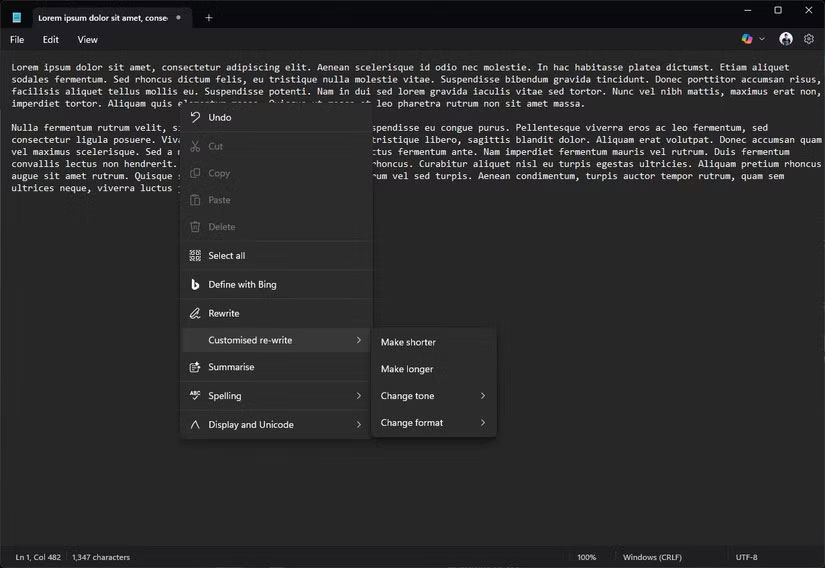
Using the Summarize feature to understand configuration or settings files can be a deal-breaker. Manually editing files can break a program to the point where you have to reinstall it completely. You can also break some important Windows settings, so knowing what you're editing before you start making changes can save you a lot of trouble.
Now, you can do all of this with an online chatbot like ChatGPT or Gemini. The fact that using these Notepad features requires a Microsoft 365 subscription also makes them a hard sell. However, the functionality is built-in, which means it removes any barriers to using AI tools.
If you take notes in Notepad, the app can also help you quickly organize or summarize your notes before you lose track.
Notepad now supports formatting
Another big update to Notepad is formatting support. This update brings features like headings, bulleted lists, hyperlinks, italics, bold, and Markdown support to Notepad.
This is the most significant update Notepad has received since its debut as an MS-DOS program in 1983. It adds everything that was missing in Notepad and makes Notepad much more useful for taking notes and actually writing. Markdown support is especially great because you can apply all the formatting options without ever leaving the keyboard.
This may not seem like a big deal, especially considering tools like Google Docs, Microsoft Word, and other Markdown editors let you do so much more. However, Notepad's formatting is completely optional. Since the program only handles plain text, anything you paste into Notepad immediately becomes plain text.
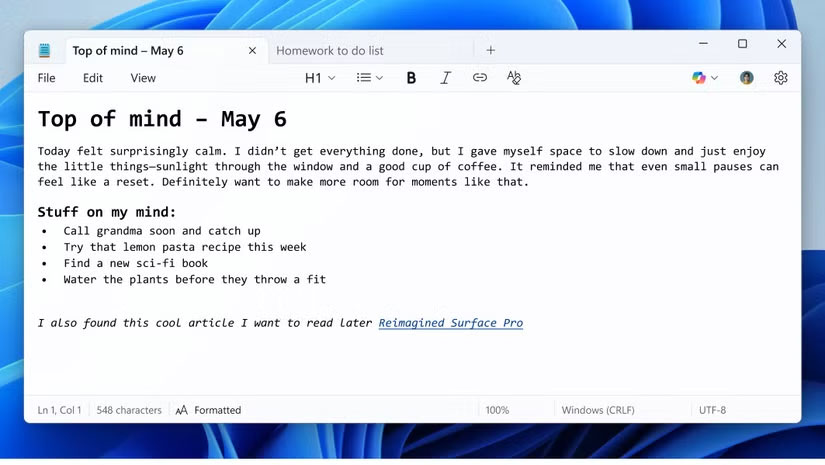
Rich text editors like Word, Docs, or WordPad will try to preserve the original formatting of the text you copied or apply their own styles. When you just want to work with text and skip the frills, using Notepad makes life a lot easier.
Notepad also has other features like spell check, auto-correction, auto-save, and multi-tab support that make working with multiple text files at once much easier. And you get all this functionality without having to slow down your computer with heavy programs. No need to worry about excessive RAM consumption when You only need to jot down some text, make a few transformative changes, or save something for later reference.
Why should you try Notepad now?
If you've shied away from Notepad in the past, that's understandable. It's bland and lacking in features. However, Microsoft has really taken an already great program and fixed all of its bugs.
There are certainly better, lightweight Windows alternatives to Notepad. However, they are external installations that you may not have available. Notepad is built-in and always ready to go, and doesn't require an internet connection or a lot of system resources to run.
Next time you need to quickly edit a file, give Notepad a try. It has a lot of useful features, whether you are editing code or a configuration file or writing text. It adheres to basic word processing and does it quite well.
FAQ
What should you know about this is the lightest writing app!?
Notepad is the lightest text editor you can find. It's also quite versatile, as it can open almost any text file you come across. This makes Notepad a great tool for making quick edits to configuration files – especially useful when you're editing a game or making configuration changes and don't want to use a heavier program.
What should you know about generative AI features that are actually useful?
Notepad is no exception to the AI-ification of Windows, and those AI features have turned Notepad into a proper writing tool. You get these 3 tools at the time of writing:
What should you know about notepad now supports formatting?
Another big update to Notepad is formatting support. This update brings features like headings, bulleted lists, hyperlinks, italics, bold, and Markdown support to Notepad.
Why should you try Notepad now?
If you've shied away from Notepad in the past, that's understandable. It's bland and lacking in features. However, Microsoft has really taken an already great program and fixed all of its bugs.
Related Articles
 Summary of Useful Shortcuts When Using Notepad3 minutes read
 Windows Notepad Is Now a Real Writing Tool Thanks to This AI Upgrade!5 minutes read
 What Is Notepad ++? Compare Notepad ++ and Regular Notepad4 minutes read
 These 'Hack' Tips Are Only Notepad Can Do22 minutes read
 How to Quickly Open the Data File with the Notepad Editor3 minutes read
 Tips to Set an Encryption Password for Notepad Files4 minutes read
Reader Comments 0
Sign in with email or Google to join the discussion.