Table of Contents
3 Ways to Display Passwords *** on the Browser Is Extremely Simple covers the essential facts behind the topic, including what changed, why it mattered, and how it affected users.
Here are 3 simple ways for you to review the password in your browser.

1. Display Password with Developer Option
There is no need to install any 3rd party software, utilities and you can still see the password in your browser.
On the password box (password), right-click on it and select Inspect element.
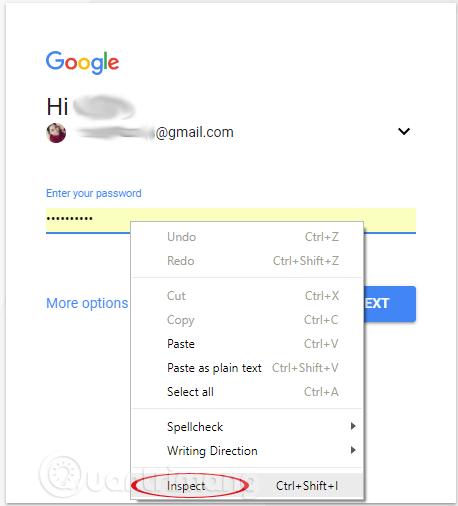
Now the Developer Tool Inspect element opens. Here you will see complex text strings. Your task is to search for clusters. This cluster will appear right in the first LINE of the greened part on the right

After you find this LINE, double-click type = "password" to edit and replace "password" with "text". At this point the command LINE will be. Press Enter.

Finally, close the Inspect element window again and your password will display on the Password frame instead of displaying the dot as before.

2. Display Saved Passwords on Chrome
TipsMake. Com has a very detailed article on how to view saved passwords on Chrome, you can refer here: How to view passwords, delete saved passwords on Chrome
3. Use the 3rd Extension
There are many 3rd extensions that support displaying passwords automatically. With just one click, you can view the password on your browser.
Here are some 3rd extensions you should consult:
ShowPassword for Chrome: display the password by moving the mouse pointer over the password field.
Show Password for Firefox: Click on the extension button to display or hide the password.
Show Password for Opera: Automatically display all passwords.
Refer to some of the following articles:
- How to view saved Wifi passwords on Android?
- Your computer requires a password after Sleep or Stand By. This is how to fix it
- How to view saved Wifi passwords on Windows 7/8/10
- How to detect sneaky people on your Facebook
Good luck!
FAQ
What does 3 Ways to Display Passwords *** on the Browser Is Extremely Simple explain?
3 Ways to Display Passwords *** on the Browser Is Extremely Simple covers the essential facts behind the topic, including what changed, why it mattered, and how it affected users.
Who is most affected by Password?
Here are 3 simple ways for you to review the password in your browser.
What are the key takeaways from this topic?
Display Password with Developer Option There is no need to install any 3rd party software, utilities and you can still see the password in your browser.
Related Articles
 Display Saved Passwords on Web Browsers5 minutes read
 Instructions on How to Export Saved Passwords on Chrome Browser into4 minutes read
 How to View Saved Passwords on Chrome Browser?: Google Chrome10 minutes read
 Summary of How to Create Strong Passwords and Manage the Most14 minutes read
 How to Use an Imac as an External Monitor10 minutes read
 How to View and Quickly Delete Saved Passwords on Chrome9 minutes read
Reader Comments 0
Sign in with email or Google to join the discussion.