Table of Contents
This practical guide explains how to use x-VPN to surf the web anonymously on Windows - safer when. Follow the steps in order, review the requirements first, and use the troubleshooting notes when a setting or option does not work as expected.
X-VPN is completely free on many different platforms such as Android, iOS, Windows and does not require an account to use. The tool performs multi-layered 256-bit AES encryption, supporting many specialized servers for streaming content. The following article will guide readers on how to use X-VPN on Windows.
- How to use Idea VPN fake IP on Windows
- The best and most effective ways to fake computer IP
- Best Free VPN Software for iPhone
How to use X-VPN on Windows
Step 1:
You can download the X-VPN tool from the link below. The software is compatible with Windows 7 and above.
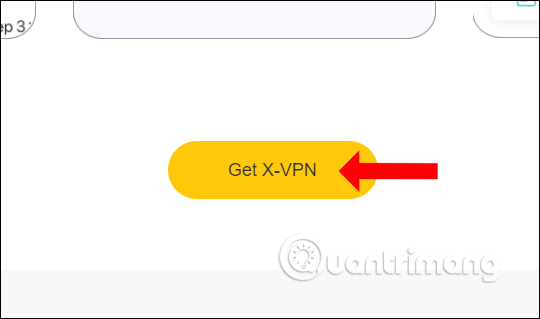
Click the Get X-VPN button to download the installation file to your computer.
Step 2:
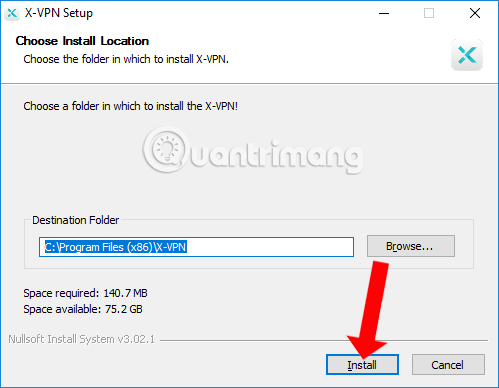
select the.exe file to install X-VPN. select the Install button and wait for the installation process to complete.
Step 3:
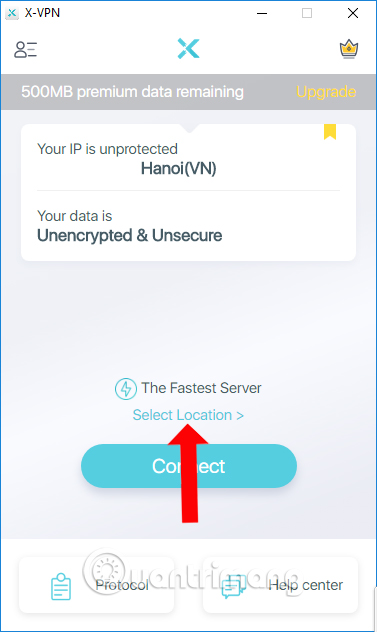
When successful, we will see the X-VPN interface with the current IP address right at the top. Here, click Select Location to choose the connection location.
Step 4:
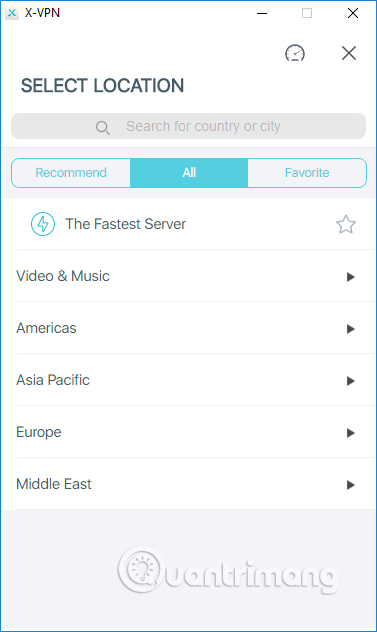
A list of server connection countries appears for users to choose from. If you want to connect to a country, just select that country.
Additionally, by clicking the star icon, you can add that country to your favorite connections.

When accessing the All section, we will see that the connected countries are divided into different groups for easy access and searching for different purposes.
Step 5:
We wait for the connection process to complete.
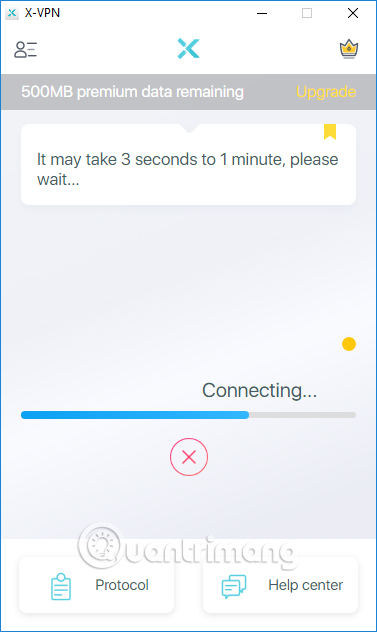
X-VPN on Windows will limit bandwidth and allow 500 MB/day usage for all connection locations.
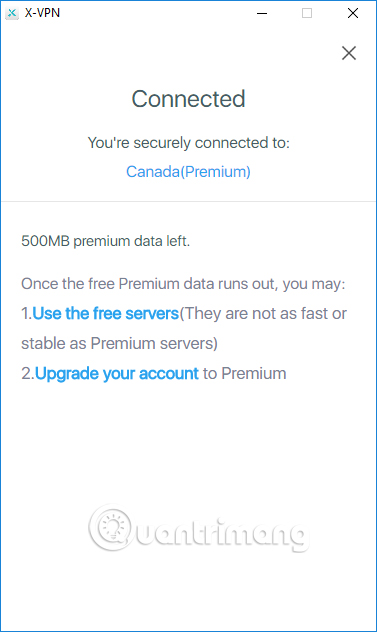
Step 6:
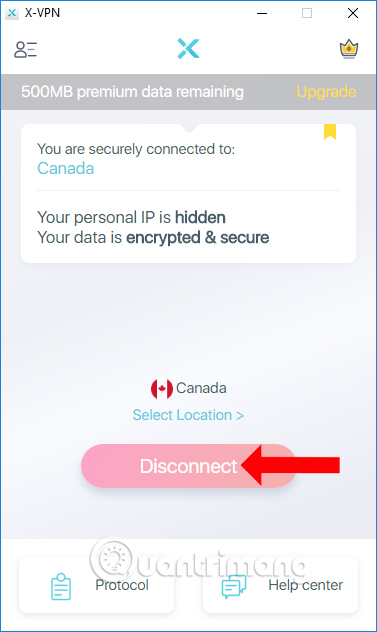
To disconnect from the selected location, press the Disconnect button and you're done.
Step 7:
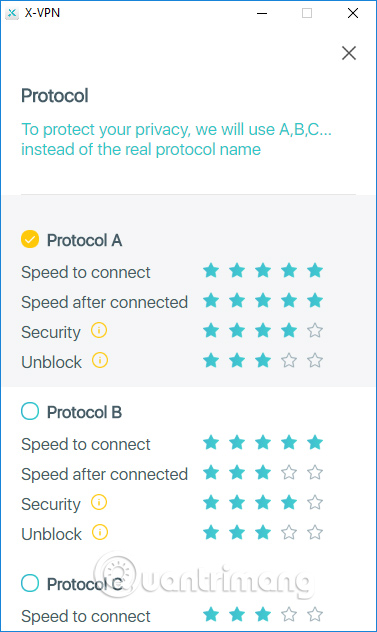
When clicking on the Protocol section, users can change the VPN protocol if needed.
 Step 8:
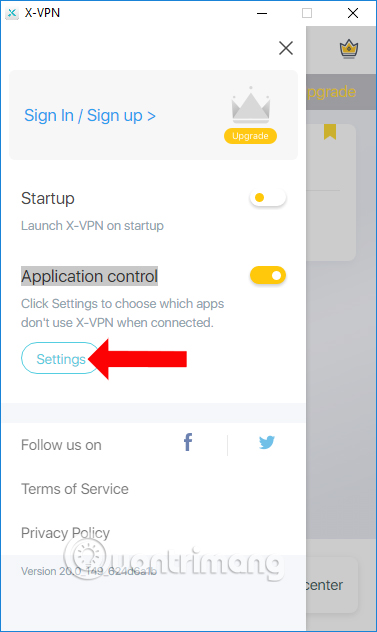
At the X-VPN interface, select the 3-dash icon to customize the software. Slide the horizontal bar at Startup to start the software with Windows if needed.
In Application control, users can choose applications that do not use X-VPN when connecting. Click Settings to select the application.
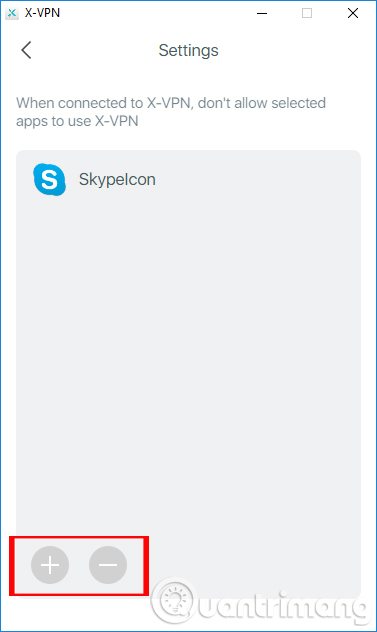
Here, users press the plus sign to add applications installed on the computer and the minus sign to remove applications from the list.
X-VPN, like other VPN applications, helps you connect to many other servers around the world. Besides, users will be able to choose which applications use or not use X-VPN.
See also:
- List of best and fastest DNS of Google, VNPT, FPT, Viettel, Singapore
- How to use Opera VPN to fake IP, create VPN
- Instructions on how to determine IP address on computer
Good luck!
FAQ
How to use X-VPN on Windows?
You can download the X-VPN tool from the link below. The software is compatible with Windows 7 and above.
What does this guide cover?
This guide explains use x-VPN to surf the web anonymously on Windows - safer when, including the main steps, important details, and practical considerations.
Who is this guide for?
It is designed for readers who want a clear, practical overview and a reliable process they can follow without unnecessary complexity.
Related Articles
 Fake IP Surf Anonymously, Safely with OKayFreedom VPN3 minutes read
 Cloudflare's New DNS 1.1.1.1 Service, More Secure, Faster Web Surfing3 minutes read
 How to Use X-vpn to Surf Anonymously on Windows4 minutes read
 How to Use Tor Browser to Surf Anonymously12 minutes read
 Guide to Anonymous Web on Android Phones6 minutes read
 How to Change Dns10 minutes read
Reader Comments 0
Sign in with email or Google to join the discussion.