Table of Contents
Learn how to use Apple music's smart playlists with clear steps, practical tips, and troubleshooting guidance for a reliable result.
Guide to creating smart playlists in Apple Music
You'll create smart Apple Music playlists on your Mac or Windows, then enable syncing to open them in other Apple Music apps.
Open the Apple Music app on your Mac or Windows, then click File > New > Smart Playlist.
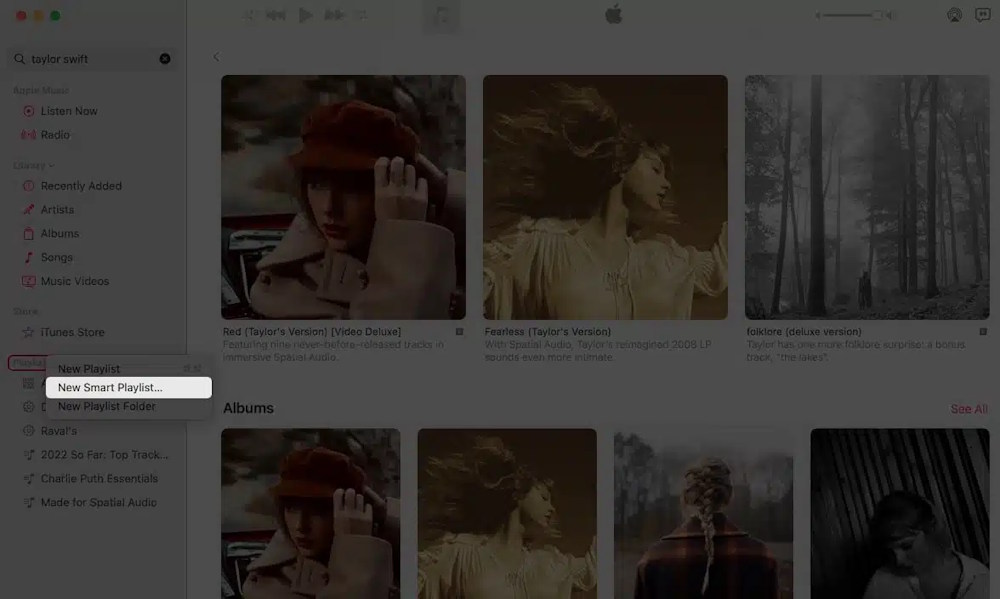
Then they create rules for the smart playlist they are creating, such as song genres….
To add a rule, click the + sign; to delete a rule, click the – sign; then select Any or All to choose if you have multiple rules.
After adding the rules to the playlist, click OK and then rename the playlist in the sidebar.
We should establish simple rules first, such as quickly finding favorite songs or songs that match our mood. You can refer to some rules like:
- Most played songs (your favorite playlist): Number of plays / greater than / 10 (or 25)
- Recently added music (new music only): Date added / within / the last 30 days
- Relaxing or focused music playlists by genre: Genre / Includes / Relaxing (or Ambient Music, Lo-fi, Classical Music)
Please note that smart playlists do not appear on the Apple Music web browser.
Final Thoughts
Use this guide as a practical checklist for how to use apple music's smart playlists. Work through the steps in order, verify each result, and adjust the options to match your needs.
FAQ
What do you need before following this How to Use Apple Music's Smart Playlists guide?
Review the required tools, accounts, settings, or materials mentioned in the article. Learn how to use Apple music's smart playlists with clear steps, practical tips, and troubleshooting guidance for a reliable result.
What are the main steps for how to use apple music's smart playlists?
Follow the sections in order, especially Guide to creating smart playlists in Apple Music. Complete each step before continuing and verify the result as you go.
What should you do if the process does not work as expected?
Recheck the prerequisites, update the relevant app or service, review the settings, and repeat the step that caused the issue. Use any troubleshooting notes included in the guide.
Related Articles
 How to Sync Spotify and Apple Music Playlists for Free6 minutes read
 How to Create Collaborative Playlists in Apple Music: Practical Guide4 minutes read
 How to Add Music to a Playlist Without Adding It to the Library in3 minutes read
 How to Create Apple Music Playlists Using ChatGPT4 minutes read
 How to Merge Playlists on Spotify6 minutes read
 Revealing the 'Super Strange' Hidden Feature of the Apple Smart Ring Explained4 minutes read
Reader Comments 0
Sign in with email or Google to join the discussion.