Table of Contents
Playlists.cloud has shut down its hosted sync service. To copy playlists between Spotify and Apple Music, start with the import option in the app that should receive the playlists. Treat the transfer as a copy made at that time. Later additions to the source are not kept in sync by these import tools.
Transfer Spotify playlists to Apple Music
- Use an active Apple Music subscription and make sure Sync Library is on.
- On iPhone or iPad, open Settings > Apps > Music and choose Transfer Music from Other Music Services if available. Apple also documents a transfer option on its Android app and website in supported regions.
- Select the source, authorize the connection and choose what to import. Review any music that needs a match confirmation.
See Apple’s transfer instructions or the Spotify-to-Apple Music walkthrough for more detail.
Transfer Apple Music playlists to Spotify
In Spotify’s mobile app, open Your Library and look for Import your music from other apps. Follow the prompts to connect to the source through Spotify’s transfer partner and choose your playlists. Check Spotify’s import instructions if the option is missing or an import fails.
Check matches before removing the source copy
Start with a playlist you know well. Compare the track count and order and sample a few songs. Live, clean, remastered and regional releases can match differently. If you repeat an import later, check whether it updates an existing playlist or makes a duplicate. Continuous sync is a distinct service, so check its limits and account permissions before connecting both libraries. See other playlist transfer workflows if the built-in option does not meet your needs.
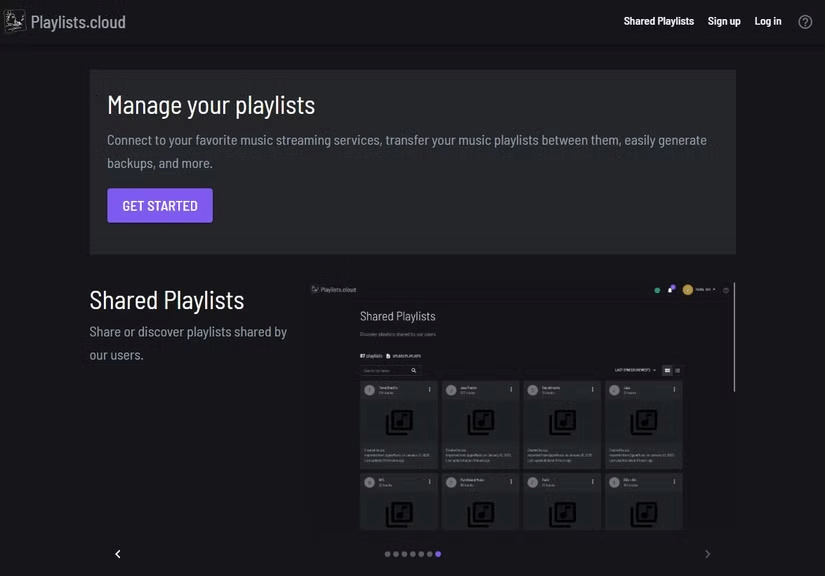
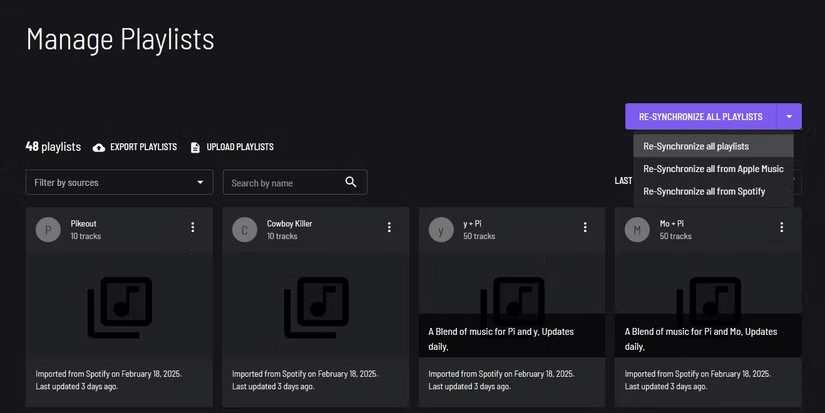
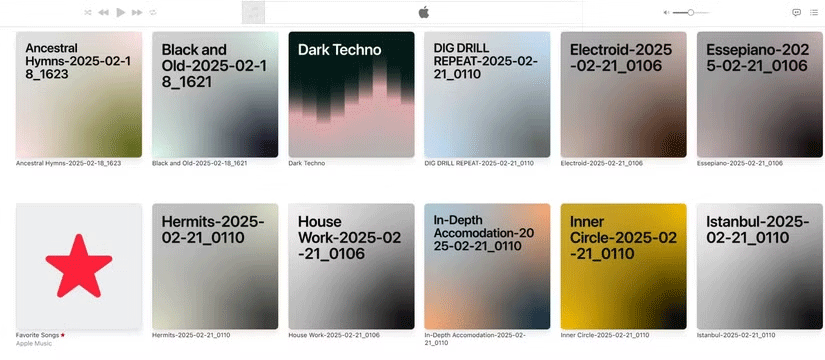
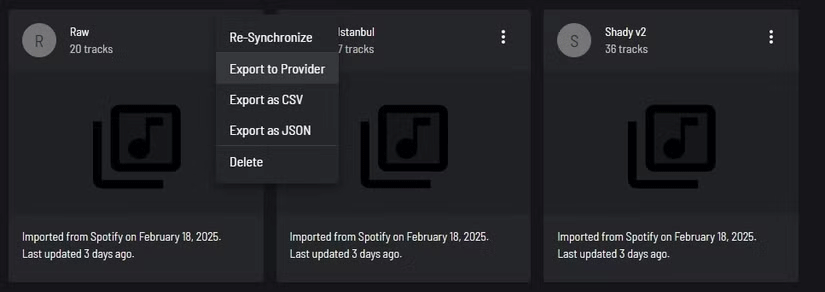
Archived Playlists.cloud screenshots
The Playlists.cloud site confirms that the hosted service is no longer active. These images show how it used to work.
Related Articles
 How to transfer music library from Spotify to Apple Music
 How to transfer music playlists between Spotify and Apple Music
 6 pages to discover new music and find playlists for Spotify
 How to create a random playlist on Spotify
 5 ways to create unique Spotify playlists
 Spotify launches AI feature that recommends personalized playlists
Reader Comments 0
Sign in with email or Google to join the discussion.