Table of Contents
As information technology continues to develop, manual tasks that humans used to perform will be replaced by machines and software, such as finding and installing drivers for a computer.

Update Driver is software that automatically downloads and updates drivers on your computer or laptop.
Each computer manufacturer provides its own drivers; when you buy a computer, you'll find a driver CD included. If you lose or don't have the CD, you can use driver update software without having to remember the computer model.
List of software:
I. Top software for automatic driver installation .
1. Driver Easy.
2. Driver Booster.
3. 3DP Chip.
4. Driver Detective.
5. Smart Driver Updater.
II. How to check for driver updates using command lines .
III. How to use DriverEasy software .
IV. How to use Device Manager to install drivers for your computer .
I. Driver Update: Top 5 Software Programs for Automatically Downloading Drivers for Computers and Laptops
1. Driver Easy

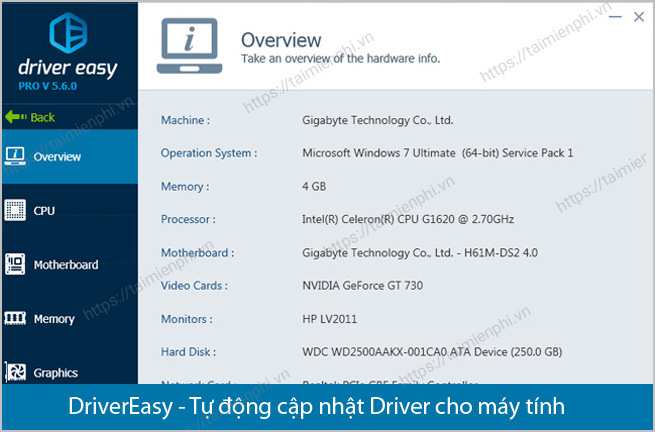
DriverEasy is software that automatically finds the necessary computer drivers for any operating system. By updating drivers to the latest versions to ensure optimal system performance, DriverEasy provides a rich database of drivers from official publisher websites, automatically downloading and installing them on your computer. Additionally, DriverEasy creates backups of your drivers for restoration when needed.
2. Driver Booster

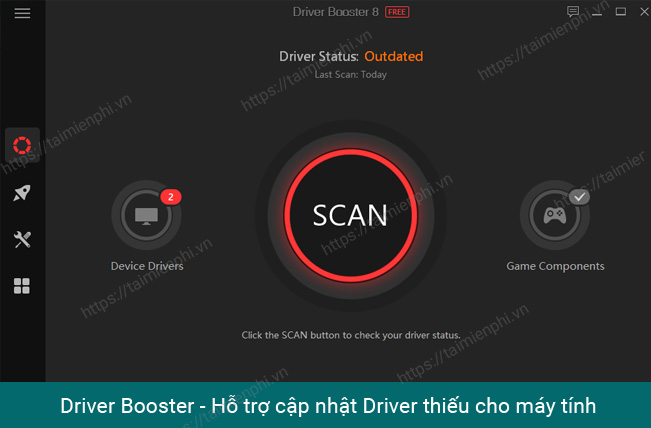
Driver Booster 6 , the latest version of the computer driver discovery and update software, is currently being used by many people. With its function of searching, downloading, and installing missing drivers for computer hardware, Driver Booster integrates a database of over 500,000 drivers and devices, allowing you to remove outdated drivers and create driver backups for future restoration.
3. 3DP Chip

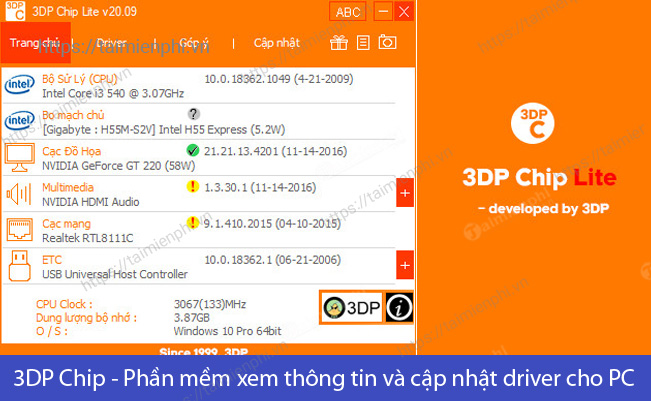
3DP Chip is software commonly used to update the latest driver versions for computers, helping hardware always operate in optimal condition. With 3DP Chip, you can identify outdated drivers, then let the software automatically search for and install the latest versions for your system.
4. Driver Detective

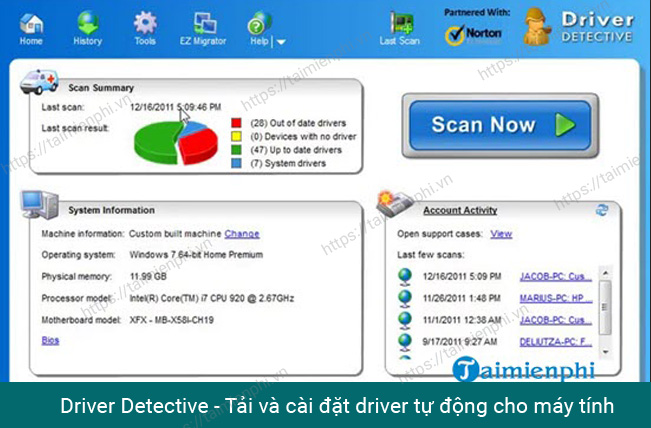
Driver Detective is an essential tool for users to check and update drivers for their computers. It uses advanced scanning technology to find outdated drivers and install new versions for your system. With Driver Detective, you can back up your computer's driver system and connect to online driver repositories for easy downloads.
5. Smart Driver Updater

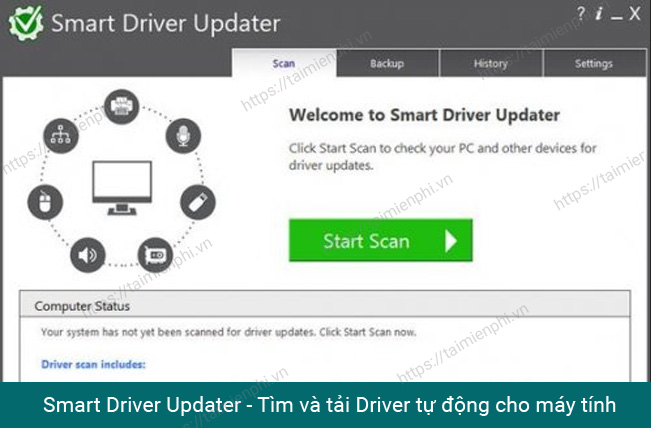
Smart Driver Updater is computer driver scanning software that helps users automatically scan their computers and find outdated drivers, prompting them to identify and notify them about drivers that need replacing. The software also provides reliable sources to download and install the latest driver versions for various hardware devices on the computer.
II. Instructions for checking for driver updates using command lines
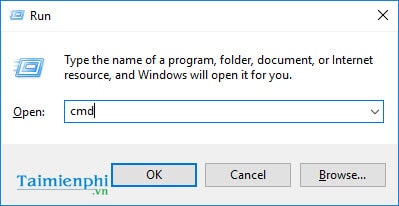
Step 1 : Press the Windows + R key combination , type ' cmd ', and then press Enter to open the Command Prompt program .
Step 2
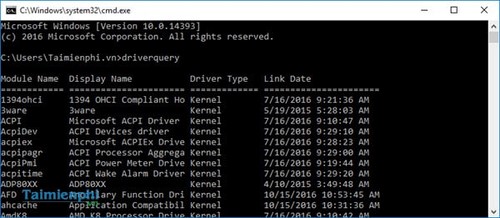
In the command prompt window, type " driverquery " and then press Enter to display all drivers currently running on your computer.
Step 3
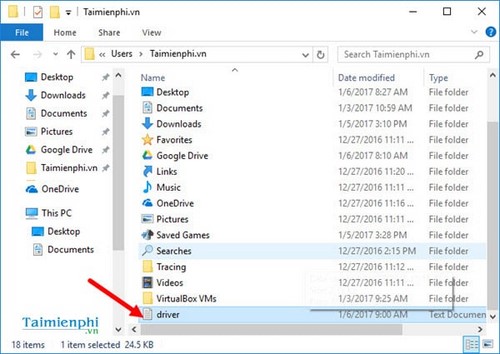
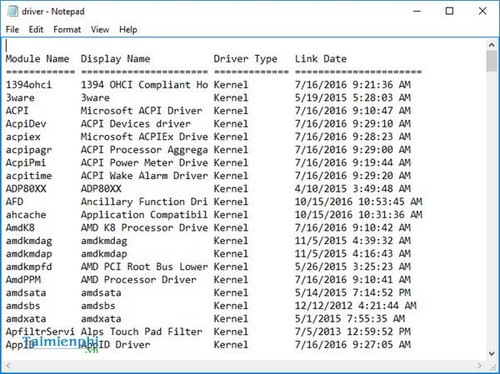
Type the following command: " driverquery>driver.txt " and then press Enter. The list of drivers will be created in a text file.
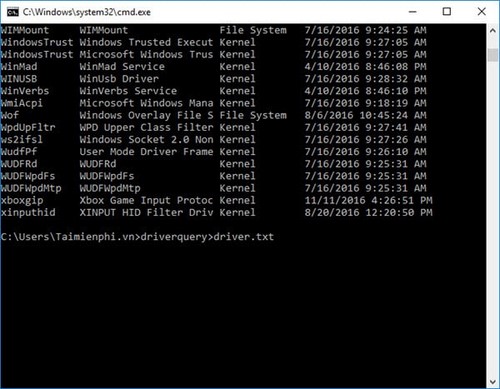
This text file will be located in the folder displayed on your CMD screen. Open that file and check for updates to your outdated drivers.
III. Instructions on using DriverEasy software to automatically find drivers
Step 1
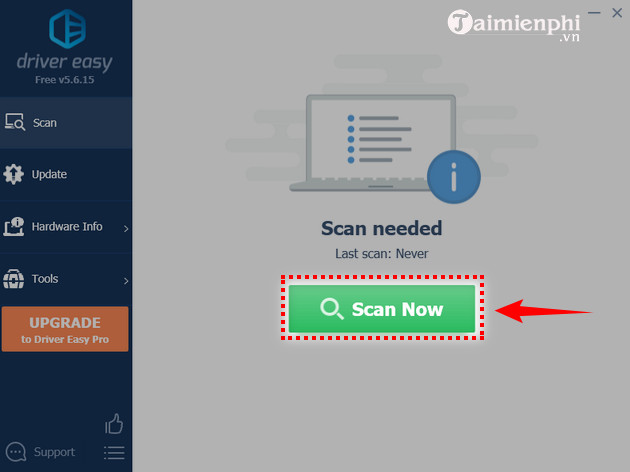
Launch Driver Easy , click Scan now to begin the automatic driver search process.
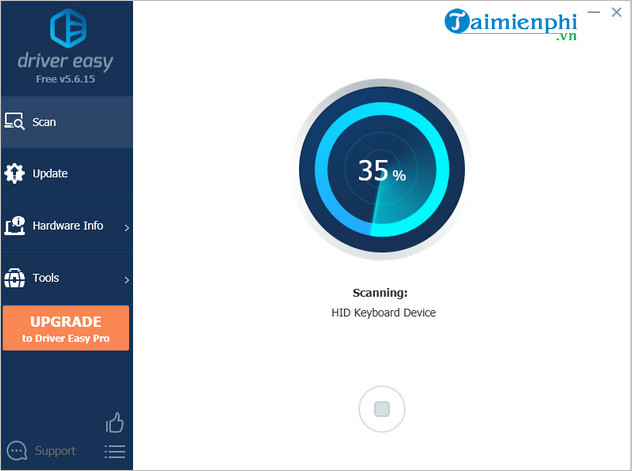
The system will begin a full system scan to find missing or outdated drivers.
Step 2
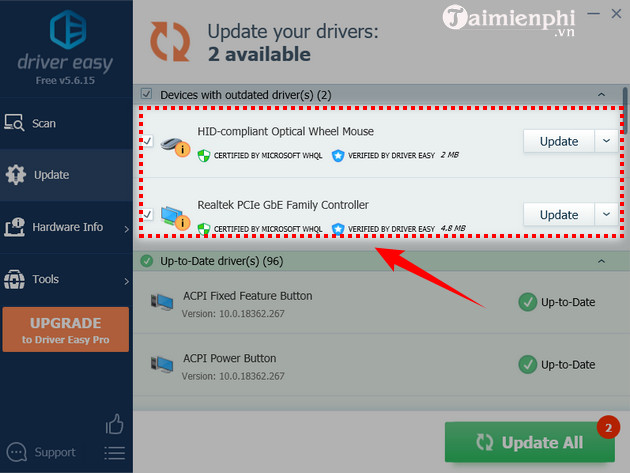
A list of outdated or necessary drivers will appear. You can click Update to update individual drivers or click Update All to update all system drivers.
Step 3
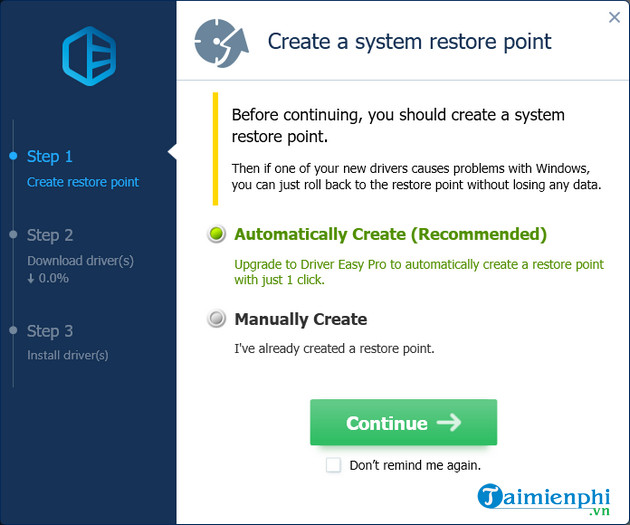
When the update begins, the software will give you the option to back up a recovery image before installing the new driver. You should choose the "Automatically Create " option; however, this requires you to upgrade Driver Easy to the paid Professional version .
Step 4
The automatic driver installation process begins. Wait until the installation is complete, then you can restart your computer to finish.
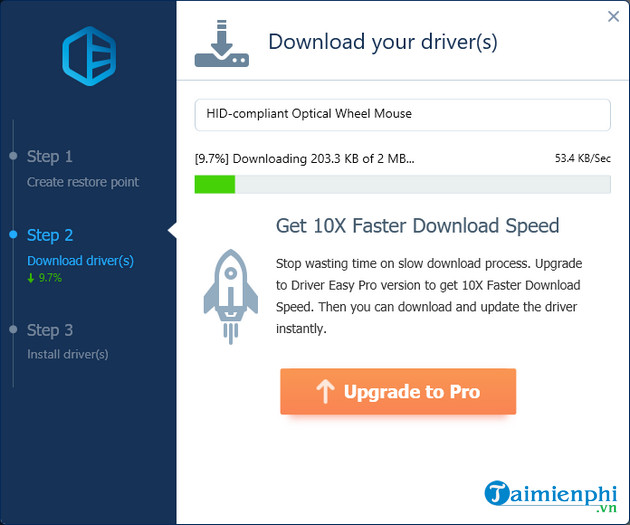
You can also pay to upgrade to the Professional version of the software, which offers more advanced features such as faster download speeds, the ability to download multiple drivers simultaneously, and automatic system backups.
Besides DriverEasy, you can also use 3D Chip to automatically update drivers for your computer. If you haven't been successful yet, you can refer to TipsMake's detailed guide on how to manually find drivers using 3D Chip in a previous tutorial.
Automatically installing drivers using Driver Booster is also a popular method recently used by many users. Driver Booster searches for and downloads drivers for computers and laptops quite quickly; it's not an exaggeration to say that you'll truly appreciate its usefulness when you use it.
As listed, Smart Driver Updater is also one of the effective software programs for automatically downloading drivers. Refer to the instructions on how to automatically update drivers using Smart Driver Updater to save your time.
In addition, Driver Detective is also highly rated among the top software for automatically downloading and installing drivers for computers. Updating drivers using Driver Detective is also quite simple, similar to other software; you can follow along and do it yourself.
IV. Install drivers automatically for your computer using Device Manager
Step 1
Access the Control Panel on Windows. You can find instructions on how to access the Control Panel on various operating systems here.
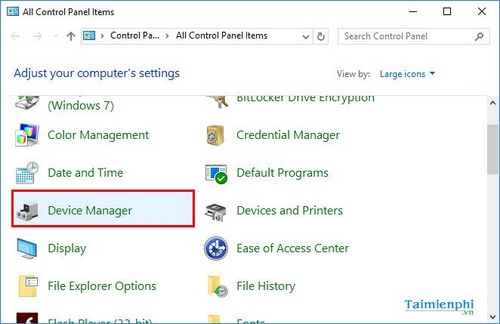
Step 2 : In the Control Panel , find the Device Manager section.
Step 3
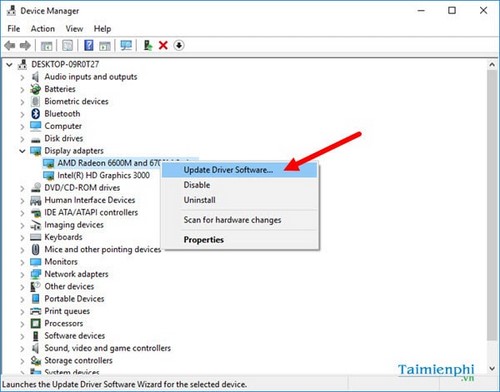
A list of hardware devices will appear. To update and automatically install drivers for a specific device, right-click on that device and select " Update Driver Software…".
Step 4
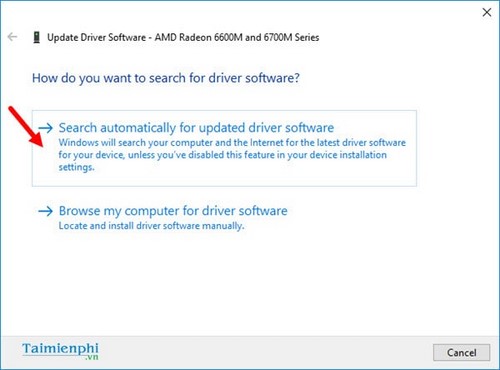
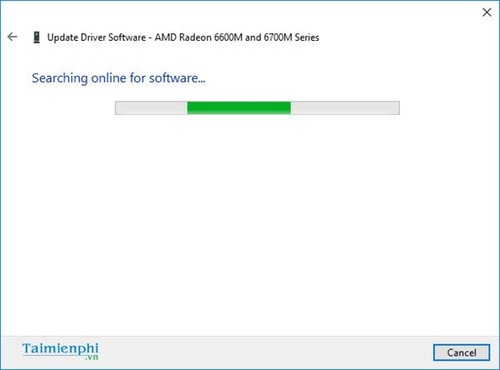
Select " Search automatically for updated driver software ." The device's drivers will be searched online and automatically installed.
Each hardware manufacturer for laptops or computers provides users with drivers to download for each model or component to ensure compatibility with various operating systems.
To update drivers for a computer or laptop, users can search for the appropriate driver by searching on the manufacturer's website.
For example, for Dell laptops, you can find the corresponding drivers here.
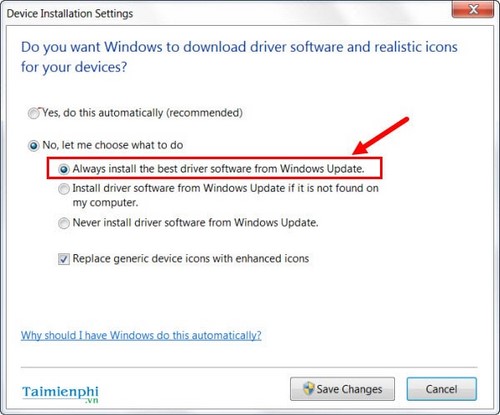
With each new update, Windows usually includes driver updates for users. Users can download these updates, and the drivers will be installed automatically. You can enable this feature by selecting " Always install the best driver software from Windows Update ," then clicking "Save Changes" to save the changes.
In summary, TipsMake has introduced you to the best software for automatically finding drivers for your computer and guided you through the steps to automatically update drivers and automatically find drivers using DriverEasy. If you are not satisfied, you can install and use other driver update software available on tipsmake.
For Windows 11, you can refer to the instructions here for updating Windows 11 drivers to do it more easily and quickly.
Related Articles
 Update Driver, the Software Automatically Finds Driver for9 minutes read
 How to Update Drivers for Windows 105 minutes read
 How to Disassemble an Acer Aspire ES1-532G Laptop7 minutes read
 How to Use 3DP Chip to Update or Install Missing Drivers for the Computer5 minutes read
 Automatically Update Drivers for Windows with Snappy Driver Installer6 minutes read
 How to Install Driver Booster, Software That Automatically Finds Drivers for Your PC or4 minutes read
Reader Comments 0
Sign in with email or Google to join the discussion.