Table of Contents
Your iPhone may be locked because you forgot your password or entered the wrong password too many times. In case you forget your iPhone unlock password, you can do some of the following methods.
Being locked out of your iPhone can be due to forgetting your password or entering the wrong password too many times. This will definitely affect your iPhone usage. In case you forget your iPhone unlock password, you can do some of the methods below.
Unlock iPhone forgot password from security screen
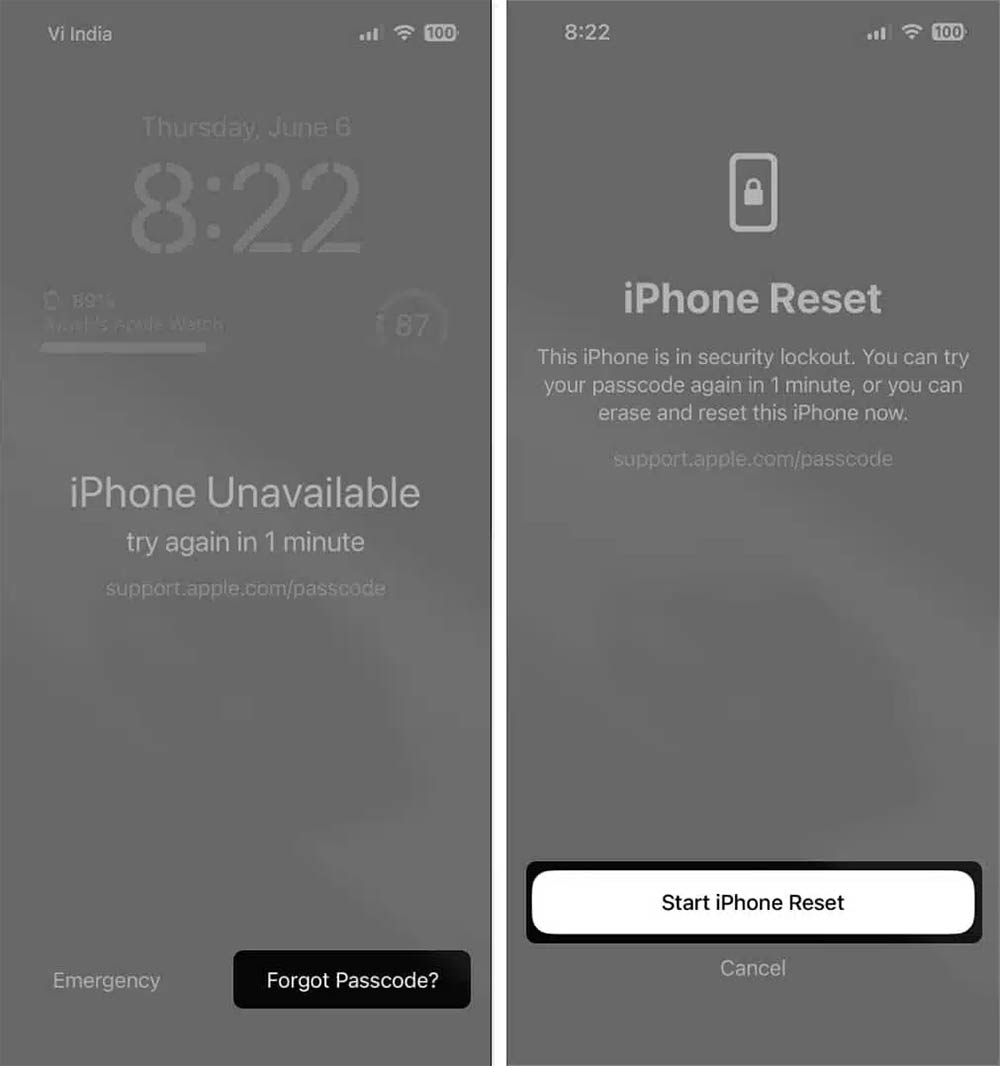
If your iPhone is disabled after entering the wrong passcode too many times, you will see a Forgot Passcode option to do so.
Click Forgot Password Then click Start iPhone Reset .
Enter Your Apple ID password , if your device uses eSIM, tap Keep eSIM and Erase Data. If you don't use eSIM, select Erase Device.
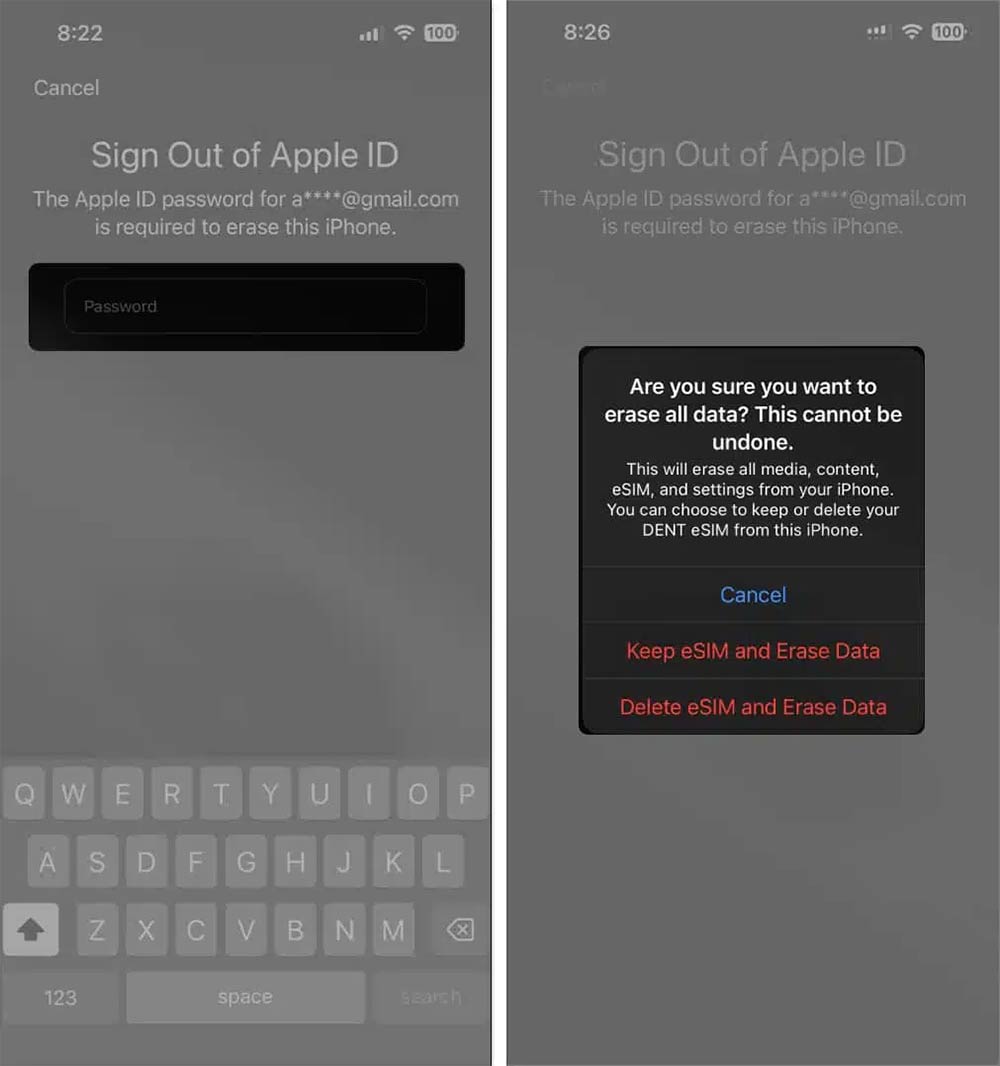
Once you do this, your iPhone or iPad will restart and you will see the Apple logo and a gray progress bar appear on the screen. Once your iPhone or iPad has restarted, you will see the Hello screen. From here, you can take over and set up your device.
Reset iPhone Passcode Using Mac
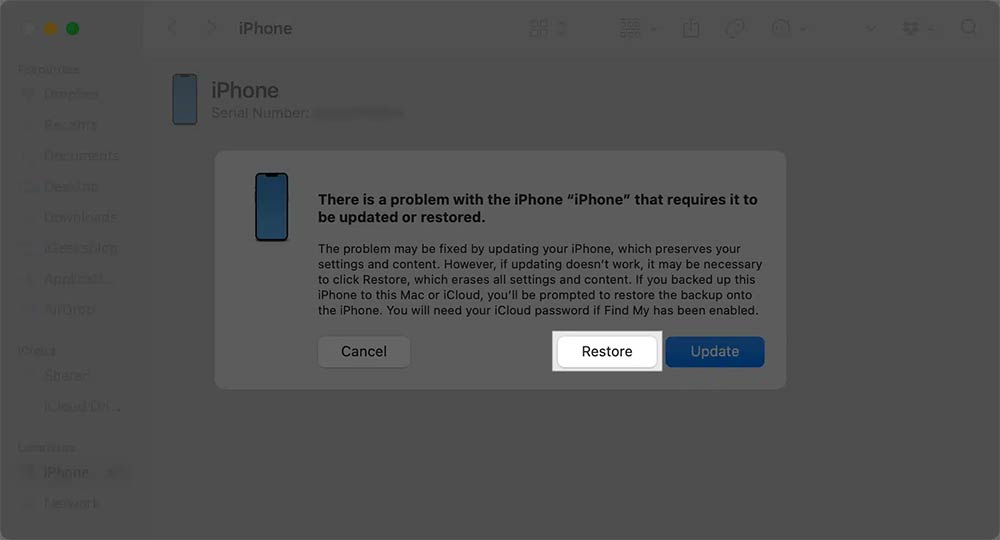
Connect your iPhone or iPad to your Mac, then boot your iPhone or iPad into recovery mode. Locate your device in Finder (or iTunes if you're using an older Mac).
Click Restore When prompted to restore or update your iPhone or iPad.
Reset iPhone Passcode Using Windows Computer
You will have to use iTunes or the Apple Devices app instead of Finder.
Connect your iPhone or iPad to your PC, then start your iPhone or iPad in recovery mode.
We find your iPhone in Apple Devices or iTunes on Windows.
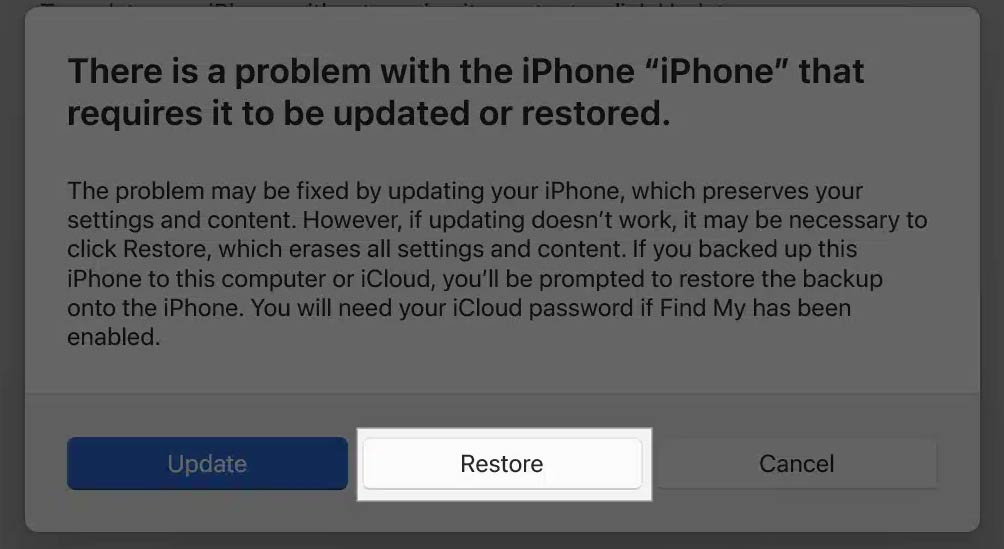
Click Restore when you see the restore or update option on your PC.
Reset iPhone Passcode Using Find My
The condition is that You should enable Find My on the locked device and the device must be connected to the Internet or WiFi.
We access the Find My page via the link below.
- Access Find My
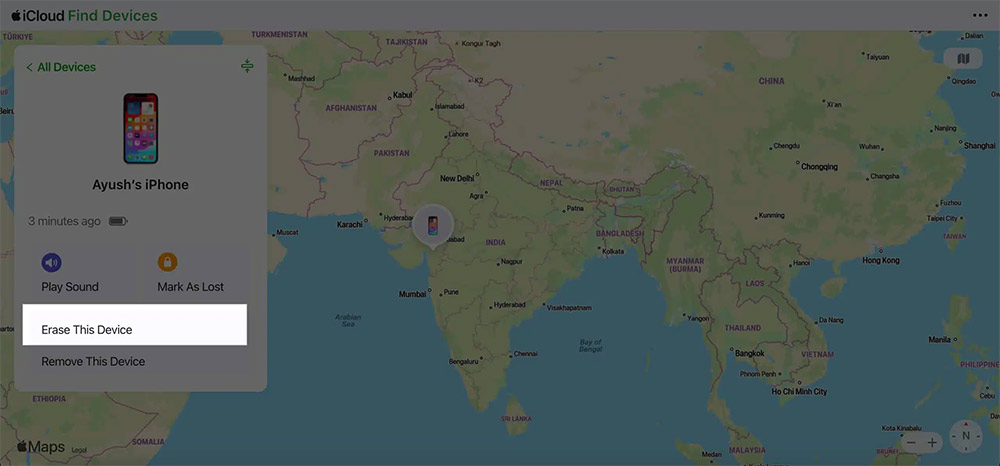
Next, sign in to your Apple account and Select your iPhone or iPad From the list of devices. Tap Erase This Device And then select Next to reset the device.
Things to do after resetting iPhone passcode
You can't use your iPhone or iPad right away after resetting your passcode. You'll need to set it up as a new device or restore your data from a backup.
- Set up your device: After resetting your passcode, you'll need to set up your iPhone or iPad before you can use it.
- Restore Data: During device setup, you will see a screen that says Apps & Data. If you have a backup, restore data from here.
- Redownload apps and other data: If you're setting up your iPhone or iPad as a new device, you'll need to manually download all necessary apps from the App Store.
FAQ
How do you unlock iPhone if you forgot your password: step-by-step guide?
In practical terms, your iPhone may be locked because you forgot your password or entered the wrong password too many times. In case you forget your iPhone unlock password, you can do some of the following methods.
What should you check before getting started?
Review the requirements, compatible device or software version, and any warnings described in the guide before making changes.
What should you do if the steps do not work?
Repeat the steps in order, confirm that your app or system is up to date, and review the troubleshooting details provided above.
Related Articles
 How to Unlock iPhone When Forgot Password2 minutes read
 Forgot iPhone Password, What to Do?5 minutes read
 How to Fix a Disabled iPhone Password Error5 minutes read
 How to Forget Your Password on Android?13 minutes read
 What to Do When Forgetting Wi-Fi IP Camera Password? Instructions10 minutes read
 How to Unlock a Laptop Safely and Easily After Forgetting the Password9 minutes read
Reader Comments 0
Sign in with email or Google to join the discussion.