How to type in VNI in Windows - VNI Fonts
To type with diacritics using the VNI method in Windows, users must change the typing style in their Vietnamese input method editor..
The VNI typing method with diacritics is also common, similar to the Telex typing method with diacritics on a computer. To type using the VNI method on a computer, users need a Vietnamese typing tool such as Unikey or Vietkey, and then set the typing method to VNI to type Vietnamese characters with diacritics. Many people don't know how to type using the VNI method in Windows for writing documents , sending emails, messaging on Facebook, etc., so they can refer to the guide below from TipsMake.
- How to type Vietnamese in Photoshop
- Troubleshooting Unikey not typing Vietnamese
- How to fix Vietnamese typing errors in Word and Excel
- How to type Vietnamese on Windows 10
Instructions for typing Vietnamese with diacritics using the VNI method.
Step 1:
First, you need to install Unikey to type Vietnamese on your computer. Then, open the Unikey interface and select the character encoding as VNI Windows .
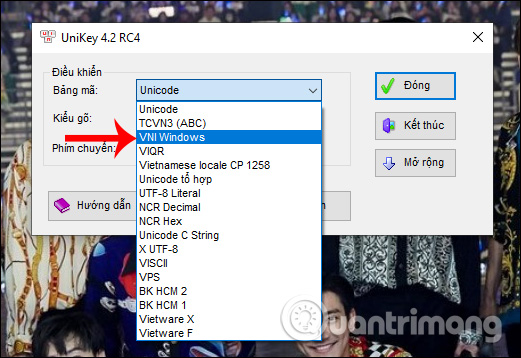
Change the typing style to VNI .
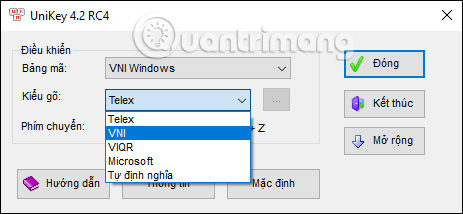
Step 2:
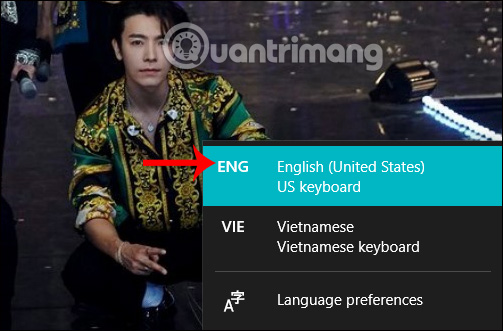
Next, the user needs to change the computer's system font to English .
Step 3:
Open Word and adjust the character encoding. Users need to remember that the chosen character encoding must match the font used. This is essential to type Vietnamese characters with diacritics without spelling errors.
- The Unicode character set includes common fonts such as: Time News Roman, Tahoma, Arial, Courier…
- The VNI Windows character encoding includes common fonts that begin with "VNI," such as VNI-Times…
- The TCVN3 character encoding table (Vietnamese Standard 3) contains fonts that begin with the .vn prefix, such as Vntime, VnTimeH, etc.
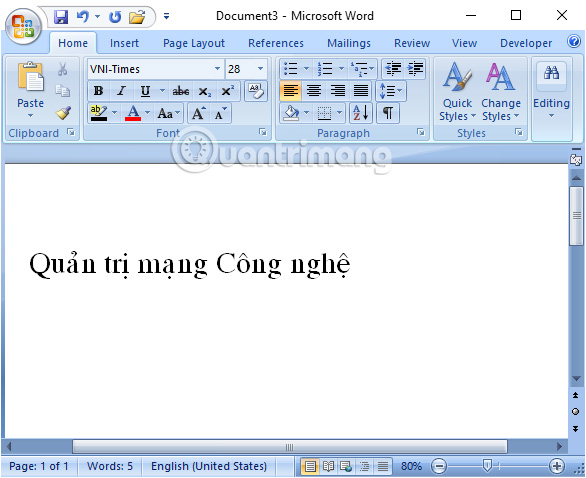
In Word's font settings, select a font that starts with VNI. If you don't already have the VNI font set, download it from the link below.
- Download the complete VNI font set.
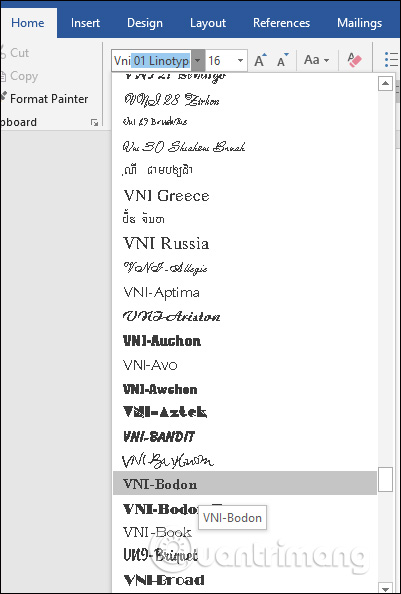
Then we just enter the text and we're done.
How to type Vietnamese using the VNI method.
| The letter - | Type | For example |
| sharp | 1 | ha1 > há |
| legend | 2 | summer |
| ask | 3 | ha3 > huh |
| fall | 4 | intersection > fall |
| heavy | 5 | ha5 > lower |
| a | a6 | a6m > negative |
| hallo | e6 | e6m > comfortable |
| Umbrella | o6 | o6n > ôn |
| Uh | u7 | tu7 > tư |
| Hey | o7 | pho7 > pho |
| eat | a8 | a8n > eat |
| D | d9 | d9i > go |
| delete mark | 0 | e11 > e1 |
| turn off | type repeat | a1 > a1 |
 Jessica Tanner