Table of Contents
There is no single switch that removes Gemini and every AI feature from a Google account. The relevant controls are separate: Workspace smart features affect Gmail and connected products, Gemini Apps Activity controls saved Gemini interactions, Android has its own default-assistant setting, and Google Search treats AI Overviews as a core feature.
Use the sections below for the product you want to change. Menu labels can vary between personal, work, and school accounts, and administrators may manage some Workspace settings.
Turn off smart features in Gmail and Google Workspace
On a computer, open Gmail and follow this path:
- Select the gear icon, then See all settings.
- Stay on the General tab.
- Find Google Workspace smart features.
- Select Manage Workspace smart feature settings.
- Turn off Smart features in Google Workspace and, if desired, Smart features in other Google products.
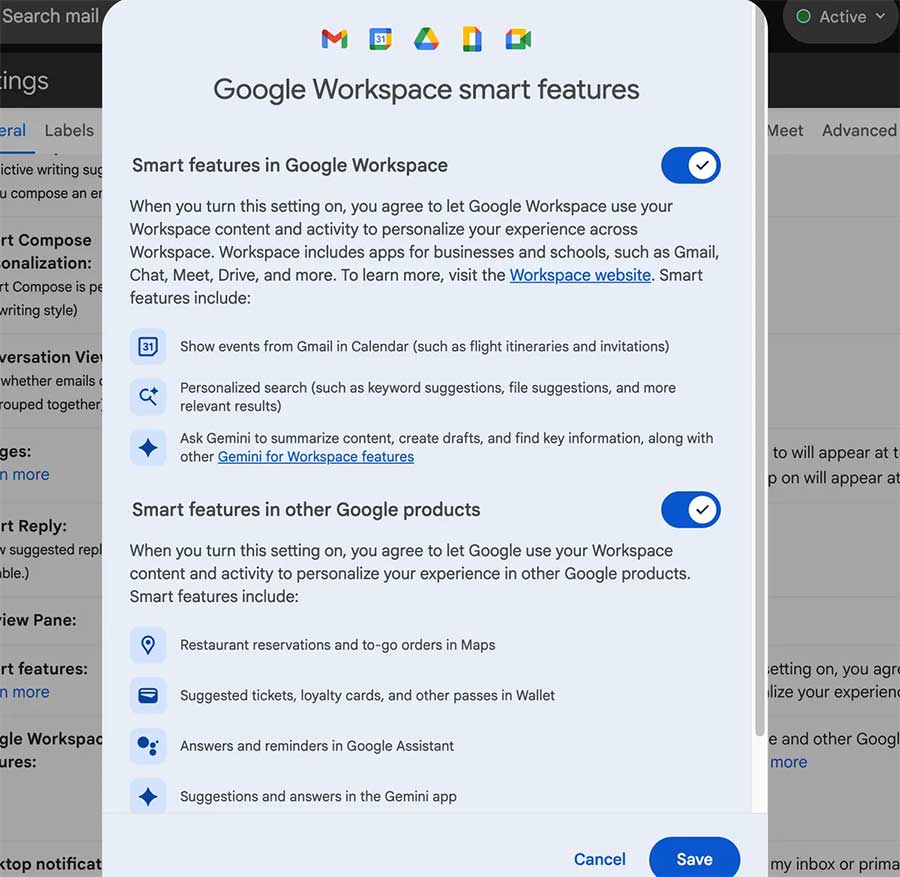
These controls reduce data-based personalization and disable related experiences, but they do not necessarily remove every Gemini icon from the interface. Google documents three distinct groups of smart features, so you may also see a separate control for Gmail, Chat, and Meet.
What stops working?
Review the confirmation text before saving. Depending on which control you disable, you may lose features such as Smart Compose, Smart Reply, inbox categorization, email summary cards, events from Gmail appearing in Calendar, personalized Drive search, or Workspace-based Personal Intelligence in Gemini. Google's smart-features documentation lists the current effects.
If you only want to change a familiar Gmail behavior, check whether it has an individual setting before disabling the broader group. TipsMake's collection of Gmail interface tips explains several of those options.
Turn off or delete Gemini Apps Activity
This setting controls whether Gemini activity is saved to your Google Account; it is separate from Workspace smart features.
- Open Gemini and select Settings & help.
- Choose Activity.
- At the top, select the current On status.
- Choose Turn off or Turn off and delete activity.
You can also set an auto-delete period or delete selected activity. Turning off activity does not delete data stored by other Google services, and deleting Gemini activity does not necessarily remove Gems or public conversation links. Read the choices carefully; the official activity guide explains the distinctions.
Stop Gemini from acting as the Android assistant
If Gemini opens when you hold the power button or say “Hey Google,” change the device-level assistant behavior:
- In the Gemini app, open your profile, choose Settings, and use Switch to Google Assistant if that option is available.
- Alternatively, open Android Settings > Apps > Default apps > Digital assistant app and choose another assistant or None.
- To keep Gemini but prevent lock-screen access, turn off Use Gemini without unlocking in Gemini's lock-screen settings.
Options depend on the phone, Android version, language, and account. Changing the default assistant does not remove Gemini from Gmail, Search, or the web.
Use Google Search without AI Overviews
Google currently describes AI Overviews as a core Search feature and does not provide a universal off switch. Disabling a Search Labs experiment does not remove the standard version, and adding -ai to a query is not a valid control: the minus operator only excludes pages containing the term that follows it.
After searching, select the Web filter to show text-based links without features such as AI Overviews. Depending on the interface, choose More > Web. Google explains this behavior in its AI Overviews help page.
If you prefer a search engine with a different privacy and presentation model, compare DuckDuckGo and Google Search. No alternative is automatically private in every configuration, so review its settings as well.
A practical way to reduce Google AI
- Disable only the Workspace smart-feature group whose benefits you no longer want.
- Turn off or delete Gemini Apps Activity separately if saved Gemini interactions are the concern.
- Change the Android default assistant if device activation is the problem.
- Use Search's Web filter when you want a links-only results page.
Recheck these controls after major product updates. Google services evolve independently, so a setting in one product should not be assumed to govern another.
Related Articles
 Gemini 3.1 Pro or Gemini 3 Pro: Better?8 minutes read
 How to Get Gemini Pro, 2TB Storage Free for 1 Year: Step-by-Step Guide9 minutes read
 How to Create a Free Gemini Pro Account6 minutes read
 10 Best Photo Creation Prompts Using Google Gemini's Nano: Key Takeaways8 minutes read
 4 Google Apps That Work Better with Gemini: Explained5 minutes read
 How to Turn Off Gemini in Google Docs10 minutes read
Reader Comments 0
Sign in with email or Google to join the discussion.