Table of Contents
Chrome’s Gemini site-search shortcut lets you type @gemini in the address bar and send a prompt to the Gemini web app. You can deactivate this shortcut without changing your default search engine or removing access to gemini.google.com.
Deactivate the Gemini address-bar shortcut
- Open Chrome on a computer.
- Select the three-dot menu and open Settings.
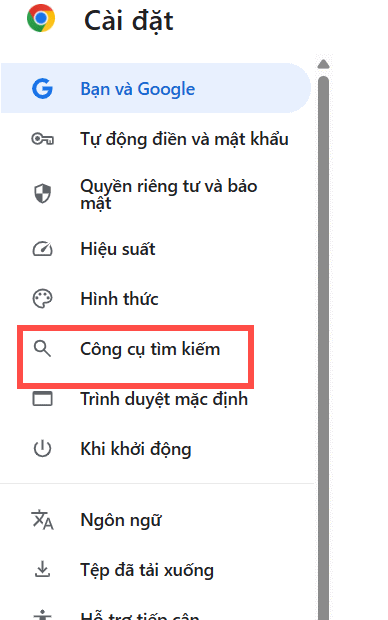
- Select Search engine.
- Open Manage search engines and site search.
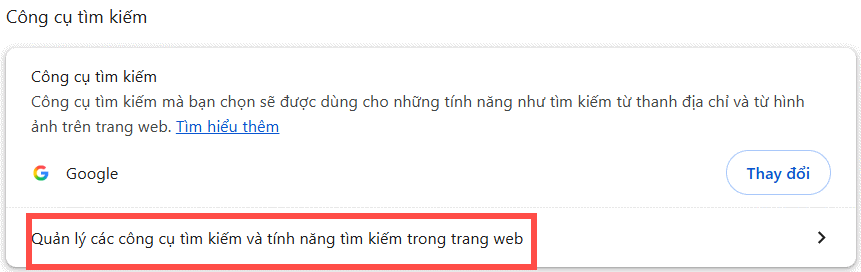
Scroll to Site search, find Gemini, open its three-dot menu, and choose Deactivate.
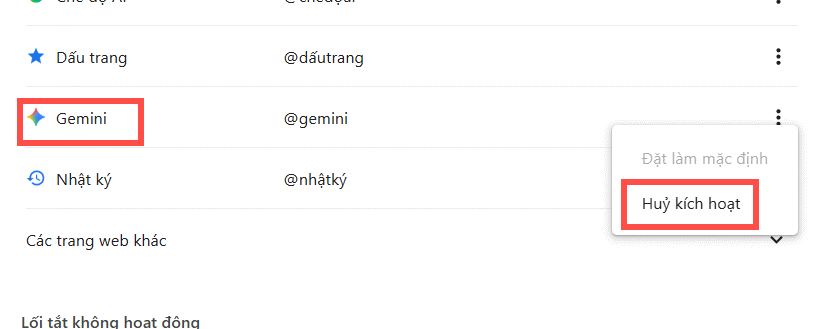
Chrome moves Gemini to Inactive shortcuts. The @gemini keyword and its “Chat with Gemini” address-bar suggestion should no longer work as an active site shortcut.
Turn the shortcut back on
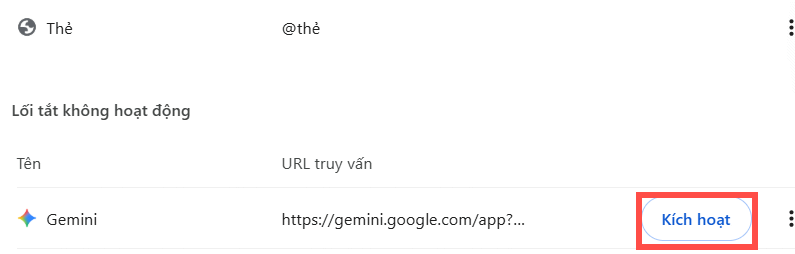
Return to Settings > Search engine > Manage search engines and site search. Under Inactive shortcuts, open the menu beside Gemini and choose Activate.
What this setting does not disable
This procedure only controls the Gemini site-search shortcut. It does not delete your Gemini account or chats, block the Gemini website, change Chrome’s normal search engine, or necessarily turn off a separate Ask Gemini toolbar/side-panel feature.
If Chrome is managed by an employer or school, an administrator may control some AI features and search settings. If the Gemini shortcut is missing entirely, it may not be available for that profile, language, or region.
Google documents the shortcut and its deactivation option in the Chrome Gemini shortcut guide.
Related Articles
 How to Search from the Search Box on the New Tab Chrome2 minutes read
 What Are Skills in Chrome?5 minutes read
 How to Turn Gemini into a Powerful Productivity Tool: Step-by-Step Guide8 minutes read
 Gemini on Google Chrome Helps Users Save Time8 minutes read
 Chrome Is Using Gemini Nano AI to Detect Phishing5 minutes read
 How to Turn Off Gemini AI on Your Google Account6 minutes read
Reader Comments 0
Sign in with email or Google to join the discussion.