Table of Contents
This guide explains how to transfer Contacts from Android to iPhone Quickly & Accurately, with clear steps, practical tips, and important checks before you begin.
To transfer contacts from Android to iPhone, we will perform 2 operations, one is to operate on Android and the other is to operate on iPhone.
1. Operation on Android phones
A. For Samsung devices
Step 1: Open contacts on your phone and touch the 3-dot icon in the left corner => Manage contacts .
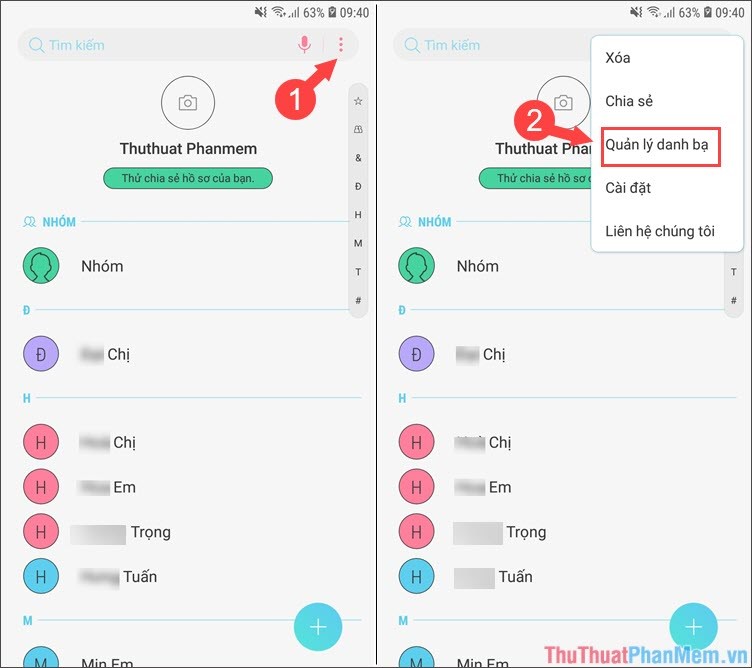
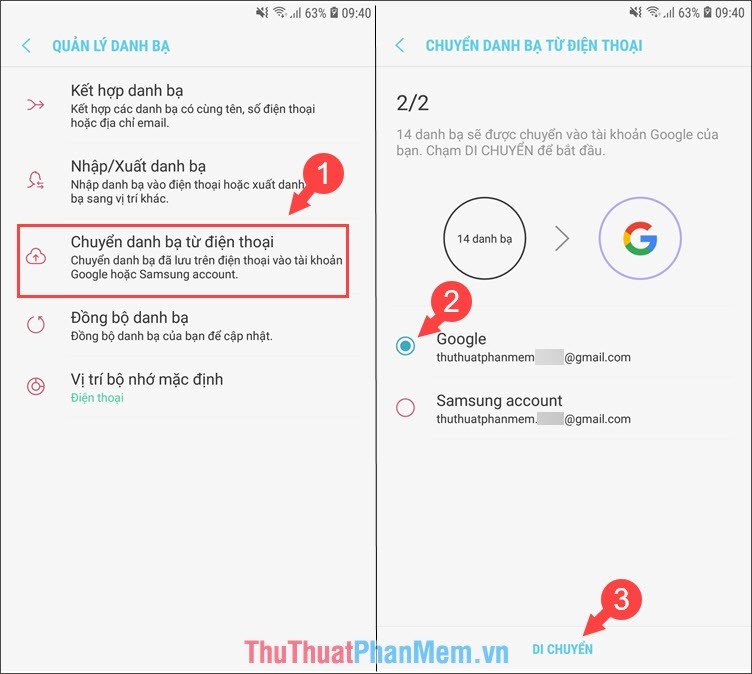
Step 2: Select Transfer contacts from phone and select the sync account is Google and select Move to complete.
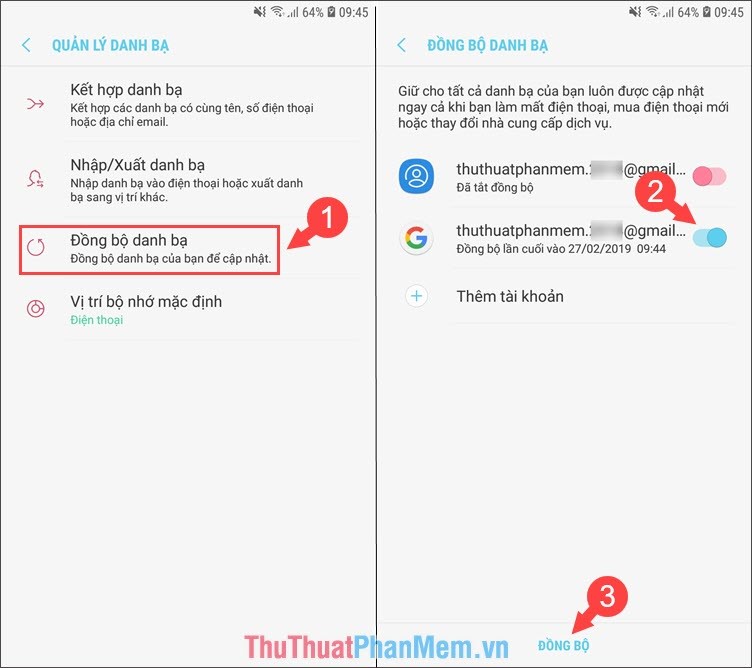
Step 3: After you have finished moving the contacts to your Google account, you need to synchronize again for the strange contacts to be uploaded to the system.
Go back to Step 2 and select Sync Contacts , then switch the Google account switch to on, and then click Sync .
B. For Xiaomi devices and other models, it does not support direct syncing to Google Contacts
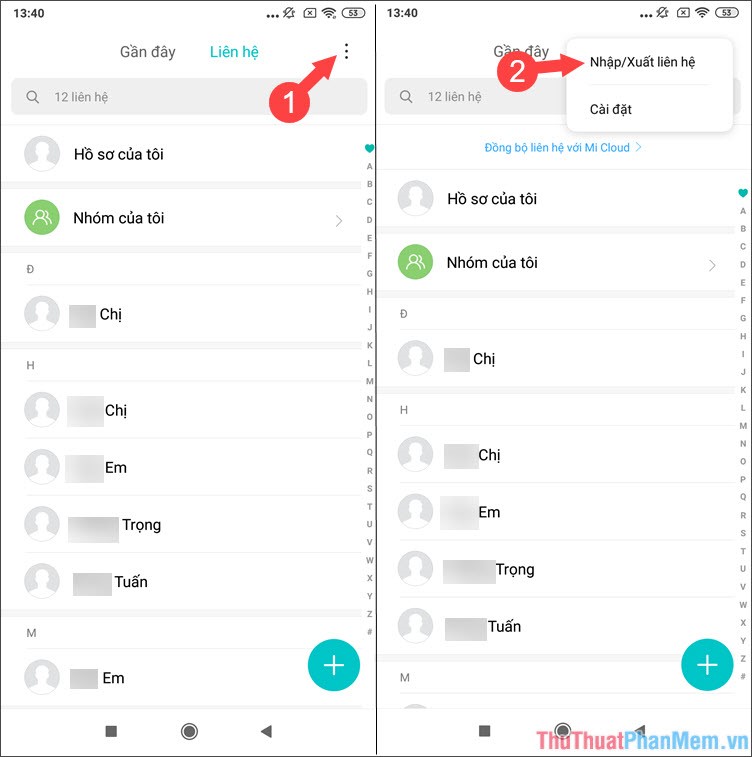
Step 1: You open Contacts => Touch the 3 dots in the top right corner => Import / Export contacts .
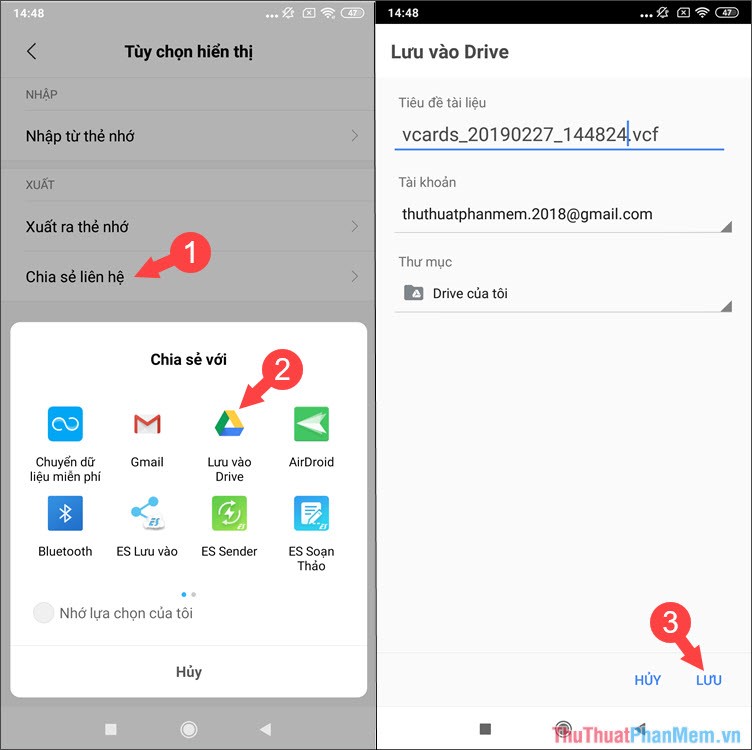
Step 2: You select Share contacts => Save to Drive and click Save .
Step 3: Download Google contacts to your device at the following address:
https://play. google. com/store/apps/details? id=com. google. android. contacts&hl=en
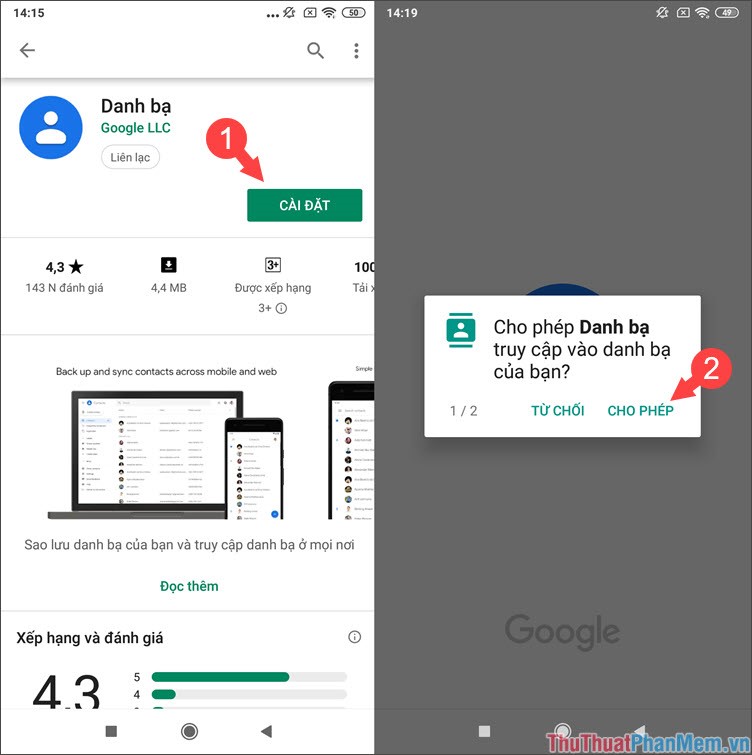
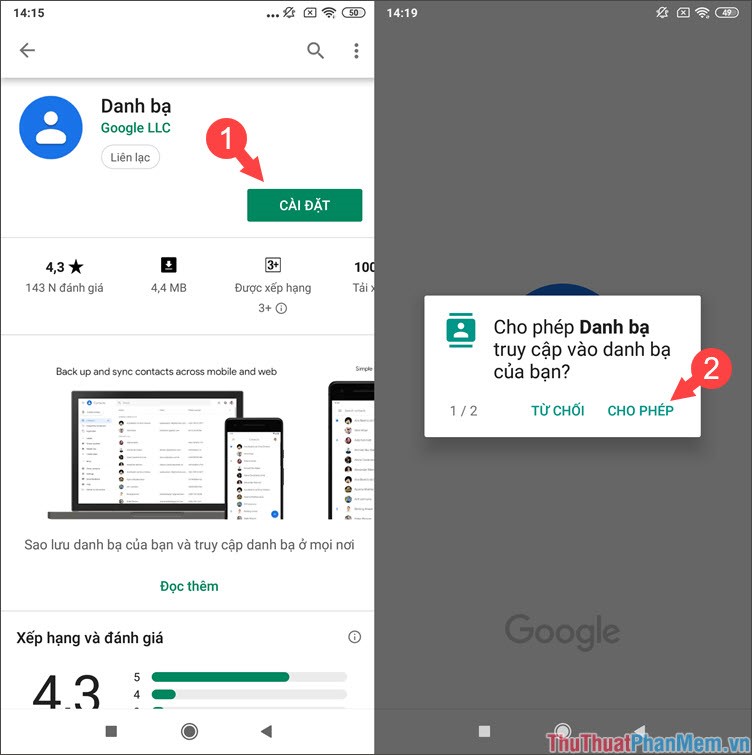
After downloading, open the application and grant access to the application.
Step 4: At the interface of contacts you swipe in the application from left to right and select Settings => Import .
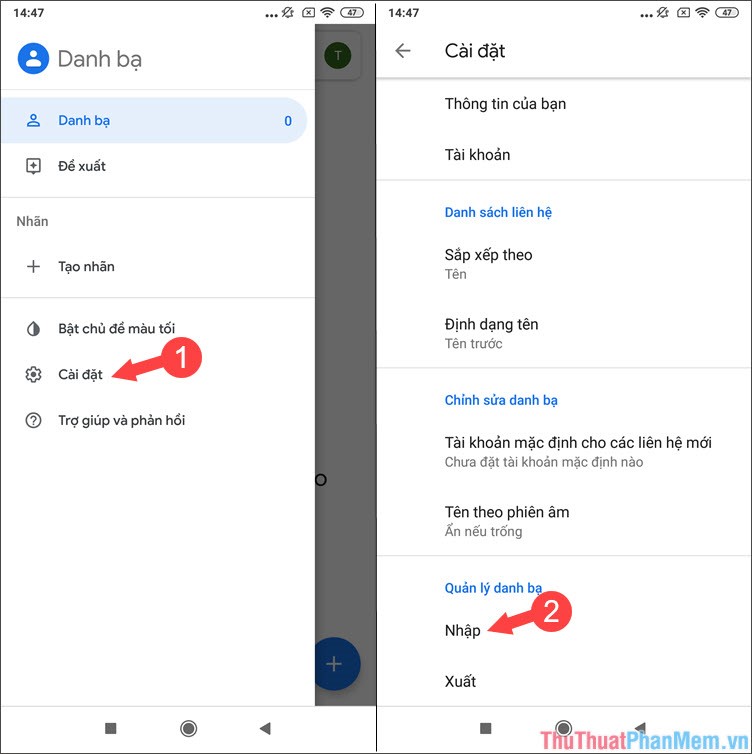
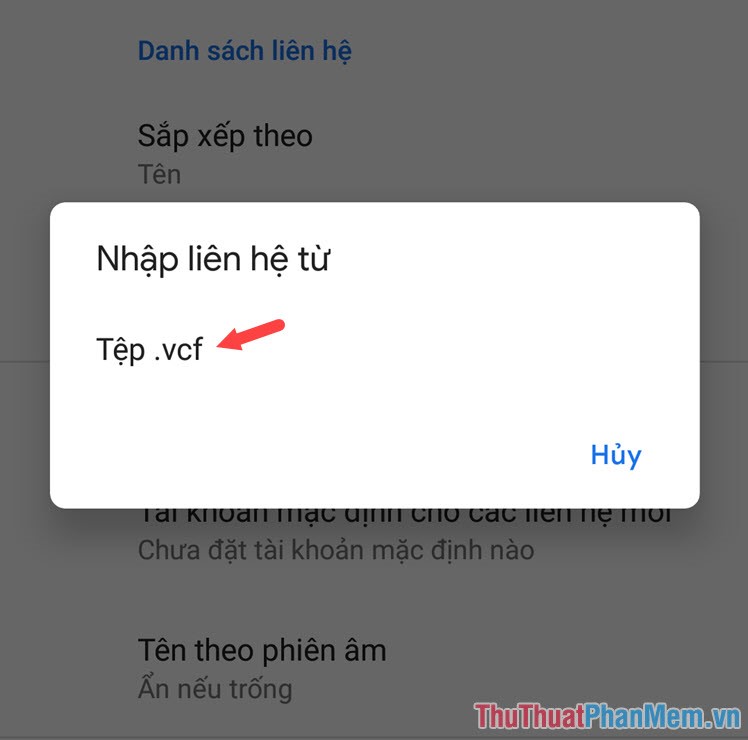
You touch the item . vcf File as shown below.
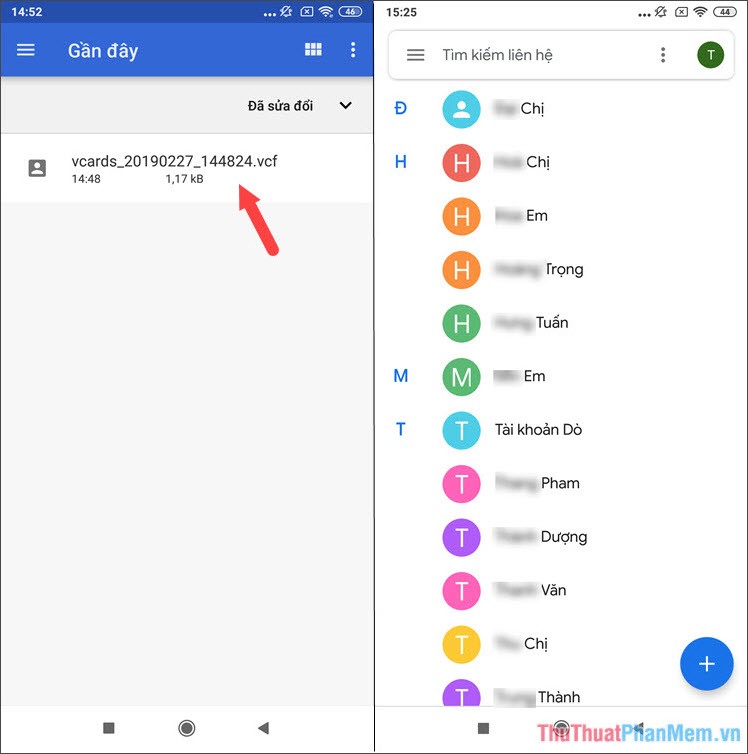
Step 5: You touch the file . vcf saved on Drive to sync contacts to Google Contact .
2. Actions on the iPhone
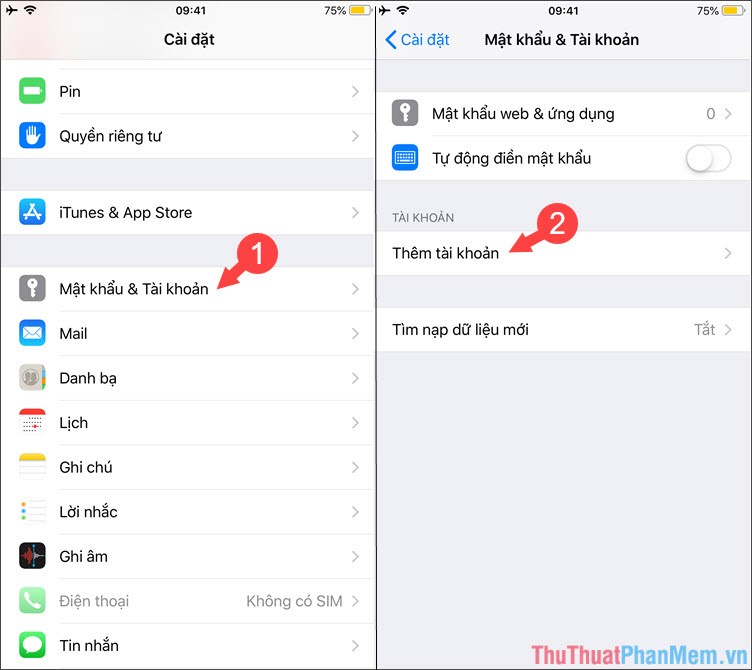
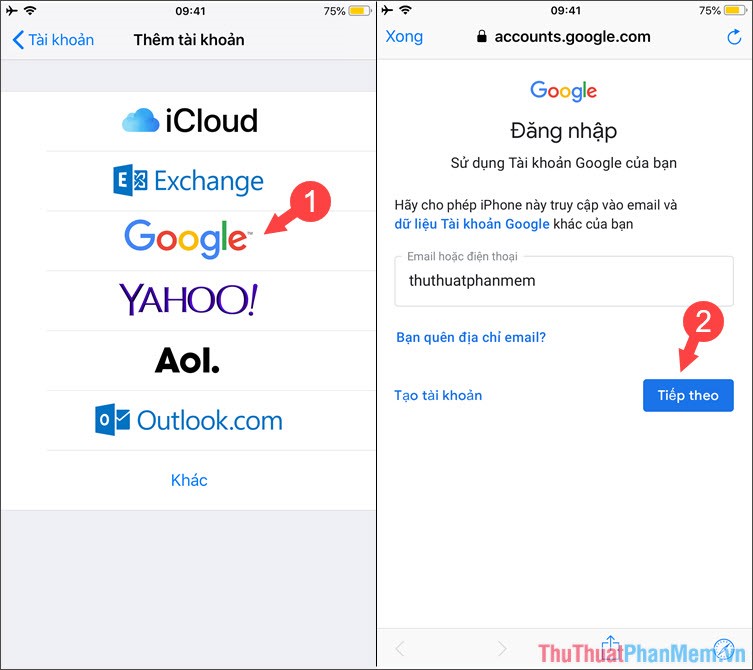
Step 1: Go to Settings => Password & Account => Add account .
Step 2: Select your Google account and sign in to your Gmail account synced on Android.
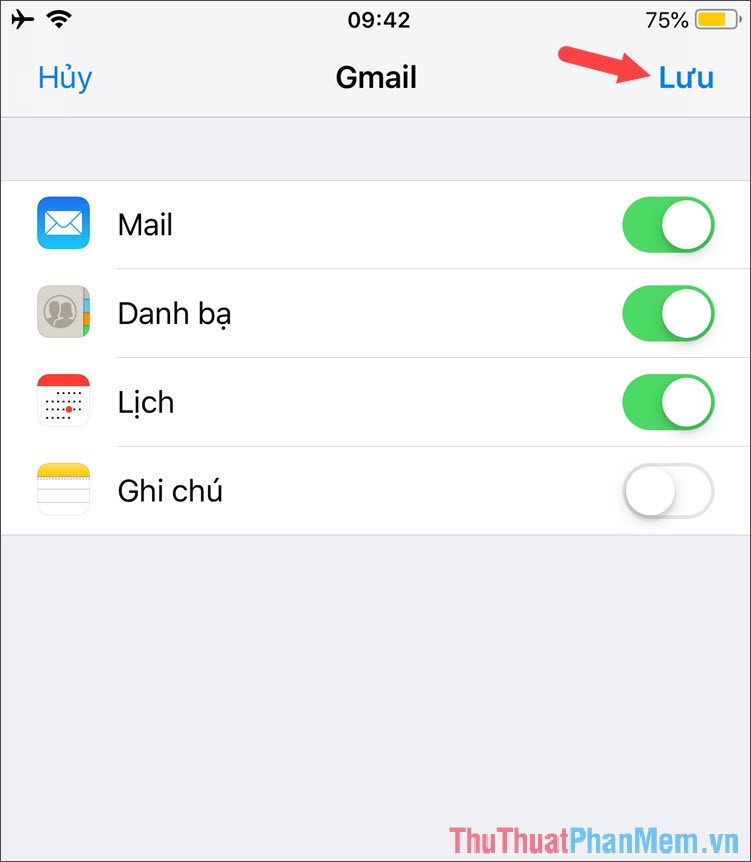
Step 3: After logging in successfully, you want to sync any item, you just need to turn the switch to turn on that item. Then click Save to start the synchronization.
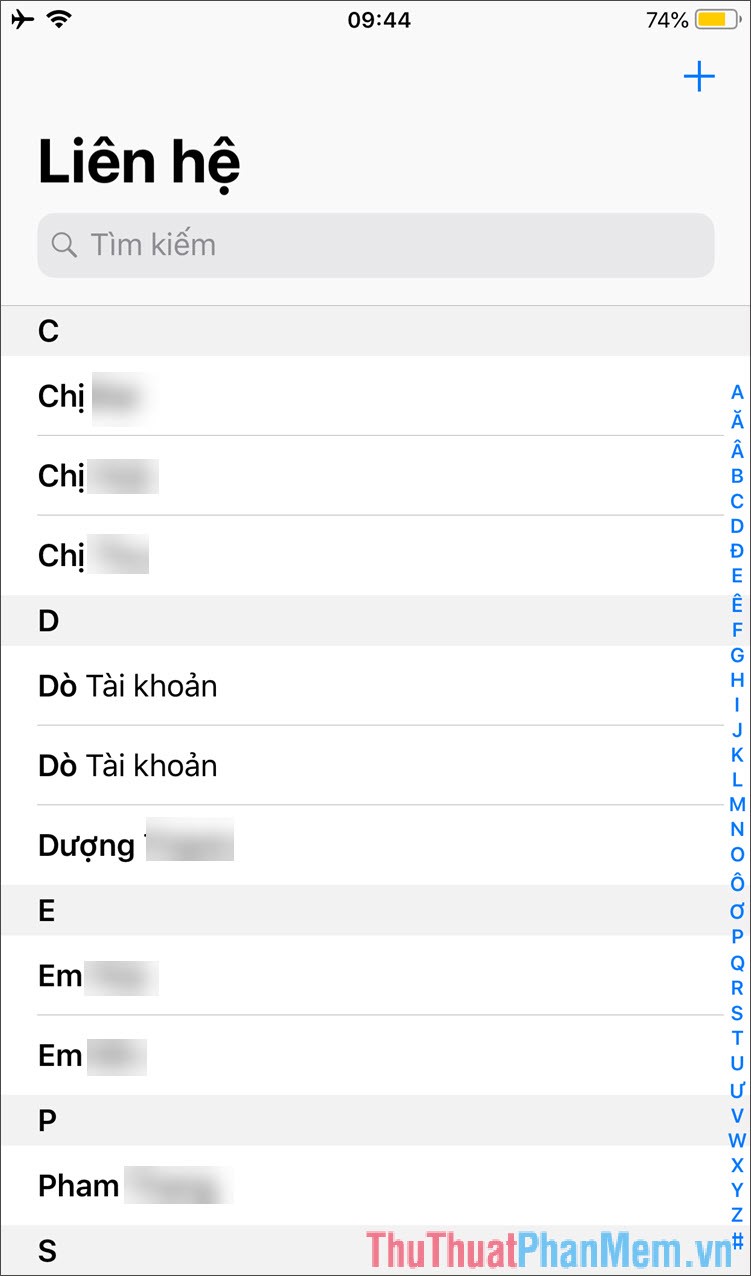
Step 4: Open your contacts and check if your contacts have been displayed fully.
With the simple and fast way to sync contacts from Android to iPhone, you can safely use your new device without having to save your contacts manually. Good luck!
FAQ
What should I know about Transfer Contacts from Android to iPhone Quickly & Accurately?
Focus on the key features, requirements, limitations, and practical use cases explained in this guide.
How do I get the best results with Transfer Contacts from Android to iPhone Quickly & Accurately?
Follow the recommended steps, use current software or information, confirm compatibility, and review settings before major changes.
Are there any risks or limitations?
Potential limitations depend on compatibility, data quality, cost, privacy, support, and how the product or method is used.
Related Articles
 How to Transfer Contacts from iPhone to Android Fast & Accurately3 minutes read
 Ways to Transfer Contacts from iPhone to Android12 minutes read
 Revealing How to Transfer Contacts from iPhone to SIM Super Quickly Explained5 minutes read
 How to Transfer Contacts from iPhone to SIM3 minutes read
 How to Transfer Contacts from Android to iPhone Using Wondershare MobileTrans4 minutes read
 How to Transfer Data from iPhone to Android?10 minutes read
Reader Comments 0
Sign in with email or Google to join the discussion.