Table of Contents
This guide explains how to transfer Contacts from iPhone to Android Fast & Accurately, with clear steps, practical tips, and important checks before you begin.
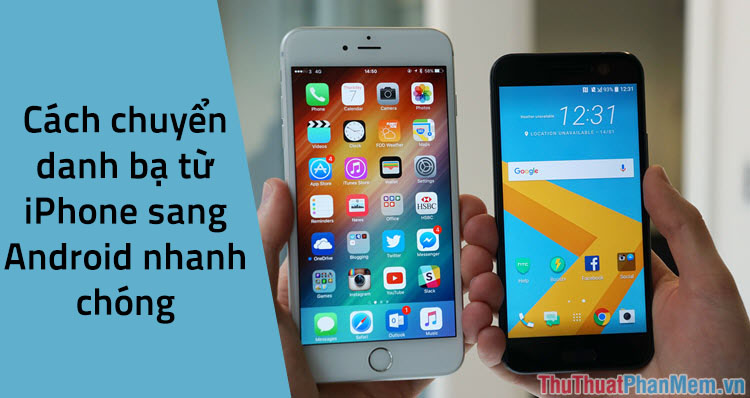
First, you need to sync your iPhone contacts to iCloud, if you are unsure how to sync contacts to iCloud, you can refer to the following article: http://TipsMake. vn/cach-sao -luu-du-lieu-iPhone-len-icloud /
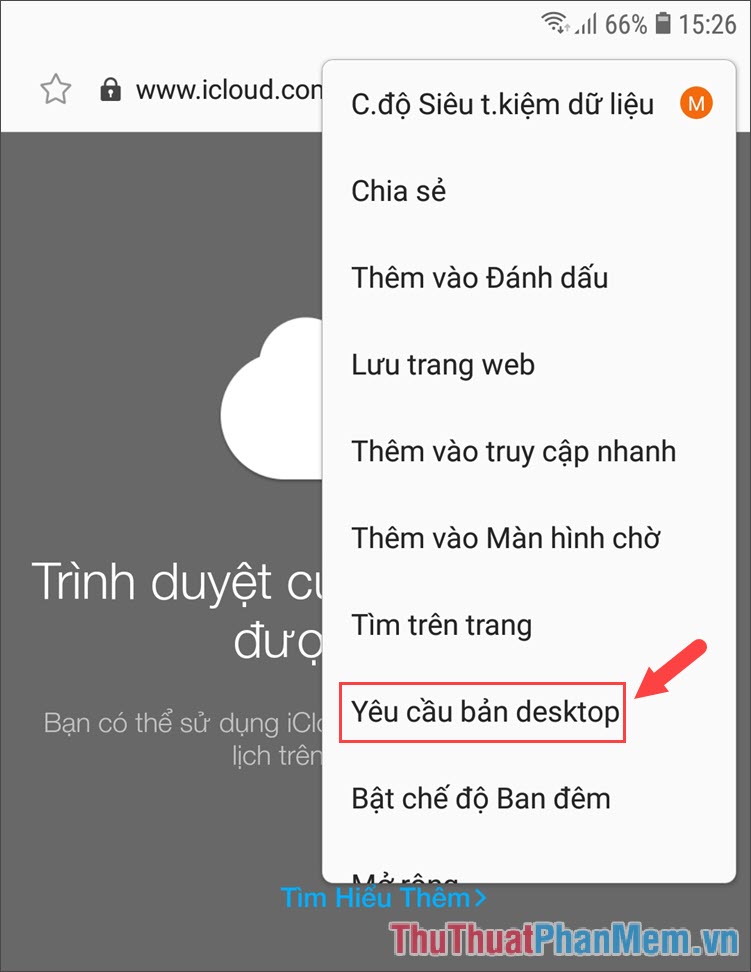
Step 1: Access to https://www. icloud. com/ in your phone browser. If your browser has an error The browser is not supported, you can go to Settings => Request desktop version or Request desktop website with Firefox, Chrome.
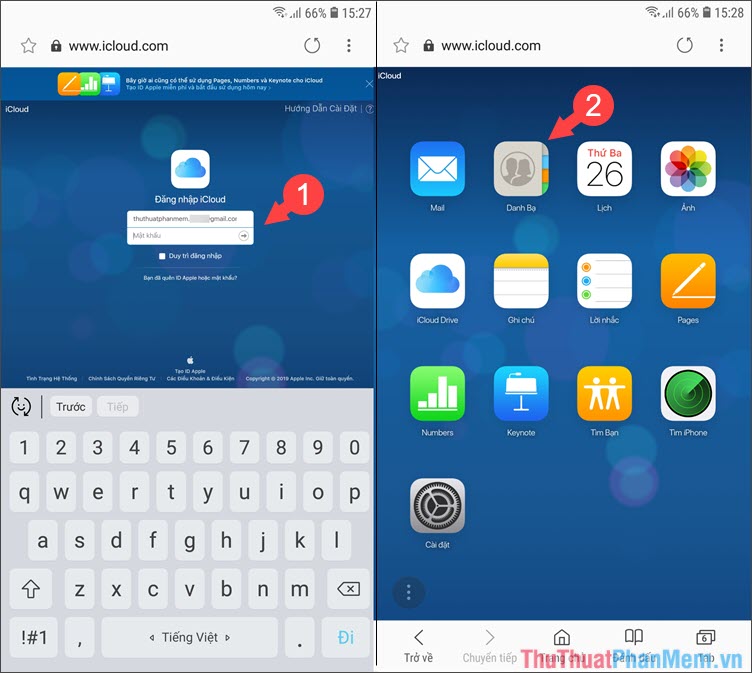
Step 2: After switching to the website interface on the computer, we can access iCloud okay. You proceed to login account and select the Directory as shown below.
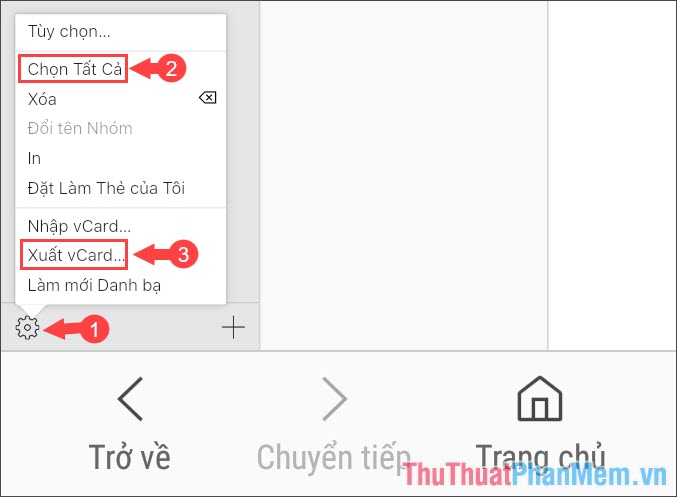
Step 3: At the interface of contacts, you touch the Settings icon in the bottom left corner and select Select all to select all contacts then click Export vCard. to download contact file format vCard.
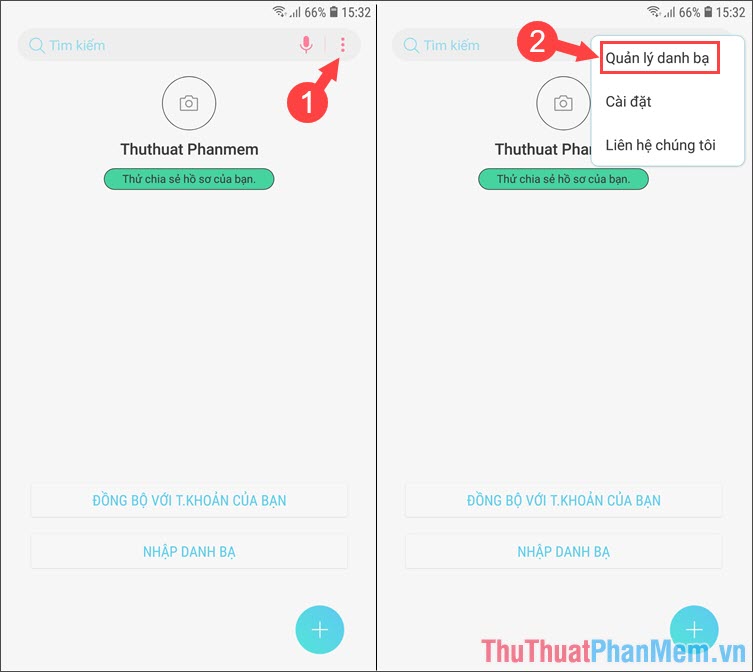
Step 4: Open the Contacts app and touch the 3- dot icon => Contacts management .
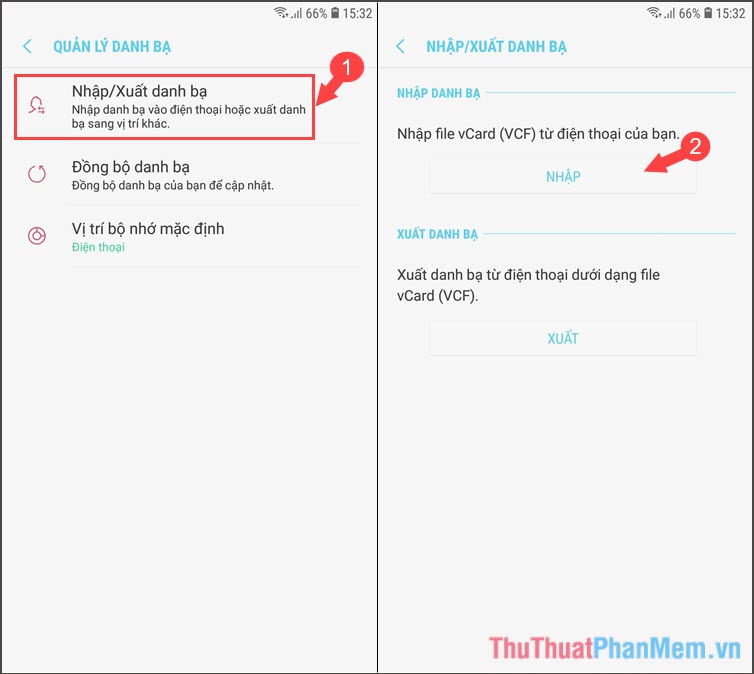
Step 5: Click Import / Export contacts and select Import in Contacts section .
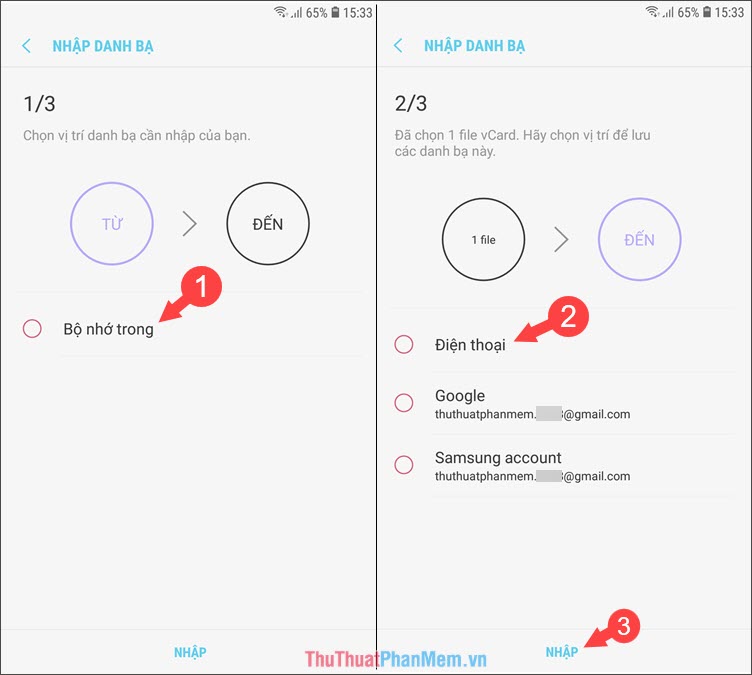
Step 6: Select Internal memory => Phone => Import and the device will automatically scan the vCard file and import contacts for you.
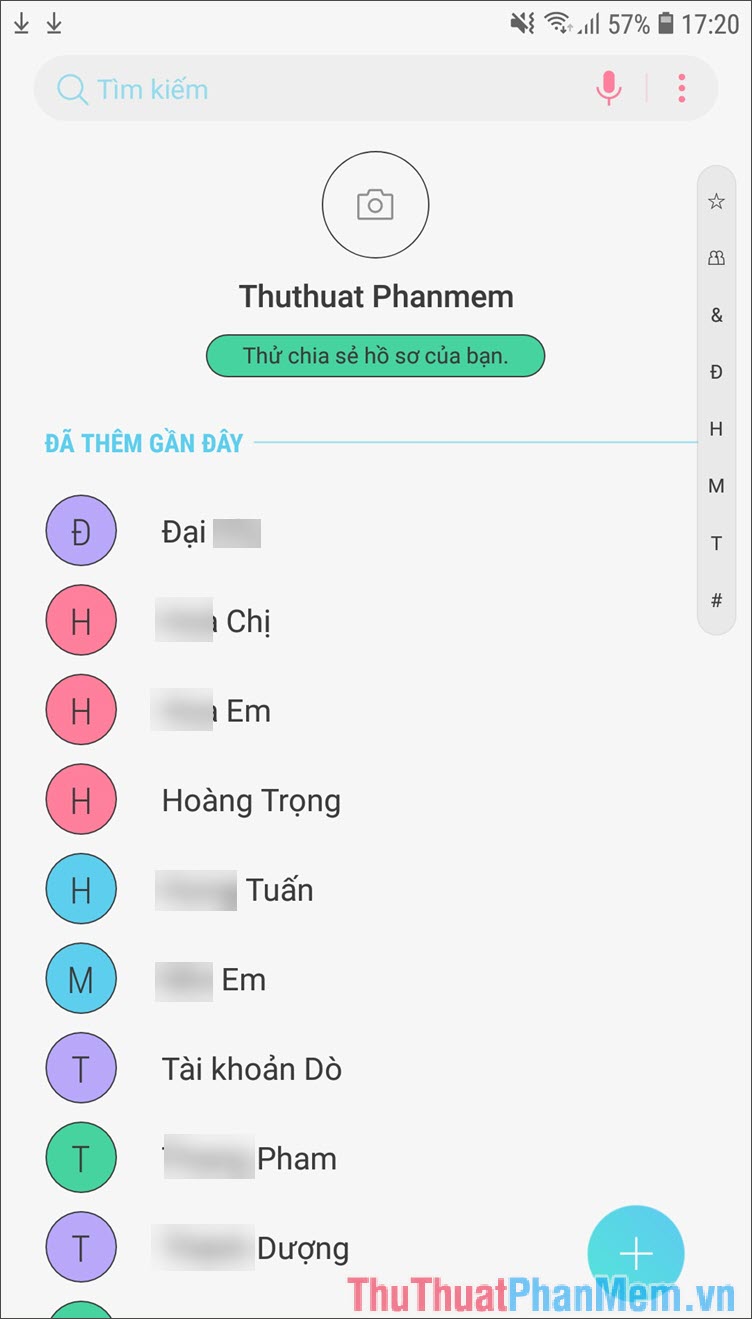
Step 7: Then you exit and check the contacts that have appeared as shown below is done.
Transferring contacts from iPhone to Android is easy, isn't it? You just need to follow the instructions in the post, if the article is difficult to understand or lack, please read feedback with TipsMake. com in the comment section below!
FAQ
What should I know about Transfer Contacts from iPhone to Android Fast & Accurately?
Focus on the key features, requirements, limitations, and practical use cases explained in this guide.
How do I get the best results with Transfer Contacts from iPhone to Android Fast & Accurately?
Follow the recommended steps, use current software or information, confirm compatibility, and review settings before major changes.
Are there any risks or limitations?
Potential limitations depend on compatibility, data quality, cost, privacy, support, and how the product or method is used.
Related Articles
 How to Transfer Contacts from Android to iPhone Quickly & Accurately4 minutes read
 How to Transfer Contacts from Android to iPhone Using Wondershare MobileTrans4 minutes read
 Ways to Transfer Contacts from iPhone to Android12 minutes read
 How to Transfer Contacts from iPhone to SIM3 minutes read
 Revealing How to Transfer Contacts from iPhone to SIM Super Quickly Explained5 minutes read
 How to Transfer Data from iPhone to Android?10 minutes read
Reader Comments 0
Sign in with email or Google to join the discussion.