Table of Contents
Wondershare MobileTrans is software that supports transferring contacts from Android to iPhone. With this tool, you can copy contacts or back up and move other data such as photos, songs, messages, videos, etc., with just one click. The most special thing is that Wondershare MobileTrans works effectively even when you are transferring data between two devices using different mobile operating systems.
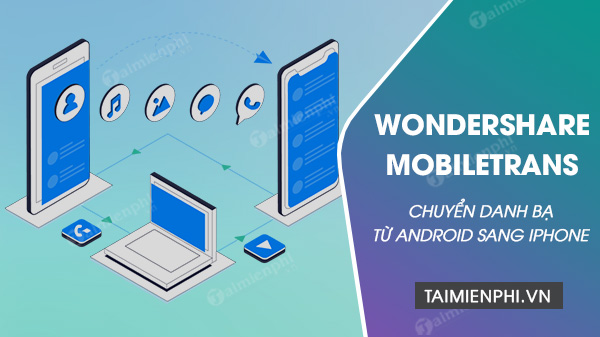
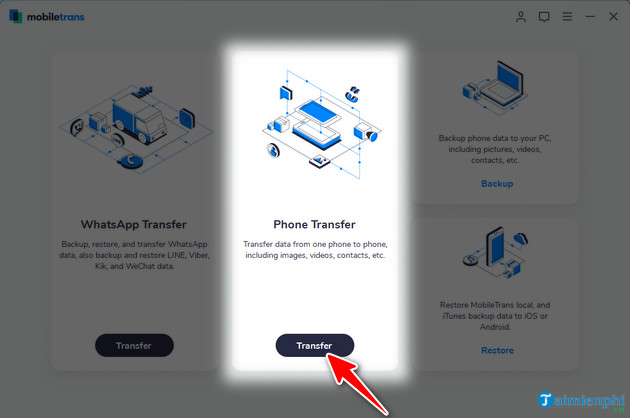
+ Phone Transfer : Directly transfer contacts, photos, music, videos, SMS, etc. from one phone to another.
+ WhatsApp Business Transfer: Back up and transfer WhatsApp data to another phone.
+ Data Backup: Easily back up data from your phone to your computer.
+ Data Recovery : Restore a complete backup to your device, including iTunes.
Check out these 5 ways to transfer contacts from Samsung/Android to iPhone 11.
III. How to transfer contacts from Android to iPhone using Wondershare MobileTrans
First, download and install the latest version of Wondershare MobileTrans software from here.
Step 1
Open the Wondershare MobileTrans software on your computer.
Step 2: Click the Transfer button in the Phone Transfer section on your computer.
Step 3
Connect your phone to your computer via USB cable.
*For Android phones:
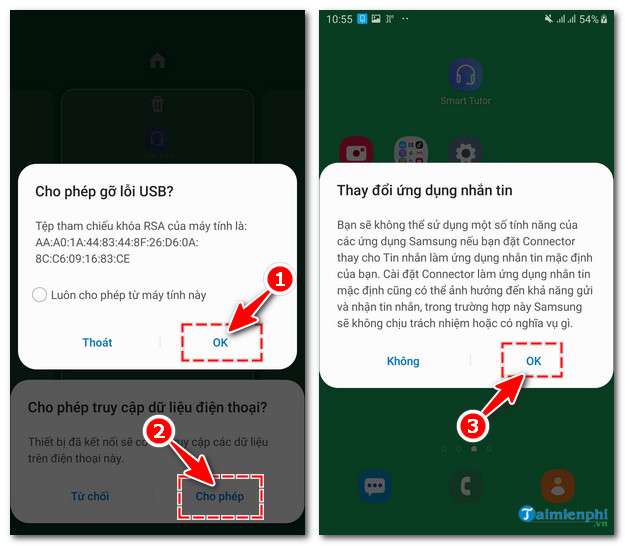
Depending on the device, the phone will display different notifications when connecting to a computer via USB cable. In this example, tipsmake uses a Samsung phone, and the screen displays a notification as shown below. Press the OK and Allow buttons to agree to the connection.
*For iPhones:
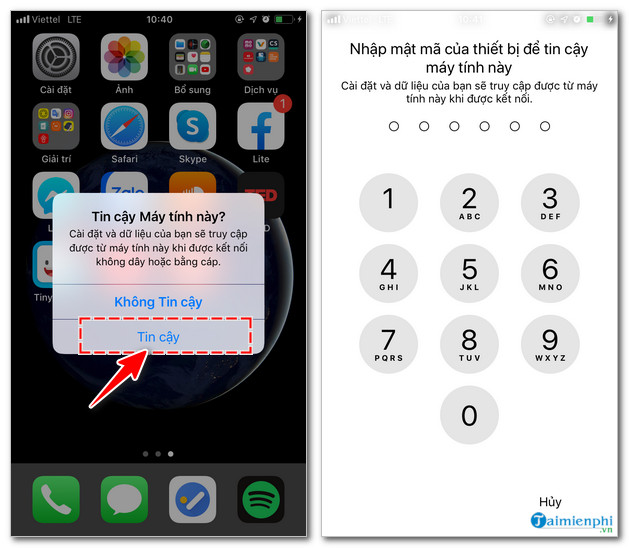
Similarly, to transfer contacts from Android to iPhone, when connecting, you just need to press the Trust button , then enter your phone's unlock password and you're done.
Step 4
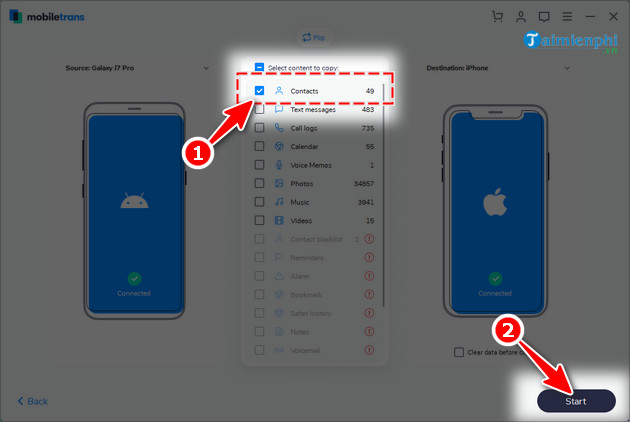
On the Wondershare MobileTrans desktop screen, check the box next to "Contacts" and then click the "Start" button at the bottom of the screen.
You can also transfer other data by checking boxes next to items such as: Photos, Videos, Music, Text Messenger, etc.
Step 5
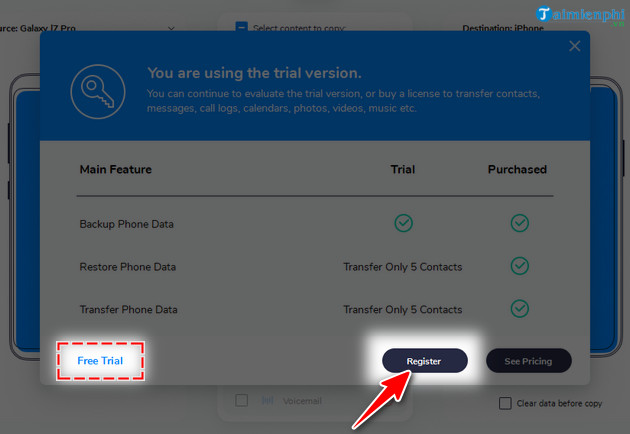
A notification window will appear, where you have two main options:
- Free Trial : Try it out with limited features
- Register : Register an account and use the official version.
In this example, tipsmake chooses Register.
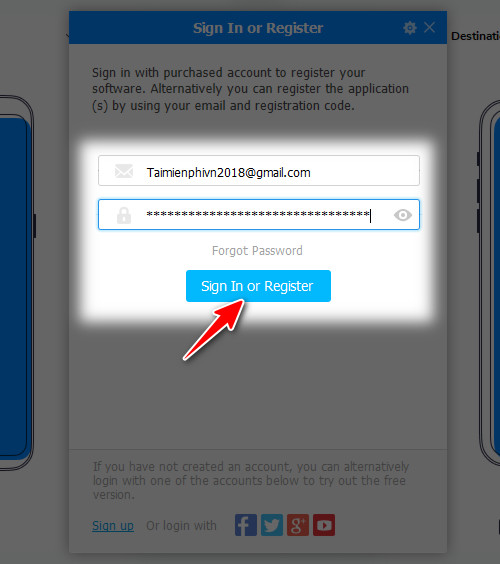
Step 6: Enter your email address . Then enter your password or registration code , if applicable. Once you've entered the information, click the "Sign In" or "Register " button to complete the process.
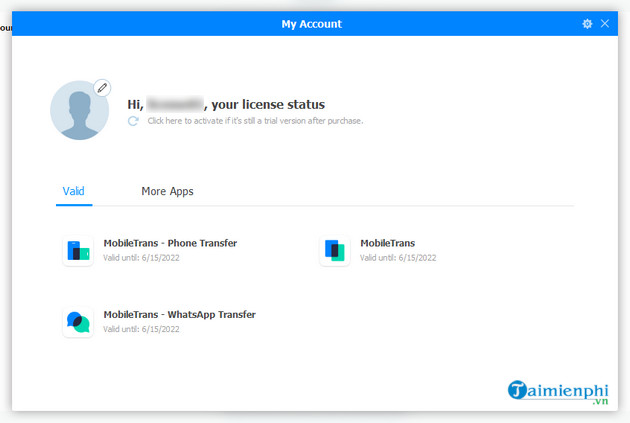
After successfully registering an account, a notification screen will appear as follows.
The system will automatically copy your contacts from Android to iPhone; please be patient and wait a moment.
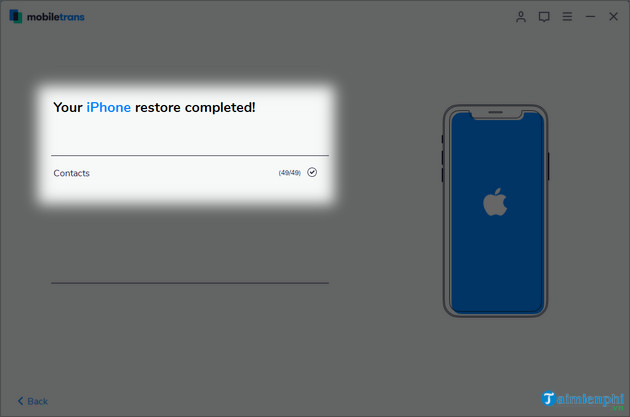
Thus, tipsmake has finished guiding users on how to transfer contacts from Android to iPhone and vice versa using Wondershare MobileTrans. Hopefully, this great tool will help you back up and move data more quickly and efficiently.
Related Articles
 Ways to Transfer Contacts from iPhone to Android12 minutes read
 How to Transfer Contacts from iPhone to SIM3 minutes read
 Revealing How to Transfer Contacts from iPhone to SIM Super Quickly Explained5 minutes read
 How to Transfer Data from iPhone to Android?10 minutes read
 How to Transfer Contacts to a New Android Phone5 minutes read
 How to Transfer Contacts from iPhone to Android Fast & Accurately3 minutes read
Reader Comments 0
Sign in with email or Google to join the discussion.