Table of Contents
To limit being tracked by Windows 11, you should customize some settings in this article.
Windows 11 has more data collection and analysis options than previous operating systems. This also makes you worry about Windows 11 tracking you whenever you use your computer. The operating system tracks everything from your location and browsing habits to your voice recordings and keystrokes. To limit Windows 11's tracking, you should customize some of the settings In this guide.
Adjust privacy on Windows 11
Step 1:
You access the settings on your computer and then click on Privacy & security , then look to the side and click on General To make adjustments.
Step 2:
In the interface You should turn off the settings as shown below.
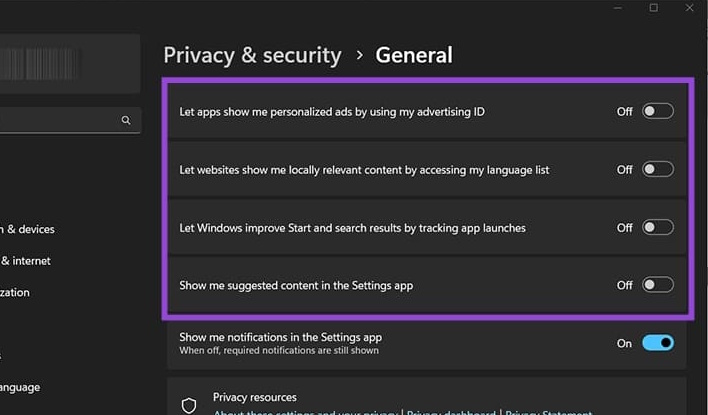
Step 2:
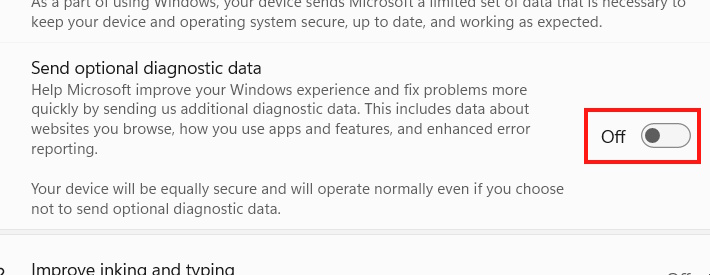
Go back to the interface and click Diagnostics & feedback . Next, turn Off Send optional diagnostic data.
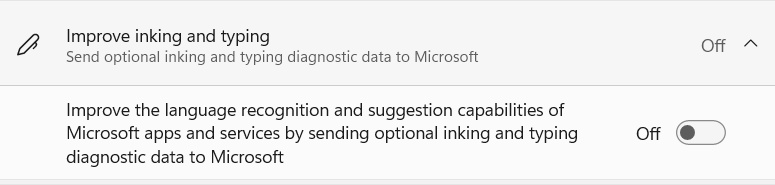
Then you Turn off the Improve inking and typing and Tailored experiences settings .
Turn off location on Windows 11
Also in the Privacy & security section, click on Location to adjust. Then we disable Location services.
- How to turn off location tracking on Windows 11
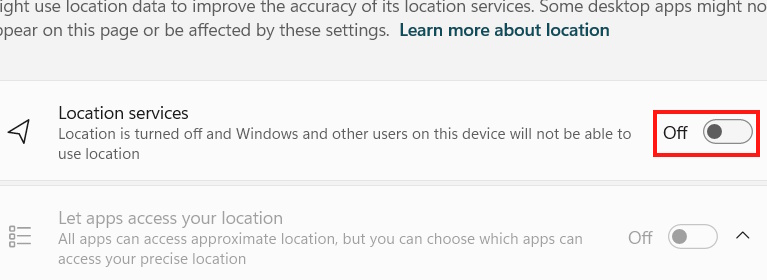
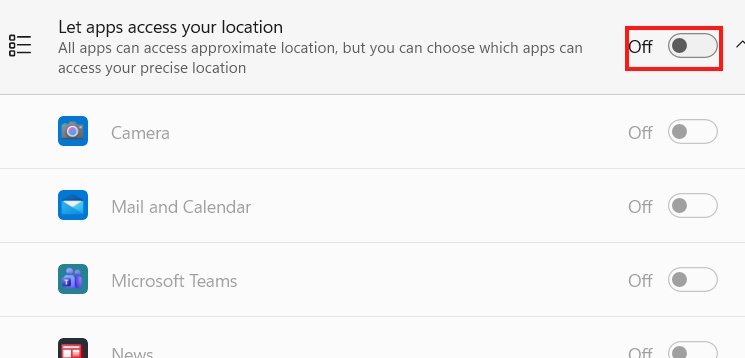
In case you are required to grant location access to an application, turn off Let apps to access your location so that the application will have to ask you before accessing the location, avoiding automatic access.
Disable voice data collection
Voice recognition lets you unlock your PC without a keyboard, but it also constantly sends information to improve its ability to recognize your voice.
Step 1:
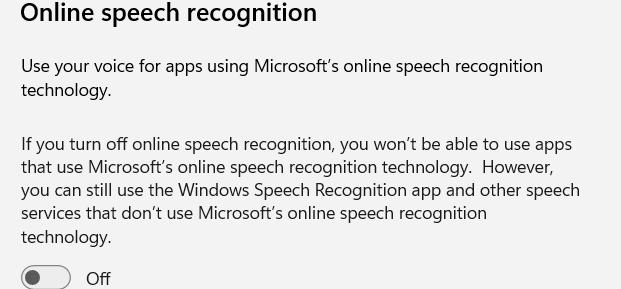
In the Privacy & security Menu, click on Speech To adjust. Now You should Turn off Online speech recognition .
Step 2:
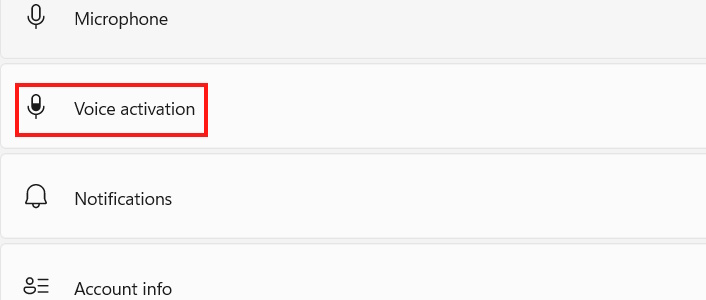
Return to the privacy management interface and Click on Voice activation .
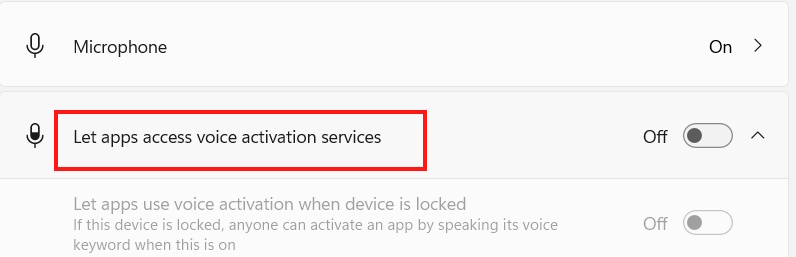
At this point you also need to Turn off Let apps access voice activation services Or expand the feature and specifically turn off the unlock function.
Adjust application access rights on Windows 11
Settings also let you fine-tune which apps are allowed to access which parts of the system.
- How to easily control app permissions in Windows Settings
Customize Start Menu and Search Privacy
Start Menu and Search Privacy also collect data to provide more personalized advertising.
Step 1:
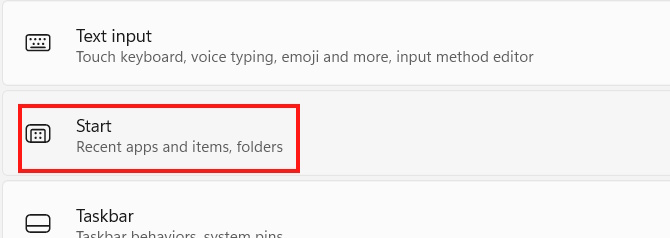
In the settings on your computer, Click Personalization , then look to the side and click Start To adjust.
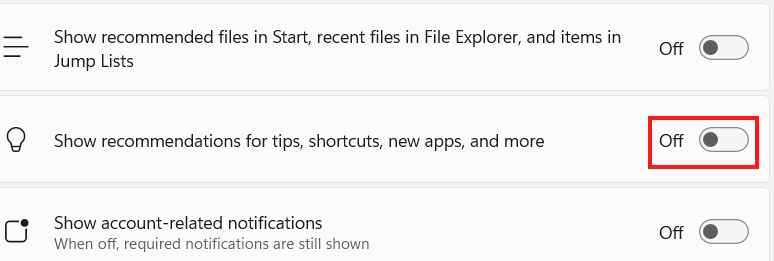
Now You should Turn off the setting Show recommendations for tips, shortcuts, new apps, and more .
Step 2:
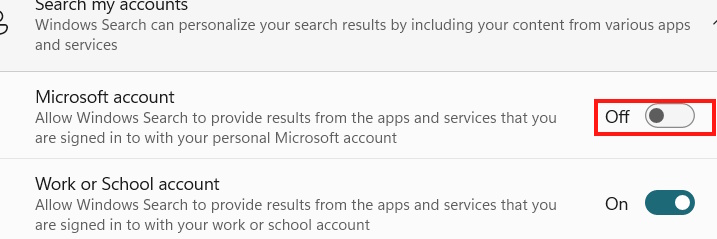
Return to the interface, click on Privacy & security And then Click Search . Next, Turn off Microsoft account .
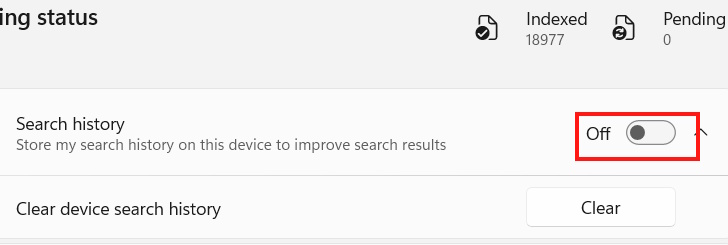
You also need to turn off search history on Windows 11.
FAQ
How do you stop Windows 11 from tracking you: step-by-step guide?
In practical terms, to limit being tracked by Windows 11, you should customize some settings in this article.
What should you check before getting started?
Review the requirements, compatible device or software version, and any warnings described in the guide before making changes.
What should you do if the steps do not work?
Repeat the steps in order, confirm that your app or system is up to date, and review the troubleshooting details provided above.
Related Articles
 5 Tweaks to Stop Your Smart TV from Tracking You7 minutes read
 Here's What Phone Thieves Do to Stop You from Tracking Your Device!8 minutes read
 Change These 6 Settings to Stop New Android Apps from Tracking You!7 minutes read
 The 'Do Not Track' Feature Is Practically Useless: Take These5 minutes read
 3 Tools You Need to Remove Windows 11 Tracking5 minutes read
 Windows 10 Location Tracking Feature: Turn Off Location Tracking3 minutes read
Reader Comments 0
Sign in with email or Google to join the discussion.