Table of Contents
Start by turning off Automatic Content Recognition (ACR). It’s the feature many smart TVs use to identify what’s on screen. Then review voice features, app settings and the TV’s network connection separately. Turning off one option may leave the others active.
1. Turn off automatic content recognition
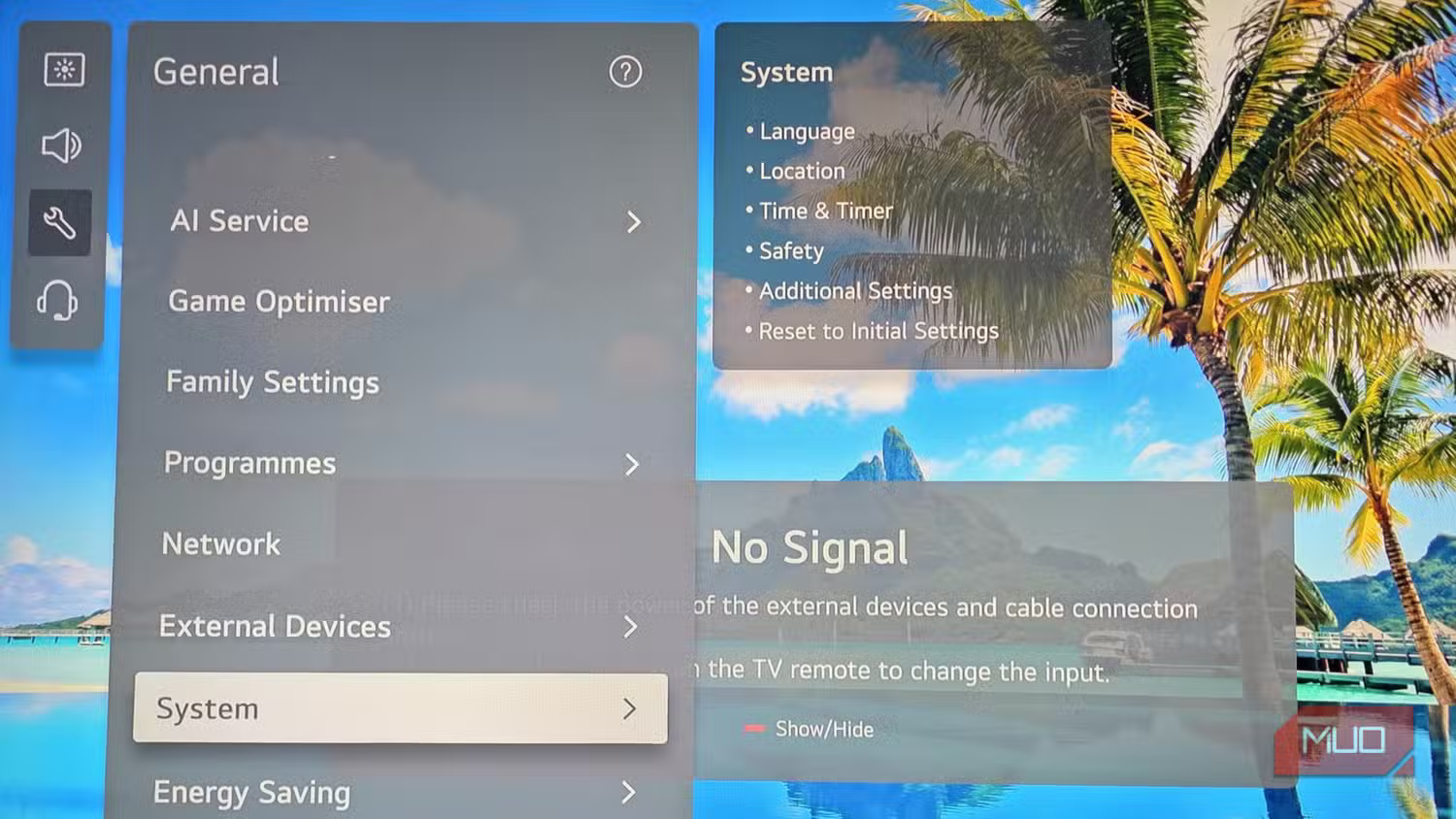
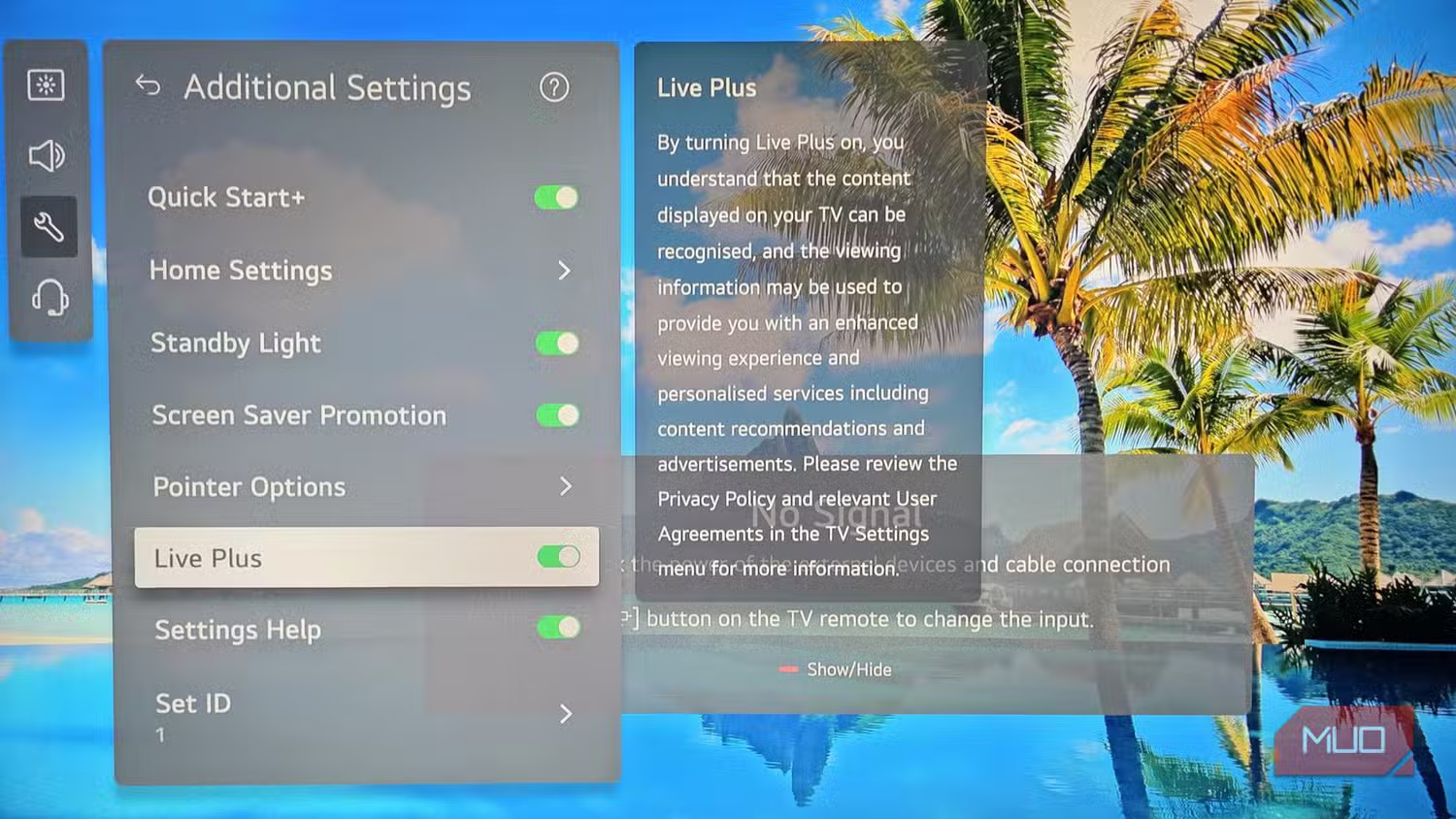
ACR can identify content from some inputs, depending on the model and whether you opted in. On many LG models, look for Live Plus under All Settings > General > System > Additional Settings. On Samsung, look for Viewing Information Services in the TV’s privacy terms. See Samsung’s ACR guidance or Consumer Reports’ instructions by platform if your menus differ.
2. Review voice assistant and microphone controls
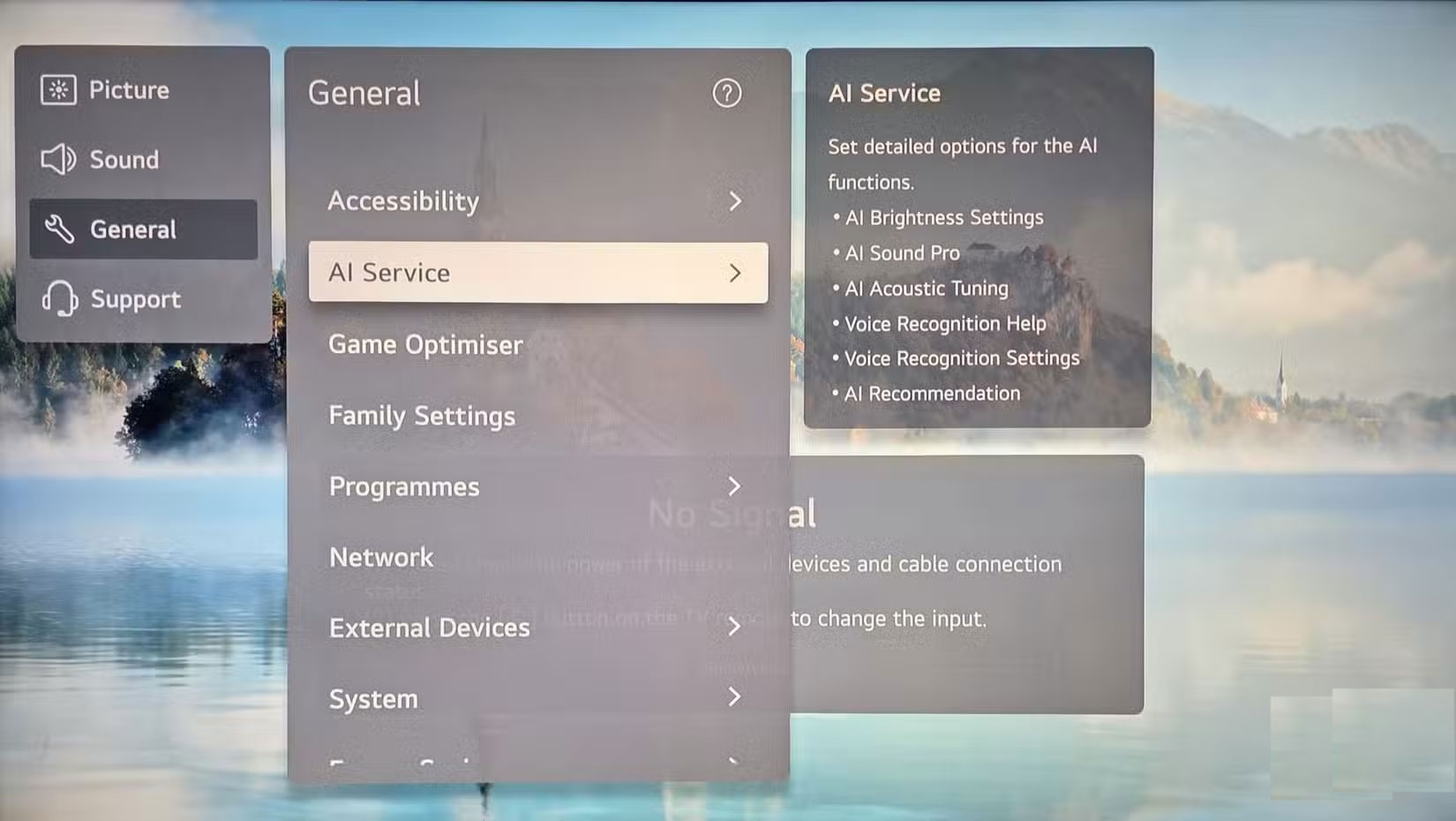
Turn off hands-free wake words if you don’t use them. Check whether the TV or remote has a physical microphone switch. Hold-to-talk controls and always-listening modes may use separate settings. See how to check your smart TV microphone.
3. Disable or cover a camera you rarely use
Check the manual to identify the lens. Close a physical shutter, unplug an external webcam or cover the built-in lens. Revoke camera permission for apps that don’t need it. See how to check and block a smart TV camera.
4. Review account and app preferences
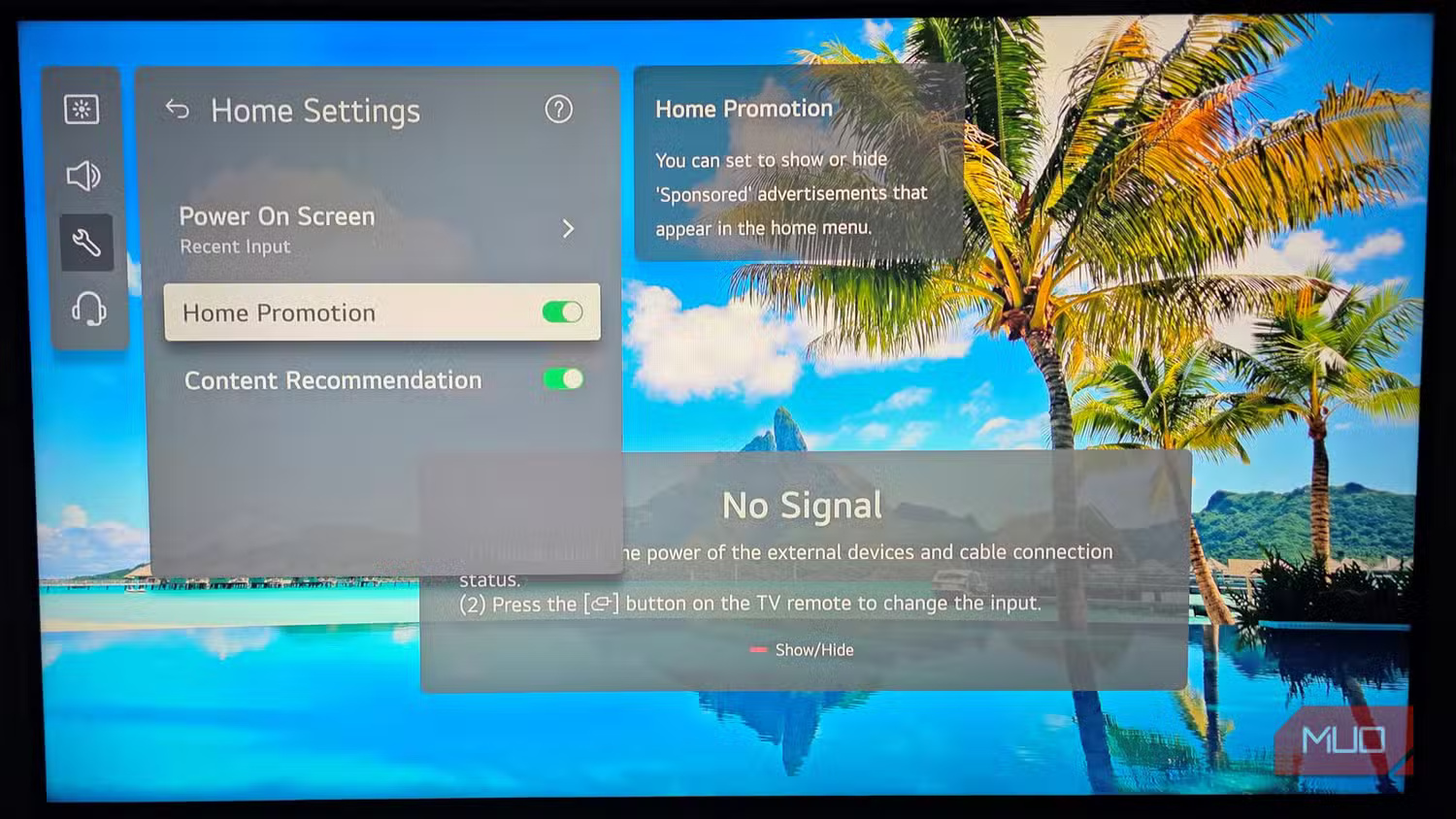
Look separately at the TV-maker account and your streaming apps. Turn off personalized ads or recommendations where available, and sign out of unused apps. Dismissing home-screen promotions changes what you see. Check the relevant privacy setting to change collection or personalization.
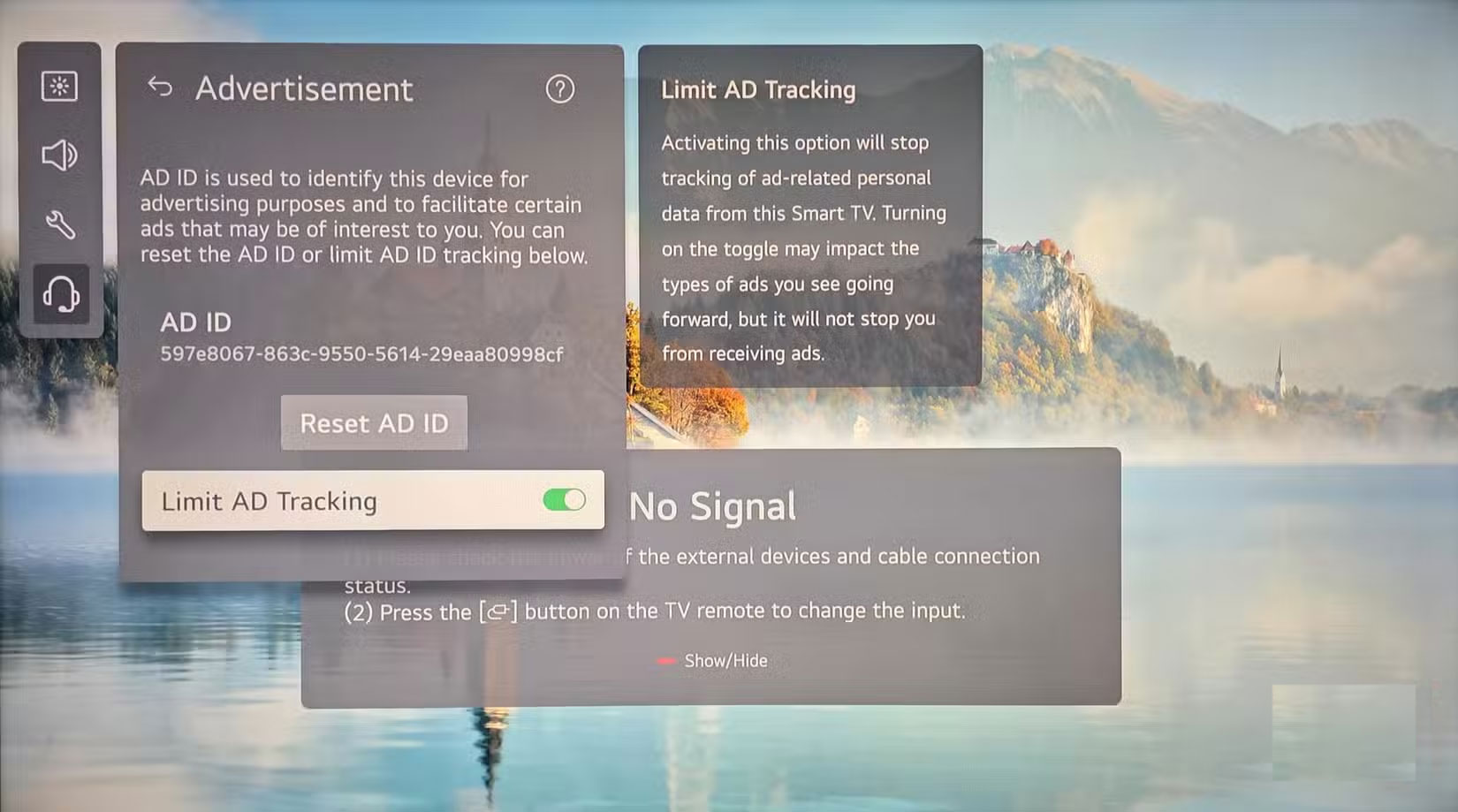
5. Decide whether the TV needs to stay connected
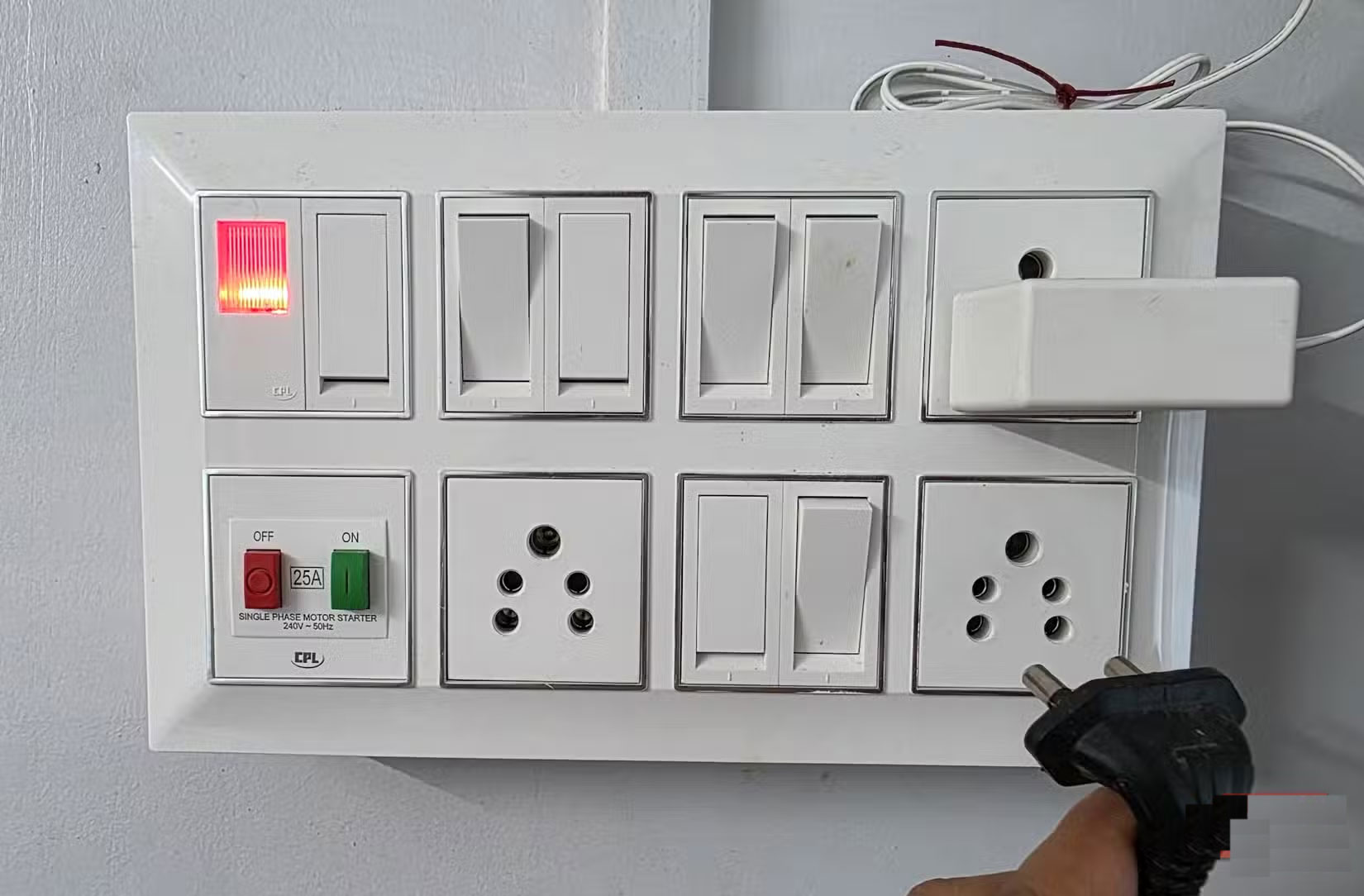
If you use an HDMI device for everything, you can disconnect the TV from Wi-Fi or Ethernet. Its built-in apps and automatic updates will need a connection again. A separate streaming device has its own privacy settings. See what works on a smart TV without internet.
Related Articles
 Tweaks to make your old Smart TV work again
 Simple tweaks to unlock the full potential of your Smart TV web browser
 How to turn off user tracking on Smart TV of Vizio, LG ...
 Tweaks That Make Cheap Smart TVs Look Better
 Here's What Phone Thieves Do to Stop You From Tracking Your Device!
 Change These 6 Settings to Stop New Android Apps from Tracking You!
Reader Comments 0
Sign in with email or Google to join the discussion.