Table of Contents
If your stolen phone stops updating its location, mark it as lost as soon as possible. Use Apple Find My for iPhone or Google Find Hub for Android. A missing or old map position can reflect a connection, battery, or coverage problem. Check the timestamp before acting on it.
Locate and lock the phone
- From a trusted device, open Apple’s stolen iPhone instructions or Google’s lost Android guide and sign in through the official service.
- Mark the phone as lost and add a number that you can safely answer. Some commands take effect when the device next connects.
- Report theft to local authorities and provide the last known location if helpful. Avoid confronting anyone at the location shown on the map.
Protect your number and account
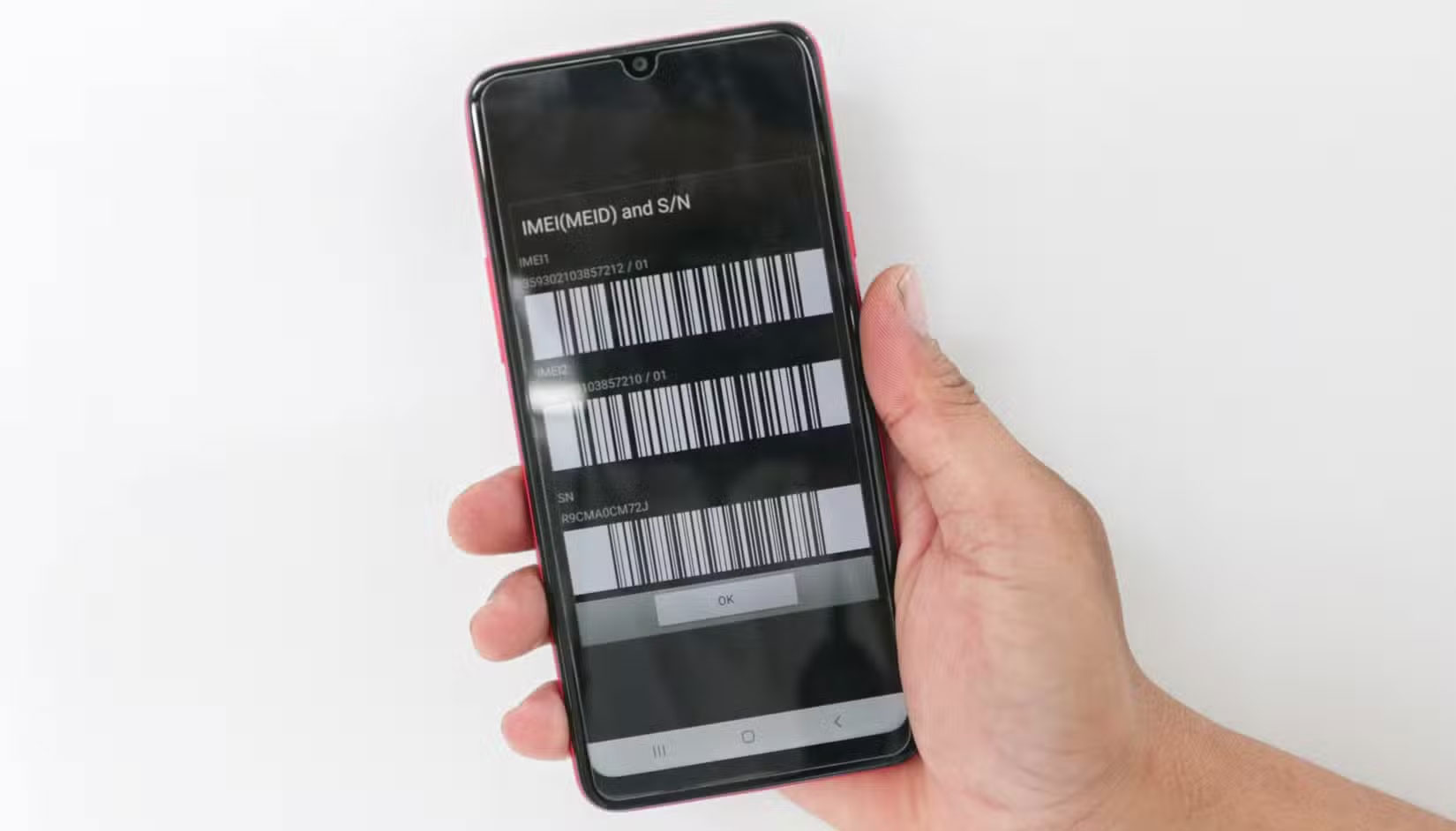
Ask your carrier to protect your number and explain its options for reporting the device. Keep the serial number and IMEI available for authorized reports. Use a trusted device to review unexpected account changes. Do not provide verification codes or account passwords to someone who says they found your phone.
Understand the trade-off before erasing
Follow the service’s guidance before sending a remote erase command, since erasing can affect recovery and tracking. On an iPhone, avoid removing the stolen device from Find My, which removes Activation Lock. For future prevention, check your recovery settings and save a backup. See how to find an iPhone when it is offline or set up Android’s finding feature.
Related Articles
 5 Tweaks to Stop Your Smart TV from Tracking You
 How to use Android phones as GPS tracking devices
 New features on iOS 17.3 beta make iPhone thieves 'cry'
 How to Stop Meta from Tracking Your Android Phone
 Change These 6 Settings to Stop New Android Apps from Tracking You!
 The 'Do Not Track' Feature Is Practically Useless: Take These Measures to Stop Websites From Tracking You!
Reader Comments 0
Sign in with email or Google to join the discussion.