Table of Contents
When there serves as a missed call on the iPhone, a notification appears on the lock screen with the name and the option to call the other person back immediately.
When there is a missed call on the iPhone, the lock screen displays a notification with the name and the option to call the other person back immediately without any security method. However, this will affect the privacy of missed calls displayed on the iPhone lock screen. Below are the steps to secure missed calls on the iPhone.
Requires password entry, Face ID calls back on iPhone
By default, iPhone enables callback mode right from the iPhone lock screen without entering a security method, unintentionally affecting your privacy and that of missed callers. If so, please turn off callback from the iPhone lock screen.
- How to turn off callback right from iPhone lock screen
When you tap a missed call notification, you'll be asked to enter your passcode or authenticate with Face ID or Touch ID before you can call back. Tapping and holding the notification will no longer show options to call back or send a message.
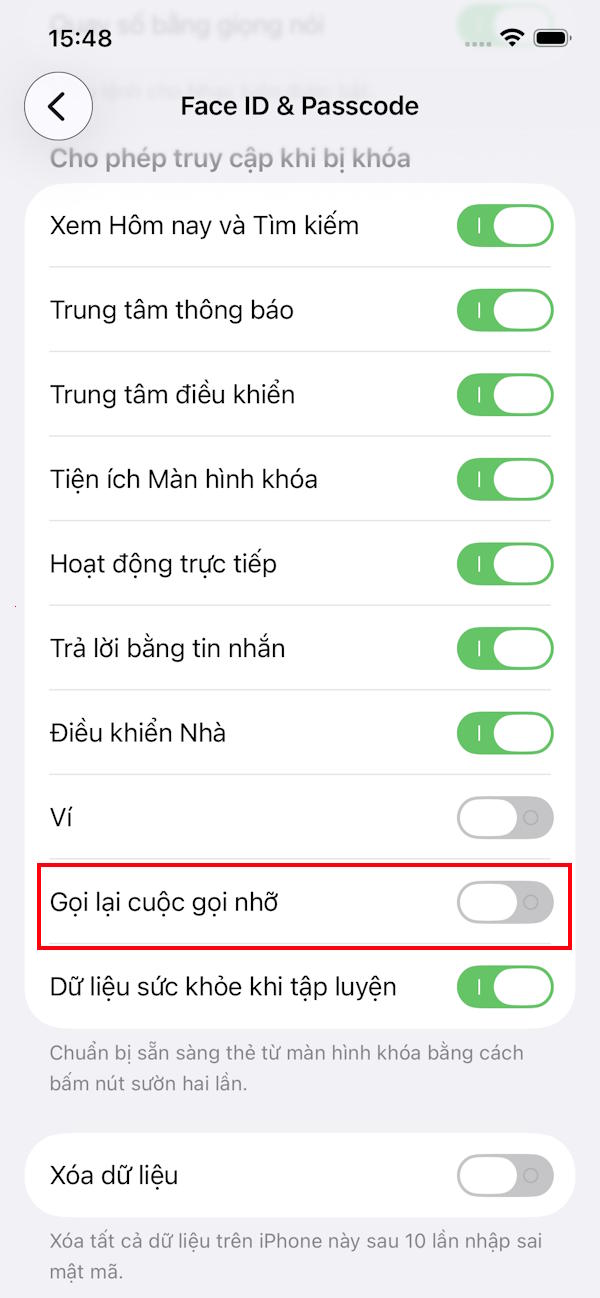
Hide Missed Caller Names from iPhone Lock Screen
By default, missed call notifications on the iPhone lock screen show the caller's name. This also reveals the caller's personal information, so you should hide the missed caller's name.
Step 1:
You click on Notifications And then click on The Phone application In the displayed list.
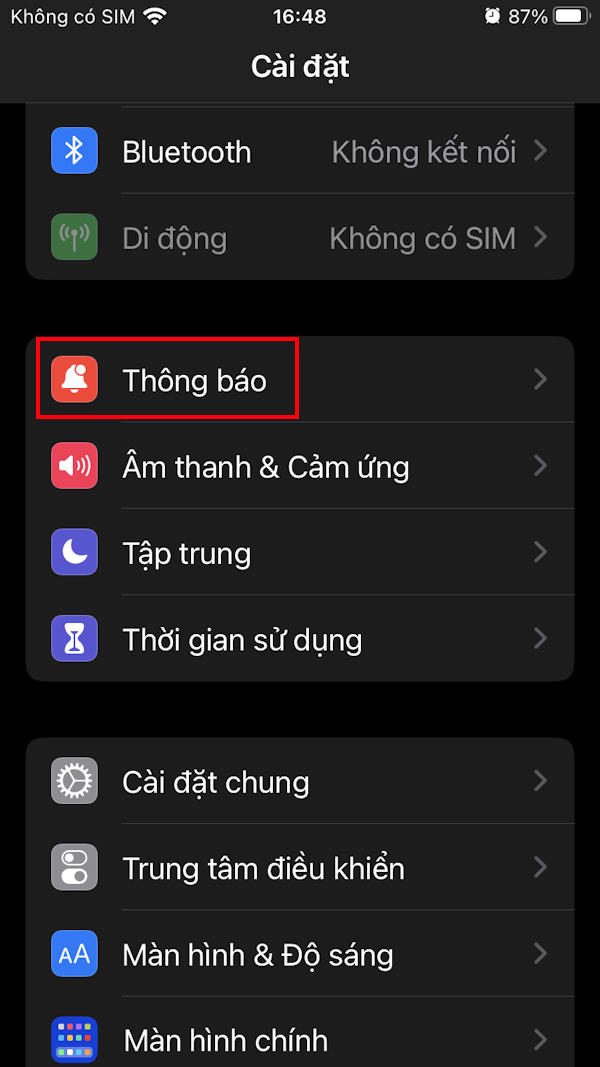
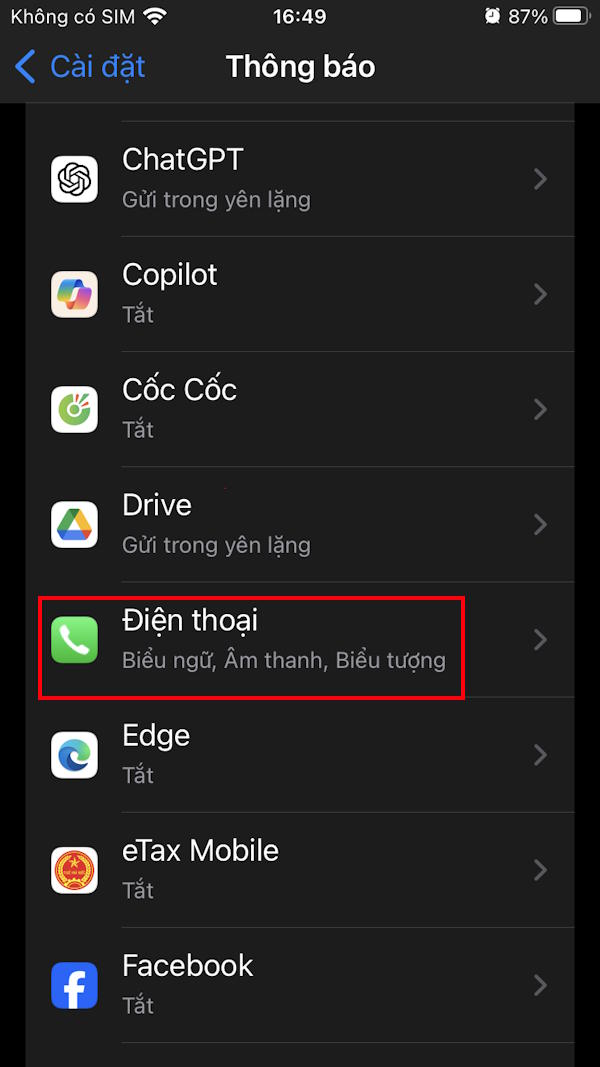
Step 2:
Switch to the Phone app settings interface, click on Show preview To make adjustments on the iPhone lock screen.
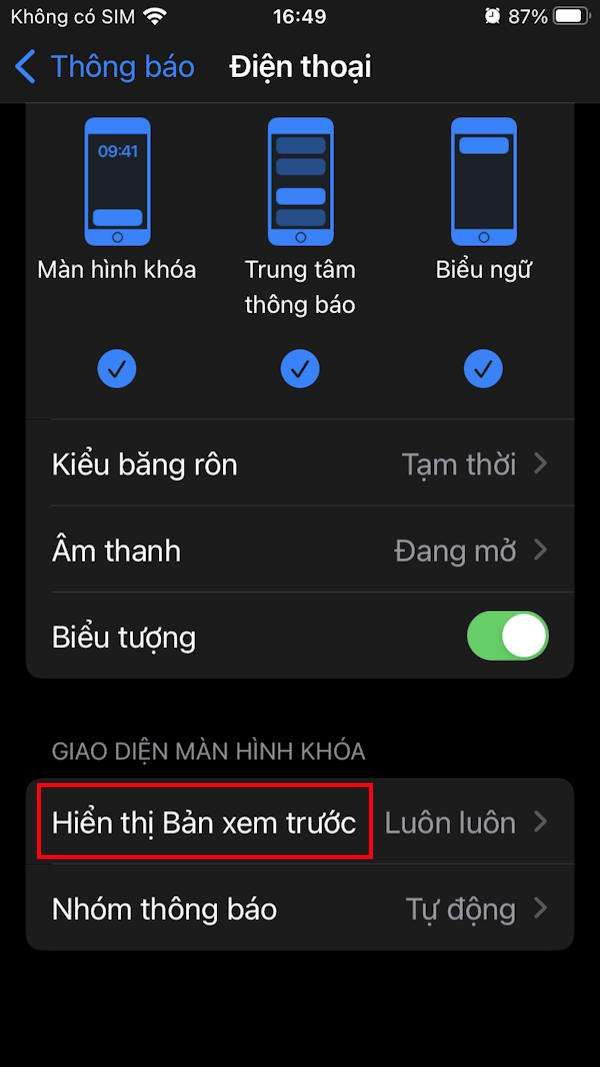
Step 3:
Here you will Tap on When Unlocked To show a preview of the missed call.


In practice, you'll have to authenticate with Face ID, Touch ID, or your device passcode before the missed caller's name is revealed.
FAQ
How do you secure missed calls on iPhone lock screen: step-by-step guide?
In practical terms, when there is a missed call on the iPhone, a notification appears on the lock screen with the name and the option to call the other person back immediately.
What should you check before getting started?
Review the requirements, compatible device or software version, and any warnings described in the guide before making changes.
What should you do if the steps do not work?
Repeat the steps in order, confirm that your app or system is up to date, and review the troubleshooting details provided above.
Related Articles
 How to Turn Off Callback Right from iPhone Lock Screen: Step-by-Step Guide3 minutes read
 How to Find Missed Calls from Unknown Numbers on iPhone3 minutes read
 Fix iPhone Error Not Showing Lock Screen: Complete Overview7 minutes read
 How to Reject an Unwanted Call on iPhone6 minutes read
 Never Forget Missed Calls on iPhone with This Feature3 minutes read
 9 Android Phone Lock Screen Security Settings9 minutes read
Reader Comments 0
Sign in with email or Google to join the discussion.