Table of Contents
This practical guide walks through how to restart amazon kindle, reset amazon kindle, explains the main requirements, and highlights common issues that may appear along the way.
How to Restart a Kindle Device
There are a few different ways you can restart your Kindle. The easiest is to hold down the Power button (the button on the bottom edge of the device that you use to unlock the screen) for about 10 seconds.
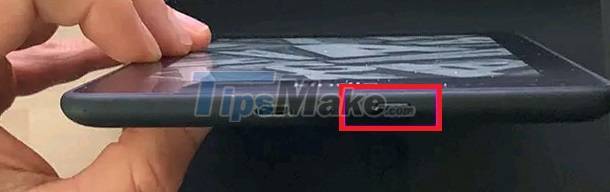
When the confirmation dialog appears on the screen, click 'Restart'. The reboot will take place immediately.
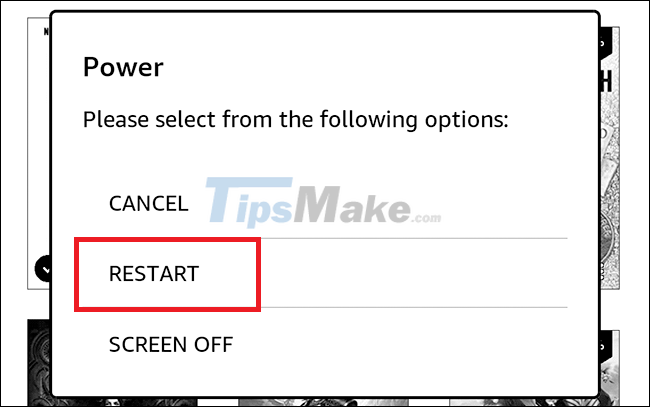
Method 2, in case your device is unresponsive, press and hold the Power button until the screen flashes and the reboot begins — it will take about 40 seconds.
As a last method, you can also restart your Kindle from the system menu. On the home screen, tap the little vertical three-dot button in the top right corner of the screen to open the system menu.
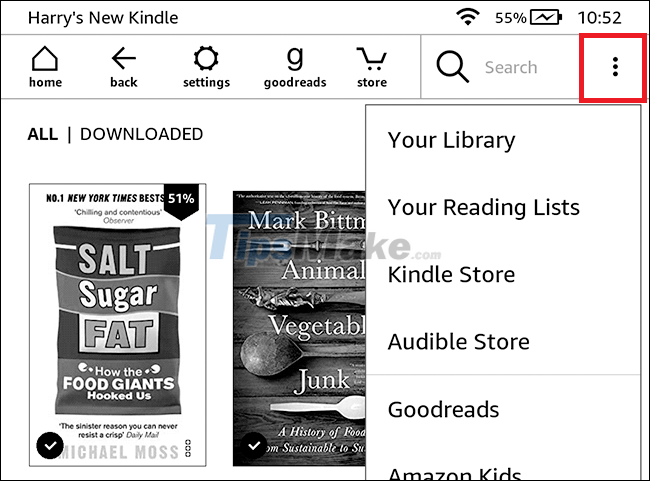
In the menu that appears, click on 'Settings'.
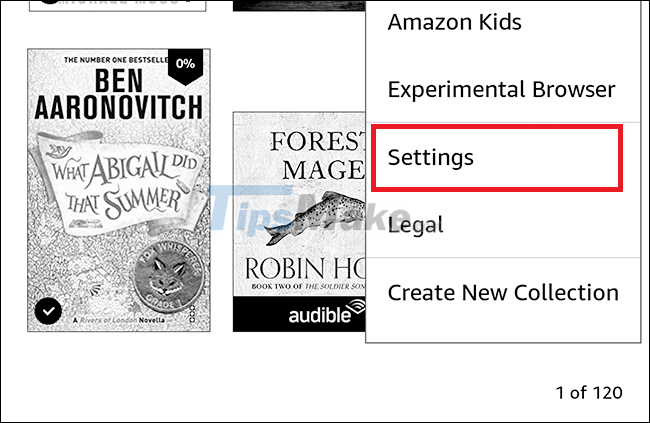
Tap the three vertical dots icon again, then select the 'Restart' option.

How to reset Kindle
If restarting doesn't fix the problem you're having on your Kindle (or you want to return it to its factory default settings), consider resetting the device.
Note that this will delete all books, audiobooks, and other types of data files you've downloaded, as well as any settings you've set up. In short, your Kindle will be returned to its factory default software settings. Therefore, think carefully before doing it.
( Tip: Before performing a factory reset to completely fix the problem, make sure your Kindle is running the latest firmware version. Sometimes a firmware update can also effectively fix the problem. software problems on the device ).
On the home screen, tap the three vertical dots icon in the top right corner then go to 'Settings'.
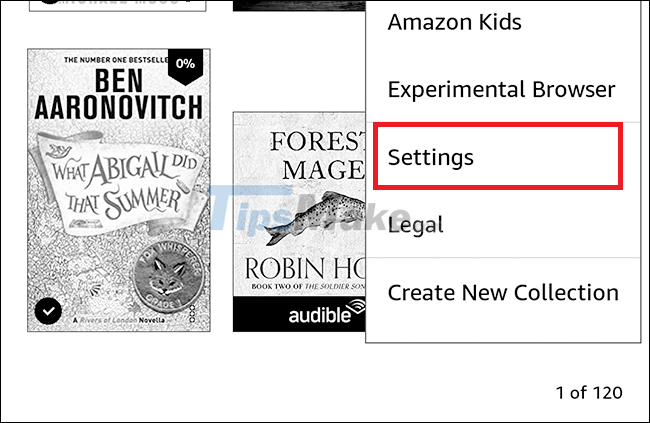
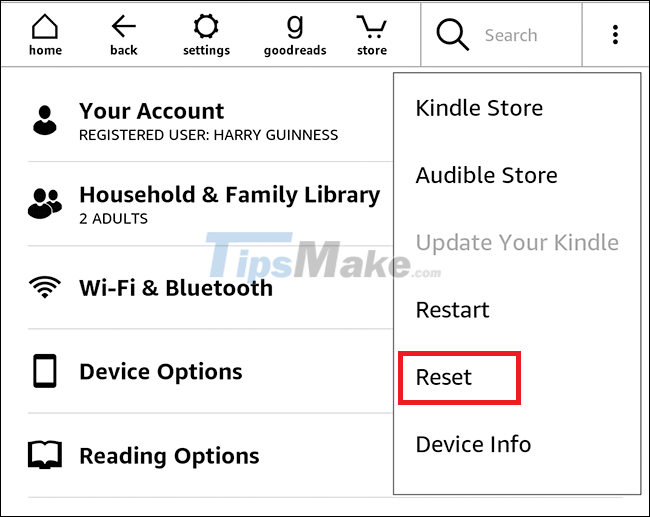
Tap the three-dot button again, then select 'Reset'.
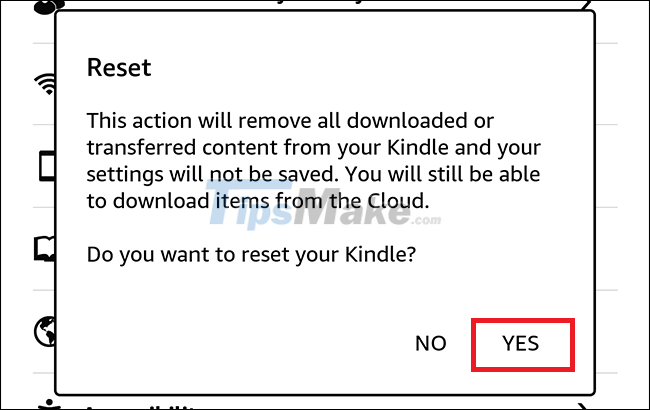
In the confirmation message that appears, click 'Yes' and wait for the Kindle to restart itself.
Now, the Kindle has been restored to factory settings. You'll need to log into your Amazon account and re-download your book library.
Key Takeaways
Use the information above as a practical reference for how to restart amazon kindle, reset amazon kindle. Review each step carefully, confirm any requirements, and choose the option that best fits your situation.
FAQ
What does this guide explain about Restart Amazon Kindle, Reset Amazon Kindle?
It explains the main concepts, practical considerations, and useful steps related to restart amazon kindle, reset amazon kindle without requiring advanced knowledge.
Who can benefit from learning about Restart Amazon Kindle, Reset Amazon Kindle?
This information is useful for readers who want a clear overview, practical guidance, and reliable steps related to restart amazon kindle, reset amazon kindle.
What should I check before applying this information?
Review the requirements, confirm that your device, software, or situation matches the instructions, and back up important data before making major changes.
Related Articles
 A Simple Number, Explaining Why Amazon Dares to Sell Cheap Kindle4 minutes read
 How to Delete Books from Kindle?6 minutes read
 How to Reinstall Kindle: Complete Guide10 minutes read
 How to Update the Software for the Amazon Kindle E-reader4 minutes read
 11 Reasons to Buy a Kindle E-Reader10 minutes read
 How to Transfer Books to Kindle: Clear Instructions9 minutes read
Reader Comments 0
Sign in with email or Google to join the discussion.