Table of Contents
The Kindle app is a practical option if you want to read the same library on a phone, tablet, and Kindle device. Its useful features include progress synchronization, adjustable text, and personal-document delivery. Whether it suits you depends on the books you read and how much you want to rely on an Amazon account.
Read without buying a Kindle device
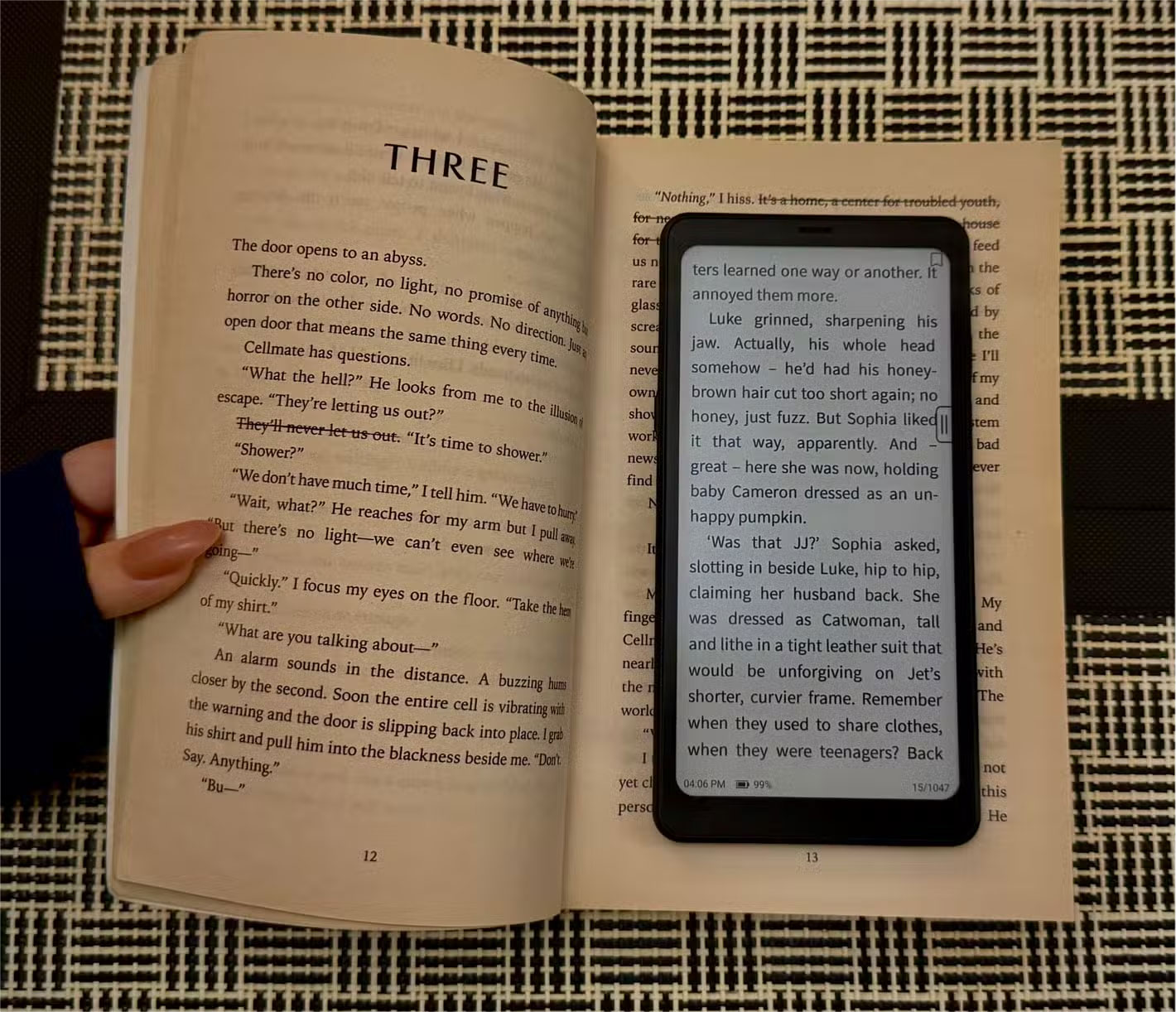
The app provides access to your Kindle library on supported devices. You do not need an Amazon e-reader to use it. Downloading the app is separate from buying books or paying for a reading subscription; a free app does not mean every title is free.
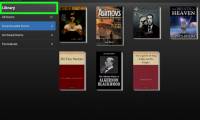
Start by opening a sample or a book you already own. Check whether the library layout and reading controls suit you before moving more material into the service.
Keep your place across devices
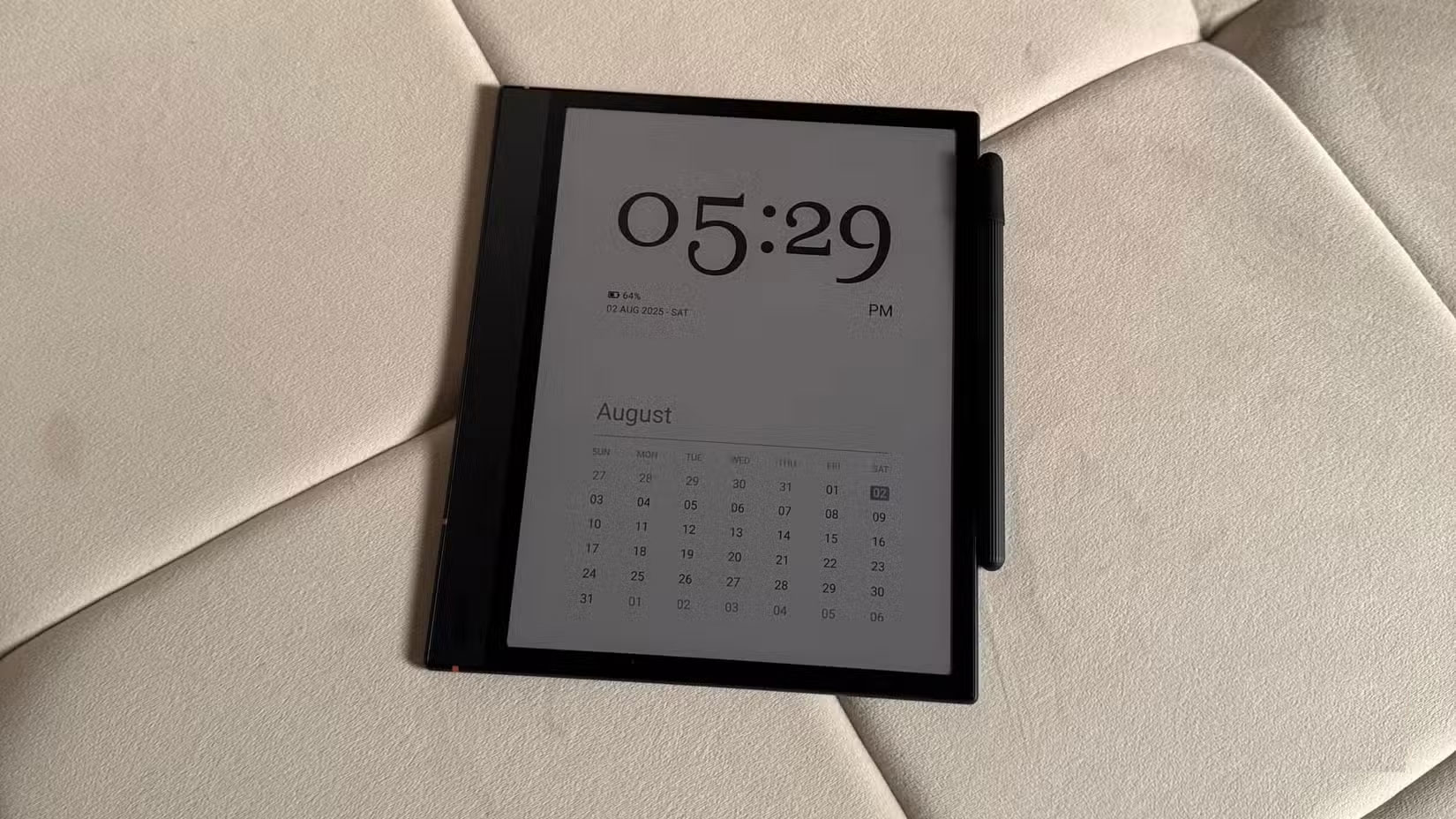
With Sync enabled, supported Kindle apps and devices signed into the same account can share reading position, notes, and highlights. Connect to the internet and sync before changing devices. If progress is missing, check the account, synchronization setting, and whether you opened the same edition or document.
This applies to reading through Kindle. It does not mean an unrelated reading app on the same device will share your position.
Adjust the page to suit the book
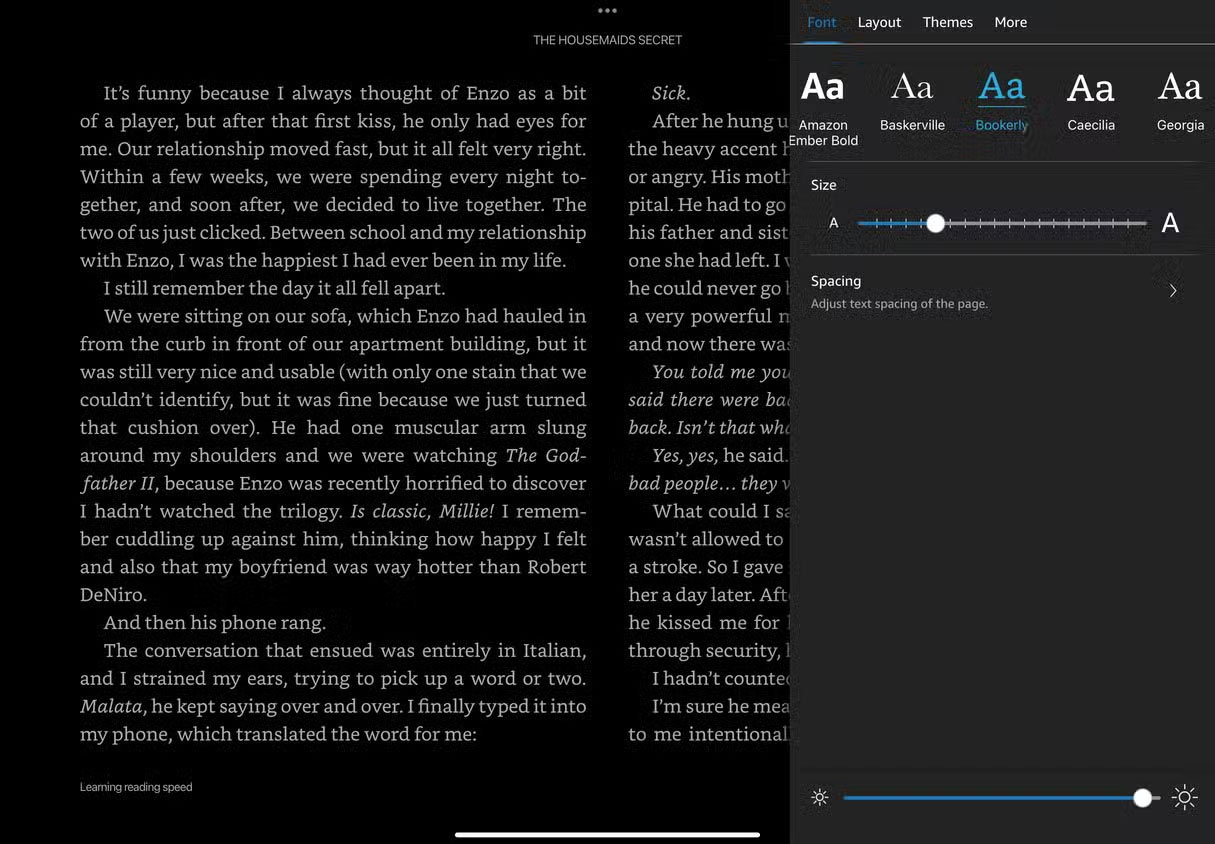
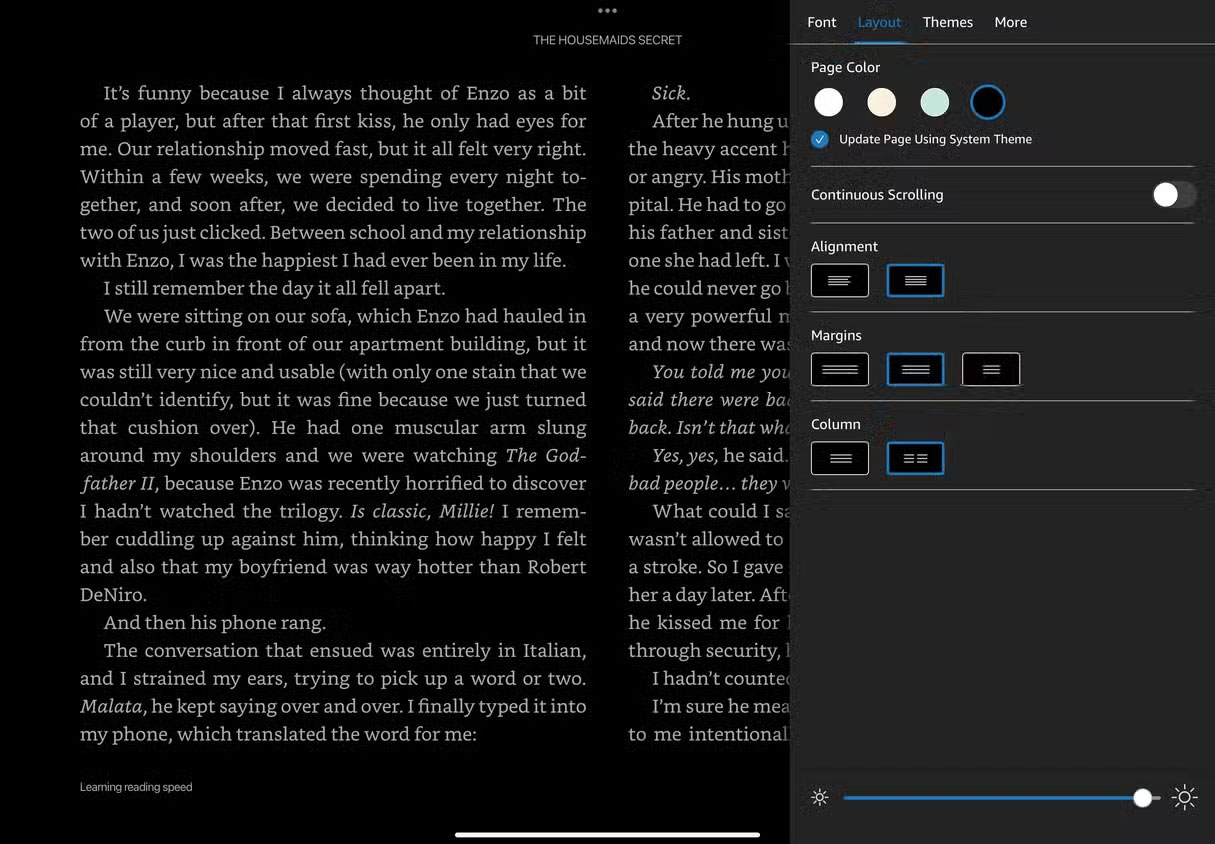
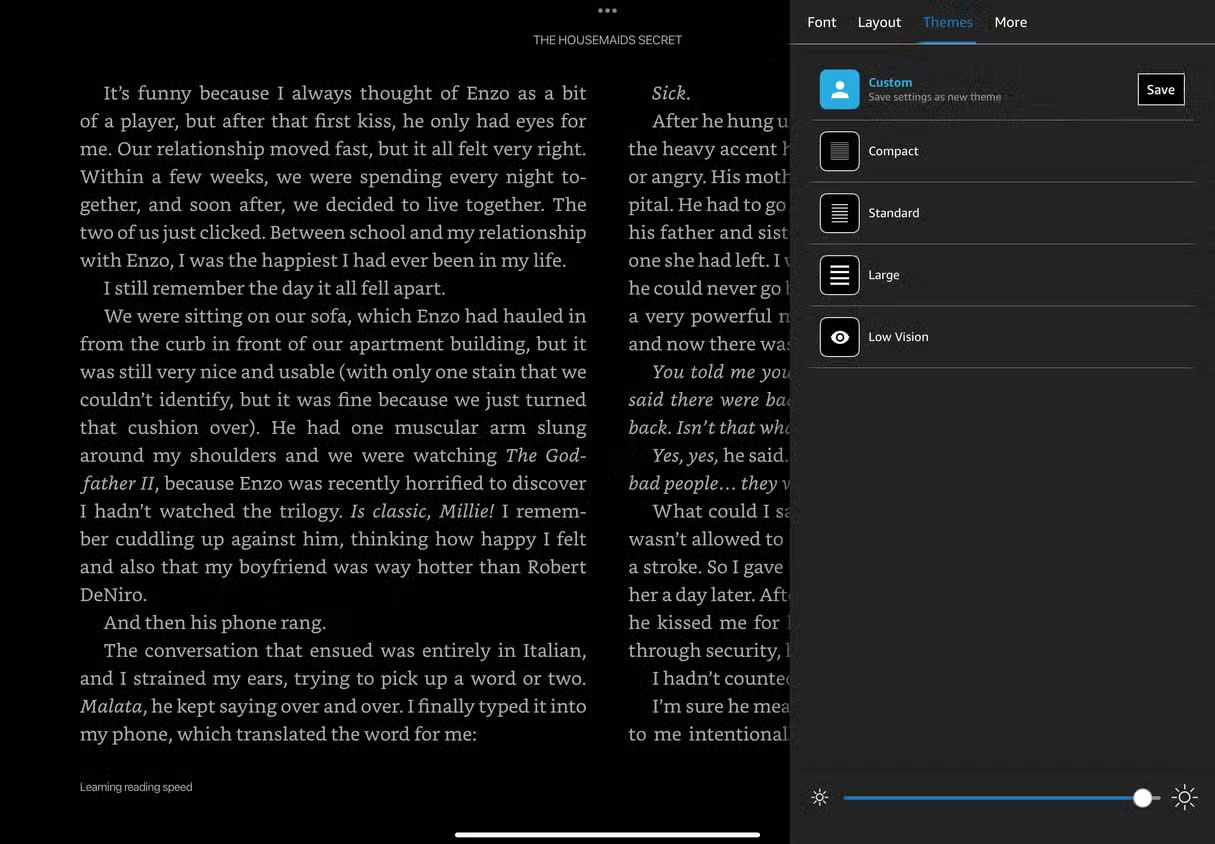
For books with adjustable text, use the reading settings to try font size, spacing, margins, and background options available in your app. A larger font with a little more spacing can be easier to follow than a crowded page.
Options vary by app and book format. A scanned PDF or fixed-layout book will not necessarily respond like a reflowable novel. Check a few pages, including any illustrations, rather than expecting every document to look identical.
Use reading-time estimates as a guide
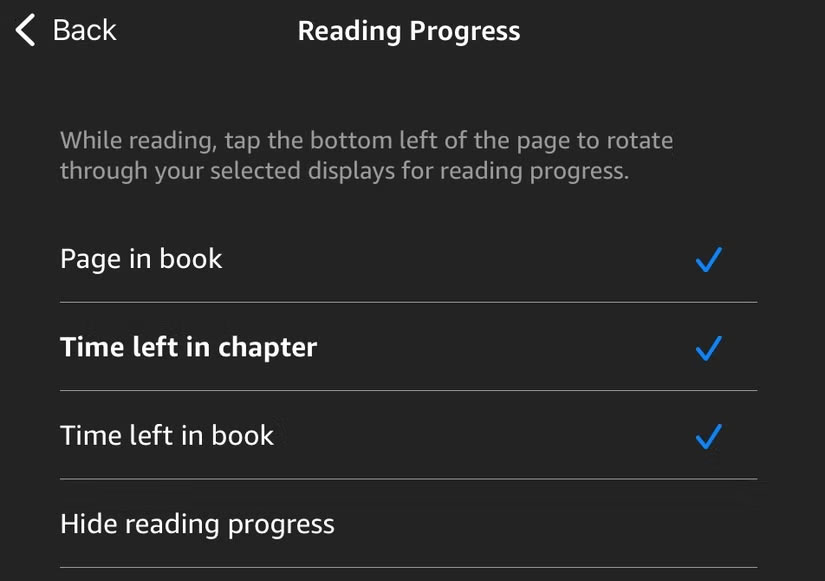
Supported books can display estimated time remaining in a chapter or book. This can help you decide whether to finish a section now or stop at the next break. Treat it as an estimate rather than an exact promise: reading speed changes with the material and interruptions.
Add your own documents
Send to Kindle accepts supported personal documents, including EPUB, PDF, and Word files. EPUB delivery involves conversion into a Kindle-compatible format; it is not a guarantee that every protected ebook or complex layout will work.
Use files you are entitled to upload, and check tables, images, and page breaks after delivery. See ways to transfer books to Kindle and sending EPUB books to Kindle for related steps.
Kindle works especially well when your reading is already centered on its library. If local file management or a different book store is more important, test that workflow before making it your main reader.


Reader Comments 0
Sign in with email or Google to join the discussion.