Table of Contents
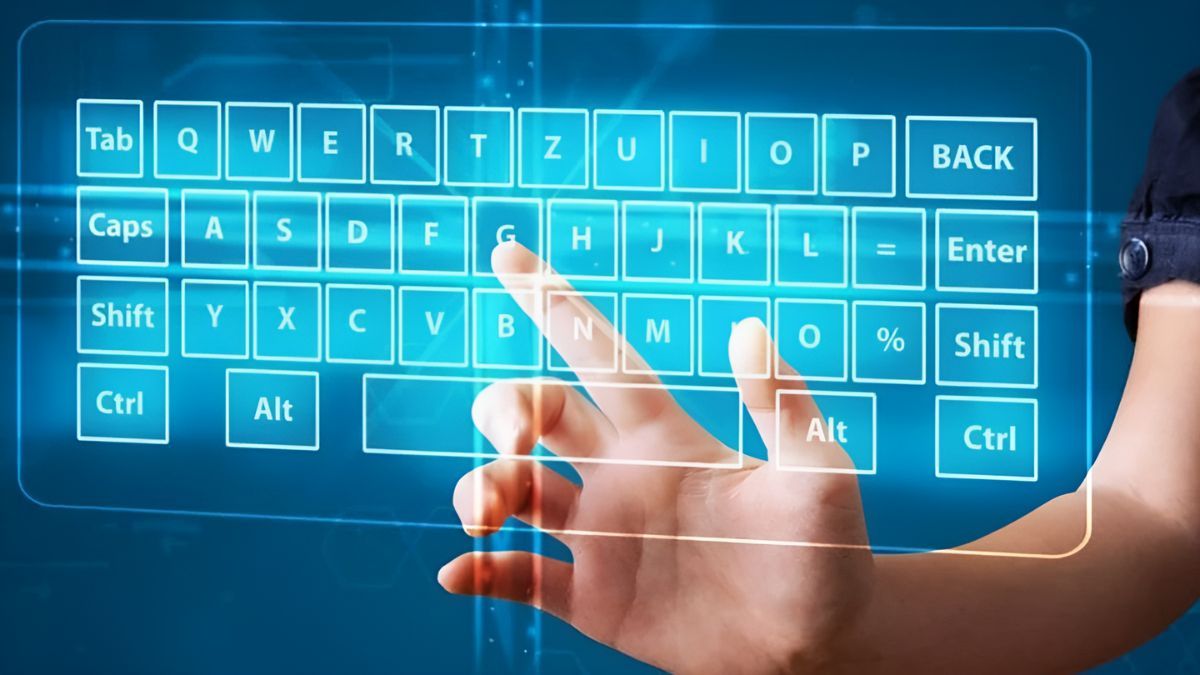
An on-screen keyboard lets you enter text with a mouse, touchpad, touchscreen, switch device, or other pointer. Windows provides both an accessibility On-Screen Keyboard and a touch keyboard; macOS provides the Accessibility Keyboard and Keyboard Viewer.
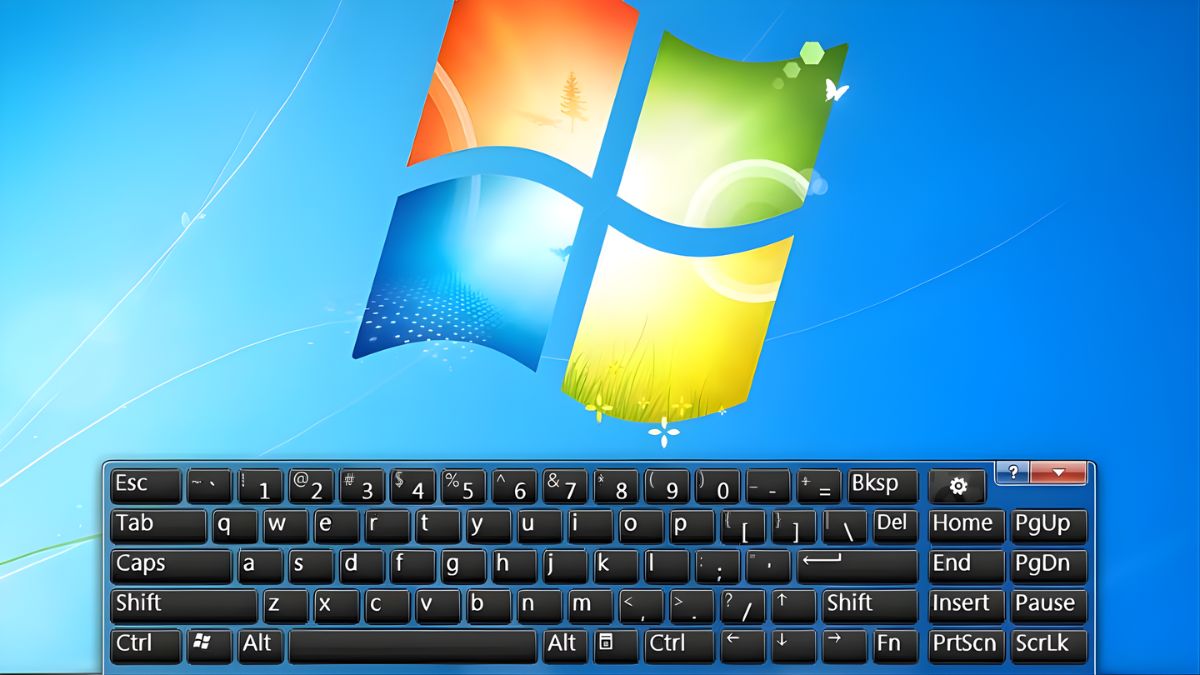
Open the Windows On-Screen Keyboard
- Press Windows + Ctrl + O.
- Press Windows + R, enter
osk, and press Enter. - Open Settings > Accessibility > Keyboard and enable On-Screen Keyboard.
- From the sign-in screen, select the Accessibility icon and choose On-Screen Keyboard.
The OSK stays available on the desktop and includes modifier, navigation, and optional prediction controls. Use its Options button to change click, hover, scanning, and numeric-keypad behavior.
Open the Windows touch keyboard
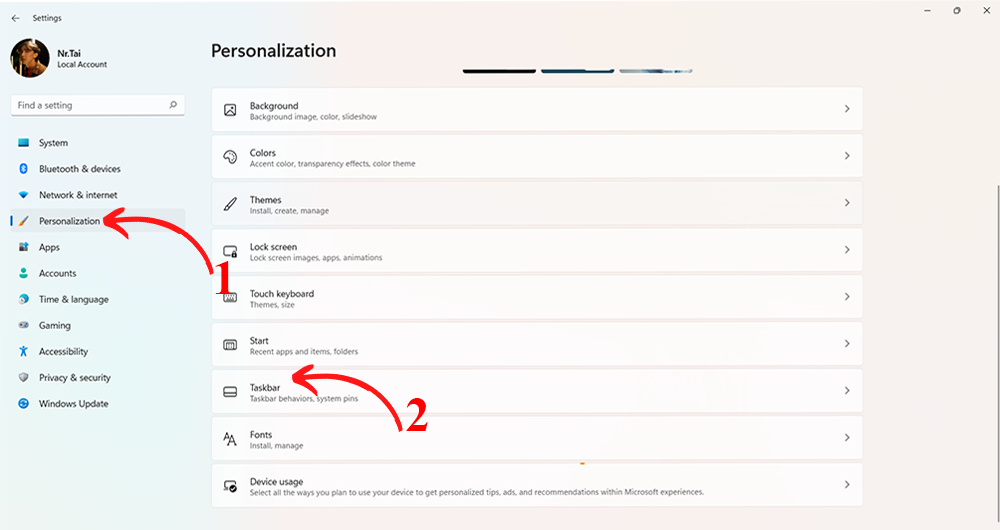
In Windows 11, right-click the taskbar, open Taskbar settings, and set Touch keyboard to the desired behavior. Select its icon in the taskbar corner. The touch keyboard is optimized for touch and may appear automatically when a text field is selected on a touch device.
In Windows 10, right-click the taskbar and enable Show touch keyboard button, then select the keyboard icon.
Open a keyboard on a Mac
Accessibility Keyboard
- Open System Settings > Accessibility > Keyboard.
- Enable Accessibility Keyboard.
- Use the on-screen keys with a pointer or supported accessibility device.
Keyboard Viewer
Enable the Input menu under Keyboard settings, then choose Show Keyboard Viewer from the menu bar. Keyboard Viewer is especially useful for seeing characters produced by Option, Shift, and different input sources.

When an on-screen keyboard helps
- The physical keyboard or one group of keys has failed.
- You need accessible dwell or scanning input.
- You are using a touchscreen kiosk or tablet mode.
- You need to identify a shortcut or alternate character.
- You must sign in long enough to back up files before keyboard repair.
Security limitations
An on-screen keyboard is not inherently a secure password keyboard. Malware, screen recording, accessibility abuse, clipboard monitoring, or an observer can still capture input. Use a password manager and phishing-resistant MFA where possible, and avoid entering secrets on an untrusted or remotely controlled computer.
If it does not appear
- Restart the computer.
- Check that another monitor is not displaying the window off-screen.
- In Windows, verify accessibility and touch keyboard services are not disabled by policy.
- Test the OSK command and the Settings switch separately.
- On a managed device, ask the administrator whether kiosk or security policy blocks it.
Temporary input is not a repair
If the physical keyboard failed after liquid exposure, shut down and arrange service rather than continuing to power the device. For ordinary faults, test keyboard layout, accessibility settings, an external keyboard, drivers, and preboot input. See how to diagnose a laptop keyboard and Windows accessibility features.
Related Articles
 Summary of Several Ways to Open Virtual Keyboard on Windows XP //8 minutes read
 6 Ways to Open Virtual Keyboard on Windows 109 minutes read
 How to Open Virtual Keyboard with Shortcut Key, Open On-Screen Keyboard Quickly3 minutes read
 How to Install Virtual Keyboard, a Multilingual Virtual Keyboard3 minutes read
 How to Quickly Open the Virtual Keyboard on a MacBook6 minutes read
 How to Open the Virtual Keyboard on Laptop Simply and Quickly: Practical Guide8 minutes read
Reader Comments 0
Sign in with email or Google to join the discussion.