Table of Contents
This practical guide explains how to lock guest Wi-Fi network so no one can spy. Follow the steps in order, review the requirements first, and use the troubleshooting notes when a setting or option does not work as expected.
Main network is hidden
One of the first things to do when setting up a Wi-Fi network for your devices is to prevent the network's SSID from being broadcast publicly. This will hide the network from any devices searching for Wi-Fi networks within range of the router. If there are two networks hosted on the router, any guests scanning for Wi-Fi will only see the guest network.
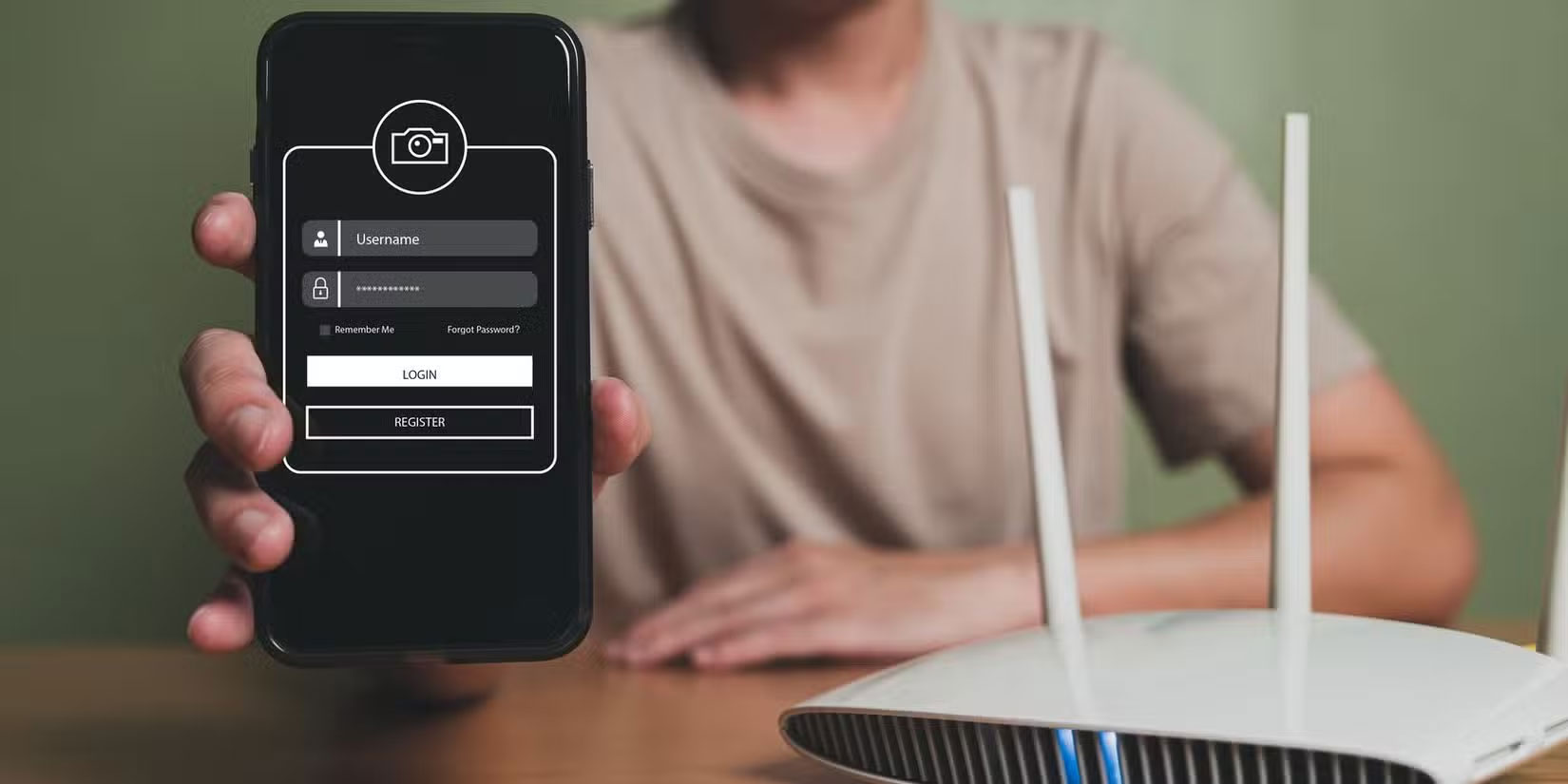
Some tools can detect hidden Wi-Fi networks, so if someone is determined to find your main network, they will. The main goal of hiding your main network is to prevent people from seeing your other network and asking for its password. When guests come over, they will only see one network, and you can give them the password without worrying.
Hiding your main Wi-Fi acts as a sort of first line of defense, keeping casual snoopers out and forcing anyone who wants to snoop in to use additional tools to figure out your main network. When combined with the other measures on this list and WPA3 encryption, it creates a network that's invisible to casual web browsing but accessible to individually configured devices.
Second router for guest network
Another layer of protection to add to your guest Wi-Fi network is to run it on a separate router from your main network. If you have an older router, you can set it up and run as a guest access point in just a few minutes.
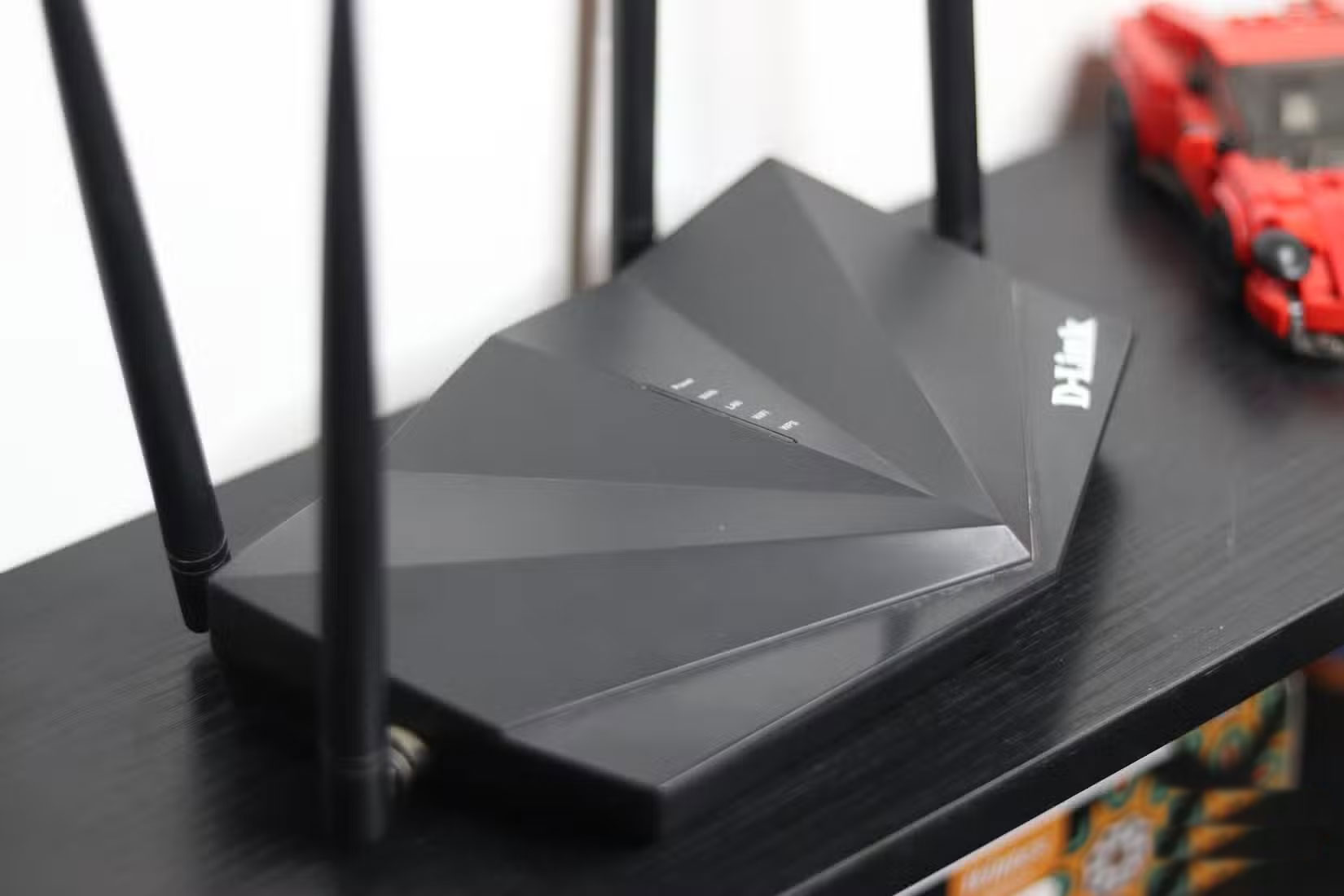
In addition to being a useful way to reuse an old router, this method has two big advantages. First, it separates the traffic of guests on the network from your personal traffic. Since your personal devices are connected to a different router, anyone trying to collect data on the guest network will only see activity from devices connected to that network.
Second, this provides better coverage, as the second router can act as a Wi-Fi repeater. Let's say your office is at one end of the house, and the living room is at the other. In such cases, the signal from the main Wi-Fi router, located in the home office, will not be strong enough at the other end of the house. You can set up the second router to act as a Wi-Fi repeater, allowing your guests to browse the Internet without experiencing connection drops or coverage issues.
You can also have more control over your network bandwidth when using a second router without having to fiddle with your Wi-Fi settings. The separate guest router should be connected to the slower 2.4GHz band of your main router if you are connecting two routers wirelessly. If you are running an Ethernet cable between the two routers to share your Internet connection, you can set up bandwidth control on the second router to control how much Internet is allocated to the guest network.
This frees up bandwidth on the faster 5 or 6GHz networks, ensuring every device gets the fastest speeds possible. You also don't have to worry about interference from other devices or having too many devices connected on one network slowing down your internet speeds.
Isolate access points
Access point (AP) isolation works by isolating all devices connected to a particular Wi-Fi network. If you have a phone and a laptop connected to a guest Wi-Fi, both devices will only be able to communicate with the router and will not be able to see each other on the network. This feature is used to protect devices from attacks coming from another device on the same network.
Technically, access point isolation prevents devices connected to a Wi-Fi network from communicating with each other over a LAN (Local Area Network). Each connected device is assigned a private virtual network, which is directly connected to the router and, by extension, to the Internet.
Note that enabling access point isolation may disrupt functionality on devices that use your local network, such as NAS or wireless printers, as these devices depend on being able to communicate with each other to function properly.
This makes the setup more suitable for public or guest Wi-Fi networks, since connected devices are only allowed to access the Internet. Depending on the brand and model of your router, the access point isolation feature may be called client isolation or wireless isolation.
This feature is usually found in the advanced wireless settings, but it's best to consult your router's manual to determine where it is located, if your router supports it in the first place.
Once set up, you'll be able to allow guests to connect to your home's dedicated guest network, giving them Internet access without overloading your devices. It takes a little more setup than using your router the way your ISP configured it, but it's worth the effort, especially if you don't want guests spying on you.
FAQ
What should you know about main network is hidden?
One of the first things to do when setting up a Wi-Fi network for your devices is to prevent the network's SSID from being broadcast publicly. This will hide the network from any devices searching for Wi-Fi networks within range of the router. If there are two networks hosted on the router, any guests scanning for Wi-Fi will.
What should you know about second router for guest network?
Another layer of protection to add to your guest Wi-Fi network is to run it on a separate router from your main network. If you have an older router, you can set it up and run as a guest access point in just a few minutes.
What should you know about isolate access points?
Access point (AP) isolation works by isolating all devices connected to a particular Wi-Fi network. If you have a phone and a laptop connected to a guest Wi-Fi, both devices will only be able to communicate with the router and will not be able to see each other on the network. This feature is used to protect devices from.
Related Articles
 How to Set up a Guest Network for the Router5 minutes read
 5 Reasons to Set up a Guest Network on the Router6 minutes read
 Guest Access: Share Your Wireless Home Network9 minutes read
 Why Should You Activate the Guest Account on the Computer?5 minutes read
 How to Play Game Hello Guest to Overcome All Challenges10 minutes read
 How to Use the Command to Create a Guest Account on Windows 105 minutes read
Reader Comments 0
Sign in with email or Google to join the discussion.