What you will learn
- Select an appropriate Personal security mode.
- Recognize obsolete WEP, WPA and TKIP options.
- Test legacy-device compatibility without weakening the main network.
- Change security mode with a documented rollback.
What you need
- Authorized router administration access.
- A list of required Wi-Fi devices and their support status.
Use a compatibility decision, not the oldest common mode
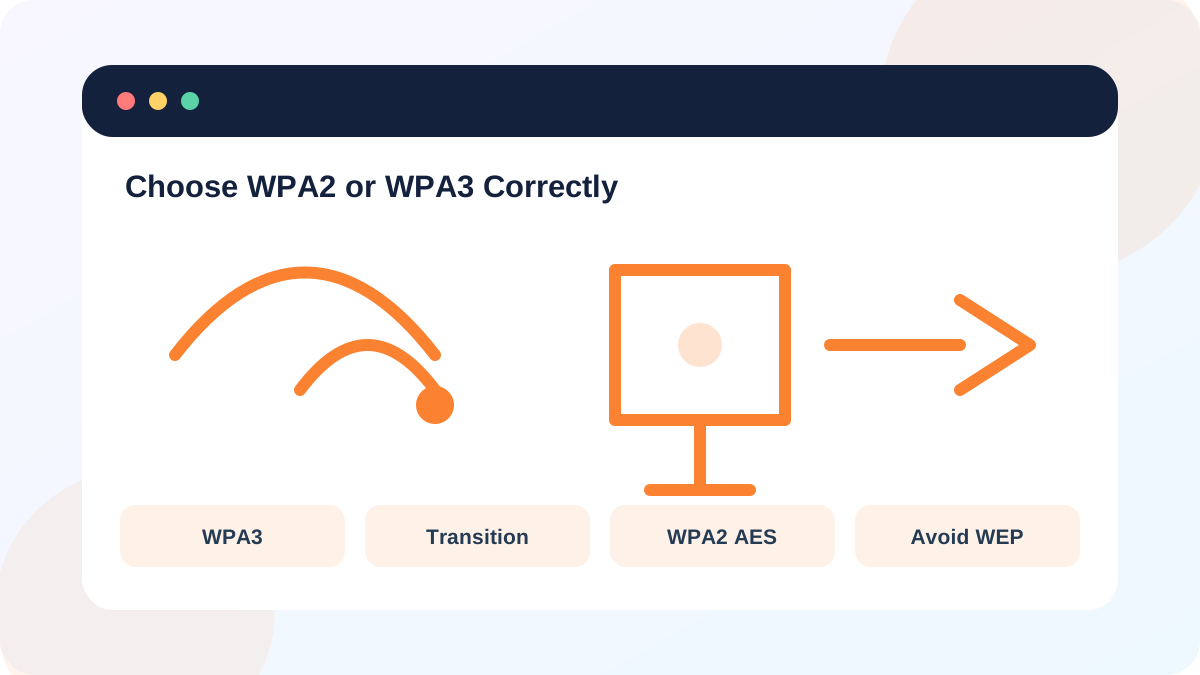
Apple recommends WPA3 Personal for better security, WPA2/WPA3 Transitional for older-device compatibility, and WPA2 Personal with AES when stronger modes cannot be used.
The FTC likewise recommends WPA3 Personal or WPA2 Personal and identifies WEP and original WPA as outdated and insecure.
A legacy device that supports only obsolete security should not force the primary network to use WEP or TKIP. Place the device on an isolated replacement network only if the router can provide secure segmentation, or replace the device.
Inventory devices before the change
Identify phones, computers, printers, cameras, smart appliances and extenders. Update firmware and drivers before concluding that a device cannot use WPA2 or WPA3. Record which devices are safety-critical or difficult to reconnect.
A 6 GHz SSID requires compatible modern security and clients; an older device cannot join merely by entering the same password.
- 1
Export or record the current router security setting.
- 2
List every required client and its software or firmware version.
- 3
Update critical clients from official sources.
- 4
Choose WPA3, transition mode or WPA2 AES based on the inventory.
- 5
Prepare an Ethernet management path and rollback window.
Change and verify in a controlled order
Save the new mode and reconnect the management device first. Test gateway, DNS and internet access. Then reconnect clients by importance, watching for repeated authentication failures rather than repeatedly retyping the password.
Do not disable Protected Management Frames or other WPA3 requirements simply to make a failing device connect unless the vendor documents a compatible setting.
- 1
Apply the selected mode with a strong unique Wi-Fi password.
- 2
Reconnect one modern device and verify the security type shown.
- 3
Reconnect one older required device.
- 4
Test guest and mesh nodes for consistent security.
- 5
Restore the original mode if critical approved devices cannot operate and document the replacement plan.
Audit for weak secondary networks
A secure primary SSID can coexist with an overlooked extender, guest network or old router using weak encryption. Scan the available networks and verify that every managed SSID has an intended owner and security mode.
Open networks should not be used for guests. A guest network can still use WPA2 or WPA3 with a separate password.
- No managed SSID uses WEP, WPA, TKIP or open security.
- The strongest compatible mode is enabled.
- All extenders and mesh nodes use consistent intended security.
Create a Wi-Fi security migration plan
Plan a move from a weak or mixed mode to modern security.
- 1
Inventory required devices.
- 2
Identify the strongest mode each device supports.
- 3
Choose the target mode and rollback setting.
- 4
Define the reconnection order.
- 5
Document how unsupported devices will be isolated or replaced.
Common mistakes to avoid
- Choosing WEP or TKIP for one old device.
- Changing mode without inventorying cameras and printers.
- Assuming a guest network should be open.
- Ignoring old extenders that broadcast a weaker SSID.
Key takeaways
- Use WPA3 when practical and WPA2 AES as the compatibility floor.
- Do not weaken the main network for obsolete devices.
- Verify every managed SSID, not only the primary one.
Frequently asked questions
Is WPA2 still acceptable?
WPA2 Personal with AES is the compatibility fallback when WPA3 cannot be used. Avoid TKIP and legacy mixed modes.
Why did a device stop connecting after WPA3 was enabled?
The client may lack WPA3 support or need updated firmware or drivers. Transition mode can help while a replacement plan is made.
Sources and further reading
- Recommended settings for Wi-Fi routers and access pointsApple Support
- How To Secure Your Home Wi-Fi NetworkFederal Trade Commission
Ready to continue?
Mark the lesson complete so your Learning Path progress stays current on this device.