Table of Contents
This updated overview organizes the essential information about Practice Typing with 10 Fingers with Mario Teaches Typing Online, including practical uses, key features, setup considerations, and common questions.
What This Guide Covers
- Mario Teaches Typing 10-finger typing practice game has 4 types of lessons:
- Lesson 1: Practice typing quickly and with the correct keys
- Lesson 2: Practice typing text quickly
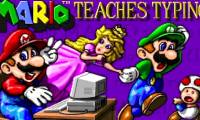
Mario Teaches Typing is a computer typing practice game, modeled after the famous Mario game. Mario games are so popular, I won't introduce them anymore, let's talk straight about this game.
Switch the typing mode to English to avoid missing letters when typing diacritic characters (s, f, j, r).
Click and select game mode
Note: If you see this pop-up, press the x on the right to turn it off and press the power on icon button to start loading data.

In each Mario Teaches Typing exercise, you will be given your own way to play, counting the typing time, the number of characters typed, and the number of characters typed incorrectly. At the end of each level, you will know what your typing speed is and what your accuracy is.
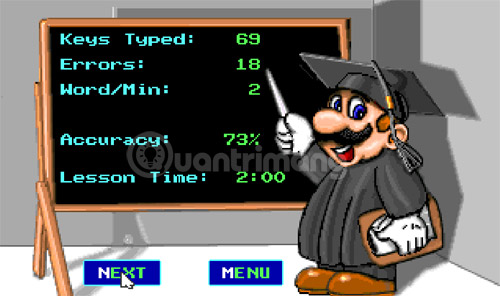 Statistics table after finishing the game
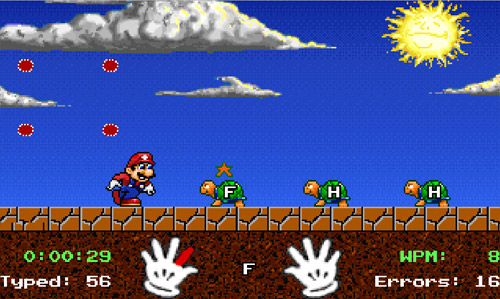
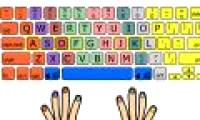
In particular, Mario Teaches Typing also has another feature that helps you practice typing with 10 fingers in addition to training your typing speed or typing accuracy. Pay attention to the two hands at the bottom or top of the gaming window. On each hand, at one point there will be a colored finger, which is the finger you should use to type. If you want to practice typing with 10 fingers quickly, please persistently follow these instructions.
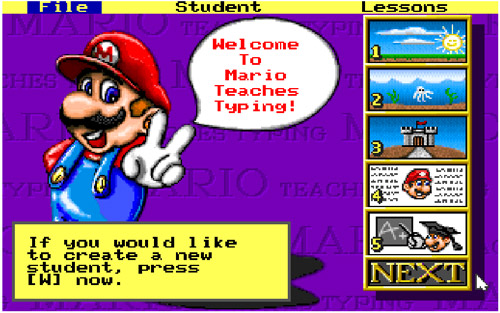
Mario Teaches Typing 10-finger typing practice game has 4 types of lessons:
Lesson 1: Practice typing quickly and with the correct keys
In this series, Mario's mission is the same as in the original game, he will have to kill monsters and break bricks encountered on the road. These objects are marked with a letter, you need to type this letter correctly on the keyboard so Mario can pass through. This lesson is the easiest, but at higher levels it is quite difficult.
Lesson 2: Practice typing text quickly
When you get bored playing with individual characters, you can move on to the second lesson to practice typing long sentences. This sentence has all kinds of uppercase letters, lowercase letters, and punctuation marks. You need to type correctly to pass the level.
The entire game screen takes place underwater, our main character will swim according to the typing speed and number of words you can type.
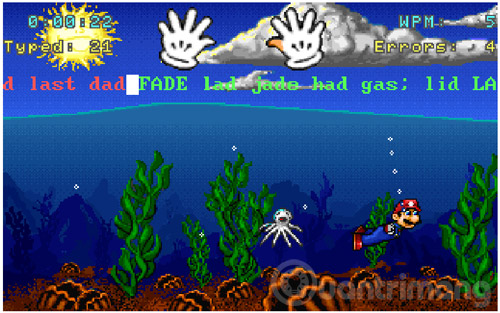
There is a small note in this section that the text in the game is in English, so please turn off Unikey to speed up typing, avoid mistyping when typing unaccented characters, making the final result inaccurate.
Lesson 3: Practice typing text with long sentences
Basically, lesson 3 is quite similar to lesson 2, except that Mario will walk on land and the words in the sentence you type are also longer.
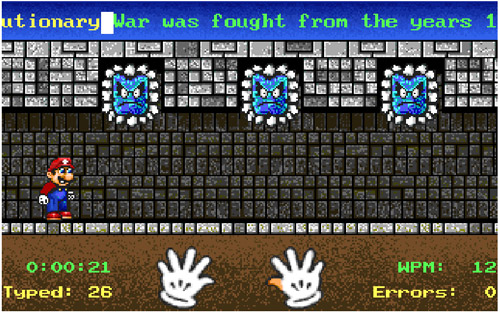
Lesson 4: Practice typing with 10 fingers
This lesson was created to practice typing with 10 fingers. You will see meaningless characters arranged in rows. If you pay close attention, you will see that it requires you to type alternately between the fingers of both hands, continuously. continuously, thereby training your hand's reflexes when typing. This is a quite interesting lesson about 10-finger typing technique.
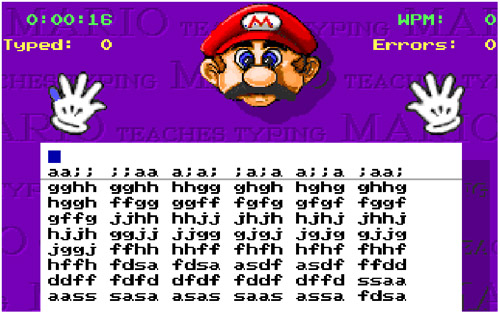 Practice typing with 10 fingers with Mario Teaches Typing game
Install Mario 10-finger typing practice software on your computer
Mario Teaches Typing is available to play on Chrome browser, you can play Mario Teaches Typing or download it to your computer, however because it is a fairly old game written on the Windows platform, you need to install DOSBox to play this game:
You install DOSBox as usual. After installation, open DOSBox.
Step 1: Unzip the downloaded Mario file, put it on any drive you want, for simplicity you should just leave it outside, in this article I put it on drive F.
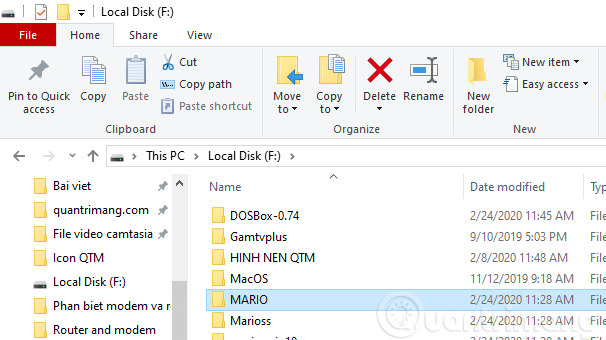
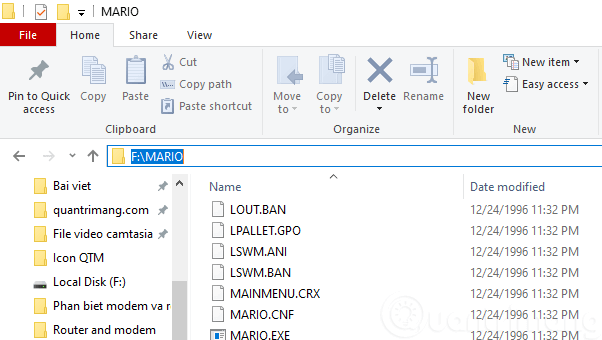
Step 2: Enter the command (change the name of the drive where you copy the game files, if C is mount CC:Mario, D is mount DD:Mario):
mount F F:Mario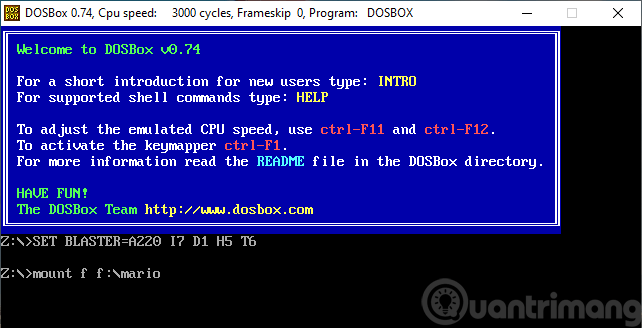
Step 3: Next enter the command (also change the drive name if it's different from yours, C: or D:):
F: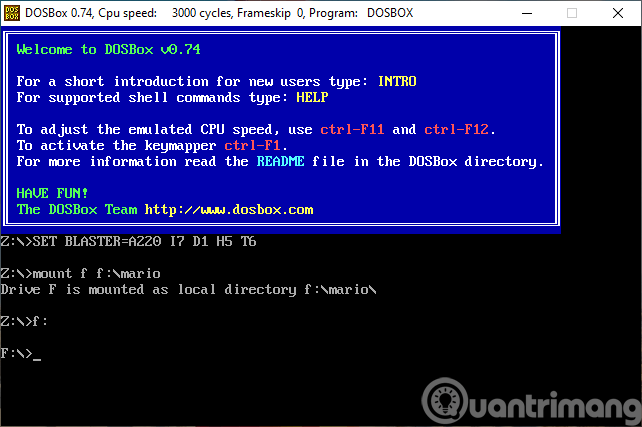
Step 4: Enter the next command:
Mario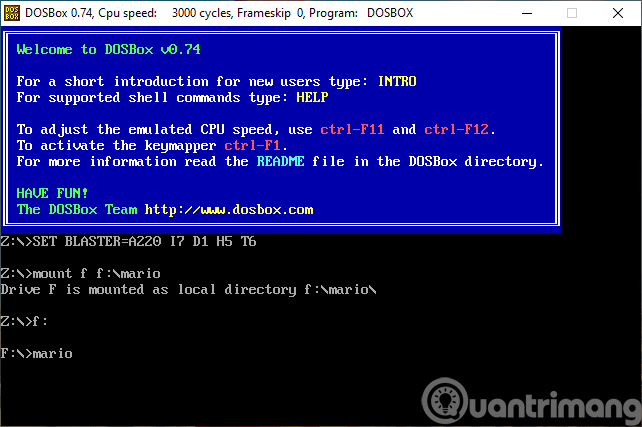
The game will be opened immediately, you choose the mode and play. During this process, the mouse will not be usable outside the game window. To exit the game, press the Q key , then enter the exit command into the cmd window.
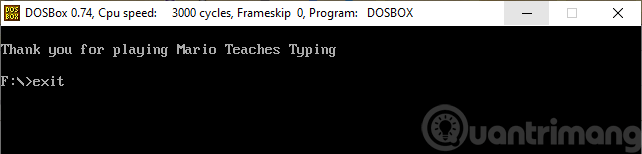
Every time you want to open the game you will have to repeat steps 2 to 4.
Fun game, characters, graphics, music take you back to the early 90s, very interesting. Most importantly, it not only helps improve typing speed but also helps you avoid stress and boredom when practicing typing on the computer.
Final Thoughts
Use the instructions and checks above in order, verify the result after each major step, and keep a backup whenever the process changes important files or system settings.
FAQ
What is Mario Teaches Typing used for?
Mario Teaches Typing is a computer typing practice game, modeled after the famous Mario game.
Who should consider Mario Teaches Typing?
It is most useful for readers who need the features, workflow, or problem-solving approach described in this guide.
What should I check before using it?
Review compatibility, current software requirements, privacy or security settings, costs, and any limitations that could affect your workflow.
Related Articles
 Practice Typing 10 Fingers, Typing Fast with Mario Teaches Typing6 minutes read
 minutes read
 Typing with 10 Fingers, Practice Typing with 10 Fingers6 minutes read
 Practice Typing 10 Fingers to Speed up Typing: Office Computing4 minutes read
 Top Websites to Practice Typing 10 Fingers Quickly in 202411 minutes read
 Typing 10 Fingers, Practice Typing with 10 Fingers Fastest4 minutes read
Reader Comments 0
Sign in with email or Google to join the discussion.