Table of Contents
This practical guide explains how to get another year of free Windows 10 updates. Follow the steps in order, review the requirements first, and use the troubleshooting notes when a setting or option does not work as expected.
- 1 year of security patches for individual users.
- 3 years for business.
Ending support doesn't mean your PC will stop working, but not getting patches does mean you're at risk of security issues. If you can't move to Windows 11 yet, you can sign up for ESU for free. Here's how.
Note : As of July 16, the ESU enrollment tool is only available on Windows 10 Preview (Release Preview channel), but will be rolled out to all users in late July or August.
3 Ways to Get the ESU Update
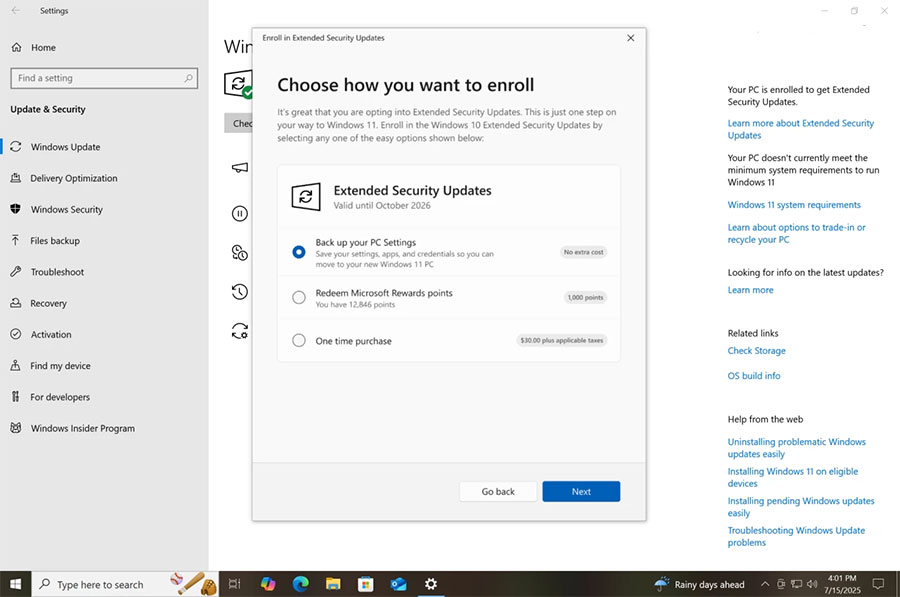
- Free: Sign in with Microsoft account + backup settings.
- Pay with 1,000 Microsoft Rewards points.
- Pay $30 (prices may vary by region).
In this guide, we'll focus on the first option, describing how to get Windows 10 security updates for free.
-
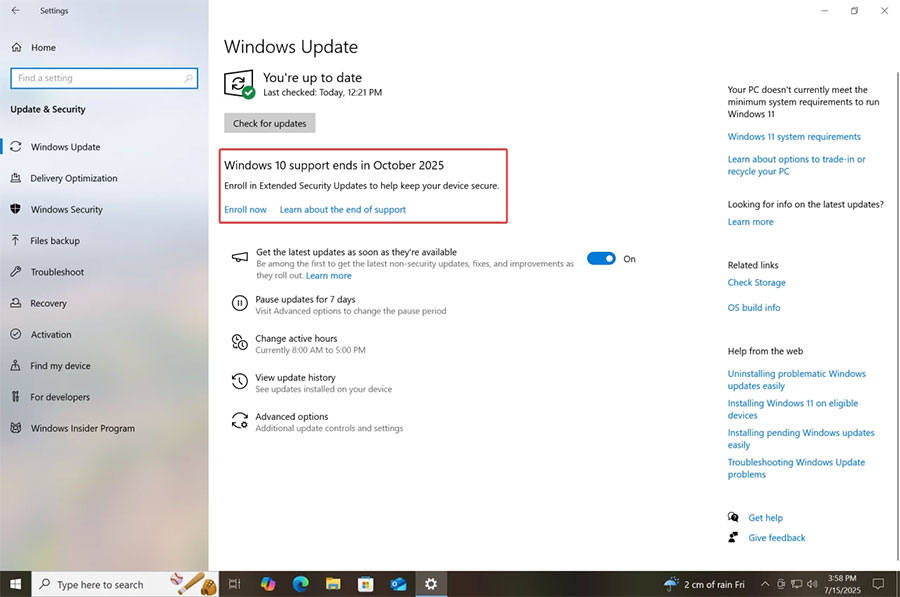
Go to Settings > Update and Security > Windows Update
-
Download and install all available updates
-
Go back to the Settings app and look for the " Windows 10 support ends in October 2025 " banner
-
Click " Enroll Now "
-
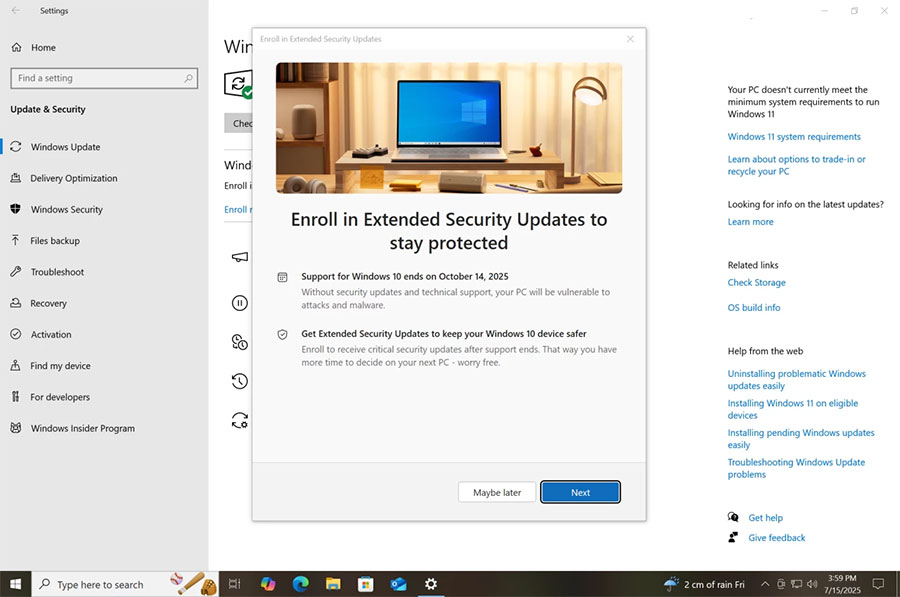
Windows 10 will open the ESU wizard. Click Next
-
If you're using a local account, Windows will ask you to sign in with a Microsoft Account.
-
Once you sign in, you'll see three options available: back up your settings and get the update for free, pay with 1,000 Microsoft Rewards points, or pay $30. Choose the first option.
Additionally, before registering, you can:
-
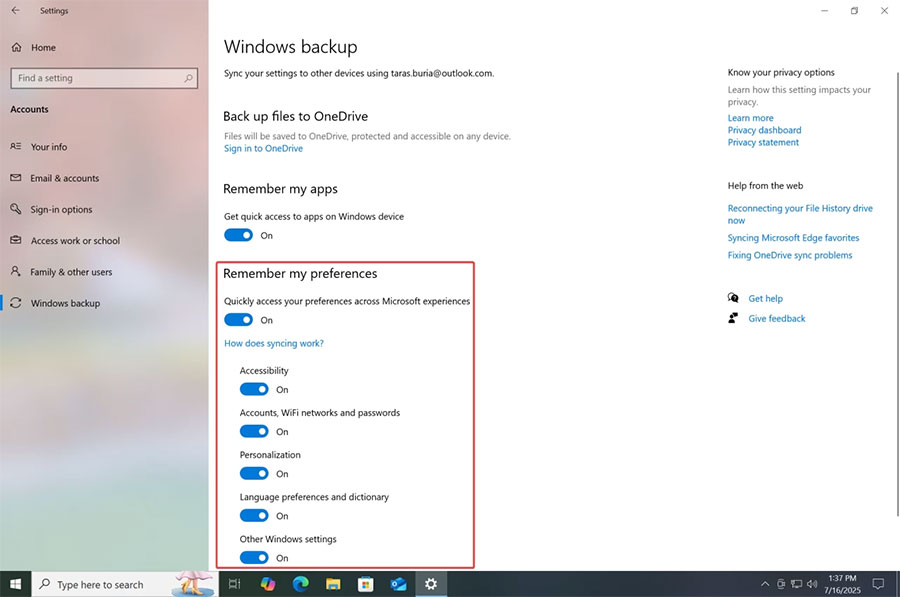
Go to Settings > Accounts > Windows Backup and turn on " Remember my preferences" and all the sub-switches
-
Or open the Windows Backup app from the Start Menu, click " Back up this PC " and wait for Windows 10 to save your data to the cloud.
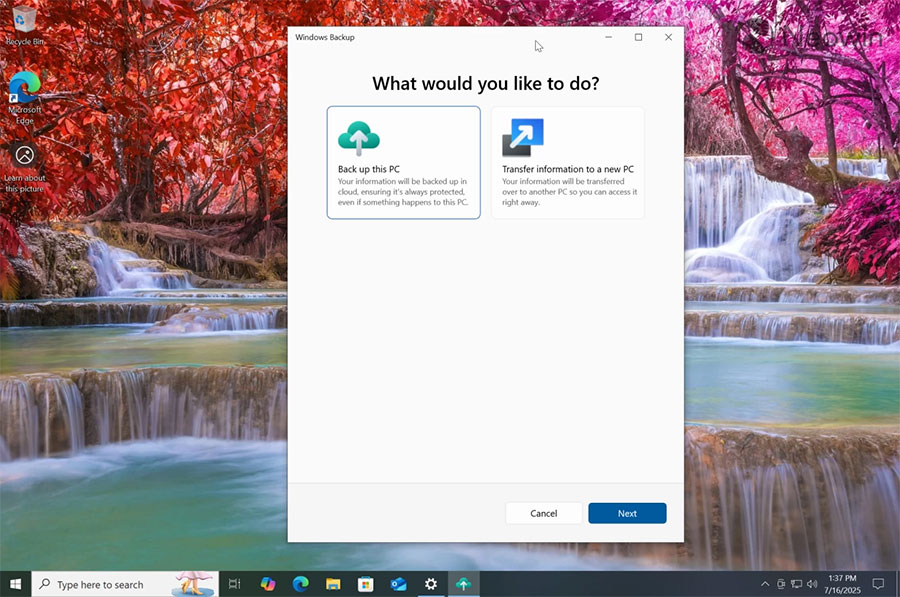
8. If you have backed up your settings, Windows will notify you that you are eligible for free updates. If not, it will prompt you to back up.
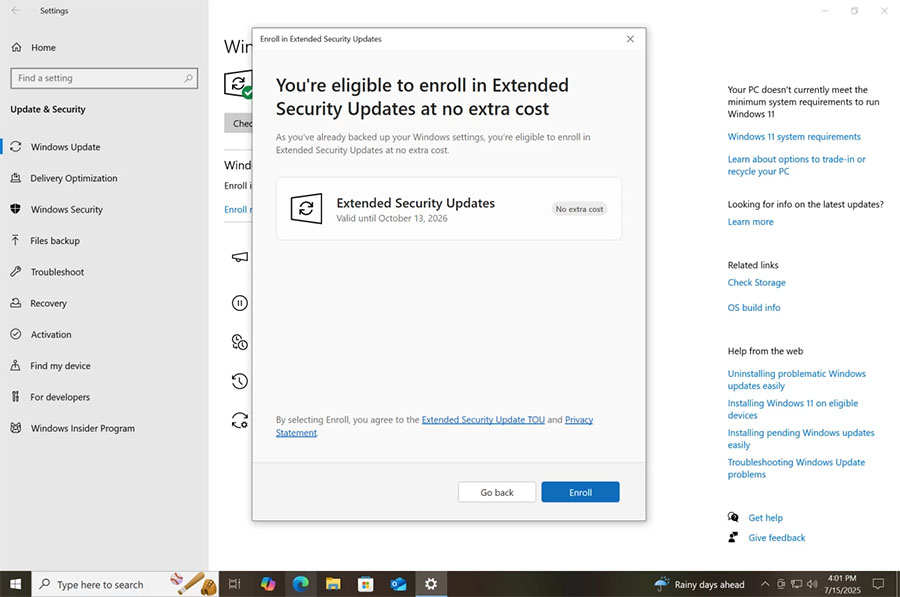
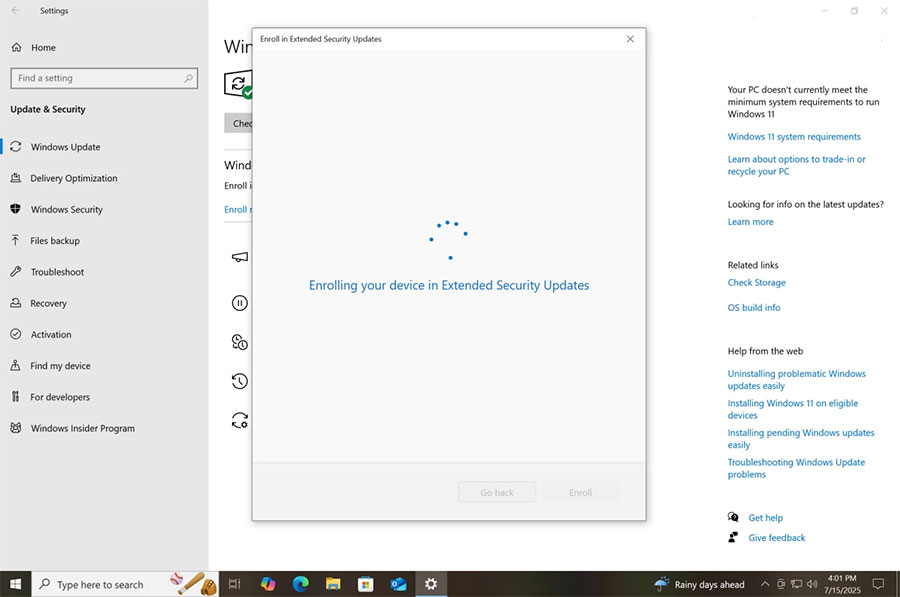
9. Click "Enroll" and wait for the wizard to complete the registration.
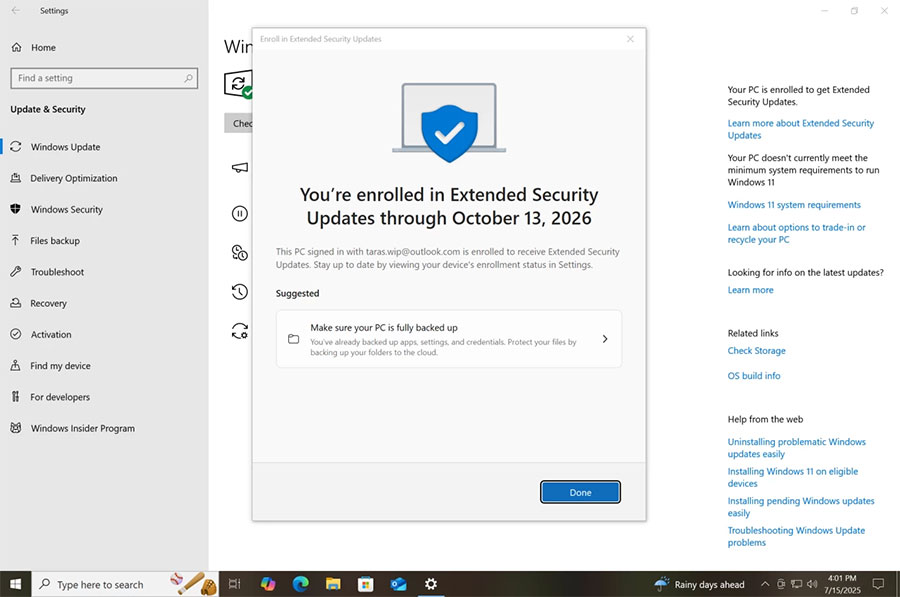
Done! Your system is enrolled in the Extended Security Update Program, which gives you one year of security updates through October 13, 2026. After that, you're on your own.
If you're on Windows 10, what are your plans? Will you sign up for the ESU program or move to Windows 11?
Share your plans in the comments!
Warning : Continuing to use unpatched Windows 10 leaves your computer vulnerable to malware, ransomware, and security vulnerabilities. Consider upgrading soon!
FAQ
What should you know about 3 Ways to Get the ESU Update?
Free: Sign in with Microsoft account + backup settings.
What does this guide cover?
This guide explains get another year of free Windows 10 updates, including the main steps, important details, and practical considerations.
Who is this guide for?
It is designed for readers who want a clear, practical overview and a reliable process they can follow without unnecessary complexity.
Related Articles
 Windows 7 Will Be Updated for Free for Another Year for Certain3 minutes read
 Microsoft Closed the Expiration Date for Free Updates to Windows 10 on January 16, 20183 minutes read
 5 Most Desirable Things on Windows 10 in 201910 minutes read
 How to Stop Windows Updates on Your PC10 minutes read
 How to Join Windows Insider to Download and Experience the Latest5 minutes read
 Even If Support Is Discontinued, You Can Still Hack Windows 7 to4 minutes read
Reader Comments 0
Sign in with email or Google to join the discussion.